

Microsoft’s migration and enterprise backup moves are tightening the lifelines for businesses and power users preparing to leave Windows 10 behind, but the convenience comes with operational caveats IT teams must plan for now. In recent weeks Microsoft and third‑party reporting have surfaced two related developments: a native migration/backup flow intended to make upgrading to Windows 11 simpler for end users, and a new enterprise‑oriented “Windows Backup for Organizations” feature that preserves user settings and Microsoft Store app lists for identity‑backed restores. Both are pragmatic steps toward reducing migration friction — yet neither replaces full disk imaging or an established backup policy, and both introduce new configuration and security obligations that organizations must treat as part of their upgrade runway. This feature explains what’s changed, verifies the technical claims, and gives practical, risk‑aware guidance for IT teams and savvy consumers preparing for upgrades and ongoing protection.
Microsoft’s message to organizations over the last 18 months has been consistent: move eligible devices to Windows 11 or enroll unsupported devices in Extended Security Updates. Windows 10 reached its official end of support on October 14, 2025; after that date Microsoft no longer provides routine security or feature updates for consumer editions and most business SKUs. This lifecycle milestone converted what had been an optional user experience refresh into a tangible operational deadline for many shops and home users. At the same time, Microsoft has increasingly focused on identity‑anchored recovery and cloud‑assisted device continuity: restore experiences tied to a Microsoft Entra ID account, first‑sign‑in restores, and tools to make device refresh less manual for admins. Those strategic shifts are the context for the two new items covered below: the native migration/transfer experience reported in preview builds and the formal release of Windows Backup for Organizations. The product messaging emphasizes speed of recovery and user continuity rather than image‑level disaster recovery.
Microsoft’s direction is clear: make the user’s environment portable and identity‑centric while nudging organizations toward the stricter security baseline of Windows 11. The new tools materially reduce friction for many migrations — but they also shift some responsibility back onto IT to validate disk health, escrow encryption keys, and retain full‑image backups. Treat them as important new tools in the migration toolbox, not as a replacement for the established ones.
Source: MSN http://www.msn.com/en-gb/money/tech...nually-resize-partitions-to-fix-the-problem/]
 Background
Microsoft’s message to organizations over the last 18 months has been consistent: move eligible devices to Windows 11 or enroll unsupported devices in Extended Security Updates. Windows 10 reached its official end of support on October 14, 2025; after that date Microsoft no longer provides routine security or feature updates for consumer editions and most business SKUs. This lifecycle milestone converted what had been an optional user experience refresh into a tangible operational deadline for many shops and home users. At the same time, Microsoft has increasingly focused on identity‑anchored recovery and cloud‑assisted device continuity: restore experiences tied to a Microsoft Entra ID account, first‑sign‑in restores, and tools to make device refresh less manual for admins. Those strategic shifts are the context for the two new items covered below: the native migration/transfer experience reported in preview builds and the formal release of Windows Backup for Organizations. The product messaging emphasizes speed of recovery and user continuity rather than image‑level disaster recovery. What Microsoft announced (and what the press reported)
A native migration experience: more than Nearby Sharing
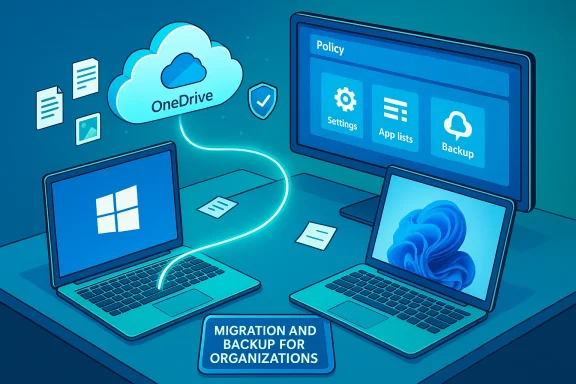
Microsoft has been testing a native migration app that appears inside Windows’ Backup experience. The feature offers two primary modes: cloud backup via OneDrive and direct local transfer over Wi‑Fi (leveraging Nearby Sharing‑style pairing). Early signals show the flow aims to scan a user’s PC, back up settings and files to a cloud profile or push them over the local network to a new device, and provide a guided restore during setup. Early reporting and leaked Insider artifacts describe pairing via a one‑time code, resumable transfers, and automatic handling of common user folders. These details are consistent across independent previews and community reconstructions.- What it targets: documents, photos, system settings, and a list of Microsoft Store apps (for later restoration on Windows 11).
- What it doesn’t (currently) do: migrate installed Win32 applications or perform a full image/drive clone. Early coverage flags installed programs as still requiring manual reinstallation.
Windows Backup for Organizations: identity‑backed, admin‑controlled
Microsoft publicly released a managed, enterprise feature called Windows Backup for Organizations. This feature is targeted at Microsoft Entra‑joined or hybrid‑joined devices and is intended to:- Back up user settings, preferences, and the list of Microsoft Store apps (backup capability is available on Windows 10 22H2 and newer builds).
- Restore settings and Store app lists during Out‑of‑Box Experience (OOBE) or at first sign‑in on Windows 11 devices that meet specified build minimums.
- Require IT admins to opt in and enable backup/restore policies via Intune or equivalent MDM tooling.
Verification: the technical facts checked
Any migration and backup tool must be judged against three measurable claims: what it backs up, under what conditions it restores, and whether it replaces existing disaster‑recovery tools.- Windows 10 end of support: Microsoft’s official lifecycle pages confirm Windows 10 reached end of support on October 14, 2025. That date is the driver for much of the urgency around these new features.
- Windows Backup for Organizations capabilities and requirements: Microsoft’s product documentation defines the backup/restore scope (settings and Microsoft Store app lists), the Entra join requirement, and build prerequisites for backup and restore on Windows 10 and Windows 11. The feature is opt‑in and must be enabled by IT. These statements are present in the official Windows configuration and Intune guidance.
- Migration app behavior (preview/insider reporting): Insider build artifacts and community reconstructions show the migration flow supports local transfers and OneDrive‑backed backups, with secure pairing and resumable transfers. These items appear in preview coverage and community analysis; Microsoft has not yet marketed the native transfer flow as a full replacement for disk imaging. Treat preview claims as features in motion.
- BitLocker and recovery implications: Microsoft’s BitLocker documentation highlights the dependency between recovery partitions/WinRE updates and BitLocker integrity. An outstanding WinRE update (for example, the January 2024 WinRE servicing update) required a minimum amount of free space in the recovery partition to install properly — and encountering insufficient WinRE partition space is a documented reason for update failures (error 0x80070643). Microsoft and community guidance recommend manual WinRE partition resizing when required.
Strengths: why these features matter
- Reduced time to productivity. Restoring settings and Store app lists during OOBE or first sign‑in can shave hours off user onboarding and device refresh workflows, especially for non‑technical end users. Administrators report fewer helpdesk tickets for UI and personalization issues when identity‑backed restore is available.
- Identity‑anchored continuity. Tying restore profiles to Microsoft Entra ID aligns the user’s settings with their identity rather than the physical device; that model supports modern fleet management and Cloud Rebuild-style recovery playbooks. The result: a more consistent experience across multiple devices for the same user.
- Safer and more user‑friendly transfers. The local transfer approach (resumable, code‑paired, Wi‑Fi based) mirrors the mobile ecosystem’s migration flows and reduces dependency on physical media and third‑party transfer utilities that non‑technical staff often misuse. Early previews show the transfer is designed to re‑pair and resume after interruptions, an important usability improvement.
- Administrative control. Because Windows Backup for Organizations is disabled by default and configurable via Intune, organizations retain governance and privacy controls. Admins can decide whether to enable backups at a tenant level and manage retention/policy settings centrally.
Risks and limitations — what IT teams must plan for
- Not a full backup or image. The enterprise backup feature and the native migration flows do not perform disk imaging, system state capture, or full VM snapshots. They are designed to preserve Windows settings and Store app lists — not restore installed Win32 applications, device drivers, or custom system images. Relying on them as a one‑stop disaster recovery plan is a classification error.
- Entra join requirement and platform gating. The enterprise restore path requires Microsoft Entra join (or hybrid join) and specific Windows builds. Restores during OOBE and first sign‑in are currently supported only on Windows 11 builds that meet Microsoft’s build minimums; backup from Windows 10 is allowed, but restore to Windows 10 is limited or unsupported. This staging nudges organizations to accelerate Windows 11 adoption but also forces a compatibility checklist for mixed environments.
- Regulatory and privacy considerations. Backing up settings to a cloud identity introduces new data flows. Organizations in regulated industries must validate where backup data is stored, retention policy, and whether backup metadata may contain business‑sensitive configuration. Although Microsoft’s docs describe the feature as enterprise‑controlled, compliance reviews are mandatory.
- BitLocker, WinRE, and update dependencies. The KB5034441 WinRE servicing issue is an example where subtle platform maintenance (a recovery partition with insufficient free space) can block security updates and create risk. In that case Microsoft documented manual steps to extend the WinRE partition; community and vendor articles show many users had to perform careful partition edits or pause the update. Any migration plan must include disk‑layout checks, BitLocker key escrow, and WinRE health validation to avoid being blocked by a recovery partition issue.
- False comfort for app migration. Users and helpdesk staff often assume “backup” = “all my apps and settings will return.” The new tools preserve settings and Store app lists; Win32 apps, custom registry hacks, hardware vendor drivers, and license entitlements typically require separate handling. This gap is where imaging and application packaging remain necessary.
Practical migration checklist (operational steps)
- Inventory and eligibility
- Run the Windows PC Health Check and inventory devices for Windows 11 hardware requirements (TPM 2.0, Secure Boot, supported CPU list, 4 GB RAM, 64 GB storage). These are non‑negotiable for Windows 11 upgrade eligibility.
- Identify machines that must stay on Windows 10 and budget for ESU or plan for device replacement.
- Backup and imaging strategy
- Continue to maintain full system images for disaster recovery (use tools like Macrium Reflect, Acronis, or enterprise imaging solutions).
- Use Windows Backup for Organizations to preserve user settings and Microsoft Store app lists — but treat it as complementary to, not a replacement for, full images.
- BitLocker and WinRE checks
- Ensure BitLocker recovery keys are escrowed to Microsoft Entra / Active Directory before making partition changes or performing large updates.
- Verify the Windows Recovery Environment (WinRE) is enabled and has adequate free space; if updates like KB5034441 are applied, confirm the recovery partition meets Microsoft’s minimum size expectations and follow the guidance to extend it if required.
- Test the restore flow
- Enable Windows Backup for Organizations in a pilot tenant and perform end‑to‑end tests: create a backup, reprovision a device (or reset a VM), and confirm the restore during OOBE or first sign‑in works per policy.
- Verify that Store app pins, layout, and settings restore as expected on Windows 11 builds that meet restore requirements.
- App and driver remediation plan
- Package critical Win32 apps with MSIX/App Installer or maintain a separate application deployment policy (Intune, SCCM) so apps can be reinstalled deterministically after identity restore.
- Maintain a driver catalog for hardware that requires vendor drivers not delivered by Windows Update.
- Communication and user training
- Tell users what the new restore will and won’t do (settings vs. full app migration) to set expectations.
- Provide a simple checklist for users before an upgrade: back up documents to OneDrive, verify BitLocker recovery key backup, and confirm Entra sign‑in credentials.
How to handle KB5034441 style surprises (real operational guidance)
The KB5034441 failure episodes are instructive: even with modern management, a small partition size or WinRE misconfiguration can block a security servicing update and create a persistent update failure state. The safe operational sequence is:- Don’t attempt partition edits without a verified full image backup.
- Escrow BitLocker recovery keys before manipulating partitions.
- Follow Microsoft’s documented steps to disable WinRE, shrink the OS partition, create/extend the recovery partition, and re‑enable WinRE; test in a VM or lab first. Microsoft’s Q&A and support pages document the exact steps and explain the error codes associated with insufficient recovery partition space.
- If unsure, escalate to a specialist or use trusted third‑party partition tools with verified backup.
Security implications and compliance considerations
- Data flows: Identity‑backed backups move configuration and metadata into controlled cloud storage; review tenant settings, retention policies, and regional availability (some sovereign clouds are excluded). Microsoft’s documentation lists limitations for GCCH/Sovereign clouds and China/21Vianet.
- BitLocker and disk layout: An improperly sized recovery partition can permit an attacker to exploit WinRE or BitLocker weaknesses when updates aren’t applied. The KB5034441 case illustrates how platform maintenance can have security implications beyond the immediate update. Escrow keys, verify WinRE, and keep emergency recovery processes documented.
- Data residency and privacy: Organizations in regulated markets must evaluate the backup content (settings can sometimes contain personalized data references) against local data‑protection rules.
Bottom line — a balanced verdict
Microsoft’s migration convenience features and the Windows Backup for Organizations service are pragmatic, well‑targeted steps that reduce friction during device refresh and accelerate user recovery after resets or reimages. They are especially valuable for organizations that want a faster path to user productivity during staged Windows 11 rollouts. However, these features are identity‑centric, not image‑centric. They complement but do not replace full backup, imaging, and application‑deployment practices.- Adopt Windows Backup for Organizations as a supplement to your existing DR and imaging playbooks.
- Prioritize inventory and WinRE/BitLocker checks before broad deployments.
- Pilot extensively — test OOBE restores and validate that Store app lists and settings restore reliably for representative users.
- Treat KB5034441‑like problems as reminders to maintain disk hygiene and automate checks for recovery partition health.
Quick operational checklist (actionable next steps)
- Inventory devices for Windows 11 eligibility today.
- Escrow BitLocker keys to Entra/AD before any partition edits.
- Pilot Windows Backup for Organizations with a small user set and validate OOBE restores to Windows 11.
- Keep full system images and an app deployment pipeline (Intune/MSIX) as the canonical disaster‑recovery and app‑reinstallation method.
- Build a WinRE/partition verification script into update automation to catch the KB5034441 class of problems early.
Microsoft’s direction is clear: make the user’s environment portable and identity‑centric while nudging organizations toward the stricter security baseline of Windows 11. The new tools materially reduce friction for many migrations — but they also shift some responsibility back onto IT to validate disk health, escrow encryption keys, and retain full‑image backups. Treat them as important new tools in the migration toolbox, not as a replacement for the established ones.
Source: MSN http://www.msn.com/en-gb/money/tech...nually-resize-partitions-to-fix-the-problem/]
