

Installing Windows on a Chromebook sounds like a tempting hack: the familiar flexibility of Windows combined with the slim hardware and long battery life of a Chromebook. The reality, however, is less glamourous and more pragmatic — after years of incremental improvements on both sides, the trade-offs required to shoehorn Windows into Chromebook hardware usually leave users with a slower, less secure, and more fragile device than either OS alone would provide. The argument that Windows “unlocks” a Chromebook’s potential is increasingly outdated; ChromeOS now covers more mainstream use cases, and the technical, security, and support costs of swapping operating systems are real and measurable.
Chromebooks were engineered from the outset as a cloud-first, lightweight user experience. ChromeOS places the browser and web apps at the center of the workflow, with Android and Linux app compatibility layered in to broaden functionality without bloating the base system. That approach favors fast boot times, long battery life, and minimal background maintenance on modest hardware.
Windows is a full-featured desktop OS built for broad hardware and software compatibility. It carries decades of legacy support and a much larger application ecosystem — but with that power comes greater resource demands, more services running by default, and a much larger driver and update surface that can increase complexity on budget hardware.
When communities document successful conversions, they typically recommend only the most capable Chromebook models and stress the need for advanced backup and recovery preparations. MrChromebox and other community tooling make the effort possible, but they do not reduce the inherent compatibility and support risk.
For most users, the right advice is clear:
Source: Digital Trends Why I wouldn’t install Windows on a Chromebook
 Background: two operating systems designed for different jobs
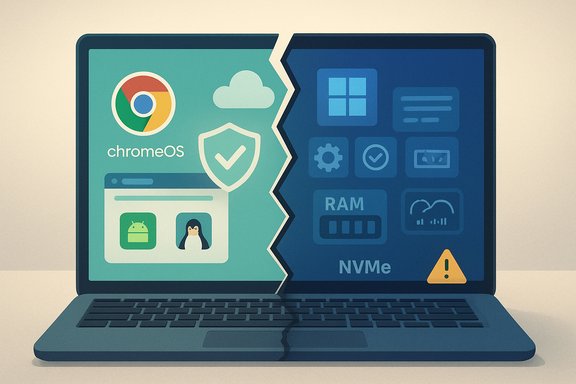
Chromebooks were engineered from the outset as a cloud-first, lightweight user experience. ChromeOS places the browser and web apps at the center of the workflow, with Android and Linux app compatibility layered in to broaden functionality without bloating the base system. That approach favors fast boot times, long battery life, and minimal background maintenance on modest hardware.Windows is a full-featured desktop OS built for broad hardware and software compatibility. It carries decades of legacy support and a much larger application ecosystem — but with that power comes greater resource demands, more services running by default, and a much larger driver and update surface that can increase complexity on budget hardware.
- ChromeOS: optimized for web, Android, and containerized Linux workflows; minimal background services; strong built-in security features.
- Windows: supports legacy desktop apps, professional creative suites, specialized engineering software, and a vast peripherals ecosystem — but expects more storage, CPU, and RAM headroom.
Why the “install Windows on a Chromebook” idea persists
Two motivations keep this project alive in enthusiast communities:- The desire for native Windows apps (full Office, Adobe desktop apps, legacy line-of-business software).
- A hobbyist urge to tinker — flashing firmware and bypassing platform restrictions is a badge of honor for some.
Performance realities: hardware often limits the payoff
Most Chromebooks are built with entry-level SoCs (Intel N-series, Jasper Lake, or ARM equivalents), modest RAM (4–8 GB on many models), and cost-optimized storage (eMMC or soldered UFS). Those components are excellent for ChromeOS’s streamlined needs, but they under‑spec many Windows 11 workflows.- eMMC/UFS vs NVMe SSD: eMMC and embedded UFS parts are substantially slower than NVMe SSDs, especially for random I/O. That shows up in longer application launch times, slower updates, and sluggish swap performance when RAM is constrained. Modern NVMe SSDs beat eMMC by multiple factors in both sequential and random I/O metrics.
- RAM and background services: Windows runs numerous background services and background update/telemetry processes by default. On machines with limited RAM, these can crowd out foreground tasks and cause the system to page to storage frequently, further penalized by slow eMMC storage.
- CPU headroom: Low-power mobile CPUs in many Chromebooks are great for web workloads but often lack the single-thread and multi-thread performance that Windows productivity and creative apps expect.
Driver and compatibility pain points
Successful Windows installations require device drivers for every major subsystem: touchpad, Wi‑Fi, Bluetooth, webcam, audio, power management, and HID controllers. Many Chromebook components are tuned for ChromeOS and lack official Windows drivers from the OEM or component vendor.- Missing drivers are not hypothetical: communities and troubleshooting threads contain long lists of Wi‑Fi chipsets, touchpad controllers, and cameras that are poorly supported or entirely unsupported in Windows on Chromebook hardware. That creates degraded hardware support even when Windows boots successfully.
- Firmware tweaks and custom drivers: Enthusiasts sometimes compile or repurpose Linux/Windows drivers, but these are fragile, often incomplete, and may never match the polished OEM implementations found on native Windows laptops.
Security and warranty implications
ChromeOS is built with a layered security model that includes Verified Boot, read-only system partitions, sandboxing, and hardware roots of trust (Titan chips on premium models). Those protections are part of the platform’s value proposition: simplified, resilient security for everyday users. Google documents how verified boot and hardware roots of trust prevent persistent tampering and support seamless rollback when corruption is detected. Installing Windows rarely preserves those protections:- Enabling Developer Mode, disabling verified boot, or flashing custom firmware (the usual steps to make Windows installable) removes or weakens those hardware-backed protections.
- Flashing custom firmware via community tools will usually void warranties and removes official vendor support.
- Recovery to stock ChromeOS is possible on many devices, but it isn’t instant — and in some cases, the process can brick devices if firmware steps go wrong.
The typical technical path — and why it’s risky
For Intel-based Chromebooks, the common route to install Windows includes these steps:- Enable Developer Mode in ChromeOS (erases local data and disables verified boot prompts).
- Use a community firmware utility (for example, the MrChromebox scripts) to install a UEFI Full ROM or RW_LEGACY firmware so the Chromebook can boot a Windows installer. MrChromebox’s firmware‑utility scripts are the de‑facto community tool and remain widely used, but the process is explicitly unsupported by OEMs.
- Boot a Windows USB installer and proceed with a standard Windows install.
- Hunt for and install drivers, sometimes using community-supplied, reverse-engineered, or third-party drivers.
- Steps 2 and 3 replace or alter platform firmware that was intentionally designed to ensure secure boot and platform integrity. That change is irreversible in some cases or difficult to roll back for a casual user.
- Flashing the wrong ROM, failing to disable hardware write protection correctly, or using an incomplete firmware image can leave the system unbootable.
- Community firmware tools are actively maintained but also have open issues and edge cases; expect to troubleshoot unpredictably if you pursue this route. The community knowledgebase is helpful but uneven.
Gaming and media: a disappearing use case
One argument enthusiasts use for Windows on Chromebooks is gaming. Historically, Google and Valve experimented with a Steam for Chromebook program to bring PC games to ChromeOS, but that initiative has struggled to scale and is being wound down. In mid‑2025 Google and Valve announced the Steam for Chromebook beta will end on January 1, 2026, and existing installs will no longer be playable after that date — a clear sign that native PC gaming on most Chromebooks wasn’t viable at scale. The move underscores the hardware limitations of most ChromeOS devices for native PC gaming and the industry’s pivot toward cloud streaming as a practical alternative. Cloud gaming services (GeForce NOW, Xbox Cloud Gaming, Shadow/Parity-style streaming) are now the pragmatic way to play modern AAA games on a Chromebook, without having to compromise the machine’s original design.When installing Windows might make sense (rare cases)
There are a few specific scenarios where installing Windows on a Chromebook can be defensible:- The Chromebook is a secondary, disposable, or lab device used for tinkering and testing.
- The user fully understands and accepts the warranty void, security downgrade, and support challenges.
- The target device is high-end (Framework Chromebook, Pixelbook-like developer-friendly devices, or convertible models with proven community support) and has adequate RAM, NVMe storage, and a CPU that meets Windows’ needs.
- The user requires a specific, Windows-only tool that cannot be virtualized, streamed, or accessed via a cloud desktop.
Practical alternatives that preserve value
Before attempting a Windows conversion, consider these less destructive paths:- ChromeOS + Linux (Crostini): Many development tools, open-source apps, and even some desktop-class software are available in the Linux container built into ChromeOS. For many workflows, Linux on ChromeOS solves the problem without removing ChromeOS security and manageability.
- Parallels Desktop for Chrome Enterprise: For managed enterprise Chromebooks, Parallels can run Windows in a VM with official support on selected models — a proper way to access Windows apps without flashing firmware or voiding warranties.
- Cloud-hosted Windows desktops: Services like Windows 365 or Azure Virtual Desktop let you run a full Windows session remotely and access it from ChromeOS — keeping the local device intact while providing native Windows app compatibility at cost and requiring a stable connection.
- ChromeOS Flex or a lightweight Linux distro: If the goal is to repurpose aging Windows hardware, deploying ChromeOS Flex or a lightweight Linux distribution is a safer alternative that keeps systems secure and often improves responsiveness.
What the data and community experience say
Community forums and recent writeups converge on the same practical advice: Chromebooks give the best experience when used as designed for web-first productivity; attempts to turn them into general-purpose Windows laptops are often regressions rather than upgrades. User reports consistently highlight the same trade-offs — driver gaps, sluggish performance on eMMC storage, and firmware flashing dangers — and professional testing agrees that storage and CPU constraints are the major bottlenecks.When communities document successful conversions, they typically recommend only the most capable Chromebook models and stress the need for advanced backup and recovery preparations. MrChromebox and other community tooling make the effort possible, but they do not reduce the inherent compatibility and support risk.
A practical checklist if you still plan to try it
For technically adept users who accept the risks, these steps and precautions can reduce the likelihood of irrecoverable problems:- Inventory and backup: Create a full disk image and verify backups. ChromeOS recovery media is essential.
- Research device-specific support: Confirm whether your exact model has community firmware images and known driver strategies. Check MrChromebox device lists and active issue trackers.
- Use the right hardware: Prefer devices with NVMe SSDs, >=8 GB RAM, and Intel x86 processors that officially support Windows driver sets.
- Prepare recovery: Have a tested ChromeOS recovery USB and firmware restoration plan.
- Expect missing features: Plan for workarounds for Wi‑Fi, touchpad gestures, webcam, and power management if official drivers are not available.
- Accept warranty and support consequences: OEM support will be limited or non-existent after firmware changes.
Conclusion — a strategic recommendation
Installing Windows on a Chromebook was once an intriguing hobbyist project that made sense for some early adopters who wanted full desktop compatibility on inexpensive hardware. Today, the balance has swung the other way. ChromeOS has matured into a practical platform for mainstream users, with Android and Linux compatibility, cloud-first integrations like Microsoft 365 web apps, and enterprise options (Parallels, Chrome Enterprise) that reduce the need to force Windows onto the platform. Meanwhile, the technical, security, and support costs of flashing firmware and running Windows on Chromebook hardware remain real, measurable, and frequently painful.For most users, the right advice is clear:
- If you need Windows-native software regularly and rely on it for productivity or professional reasons, buy a Windows laptop with the right specifications.
- If your needs are web‑centric, use ChromeOS as intended — it’s faster, simpler, and more secure for those use cases.
- If you’re an enthusiast who loves tinkering and fully understands the risks and recovery path, proceed cautiously, and treat the project as a hobby, not a migration strategy.
Source: Digital Trends Why I wouldn’t install Windows on a Chromebook
