• Thread Author
Microsoft has confirmed a fresh wave of regressions tied to the January Patch Day security updates: some applications may stop responding or report errors when opening or saving files stored in cloud-synced locations such as OneDrive or Dropbox, Outlook Classic profiles that store PSTs on OneDrive can hang or refuse to reopen, and a set of related problems (Remote Desktop sign‑in failures and Secure Launch shutdown/hibernate regressions) prompted emergency out‑of‑band fixes within days of the monthly rollup. .

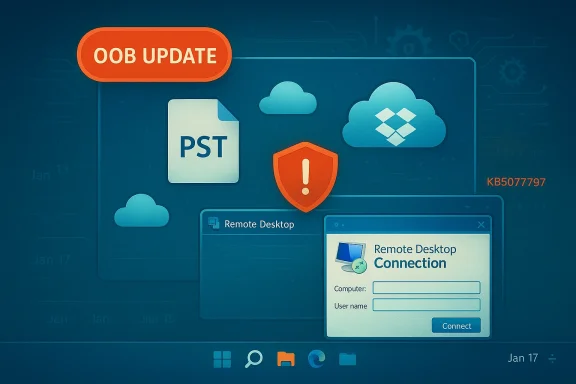
OOB UPDATE alert showing a PST file, cloud icons, a warning shield, and a Remote Desktop window.Background / Overview​

The January servicing wave was distributed on Patch Tuesday, January 13, 2026, as cumulative security updates across Windows servicing branches. In the days following the rollouts, telemetry and customer reports converged on multiple, distinct regressions: (1) credential and authentication failures that blocked Remote Desktop and cloud‑PC sign‑ins; (2) a configuration‑dependent power‑state regression on some Windows 11, version 23H2 machines with System Guard Secure Launch enabled (devices restarted instead of shutting down or entering hibernation); and (3) application hangs and file‑I/O errors affecting apps that operate on cloud‑synced storage (for example Outlook PSTs in OneDrive). Microsoft acknowledged its Release Health notes and issued emergency out‑of‑band (OOB) cumulative updates on January 17, 2026 to address the most severe regressions. These incidents highlight the tension between rapid security delivery and operational stability across an extremely diverse installed base. The January rollup patched a broad slate of vulnerabilities, but interactions between new servid platform features (like Secure Launch), authentication flows used by the modern Windows Remote Desktop App, and apps that rely on cloud‑backed storage produced the visible failures. Multiple independent community threads and industry outlets tracked the sequence of events and the fixes Microsoft supplied.

What Microsoft says (and which versions are affected)​

Microsoft has documented the issues and the subsequent OOB remediation packages on its Release Health dashboard and support pages. The Remote Desktop / Cloud PC credential prompt failures and related Remote Desktop authentication problems were resolved via out‑of‑band updates released January 17, 2026 (for example, KB5077793 and KB5077797 / KB5077744 depending on the branch). The Secure Launch shutdown/hibernate regression in Windows 11, version 23H2 (Enterprise / IoT SKUs where Secure Launch is typically enabled) was fixed by the OOB update KB5077797 for 23H2. Microsoft’s Outlook team also published guidance for Classic Outlook profiles (POP + PST) that may hang after the January updates and recommended mitigations such as moving PSTs out of OneDrive until a permanent fix is available. Affected platforms called out in vendor advisories include:
  • Windows 11 versions 25H2, 24H2, 23H2 (various editions).
  • Windows 10 22H2 (and certain ESU branches noted in some advisories).
  • Windows Server servicing branches (Windows Server 2025, 2022, 2019) where Remote Desktop brokered clients were impacted.
Microsoft explicitly lists the originating January cumulative KBs (for example KB5073455 for 23H2 and KB5074109 for 24H2/25H2) and the OOB fixes that supersede or amend them (for example KB5077797, KB5077744, KB5077793). Administrators should check their OS build numbers and the Release Health entries for the exact mappings to their environment.

Symptoms witnessed in the field​

Short, practical symptom list (what administrators and users reported):
  • Outlook Classic (POP) profiles and any Outlook profile with PSTs stored on OneDrive: Outlook may hang with “Not Responding,” fail to reopen (requiring Task Manager termination or a reboot), sent messages not appearing in Sent Items, and previously downloaded messages being downloaded again. Moving PST files out of OneDrive is a documented temporary port . microsoft.
  • Remote Desktop / Azure Virtual Desktop / Windows 365: credential prompt failures, repeated authentication prompts, or immediate sign‑in errors in the Windows App and some other Remote Desktop client experiences, preventing Microsoft recommended using the classic Remote Desktop client or the AVD web client as a fallback. ([learn.microsoft.com](Resolved issues in Windows 11, version 23H2 Launch shutdown/hibernate regression (Windows 11 23H2): devices with System Guard Secure Launch enabled could restart instead of powering off or entering hibernation after applying the January update. The symptom produced a brief black screen followed by a restart, undermining battery and maintenance expectations for affected endpoints. Microsoft issued an interim mitigation and an OOB update for 23H2.
  • Other community‑reported oddities: brief black screens during boot, wallpaper resets, File Explorer quirks, and occasional servicing errors during installation. Many of these remain community signals rather than vendor‑confirmed issues and should be treated with caution until Microsoft publishes definitive guidance.
Independent outlets and forum telemetry corroborated widespread user reports that matched Microsoft’s documented symptoms and the timing around the January 17 OOB patches.

Timeline: concise chronology​

  • January 13, 2026 — Microsoft publishes the January cumulative updates (Patch Tuesday). Key packages include KB5073455 (Windows 11 23H2) and KB5074109 (Windows 11 24H2/25H2).
  • January 13–16, 2026 — Telemetry and user reports surface: Remote Desktop authentication failures, Secure Launch shutdown regression on 23H2, and application hangs (notably Classic Outlook with PSTs in OneDrive).
  • January 16–17, 2026 — Microsoft logs the incidents in Release Health, publishes interim guidance, and on January 17 releases emergency out‑of‑band (OOB) updates (for example KB5077797 for 23H2 and KB5077744 / KB5077793 for other branches). Known Issue Ros and Group Policy mitigations are also made available to enterprise customers.
  • January 17–20, 2026 — OOB packages circulate; Microsoft continues investigating Outlook POP/PST hang behavior and updates support pages with workarounds (move PSTs out of OneDrive, use webmail). Some customers report the OOB fixes resolve main issues; others report lingering behavior on devices with Secure Launch enforced at firmware level.
This sequence illustrates the rapid detection-to-response cycle: four days from wide deployment to published OOB patches. That speed limited downtime for many organizations but also left room for partial fixes and mutating workarounds.

Technical anatomy — why these regressions happened​

The visible faults have different technical roots but share a common root: complex interactions between servicing changes and platform/component semantics.
  • Secure Launch + offline servicing: Secure Launch is a virtualization‑rooted early‑boot hardening feature that changes how the OS and firmware coordinate during offline servicing (the staged LCU/SSU commit phase that often occurs across reboot/shutdown). In some hardware/firmware/service sequencing combinations, the servicing orchestration failed to preserve the user’s final power intent, causing the system to fall back to a conservative restart rather than power off or enter hibernation. This pendent regression — Enterprise/IoT images with Secure Launch enabled were the most affected.
  • Authentication handshake changes: The Windows App and certain remote client flows use a modern authentication handshake and brokered token exchange. The January update altered a client‑side component used in the credential prompt/authentication sequence. That change broke the handshake for some Remote Desktop/Cloud PC scenarios, producing repeated credential prompts or immediate failures. Because backend cloud services were not the primary cause, Microsoft remedied the client with OOB updates and offered KIR/artifacts to revert the problematic change for managed fleets.
  • App behavior with cloud‑backed storage: Applications that treat cloud‑synced folders as local storage (PSTs saved to OneDrive, D rely on file system semantics that can be affected by changes in file caching, opportunistic file locking, or the interaction between cloud sync clients and the OS update. In this case, Outlook Classic profiles storing PSTs in OneDrive sometimes hung on file open/save operations after the update. Microsoft’s immediate workaround was to remove PSTs from cloud‑sync locations and use webmail access where possible.
These are not "single-line" bugs but emergent behaviors where servicing code interacts with firmware, virtualization security features, authentication flows, and third‑party sync clients in ways that were not fully represented in test coverage across the installed base. The narrow configuration dependency explains how an otherwise broadly rolled security update produced targeted but operationally severe consequences.

What Microsoft shipped and how it addresses the problems​

Microsoft’s response combined several mechanisms:
  • Out‑of‑band cumulative updates (OOB) that include fixes and often a combined Servicing Stack Update (SSU) + Latest Cumulative Update (LCU) package to accelerate delivery (e.g., KB5077797 for Windows 11 23H2; KB5077744 and KB5077793 for other branches). These packages restored Remote Desktop authentication flows and corrected the Secure Launch shutdown regression for many customers.
  • Known Issue Rollback (KIR) and Group Policy artifacts to temporarily disable the change causing the regression for managed fleets, allowing administrators to preserve the security content while disabling the problematic behavioral change. The KIR approach reduces the need to uninstall critical security updates and is therefore safer for enterprise fleets.
  • Workarounds and per‑app guidance: Outlook guidance to move PST files out of OneDrive, use webmail, or contact app vendors for alternative file access methods. Microsoft also recommended alternate Remote Desktop clients (classic mstsc.exe or the AVD web client) as fallbacks.
  • Ongoing investigation: Microsoft continues to investigate residual reports, particularly where OOB updates did not fully resolve symptoms on systems with Secure Launch enforced via firmware or where vendor firmware/driver baselines are outdated. In such cases, Microsoft has flagges or temporarily disabling Secure Launch may be necessary as a last resort — a mitigation with security tradeoffs.

easures and recommended actions
Short, actionable guidance — split for end users and IT admins.
For end users and power users:
  • If Outlook hangs and your PST is stored in OneDrive, move the PST out of OneDrive to aonfigure Outlook to use the local PST. Microsoft documents this as a practical workaround.
  • If Outlook refuses to reopen, terminate the lingerom Task Manager or restart the system. Saved emails may appear missing from Sent Items until the PSTs are properly relocated.
  • If Remote Desktop connections fail after the January updates, use the classic Remote Desktop client (mstsc.exe) or the AVD / Windows App web client as a temporary path to connect.
For IT administrators and enterprise teams:
  • Check affected build numbers and align with Microsoft’s Release Health guidance before broad deployment; apply OOB fixes where needed (KB5077797, KB5077744, KB5077793). ([learn.microsoft.com](Resolved issues in Windows 11, version 23H2 Rollback (KIR) artifacts or the Group Policy mitigations Microsoft published when you must retain the January security content but avoid the behavioral change causing authentication regressions. Documentation and KIR downloads are available via Microsoft guidance pages.
  • Validate that firmware and driver baselines are current on devices running Secure Launch; some firmware combinations can prevent the OOB patch from fully resolving the restart-on-shutdown symptom. If necessary, plan coordinated firmware/driver remediation or, as a last resort and with awareness of the security tradeoffs, consider disabling Secure Launch to restore deterministic shutdown behavior while awaiting a codate.
  • Expand pilot rings to include hardened configurations (Secure Launch, virtualization, enterprise images) before future Patch Tuesday rollouts; prioritize teleworkers and Cloud PC users in remote access testing.
Emergency contacts and escalation:
  • Microsoft suggests that urgent, business‑critical incidents be escalated through Microsoft Business Support for targeted assistance. This remains the recommended channel for enterprise customers facing production outages.
Example commands and quick fixes:
  • Force a power‑off when shutdown options fail: run `shutdown /s /t mmand Prompt. Microsoft documented this as an interim workaround while patches were prepared.

Risks, tradeoffs, and what this episode means for patch management​

Strengths of Microsoft’s response:
  • Rapid turnaround: Microsoft produced OOB fixes within four days of the Patch Tuesday rollout for the most critical regressions affecting remote access and platform power semantics. This reduced the window of widespread disruption for many organizations.
  • Use of KIR: Publishing Known Issue Rollbacks allowed many organizations to retain security patches while turning off the change that caused the regression—al tool.
Notable weaknesses and systemic risks:
  • Bundled SSU + LCU packaging: The OOB updates often combined the Servicing Stack Update with the Latest Cumulative Update, which changes uninstall and rollback semantics and complicates emergency rollback strategies for admins whon LCU. Operations teams must understand this packaging nuance before attempting large‑scale rollbacks.
  • Configuration blind spots in test rings: The regression’s narrow dependence on Secure Launch exposes the difficulty of fully representing enterprise firmware/BIOS configurations in broad testing pipelines. Enterprise/IoT features are less prevalent in consumer rings, meaning some regressions will surface predominately in managed fleets.
  • Partial fixes and firmware dependencies: Because the OOB patch does not always fully resolve symptoms on systems where Secure Launch is enforced in firmware, administrators may face a prolonged remediation path that involves firmware updates or temporarily reducing boot‑time protections—both of which carry operational and security implications.
Operational implications for IT teams:
  • Balancing security vs availability: The central tradeoff is stark—uninstalling January security updates improves immediate availability for some customers but leaves devices exposed to the vulnerabilities the updates closed. Using KIR, targeted OOB fixes, and timed deployments in controlled pilot rings offers a way to reduce both security and availability risk simultaneously.
  • Need for deeper telemetry and configuration coverage: Enterprises should expand their update-validation matrices to include Secure Launch, virtualization, remote‑access clients (Windows App), Cloud PC/AVD patterns, and common cloud sync agents (OneDrive, Dropbox) to catch these crosearlier.

Critical analysis — what vendors and admins should learn​

  • Increase test coverage for hardened configurations. Features such as Secure Launch, Secure Boot, virtualization‑based security, and enterprise image customizations need to be part of pilot rings. The January incidents show how configuration‑dependent behaviors can create high operational risk even when affecting a minority of endpoints.
  • Preserve rollback clarity. The practice of bundling SSUs with LCUs speeds delivery but complicates rollback and uninstallation; organizations should update their remediation runbooks to address combined‑package semantics and plan for recovery in both directions.
  • Invest in app‑aware update testing. Many enterprise and power‑user applications (Outlook with local PSTs, Citrix agents, cloud sync clients) are sensitive to subtle file‑system or authentication changes. Test matrices should include representative third‑party agents and legacy app configurations, not only modern, vanilla builds.
  • Treat OOB patches as part of normal operations. The frequency of emergency, out‑of‑cycle updates has increased in recent years. Organizations must operationalize OOB package validation and deployment as part of their standard patch processes rather than as ad‑hoc exceptions.
  • Communication and rapid guidance matter. Microsoft published clear interim mitigations and fallback options (KIR, alternate clients, PST relocation), which reduced the blast radius; vendors should continue to prioritize clear, actionable guidance when regressions occur.

Final verdict — practical takeaway for Windows users and admins​

  • For most consumers: if your device is stable, avoid knee‑jerk uninstalls; apply vendor OOB updates as they arrive and follow Microsoft’s guidance for affected apps (move PSTs out of OneDrive, use webmail). If you are impacted (Outlook hangs, RDP failures), adopt the recommended workarounds and install the OOB packages targeted to your OS build.
  • For IT administrators: prioritize detection and remediation of affected build numbers (check winver), deploy OOB patches selectively in pilot rings that include hardened configurations (Secure Launch, Cloud PC users), use Known Issue Rollback where appropriate, and coordinate firmware/driver updates where Secure Launch behavior persists after the Windows patch. Escalate critical outages to Microsoft Business Support when needed.
This episode underlines a persistent truth of modern platform management: cumulative security updates are essential, but they must be balanced with rigorous, configuration‑aware testing and operational playbooks that assume the unexpected. Microsoft’s rapid OOB response minimized the window of disruption for many organizations, but the underlying dynamics—firmware dependencies, authentication handshake surfaces, and cloud‑sync semantics—remain important risk vectors for future servicing waves.
Microsoft continues to refine the fixes and monitoring; administrators should watch the Windows Release Health dashboard and the Microsoft Update Catalog for successive updates and confirm resolutions in their own test environments before broad deployment.
Source: heise online More problems with Windows updates from January
 

Microsoft’s January cumulative update for Windows 11, published as KB5074109 on January 13, 2026, has broken critical workflows for a subset of users — most notably causing the classic Win32 Outlook client to hang or refuse to exit when using POP accounts or PST files stored inside cloud-synced folders such as OneDrive. The problem is real, acknowledged by Microsoft, and has forced the vendor to recommend workarounds that include using webmail, moving PSTs out of cloud‑synced folders, or uninstalling the cumulative update until an official fix is released.

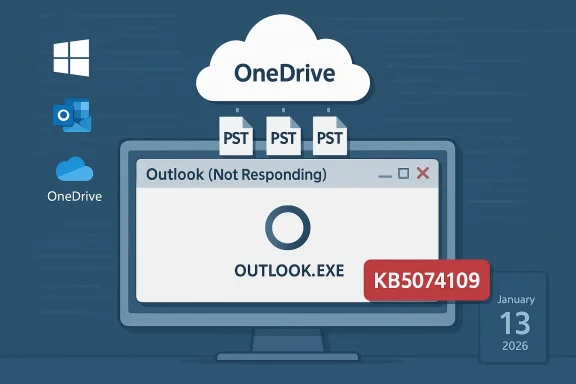
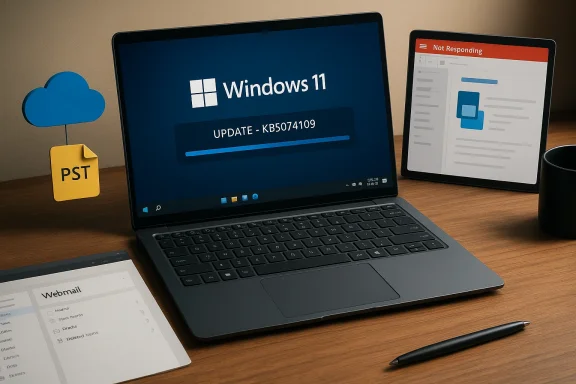
Outlook not responding while PSTs are uploaded to OneDrive cloud (KB5074109).Background / Overview​

Microsoft’s January 13, 2026 cumulative update for Windows 11 — KB5074109 — was intended to deliver routine security fixes and several platform improvements (including fixes to NPU power handling and Secure Boot certificate deployment). It installs as OS Build 26100.7623 (24H2) or 26200.7623 (25H2) and is distributed as a combined Servicing Stack Update (SSU) plus LCU (cumulative update). That combined packaging makes a full uninstall more complicated than in the past. Within days of the rollout, multiple, configuration‑dependent regressions were reported across community and enterprise channels: classic Outlook hangs tied to POP profiles and PSTs in OneDrive, black-screen and wallpaper reset complaints, File Explorer desktop.ini display regressions, Remote Desktop authentication failures, and shutdown/hibernate issues on older Secure Launch configurations. Microsoft has issued targeted out‑of‑band (OOB) updates for the worst of the regression surface (for example, KB5077744) but the Outlook/PST-in‑cloud hang remained an active investigation at the time of writing.

What Microsoft confirmed — the Outlook POP / PST hang​

The official symptoms and affected builds​

Microsoft’s support documentation explicitly lists these symptoms after the January 13, 2026 updates:
  • Outlook hangs or shows “Not Responding.”
  • Closing Outlook may leave OUTLOOK.EXE running in the background, preventing a clean restart without killing the process or rebooting.
  • Sent emails may not appear in the Sent Items folder even if sent.
  • Outlook may redownload previously delivered messages.
The advisory names the affected Windows 11 builds as the ones installed by KB5074109 (OS builds 26100.7623 and 26200.7623) and notes that the issue may occur for any Outlook profile that has PST files stored in OneDrive. The status shown by Microsoft at the time of publication is “Investigating.”

Why POP + PST + OneDrive is an edge case that broke​

The classic Outlook client (Win32) and POP3/PST workflows rely on deterministic, local file I/O semantics: Outlook expects to be able to write to and close PST files atomically when saving Sent Items, updating indexes, or persisting mail state. When a PST lives inside a folder managed by a cloud sync client (OneDrive, Dropbox), the sync engine can interpose on those file operations: scanning, scanning-on-write, placeholder management or upload-handles can momentarily lock or hold files and change timing assumptions. The pattern of failures — Outlook waiting for a PST write/close while the sync engine keeps a handle — maps perfectly to a timing/lock/contention regression introduced or exposed by an OS-level change in KB5074109.
This interaction is particularly brittle when the OS or servicing stack modifies file-system semantics, filters, or background‑sync timing (which is why Microsoft’s combined SSU+LCU updates complicate rollback efforts: the change is at a platform level). Community repros and support threads rapidly converged on PSTs-in-OneDrive as a reproducible trigger, and Microsoft’s advisory calls out PSTs in OneDrive as a configuration to avoid until an update fixes the regression.

Immediate mitigation options Microsoft recommends (and the trade-offs)​

Microsoft’s published interim guidance — while it investigates and engineers a permanent fix — includes three practical mitigations:
  • Use webmail (Outlook on the web / OWA) as a temporary replacement for the desktop client.
  • Move PST files out of OneDrive or pause/unlink OneDrive for affected profiles.
  • Remove (uninstall) the Windows update (KB5074109).
None of the options is risk‑free:
  • Using webmail restores immediate access to email but removes many desktop features and local offline workflows valued by power users and businesses.
  • Moving PSTs out of OneDrive requires careful file movement and reconfiguration of Outlook data file paths. Users must back up PSTs before moving them to avoid accidental data loss.
  • Uninstalling KB5074109 restores Outlook behavior for many users, but it also removes the month’s security fixes and may leave devices exposed to vulnerabilities the update addressed. Since KB5074109 is delivered as a combined SSU + LCU package, simple uninstalls via wusa.exe may fail and DISM-based removal steps are sometimes necessary — an advanced operations.
Security teams and administrators are now balancing to keep the device protected with the security rollup and accept the operational outage for affected Outlook users, or roll back the update to restore productivity at the cost of reducing the device’s patch level. That trade-off is why Microsoft provides Known Issue Rollback (KIR) artifacts and Group Policy guidance for enterprise-manageable only the change that triggers the regression without removing the entire security update. But KIR must be deployed by IT and tested in pilot rings before broad rollout.

Other issues tied to KB5074109 and the wider fallout​

KB5074109’s fallout did not stop with Outlook. Several other user‑facing regressions were reported and confirmed across Microsoft’s health dashboard and multiple independent outlets:
  • Black screen and wallpaper reset: Some devices briefly show a black screen at boot or lose desktop personalization (wallpaper resets to black after reboots). There are community repros and temporary fixes (rebooting, toggling shutdown opt wallpaper until Microsoft issues a permanent correction.
  • Sleep mode (S3) failures on older custom PCs: Machines using legacy S3 sleep reported that the PC would not enter sleep correctly. Modern standby (S0) systems are mostly unaffected, but custom desktops that rely on S3 saw sleepless behavior.
  • File Explorer desktop.ini regression: Explorer stopped applying the LocalizedResourceName entry from desktop.ini in some cases, causing custom folder display names to revert to their real path names. This is a regression in shell parsing semantics and affects users and businesses that standardize folder displays via desktop.ini.
  • Remote Desktop / Cloud sign-in failures and shutdown regressions: Microsoft rapidly issued out‑of‑band updates (for example, KB5077744 and branch‑appropriate‑in and shutdown regressions introduced by the January rollup. Those OOB packages remedied some of the worst platform-level outages (Remote Desktop credential prompts, Secure Launch shutdown) but did not resolve the Outlook/PST hang.
Community coverage and enterprise telemetry painted a consistent picture: KB5074109 touched multiple subsystems (servicing stack, file I/O paths, authentication flows) and exposed rare compatibility edge cases that Microsoft’s standard pre-release testing did not surface. That has produced a wave of emergency patches and elevated support traffic across managed service providers and IT help desks.

Technical analysis: likely root causes and contributing factors​

Timing, file locks, and cloud sync engines​

Outlook’s PST format is a monolithic file that expects exclusive, reliable sync clients — OneDrive, Dropbox — add layers: placeholders, streaming, upload scanning and opportunistic locking to optimize sync and reduce bandwidth. When the OS update changes timing or file-system semantics (kernel filters, I/O completion ordering, or file handle lifetime), those interposed agents can hold or re-open files in ways e gracefully. The observed symptom set (background OUTLOOK.EXE persistently running, Sent Items not recorded, redownloaded mail) strongly suggests a file-handle timing or lock contention scenario.

Servicing stack coupling complicates rollbacks​

KB5074109 was delivered as a combined SSU + LCU package — a packaging approach Microsoft uses to streamline installations. The downside is that the SSU component is not remo wusa.exe uninstall switch; removing the LCU portion often requires DISM /Remove-Package with exact package name enumeration. That makes quick rollbacks and home users, increasing the practical impact of regressions when they occur.

Third‑party software and antivirus hooks​

Community repros also highlighted that endpoint protection hooks, email-scanning agents (for example, ESET-like behaviors), and older sync clients can amplify the problem. These products inject code into file-handling and email pipelines; combined with an OS update that modifies low-level behavior, they may escalate timing issues into hard hangs. This is not unusual: ecosystem coupling is a known risk in large platforms with many third‑party integrations.

What users and administrators should do now — a prioritized action plan​

Below is a practical playbook, ordered from least intrusive to most intrusive, with clear caveats.
  • Confirm whether your device installed KB5074109
  • Run winver and check for OS build 26100.7623 or 26200.7623. If present, you’re in the affected window.
  • Short-term user steps (low risk)
  • Use Outlook on the web (OWA) or another mail client for immediate, reliable access. Microsoft recommends webmail while the issue is investigated.
  • End lingering Outlook processes via Task Manager (Details → OUTLOOK.EXE → End Task) instead of forcing a system power-off. This is a short-term recovery method that avoids abrupt system-level file corruption.
  • Start Outlook in Safe Mode (outlook.exe /safe) to check whether COM add-ins exacerbate the issue; disabling problematic add-ins may reduce hangs.
  • Medium-risk mitigation (requires care)
  • Move PST files out of OneDrive-managed folders to a local, non-synced path and reconfigure Outlook to use the new PST location. Back up the PST before moving. Microsoft lists this as an official workaround.
  • Pause OneDrive sync temporarily and test Outlook behavior; pausing sometimes avoids the file-handle contention without moving files.
  • Higher-risk remediation (security trade-off)
  • Uninstall KB5074109 if other mitigations fail and Outlook must be restored on critical endpoints. Use Settings → Windows Update → Update history → Uninstall updates. If that path fails because the package is combined with an SSU, advanced DISM removal is an option that requires admin expertise and caution. After rollback, pause updates for a short time to avoid reinstallation until Mictive update. Be aware this reduces the device’s security posture.
  • For IT and MSPs (enterprise actions)
  • Inventory endpoints to identify POP/PST usage and devices that installed KB5074109.
  • Deploy Known Issue Rollback (KIR) Group Policy artifacts where available to disable only the problematic change without removing the security content. Microsoft has published KIR guidance and Group Policy downloads for affected versions.
  • Use ring-based deployment and pilot testing to validate Microsoft’s out-of-band updates before broad rollout.
  • Communicate to end users about temporary mitigations (OWA, pausing OneDrive) and document the rollback process in change logs for compliance teams.

Strengths in Microsoft’s response — and important shortcomings​

Notable strengths​

  • Rapid acknowledgement: Microsoft publicly documented the Outlook hang as an investigating issue within days of incident reports and updated support advisories frequey reduces uncertainty for administrators and users.
  • Targeted out‑of‑band fixes for high‑impact regressions: Microsoft shipped OOB cumulative updates (e.g., KB5077744) within four days to address critical Remote Desktop and Secure Launch regressions, demonstrating that the release and telemetry pipelines can move quickly when root causes are identified.
  • Provision of KIR artifacts: For enterprise customers, Known Issue Rollback provides a surgical mitigation that can disable the offending change without removing security fixes, which is the preferable approach for managed fleets.

Key shortcomings and risks​

  • Recurrent Outlook regressions: The fact that multiple, separate Outlook regressions occurred in a short timeframe il opening issues and now POP/PST hangs) suggests test coverage gaps for legacy workflows that are still broadly used by businesses and consumers. That increases the chance of repeated user-impacting regressions.
  • Uninstall complexity: Bundling SSU and LCU complicates rollbacks. Many typical users and small-business administrators lack the DISM expertise required to remove the LCU portion safely, which prolongs downtime and increases help-desk load.
  • Security vs. productivity trade-offs: Microsoft’s workaround list includes uninstalling a security update — a blunt option that forces organizations to weigh data‑exposure risks against immediate business continuity needs. The absence of a client-side hotfix for Outlook at the time of the advisory intensified that dilemma.

Assessing the risk to data integrity​

The most common worry among affected users is PST corruption or permanent message loss. Current evidence and official advisories indicate the observable outcomes are inconsistent state, missing Sent Items in the local PST index, and repeated redownloads — all of which raise the risk of PST damage if users repeatedly force-kill processes or endure abrupt shutdowns. However, claims of widespread, permanent deletion of server‑stored mail are not substantiated by the public telemetry available; those assertions should be treated cautiously. Users should assume a worst‑case risk for their locally stored PST files and immediately back up PSTs before attempting any remediation.

How Microsoft will likely resolve this (and what to expect next)​

Engineering teams will primarily pursue two pathways:
  • A targeted fix in a follow-up cumulative update that corrects the file‑I/O handling or restores prior timing semantics for affected code paths.
  • A KIR rollout for devices enrolled in enterprise management, so that the problematic change can be temporarily neutralized while Microsoft ships a permanent fix.
Given Microsoft’s track record with this incident — rapid OOB fixes for some regressions and a formal advisory for Outlook — expect a corrective cumulative update in the near term, accompanied by guidance for administrators on testing and phased deployment. In the meantime, Microsoft will likely continue to update the support page and Windows release health dashboard with status and remediation instructions.

Practical checklist for readers (quick reference)​

  • Check winver for OS build 26100.7623 or 26200.7623.
  • If you use classic Outlook with POP/PST, avoid storing PSTs in OneDrive. Back up PST files now.
  • Use Outlook on the web as an immediate workaround.
  • Try pausing OneDrive or moving PSTs out of synced folders before uninstalling any updates.
  • Enterprise admins: consider KIR or hold deployment via WSUS/Intune until a fix is validated.

Final analysis: what this episode teaches about Windows servicing in 2026​

The KB5074109 incident is a case study in modern platform servicing complexity. Windows cumulative updates today touch servicing stacks, kernel components, authentication flows, and file-system semantics — all at once. When an update modifies a low-level behavior, rarely-used legacy code paths (like POP/PST workflows) or idiosyncratic third‑party integrations (AV hooks, older sync clients) can suddenly experience catastrophic failure modes that evade standard test fleets.
Two enduring lessons emerge:
  • Testing must reflect real‑world diversity: legacy protocols, on‑premise POP workflows, and cloud‑sync interactions must remain part of pre-release validation suites, not edge-case afterthoughts.
  • Rollback tooling and surgical mitigations matter: Known Issue Rollback is the right model for enterprise environments; extending similar low‑risk rollback or feature‑toggle mechanisms to smaller audiences would reduce the need for full uninstall actions that compromise security.
For users and admins caught in the KB5074109 fallout, the path forward is pragmatic: follow Microsoft’s support guidance, protect PST data with backups, and use temporary workarounds while awaiting a platform fix. For enterprises, the incident is a reminder to test updates across diverse user profiles and to maintain robust rollback and communication playbooks for critical endpoints.

Microsoft’s support pages, community threads and independent reporting confirm the facts summarized above: the Outlook hang is real, tied to KB5074109 and PSTs stored in OneDrive, and Microsoft has provided workarounds while the fix is being developed. Administrators should prioritize data backups and apply Known Issue Rollback or staging controls; power users with local POP workflows should either relocate PSTs or temporarily avoid the January update until the issue is resolved.
Source: Windows Latest Microsoft says uninstall Windows 11 KB5074109 to fix Outlook POP, PST hang, as 2026's first update causes havoc
 

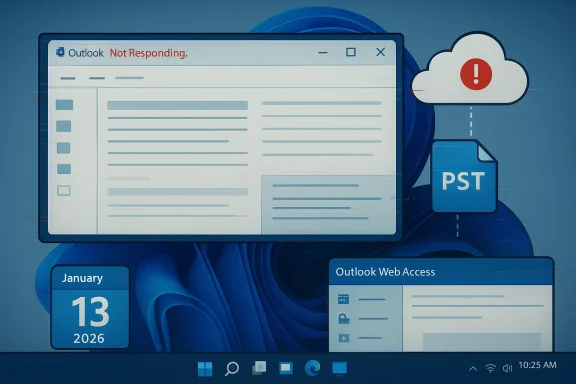
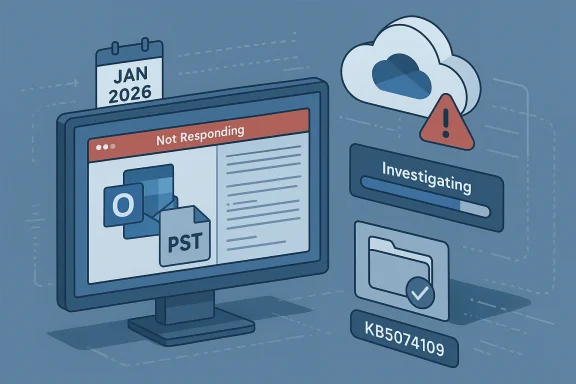
Windows desktop shows Outlook Not Responding with a PST file icon and calendar tile.
Microsoft’s January 13, 2026 cumulative update for Windows 11 has left a subset of Outlook users unable to use the desktop client reliably: the classic Win32 Outlook can hang, refuse to exit, lose local Sent Items entries, and even re‑download previously delivered mail when profiles use POP or contain PST files stored in OneDrive — and Microsoft has not yet shipped a permanent patch for that specific problem.

Background / Overview​

The January security rollup published on January 13, 2026 (commonly tracked as KB5074109 for Windows 11 24H2/25H2) was intended to deliver routine security and quality updates. Within days, multiple regressions surfaced across diverse configurations: Remote Desktop sign‑in failures, Secure Launch shutdown/hibernate problems on certain 23H2 devices, and application behaviors tied to cloud‑backed file access. Microsoft issued out‑of‑band updates on Jandiate several of those faults, but the Outlook POP/PST hang tied to PSTs in OneDrive remains under active investigation. This article explains what is happening, who is affected, how to check exposure, practical mitigations you can apply today, and the longer‑term lessons for power users and IT teams who still rely on PST/POP workflows.

What Microsoft has confirmed​

Microsoft’s official support notes describe the issue succinctly: after Windows updates on January 13, 2026, users with Outlook POP account profiles — and any Outlook profiles that have PST files stored on OneDrive — have reported that Outlook hangs and does not exit properly. Reported symptoms include Outlook showing “Not Responding,” inability to reopen Outlook without terminating the background process or rebooting, sent mail not appearing in Sent Items, and Outlook re‑downloading messages. Microsoft has marked the issue as Investigating and published interim workarounds: use Outlook Web, move PST files out of OneDrive, or remove the Windows update. Two important clarifications from Microsoft’s advisories:
  • The problem is tied to the January 13 LCU (KB5074109) and the OS builds it produced (noted in the KB and support pages).
  • Microsoft shipped separate out‑of‑band updates on January 17 (for example KB5077744 and KB5077797) to fix Remote Desktop and Secure Launch regressions; those OOB fixes do not declare they resolve the m](]) [/LIST] [HR][/HR] [HEADING=1]Why...ng chaos with Outlook, and there's no fix yet
 

Windows 11 users have been hit by a fresh wave of disruptive bugs after the January 13, 2026 cumulative update (identified as KB5074109), with two distinct failure modes emerging: one that breaks app launches by tripping Microsoft Store / license‑validation logic (often surfacing as error code 0x803F8001), and another that makes applications become unresponsive or fail when opening or saving files stored on cloud‑backed folders such as OneDrive or Dropbox — a problem that has been particularly harmful to classic Outlook profiles that store PST files in cloud‑synced locations.

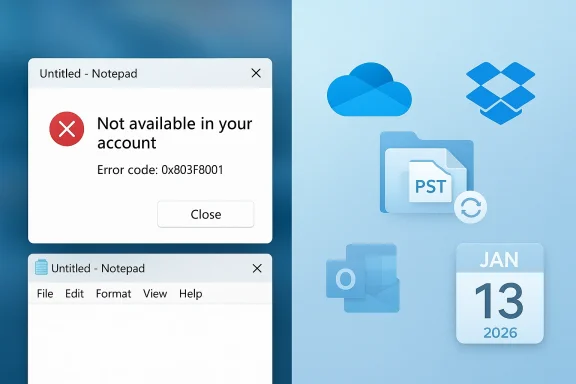
Notepad error dialog on the left, with cloud, PST, and calendar icons on the right.Background / Overview​

Microsoft released the January 13, 2026 cumulative security rollup (KB5074109) for Windows 11 and related servicing branches. Within days, reports converged on several regressions tied to that rollout, ranging from sleep/hibernate problems and Remote Desktop credential failures to the two app‑facing bugs now affecting everyday users. Microsoft and community channels investigating and issuing short‑term mitigations; the vendor has also shipped targeted out‑of‑band fixes for some but not all of the regressions. The two new problem clusters breaking user workflows are:
  • A Microsoft Store / account validation failure that returns error code 0x803F8001 (or similar) and reports the app is “currentlyr account,” preventing built‑in and Store‑dependent apps from opening.
  • A cloud‑storage I/O regression introduced or exposed after KB5074109 that causes apps to freeze, hang, or fail when opening or saving files stored in cloud‑synced folders — notably affecting Outlook when PST files live inside OneDrive.

What exactly is happening: symptoms and affected apps​

1) Microsoft Store / license validation failures (0x803F8001)​

Symptoms reported by users include:
  • Apps (both built‑in and third‑party) fail to launch with an error message currently not available in your account” and error code 0x803F8001.
  • Affected titles include Notepad, Snipping Tool, OEM utilities like MSI Armoury Crate and Alienware Command Center, and other Store‑dependent packages.
  • Some users see meaningless hex or long stop‑code strings, but the consistent user‑facing text references account/license validation failures.
These failures generally point to the Microsoft Store bei an app entitlement or license for the signed‑in Microsoft account. Community threads and Microsoft Q&A responses indicate the error commonly stems from a corrupted Store cache, a transient account sync issue, or a Store registration glitch rather than outright data loss. Typical remedies that have worked for some users include resetting the Store cache, signing out and back in, reinstalling affected apps, and, in some cases, applying the January update itself (ironically).

2) Cloud‑backed file I/O regression (PSTs, OneDrive, Dropbox)​

Symptoms here are operational and file‑system related:
  • Applications hang or become unresponsive when opening or saving files located in cloud‑synced folders.
  • Classic Outlook (Win32) profiles using POP and local PSTs stored in OneDrive are particularly vulnerable: Outlook can freeze, show “Not Responding,” fail to close cleanly (leaving OUTLOOK.EXE background processes), lose Sent Items indexing, and re‑download previously fetched messages.
Microsoft’s support advisory explicitly links these Outlook hangs to the January 13 updates and lists moving PST files out of OneDrive or uninstalling the update as interim workarounds while engineering investigations continue. The behavior points to timing, locking, or API semantics changes in the I/O or sync stack triggered by the update.

Why these bugs matter — technical and practical implications​

Both problems are more than an annoyance; they expose deep modern Windows handles two increasingly central forces: app licensing/entitlements and cloud‑backed file semantics.
  • License/Store fragility: As more system components, OEM utilities, and legacy features become Store‑installable or Store‑dependent, an interruption in the Store license handshake now threatens to brick a larger surface area of the OS. Users expect core utilities like Notepad to work without a Store validation dance.
  • Cloud file semantics vs. legacy apps: Legacy Win32 apps (Outlook with PST files, older file editors) assume atomic, deterministic local file semantics. Cloud sync engines (OneDrive, Dropbox) introduce placeholder files, background handles, scans on write, and variable upload latencies. Platform changes that subtly alter timing or lock behavior expose those assumptions and cause app hangs or data integrity symptoms. The result: users must choose between productivity continuity and applying security fixes.
From a risk perspective, the worst outcomes are data corruption scenarios or operational downtime in managed environments where PST‑based workflows are still in use. Uninstalling a cumulative security update reduces exposure to the breaking bug but reintroduces a window of vulnerability — a difficult tradeoff for administrators and power users.

What Microsoft has acknowledged and what’s being done​

Microsoft has publicly documented the Outlook/PST hang and advised short‑term mitigations; for the cloud I/O issue it recommended moving PSTs out of OneDrive or using webmail as a stopgap, and for several other regressions the company issued targeted out‑of‑band fixes (OOB updates) in the days following the January rollup. The vendor’s support page lists the problem as “investigating” and provides workarounds while engineers craft a permanent microsoft.
Community reporting and forum syntheses (internal forum threads and recent message digests) show that Microsoft pushed emergency OOB updates for other critical failures (for example, Remote Desktop credential issues and Secure Launch shutdown regressions) but that the Outlook / cloud‑I/O problem required remained under investigation at the time those fixes shipped.

Practical fixes and step‑by‑step mitigations​

Below are the most useful troubleshooting steps, ranked by risk and practicality. These are the steps that have repeatedly surfaced in vendor guidance, community threads, and troubleshooting documentation.

Low‑risk, immediate steps to try first​

  • Reset the Microsoft Store cache
  • Press Win + R, type wsreset.exe, and press Enter.
  • Wait for the Store to reset and relaunch. This clears cache corruption without affecting account settings. This step often resolves licensing/validation quirks.
  • Sign out of the Microsoft Store, then sign back in
  • Open Microsoft Store > profile avatar > Sign out. Sign back in with the account that owns the apps.
  • This re‑establishes entitlement state and can clear transient sync problems.
  • Use the Windows Store Apps troubleshooter
  • Settings > System > Troubleshoot > Other troubleshooters > Windows Store Apps > Run.
    fixes and restart the machine.
  • Uninstall and reinstall the affected app (when possible)
  • For a single troublesome app, remove it (making a backup of local app data if necessary) and reinstall from the Microsoft Store.
  • This forces a fresh entitlement and package registration. Note: repeated reinstalls across many apps become tedious.

Medium‑risk steps for cloud I/O / Outlook PST issues​

  • Move PST files out of OneDrive (recommended by Microsoft)
  • Close Outlook.
  • Copy the PST file(s) to a local folder outside of OneDrive sync (for example C:\Users\<you>\Documents\PST-backups).
  • Reconfigure Outlook to use the local PST, or set the PST location via File > Account Settings > Data Files.
  • Restart Outlook and confirm normal behavior. This removes the sync layer from the PST I/O path. This is the vendor‑recommended mitigation when PSTs are implicated.
  • Use Outlook on the web (OWA) as a temporary workaround
  • For users who need immediate mail access without desktop features, OWA or another webmail client is the safest short‑term choice while a fix is developed. Microsoft explicitly lists webmail as an interim option.
  • Pause or unlink OneDrive (short window)
  • Pause syncing in the OneDrive client while working in Outlook, or unlink the account as a test to confirm the cloud sync client is the causal vector.
  • If pausing resolves hangs, move PSTs off the synced folder permanently.

High‑impact, high‑risk option: uninstall KB5074109​

  • Uninstalling the January cumulative update
  • Settings > Windows Update > Update history > Uninstall updates > select KB5074109 (or the relevant KB) > Uninstall.
  • Reboot as required.
  • Caveats: Uninstalling removes security fixes included in the cumulative update and creates a period of increased vulnerability. This may be acceptable temporarily for isolated machines used for non‑sensitive tasks, but it is not a safe long‑term policy for enterprise fleets. Microsoft also cautions that combined SSU+LCU packaging sometimes complicates rollbacks.

Recommended checklist for IT admins and advanced users​

  • Inventory: Identify users with PSTs stored in cloud‑synced folders and priority apps relying on Microsoft Store licensing.
  • Communicate: Notify affected users of the issue, recommended mitigations (move PSTs, use webmail), and the security tradeoffs of uninstalling the update.
  • Patch policy: For managed fleets, delay broad deployment of KB5074109 until Microsoft publishes a definitive fix; for at‑risk users, apply targeted workarounds.
  • Backups: Ensure PSTs and critical data are backed up locally before changing file locations or uninstalling updates.
  • Telemetry: Collect reproducible repro steps, logs, and feedback through official channels (Microsoft Support, Feedback Hub) to accelerate vendor diagnosis. Community threads show Microsoft’s engineering teams rely on detailed repros to reproduce the timing/lock interactions that trigger the bug.

Analysis: why are we seeing recurring update regressions?​

Several structural pressures are contributing to these recurring post‑patch regressions:
  • The growing surface area of Windows: more system features, OEM utilities, and legacy behavior paths interact with cloud services, making exhaustive QA across all hardware and configuration permutations extremely difficult.
  • Cloud sync semantics vs. legacy apps: Legacy Win32 apps were written to expect local files; cloud placeholder/Files On‑Demand models and sync clients alter those assumptions, so any subtle timing change in the filesystem stack can reveal latent bugs.
  • Faster servicing cadence and combined packaging: Cumulative updates now bundle many fixes (SSU + LCU), which shortens rollback options and raises the stakes of regressions, because a single change can impact multiple subsystems simultaneously.
  • Complex QA matrix: Diverse OEM drivers, anti‑cheat systems, encryption tools, and third‑party sync clients increase test cg every possible interaction at scale is a practical impossibility. Community threads suggest many of these regressions are configuration‑dependent and don't affect most systems, making them harder to catch in pre‑release testing.ue Microsoft problem, but the frequency and user visibility of these issues — especially when core office workflows are impacted — undermines user confficult tradeoffs between security and stability.

Strengths and positives in Microsoft’s response​

  • Microsoft publicly documented the Outlook/PST problem and recommended concrete mitigations, showing transparency and a willingnes guidance to reduce user harm.
  • The vendor delivered targeted out‑of‑band updates to address other high‑impact regressions quickly, demonstrating that Redmond can move fast when the issue affects large customer sets (for example, Remote Desktop and Secure Launch fixes).
  • The Microsoft Store / entitlement surface often resolves with cache resets and account re‑auth — several low‑impact fixes exist that users can attempt before escalation.

Risks, criticisms, and what Microsoft should improve​

  • Publishing cumulative updates that break production workflows in ways that require uninstalling security patches is unacceptable for many enterprise environments. Microsoft must tighten pre‑release validation for changes touching storage and authentication stacks.
  • The combined SSU+LCU packaging and accelerated cadence reduce rollback flexibility; Microsoft should consider tooling or processes to make clean rollback easier for admins when a security update causes operational regression.
  • Testing needs widening to include common cloud sync patterns and legacy file workflows (e.g., PSTs inside OneDrive). Automated tests simulating Files On‑Demand and placeholder handles should be part of the validation suite. Community threads show that the PST + OneDrive pattern is a reproducible trigger and therefore should have been flagged during pre‑flight testing.

Clear, practical steps for WindowsForum readers (quick reference)​

  • If you see error 0x803F8001 or “app not available in your account”:
  • 1) Run wsreset.exe.
  • 2) Sign out/in of Microsoft Store.
  • 3) Run the Windows Store Apps troubleshooter.
  • 4) If a single app is affected, uninstall and reinstall it from the Store.
  • If Outlook or other apps hang when accessing files in OneDrive:
  • 1) Move PST files out of OneDrive to a local folder, then reattach in Outlook.
  • 2) Pause OneDrive sync or unlink account while troubleshooting.
  • 3) Use Outlook on the web as an interim option.
  • 4) As a last resort, uninstall KB5074109 — only after evaluating security tradeoffs.

Closing assessment and outlook​

January’s servicing wave put a spotlight on the tension between rapid security delivery and maintaining predictable, reliable behavior for end users and administrators. The two failure modes exposed — Microsoft Store entitlement failures (0x803F8001) and cloud‑backed file I/O regressions that break legacy workflows such as PSTs in OneDrive — are symptomatic of a broader compatibility and testing challenge as Windows integrates deeper with cloud services.
Practical workarounds exist and Microsoft has given explicit guidance for the most disruptive scenario (Outlook/PSTs). For affected users, moving PSTs off cloud‑synced folders or temporarily using webmail are realistic stopgaps. For administrators, a conservative deployment posture and careful inventory of cloud‑synced dependencies will reduce surface area exposure while the vendor develops a permanent fix. Microsoft’s issuance of targeted OOB updates for other regressions shows responsiveness, but the frequency and reach of these incidents underscore the need for stronger pre‑release validation where cloud sync and legacy file semantics intersect.
Expect Microsoft to continue iterating on fixes in the near term; affected users should follow official support channels for updates and apply vendor guidance carefully. In the meantime, a pragmatic combination of low‑risk remediations (Store cache reset, re‑authentication), deliberate file‑location hygiene (avoid PSTs in OneDrive), and cautious patching policies will keep most users working while preserving security posture.

Source: TechRadar https://www.techradar.com/computing...c-crashing-apps-but-there-are-possible-fixes/
 

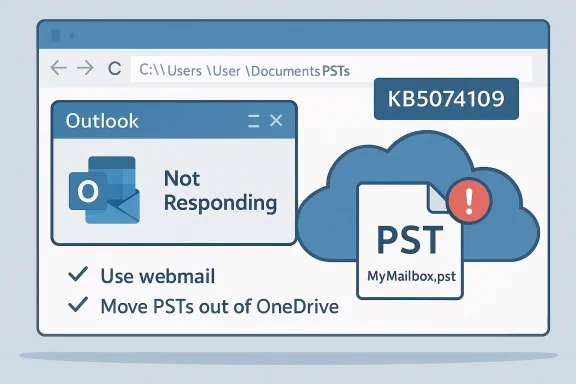
Outlook Not Responding alert with a PST file in the cloud and tips to move PSTs.
Microsoft’s January cumulative update, KB5074109, has created a painful, real‑world problem for users of the classic (Win32) Outlook client — and Microsoft’s interim guidance is blunt: move PST files out of cloud‑synced folders (or use webmail) until a permanent fix arrives. The fallout includes hanging Outlook processes, missing Sent Items, and the risk of duplicated or redownloaded mail; businesses and heavy Outlook users should treat cloud‑stored PST/OST files as an immediate risk vector and follow conservative recovery steps.

Background​

In mid‑January 2026 Microsoft shipped KB5074109 as part of its regular cumulative update stream. The update landed broadly across Windows 11 (and related Windows 10/Server builds) and — while it addressed a variety of platform bugs and security issues — it also introduced a regression that affects how applications interact with cloud‑backed storage such as OneDrive and similar sync clients. The company acknowledged that some applications can become unresponsive when opening or saving files that live in OneDrive‑synced folders, and classic Outlook profiles that rely on local PST files stored inside those folders were singled out in the advisory. This is not a theoretical corner case. Many individual users and small businesses still run POP/IMAP profiles that use .pst data stores, and some have moved their Documents or AppData folders (or explicitly stored PST files) inside OneDrive to take advantage of cloud backup and cross‑device convenience. That common configuration — PST files inside OneDrive — is what exposes Outlook to the timing and file‑handle semantics change introduced by the update. Microsoft’s support pages and community threads confirm the link and list the interim mitigation paths.

What went wrong (technical overview)​

Classic Outlook expects reliable, local file I/O semantics for PSTs and OSTs: writes should complete, file handles should close promptly, and operations like moving Sent Items into the PST should finish before the process exits. Cloud sync clients (OneDrive, Dropbox, etc. interpose on those file operations — scanning files, uploading in the background, or toggling placeholder states. When the OS-level behavior or servicing stack timing changes, those interpositions can convert a normally benign delay into a persistent lock or deadlock condition.
  • In the reported failure mode, Outlook closes but the process remains running (OUTLOOK.EXE), effectively leaving the app in a half‑closed state that prevents a clean reopen.
  • Sent messages may not appear in Sent Items because the final write to the PST cannot complete or the index becomes inconsistent.
  • Previously downloaded mail can be redownloaded if Outlook’s local state is not updated correctly during the failed close/open cycle.
The pattern of failure strongly points to a timing/locking regression in the OS path that cloud‑sync clients depend on, rather than a flaw in Outlook itself — but the practical impact is the same for end users: desktop Outlook becomes unreliable when the user’s PST is stored in a OneDrive‑managed folder. Microsoft has documented these symptoms and explicitly recommends avoiding PSTs on cloud‑backed folders until a fix is released.

Symptoms to watch for​

If you or your users started experiencing problems after installing January 13, 2026 updates (KB5074109) watch for these specific symptoms:
  • Outlook shows “Not Responding” and does not close cleanly.
  • After closing Outlook you cannot reopen it without forcibly terminating the background process in Task Manager or restarting the machine.
  • Sent items that were successfully sent are missing from the Sent Items folder.
  • Outlook may redownload messages that had been previously retrieved.
These symptoms have been reproduced across multiple Windows 11 builds and even in certain Windows 10/Server builds listed by Microsoft as affected platforms. If any of these signs appear, treat the affected PST/OST files as a potential data‑integrity risk until you complete recovery steps.

Microsoft’s official response and status​

Microsoft has classified the issue as “Investigating” and published an advisory that clearly lists the symptoms, affected platforms, and three interim mitigation options: use webmail, move PST files out of OneDrive (or other cloud‑backed storage), or uninstall the problematic update. The support article explicitly warns that the more involved mitigations may be complicated for many users and points administrators to forum threads where the issue and workarounds are being discussed. Multiple outlets and community threads confirm Microsoft has issued some out‑of‑band patches for related regressions (for instance, Remote Desktop and shutdown problems), but those OOB updates did not universally resolve the Outlook/PST cloud‑sync hang. As of the last public guidance, Microsoft advised affected users to use webmail or move PSTs out of OneDrive until a targeted fix is released.

Short‑term workarounds — practical guidance​

Microsoft’s recommended short‑term options are blunt but effective: move PST files out of cloud‑synced folders, switch to webmail, or remove the update. Each approach has tradeoffs.
  • Use webmail: Access your mailbox via Outlook on the Web or your provider’s web interface. This avoids local PST/OST semantics entirely and is the safest immediate mitigation if you can’t move files right away. Microsoft explicitly lists this as the simplest recommendation.
  • Move PST files off OneDrive: If you keep PSTs in a OneDrive‑synced folder, relocate them to a truly local folder that OneDrive does not manage (for example C:\Users\<username>\Documents\PSTs). After moving, reattach the PST in Outlook (File → Account Settings → Data Files). This addresses the core I/O contention by restoring local file semantics. Important: always back up PST files before moving them and run ScanPST (Inbox Repair Tool) after relocation to ensure the PST integrity. Microsoft and community threads both recommend this but note that it can be a complicated process for non‑technical users.
  • Uninstall KB5074109: Removing the Windows update can restore prior behavior, but it carries serious security tradeoffs — January’s cumulative update includes critical security fixes. In enterprise environments especially, uninstalling security patches should be a last resort and performed under IT direction. Microsoft documents the uninstall path (Settings → Windows Update → Update history → Uninstall updates), but warns that combined SSU+LCU packages can complicate rollback.
Practical steps to move a PST safely (high‑level):
  1. Close Outlook and ensure no Outlook processes remain (check Task Manager).
  2. Make a binary backup copy of the PST to external media.
  3. In File Explorer, copy the PST to a new local folder outside OneDrive.
  4. Open Outlook, go to File → Account Settings → Data Files, remove the old PST entry (but do not delete the file), then Add… the new PST location.
  5. Restart Outlook and verify Sent Items and other folders are intact.
  6. If you encounter corruption or missing messages, run ScanPST.exe on the moved PST.

Data‑loss and integrity risks — what to check now​

This is the area that requires the most caution. Although not every user will suffer permanent data loss, the combination of failed writes and cloud sync can leave PSTs in an inconsistent state.
  • Missing Sent Items: If a sent message is missing from Sent Items, check the mail server (via webmail or the provider’s Sent folder) to confirm delivery. That verifies the message was sent even if the local PST didn’t record it.
  • Duplicated or redownloaded mail: When Outlook redownloads messages that were already retrieved, the mailbox state in the PST and the server’s index can diverge. Use webmail to compare server state to local state before making changes.
  • PST corruption: If Outlook’sor ScanPST reports corruption, do not attempt destructive repairs without a backup. Make a copy of the defective PST before running ScanPST, and if ScanPST reports successful repairs, verify the mailbox contents carefully. If you have an Exchange or IMAP account, recover via the server where possible; for POP+PST, recovery depends almost entirely on your local PST backup.
Flag for administrators: if a fleetwide policy or user‑profile redirect stores PSTs inside OneDrive Known Folder Move (KFM) or other centrally synced folders, treat that configuration as high risk and plan a coordinated remediation: identify affected endpoints, instruct users to pause OneDrive or move PSTs, and consider a temporary Known Issue Rollback (KIR) or holding the January LCU via WSUS until a fix is available. Community guidance and enterprise threads document these approaches.

Enterprise and IT admin considerations​

For IT organizations the choice is rarely simple. Security vs. availability is the central tradeoff here, and the decision depends on exposure, user criticality, and the organization’s update deployment model.
Key options for administrators:
  • Apply Known Issue Rollback (KIR) or targeted mitigation where Microsoft publishes such options for specific regressions. KIRs can sometimes neutralize the offending change without removing the full security update. Check the Windows release health dashboard and Microsoft’s update history for any KIR announcements.
  • Hold KB5074109 via WSUS/ConfigMgr for unpatched machines where PSTs are at risk, while rapidly remediating affected endpoints by moving PSTs or providing instructions to use webmail temporarily. Document the risk of delaying security patches.
  • For managed clients, use group policy to prevent users from saving PST files into OneDrive folders, and audit existing profiles to identify PST locations. This is a necessary long‑term hygiene step if your organization still uses PST‑based workflows.
  • Provide scripted migration: for larger deployments, consider scripted PST relocation combined with robust backups and verification, performed during maintenance windows. Test the scripts in a staging environment before mass execution.
When speaking with stakeholders, present the measurable risks: temporary availability loss for Outlook desktop, potential local data inconsistency for PST‑based accounts, and the security implications of uninstalling a monthly cumulative update.

Why this matters for Windows update strategy​

This incident underlines two recurring realities of modern desktop platforms:
  • Windows update bundles increasingly touch low‑level subsystems (servicing stack, filesystem filters, sync integration) that interact with many applications. Small timing changes can cascade into widely visible regressions.
  • Cloud backup convenience (storing user data in OneDrive) trades a modest amount of reliability complexity for redundancy. That trade is normally acceptable — until a platform change changes the timing model and exposes latent assumptions in older desktop apps like the Win32 Outlook client.
For administrators and power users, the tactical takeaway is clear: avoid storing database‑style files (PSTs, local SQLite databases, VM images, etc. inside always‑syncing folders unless the vendor explicitly supports that configuration. Vendor guidance on storing PSTs in cloud‑synced folders has long warned of caveats; this regression simply made that risk immediate and visible in many environments.

Recovery checklist — an action plan for affected users​

If you or your organization are affected, follow this prioritized checklist:
  1. Back up the PST(s) now — copy files to an external drive or secure network share.
  2. Use webmail for urgent messaging to avoid further local writes and potential corruption.
  3. Pause OneDrive syncing immediately on affected machines (OneDrive icon → Pause syncing) as a short‑term containment step. Note: pausing may not always mitigate the issue; moving PSTs is the safer move.
  4. Move PSTs to a local, non‑synced folder. Make sure Outlook is closed and no OUTLOOK.EXE process remains running. Reattach moved PSTs and verify integrity.
  5. If PSTs are corrupt or missing content, run ScanPST on the backup copy first; if necessary, engage professional recovery services before attempting destructive repairs.
  6. For enterprises: escalate to endpoint management teams, consider a KIR or controlled update hold, and communicate with users about the tradeoffs of uninstalling security updates vs. data availability.

How Microsoft and the community covered the story​

Major outlets and tech communities quickly amplified Microsoft’s advisory and provided step‑by‑step mitigation notes. BleepingComputer summarized Microsoft’s recommended workarounds (move PSTs, use webmail, uninstall update) and documented the broader symptom set. Windows‑focused publications and forum communities reproduced the Microsoft guidance and added operational advice for users and admins. PCWorld reported on the practical impact to classic Outlook users and highlighted the potential for lost or invisible Sent Items. These independent reports corroborate Microsoft’s description of the problem and its recommended interim mitigations. Note: community testing has shown varying behavior — in some cases pausing OneDrive did not prevent the hang, and removal of the LCU was the only immediate relief. That variability underscores the complexity of the repro conditions and the need for careful testing before committing to a single remediation path.

Long‑term lessons and recommended practices​

  • Don’t store application database files in sync folders. As a rule, avoid placing PSTs, VHDs, or other live data stores inside OneDrive or other always‑syncing containers. Use server‑side or managed backup solutions for continuity.
  • Segment update policy by risk. Enterprises should segment update rings, test cumulative updates against critical configurations (legacy Outlook + PST workflows), and employ KIRs or staged rollouts where possible.
  • Back up before you move or repair. Never attempt PST repair or relocation without a known good backup. Run ScanPST only on copies until you confirm the repaired file is valid.
  • Plan migration away from PSTs. PST‑based POP workflows are a recurring source of operational fragility. Where possible, migrate users to server‑side mail (Exchange Online, IMAP) or use modern Outlook clients that do not rely on unmanaged PST files.

Conclusion​

KB5074109’s fallout is a clear reminder that OS‑level changes can surface brittle assumptions in widely used legacy configurations. Microsoft has acknowledged the problem, published interim guidance, and is investigating a permanent fix; in the meantime, the only safe course for affected users is containment — back up PST files, move them out of cloud‑synced folders, or use webmail until an update designated to fix the regression is released. For businesses, this episode should accelerate plans to eliminate PST‑dependent workflows and strengthen update deployment testing for critical productivity paths.
The situation remains fluid: Microsoft’s support pages and the Windows release health dashboard are the authoritative status sources, and administrators should monitor them closely as Microsoft develops and validates a permanent patch. If you are managing Outlook‑dependent environments, prioritize backups and a small pilot to validate any remediation before broad rollout.
Source: PCWorld Microsoft's workaround for classic Outlook issues after Windows 11 update
 

Microsoft has confirmed an active investigation into a January 2026 Windows update that can leave Outlook unresponsive when it attempts to save or access PST files stored inside cloud‑synced folders such as OneDrive, and engineers are working on a permanent fix while offering a narrow set of interim mitigations.

A computer screen shows Not Responding with PST/Outlook icons, a cloud warning, and an Investigating status.Background​

Microsoft’s January 13, 2026 cumulative update for Windows — published as a combined Servicing Stack Update (SSU) plus the monthly cumulative (LCU) and commonly tracked under KB5074109 for Windows 11 branches — introduced changes that, in some configurations, appear to alter file‑I/O timing or the way cloud sync clients interact with the filesystem. That change exposed a fragile intersection between legacy Outlook’s local PST model and modern cloud sync semantics, producing hangs and data‑consistency symptoms for affected users.
This is not an isolated, anecdotal issue: Microsoft documented the symptom set on its Windows release health dashboards and official advisories, and community reproductions rapidly converged on PSTs stored in OneDrive (or similar cloud folders) as a reproducible trigger. Microsoft has labeled the condition as “Investigating” and published interim guidance while engineering prepares an update to remediate the regression.

What’s breaking: the symptoms explained​

The failure mode is specific but disruptive. The most common, user‑visible symptoms include:
  • Outlook windows becoming unresponsive or showing “Not Responding” while saving or accessing PST files.
  • Closing the Outlook UI may leave OUTLOOK.EXE running in the background; Outlook will not reopen until that process is terminated or the system is restarted.
  • Sent messages may not appear in the Sent Items folder despite successful sending, indicating a failure to persist state to the local PST.
  • Previously‑downloaded messages can be re‑downloaded, suggesting local index or state writes failed to complete.
Although Outlook is the highest‑visibility victim because PSTs are a sensitive, single‑file store, Microsoft’s advisory warns that other applications that open or save files to cloud‑backed folders may also hang or become unresponsive in the same environment.

Which Windows builds and environments are affected​

Microsoft’s advisory and community reporting identify the following branches and servicing channels as exposed to the issue where the January updates were applied:
  • Windows 11: 25H2, 24H2, 23H2 (the January cumulative produced OS builds such as 26200.7623 and 26100.7623).
  • Windows 10: 22H2.
  • Enterprise LTSC: LTSC 2021 and LTSC 2019.
  • Windows Server: Windows Server 2025, Server 23H2, Server 2022, Server 2019 — administrators reported similar behavior on server branches where the cumulative updates were applied.
Not every device that installed the January update will encounter the problem — it is configuration dependent. The most common common denominator in reproducible cases is a classic (Win32) Outlook profile using POP or attached PST files whose data files are located in a OneDrive‑synced folder.

Why PSTs in cloud folders are brittle: a concise technical primer​

  • PST files are monolithic, local containers that rely on deterministic file locking, atomic writes, and immediate close semantics. Legacy Outlook was written assuming immediate persistence to local media.
  • Cloud sync clients (OneDrive, Dropbox, etc. interpose on file I/O. They can present placeholder files, open transient handles during scanning/upload, or alter timing of writes and closes. That behavior can create transient locks or delays the Outlook process doesn’t expect.
  • If a platform update changes timing or how file handles are exposed, the subtle timing assumptions Outlook relies on can be violated, producing deadlocks or lost‑write scenarios. The January cumulative appears to have altered a surface that interacts with cloud sync behavior, creating a reproducible contention for PSTs in synced folders.
This is not merely implementation nitpicking — these differences translate into real risk: unsaved sent items, repeated downloads, and the potential for PST corruption after forced process termination or abrupt shutdowns.

Microsoft’s interim guidance — practical workarounds​

Microsoft’s published mitigations are pragmatic and intentionally conservative: remove the cloud layer from the PST I/O path, use web access, or uninstall the January cumulative if absolutely necessary. Each option carries trade‑offs.

Short list of official interim options​

  • Move PST files out of OneDrive (recommended where feasible). This restores local file semantics for the Outlook process and has cured the hang in many repros.
  • Use Outlook on the web (OWA) as a temporary client to preserve mailflow and avoid local PST I/O.
  • Uninstall the January update (e.g., KB5074109 or KB5073724 for other branches) — only if acceptable from a security posture perspective. Microsoft documents the rollback steps but warns that combined SSU+LCU packaging can complicate uninstallation.

Step‑by‑step: Move PST files out of OneDrive (safe, low risk)​

  • Close Outlook and confirm OUTLOOK.EXE is not running in Task Manager.
  • Locate each PST: in Outlook go to File → Account Settings → Data Files and note each PST path.
  • Using File Explorer, create a new local folder outside OneDrive, e.g., C:\Outlook Files. Do not place it under OneDrive.
  • Copy (do not move) the PST from the OneDrive folder to the new local folder. Copying preserves a fallback if something goes wrong.
  • Reopen Outlook. If prompted for the PST at the old location, use Account Settings → Data Files → Add/Remove to attach the PST from the new local location. Verify mail, calendars, and Sent Items are present.
  • Once verified, stop OneDrive from syncing that PST file or delete the copy inside OneDrive (after taking a final backup). Consider pausing OneDrive or excluding the folder permanently.

Step‑by‑step: Uninstall the January update (higher risk)​

  • Settings → Windows Update → Update history → Uninstall updates.
  • Select KB5074109 (Windows 11) or KB5073724 (Windows 10) and choose Uninstall. Reboot when prompted.
Caveats: uninstalling removes security fixes included in that month’s rollup and may be blocked or fail on systems where SSU and LCU were combined. For enterprise environments, wholesale rollback is not a neutral action and should be treated as a last resort.

How to check whether you’re exposed​

  • Open Outlook: File → Account Settings → Data Files to list PST locations. If any PST path is inside OneDrive, you are on the primary risk surface.
  • Confirm whether the January update is installed: Settings → Windows Update → Update history → Installed updates — look for KB5074109 or check the OS build (e.g., 26100.7623 / 26200.7623 for affected Windows 11 builds).
  • Symptoms to watch for: “Not Responding” in Outlook, lingering OUTLOOK.EXE after closing the UI, missing Sent Items, or repeated redownloads of mail.

Enterprise guidance: risk, mitigation and rollout strategy​

For IT teams, the situation is a classic risk‑tradeoff between security and availability. The January cumulative contains security fixes; uninstalling it reintroduces the vulnerabilities it addressed. Recommended enterprise actions:
  • Inventory: Use endpoint reporting to find devices with PSTs located inside OneDrive or similar synced folders. Prioritize remediation for high‑impact users (legal, finance, executive assistants).
  • Pilot rings and staged rollout: Hold KB5074109 in pilot rings until Microsoft publishes a definitive patch. Use Group Policy, WSUS, or Intune to defer or block the update for at‑risk rings.
  • Known Issue Rollback (KIR): Where Microsoft publishes KIR guidance, apply it selectively rather than performing blanket uninstalls. KIRs can sometimes revert specific changed behaviors without removing all security fixes.
  • Communication and runbooks: Inform users of symptoms and the safe mitigations (move PSTs, use OWA). Equip help‑desk staff with step‑by‑step instructions and scripts to check PST locations and pause OneDrive.
  • Backups: Ensure PSTs are backed up before any migration, and have escalation paths to Microsoft Support for stubborn rollback cases.
Enterprises with change control or regulatory constraints should avoid blanket uninstall and prefer local mitigations for affected users whenever possible.

Timeline and Microsoft’s response so far​

  • January 13, 2026: Microsoft published the monthly cumulative (the update widely tracked as KB5074109 for Windows 11).
  • January 14–17, 2026: Community reports and Microsoft telemetry identified several regressions. Microsoft issued targeted out‑of‑band (OOB) updates for some high‑impact regressions (for example, patches to address Remote Desktop credential/sign‑in and Secure Launch shutdown regressions). However, those OOB fixes did not immediately resolve the Outlook/PST in OneDrive hang.
  • Mid‑ to late‑January 2026: Microsoft updated its Windows release health messaging to mark “apps might become unresponsive when saving files to cloud‑backed storage” as a known issue under investigation and published interim mitigation guidance.
Microsoft has indicated engineers are working on a fix and will ship updates when ready. In the meantime, the vendor’s position has been to recommend mitigations that remove the cloud sync layer from the PST I/O path or to use webmail.

Critical analysis: strengths, weaknesses, and risks​

Strengths in Microsoft’s response​

  • Transparency: Microsoft publicly acknowledged the issue and updated the Windows Release Health messaging, which is important for enterprise planning.
  • Targeted OOB fixes: For other severe regressions reported after the January rollup (e.g., Remote Desktop and Secure Launch issues), Microsoft delivered out‑of‑band updates quickly, demonstrating the ability to move fast when a clear root cause is understood.

Weaknesses and operational risks​

  • Combined SSU+LCU packaging complicates rollback. When servicing stack and cumulative updates are combined, uninstallation becomes non‑trivial; some administrators reported failed rollback attempts. This increases the operational cost of responding to regressions.
  • Testing gap for legacy scenarios. Repeated Outlook regressions (encryption issues earlier in January followed by the PST hang) suggest that legacy Win32 scenarios — POP/PST workflows and PSTs on OneDrive — did not receive exhaustive validation in the pre‑release matrix. That’s a notable blind spot given how many small businesses and power users depend on PSTs.
  • Security vs. availability tradeoff. The blunt choice between uninstalling a security update and accepting potential data loss or productivity outages is unacceptable for many regulated or security‑sensitive environments. Management must balance risk and opt for local mitigations where possible.

Practical risk considerations for users​

  • Users who habitually place PSTs inside OneDrive for convenience or “roaming” expose themselves to a recurrent risk vector. Moving PSTs to local, non‑synced folders is best practice and eliminates this class of failure.
  • Forced process termination or repeated abrupt shutdowns increase the risk of PST corruption — a condition that may require lengthy repair or partial data recovery. Back up PSTs before any remediation attempt.

Recommended best practices (short checklist)​

  • Pause OneDrive syncing if you experience Outlook hangs. Test whether pausing resolves the issue before more invasive changes.
  • Move PSTs to a local folder (outside OneDrive) and keep a verified backup copy.
  • For IT admins: hold KB5074109 in pilot rings and use targeted Known Issue Rollback or KIR guidance when available rather than broad uninstalls.
  • Apply Microsoft’s OOB fixes for other January regressions (Remote Desktop, Secure Launch) per the vendor’s guidance to reduce overall operational pain.
  • Maintain a clear communications plan and runbook for affected users that includes steps for backing up PSTs and re‑attaching them locally.

Final assessment and outlook​

This incident is a clear case study in the tension between legacy application expectations and modern cloud‑backed file models. The root cause appears to be a timing/lock/contention regression exposed by a platform update; the reproducible trigger is PST files stored inside OneDrive or similar cloud‑synced folders. Microsoft has acknowledged the issue, published interim mitigations, and is developing a fix, but the available mitigations place real trade‑offs on users and administrators — particularly the security risk of uninstalling a monthly cumulative update.
For most users and organizations the safest immediate path is simple and conservative: restore local PST semantics by moving PSTs out of OneDrive, keep verified backups, and use Outlook Web when continuity matters. Enterprises should use standard patch management hygiene — pilot rings, staged rollouts, inventory of exposed endpoints, and targeted KIRs — to balance security and availability until Microsoft releases a permanent remedial update.
Microsoft’s engineers are working to ship a patch. Until then, adherence to these mitigations and a disciplined, documented rollback/communication strategy will minimize disruption and data risk for the most vulnerable users.

Concluding recommendation: prioritize data protection first — back up PSTs immediately, move any PSTs out of cloud‑synced folders, and apply organizational controls to defer KB5074109 wide deployment until your pilot ring validates Microsoft’s forthcoming fix.

Source: Petri IT Knowledgebase Microsoft to Fix Outlook Freezes Affecting OneDrive File Saves
 

Microsoft has warned that the January 13, 2026 cumulative security update for Windows — published as KB5074109 — can leave the classic (Win32) Outlook client unusable for many users, particularly those using POP profiles or storing .pst data files in cloud‑synced folders such as OneDrive; the vendor’s interim advice is blunt: use webmail, move PSTs out of OneDrive, or uninstall the update until a targeted fix is available.

A laptop shows Windows 11 update in progress, flanked by cloud and document icons on a desk.Background​

Microsoft’s January cumulative update (KB5074109) shipped on January 13, 2026 and produced OS builds reported as 26100.7623 and 26200.7623 (Windows 11 24H2/25H2). Within days, telemetry and community reports surfaced several regressions tied to that package — of which the most disruptive for end users is a regression that makes the classic Outlook client hang, refuse to close cleanly, or lose local Sent Items state when PSTs live in cloud‑synced folders. Microsoft has published official advisory pages describing the symptoms and marking the issue Investigating. Users and admins report a consistent set of symptoms after the January 13 rollout:
  • Outlook shows “Not Responding” during normal use, or when closing the app.
  • Closing the Outlook UI can leave OUTLOOK.EXE running in the background, prevents unless the process is ended in Task Manager or the PC is rebooted.
  • Sent Items may not show messages that were successfully sent, and Outlook can redownload previously delivered messages, indicating local state inconsistencies.
  • The problem appears most reproducible when PST files are stored inside OneDrive or similar cloud‑sync folders; POP3 profiles and legacy PST workflows are the highest‑risk surface.
Those symptoms have operational consequences — lost visibility into sent mail, repeated forced restarts, and the risk of PST corruption if forced closures interrupt write operations — and they to uninstall the update as a rapid, if imperfect, fix.

Why this likely happened: a technical look​

PST semantics vs. cloud sync semantics​

Classic Outlook’s PST file model assumes synchronous, atomic, local file I/O: writes complete, file handles are released promptly, and indexes and metadata are flushed when Outlook expects them to be. Cloud sync clients such as OneDrive interpose on filesystem operations: they scan-on-write, upload in the background, and can temporarily hold handles or present placeholders. When the OS or servicing stack changes timing, scheduling, or file‑system filter behavior — as appears to have happened with KB5074109 — that interposition can create a race or deadlock that leaves Outlook waiting indefinitely for a file operation to complete. The result is a hung UI or a process stuck in the background.

Combined SSU+LCU packaging complicates rollback​

The January package was distributed as a combined Servicing Stack Update (SSU) + Latest Cumulative Update (LCU) on many devices. That combined packaging improves overall servicing but can make simple rollbacks more complex on some systems — uninstalling the visible LCU doesn’t always revert lower‑level servicing stack changes. That state complicates mass rollback as a mitigation strategy. Microsoft has noted the complication and is steering enterprise customers toward targeted mitigations (Known Issue Rollback — KIR) where possible.

The broader context: multiple regressions in one rollup​

KB5074109’s fallout was not limited to Outlook. Community reports and vendor notes described additional regressions appearing around the same timeframe — brief black screen/dts, wake/sleep regressions on some legacy systems, and Remote Desktop/Cloud PC credential issues — some of which were addressed by out‑of‑band (OOB) patches deployed by Microsoft after the January release. Those parallel problems suggest a broad surface area of change in the single isolated typo.

Practical, step‑by‑step guidance for affected users​

The following numbered steps provide safe, pragmatic actions in order of risk and technical complexity.
  • Check whether you have KB5074109 installed:
  • Open Settings → Windows Update → Update history → Installed updates and look for KB5074109, or run winver.exe to verify your OS build (for example 26100.7623 or 26200.7623).
  • Identify whether your PSTs sit inside OneDrive:
  • In Outlook, go to File → Account Settings → Data Files a. If any PST path points to a OneDrive folder (including Documents if OneDrive manages it), you are on the high‑risk surface.
  • Back up PSTs immediately:
  • Close Outlook, ensure no OUTLOOK.EXE processes remain (check Task Manager), and copy the PST(s) to an external drive or a local, non‑synced folder. This reduces the risk of permanent corruption if you need to force‑close Outlook repeatedly.
  • Use webmail while troubleshooting:
  • Switch to Outlook on the Web or your provider’s webmail to maintain productivity without engaging local PST I/O. Microsoft explicitly recommends webmail as the safest interim mitigation for most users.
  • Move PSTs out of OneDrive (if comfortable doing so):
  • Steps (high level): close Outlook, copy PST to a local folder (for example C:\Users\<you>\Documents\PSTs), reattach the PST in Outlook via File → Account Settings → Data Files → Add…, and confirm mailbox integrity (run ScanPST if in doubt). Always keep the backup copy until you’re confident the move is successful. This restores deterministic local filesystem semantics and often resolves the hang.
  • If necessary and acceptable, uninstall KB5074109:
  • Uninstall via Settings → Windows Update → Update history → Uninstall updates, then Pause updates to prevent automatic reinstallation while Microsoft issues a fix. Note: uninstalling removes that month’s security fixes and, on systems with SSU+LCU combined packages, rollback can be non‑trivial. Consider this a last‑resort, short‑term choice for critical users.
If you’re unfamiliar with these steps or managing critical business mailboxes, escalate to IT support before performing uninstalls or reconfigurations.

Enterprise and IT admin guidance​

For IT teams facing multiple affected endpoints, the problem is a classical risk‑management tradeoff: preserve security posture (keep the cumulative) or restore availability for users who need the classic Outlook workflows.
  • Inventory and prioritize:
  • Identify machines with POP/PST profiles and PSTs status remediation on users whose work would be disrupted by Outlook unavailability (customer support, sales, accounting).
  • Use Known Issue Rollback (KIR) and OOB fixes where available:
  • Microsoft has provided KIR artifacts and out‑of‑band packaged regressions; apply KIR where it addresses the specific Outlook/OneDrive interaction rather than uninstalling the LCU fleet‑wide. Test KIR in pilot rings before broad deployment.
  • Employ staged rollback and compensating controls:
  • If rollback is unavoidable for high‑priority endpoints, perform targeted uninstalls and apply compensating controls (network restrictions, enhanced monitoring) until the remediation is available.
  • Communicate clearly with users:
  • Provide step‑by‑step guidance for moving PSTs, using webmail, and backing up data. Clear escalation paths will reduce help‑desk load and avoid risky user actions.

Risks and trade‑offs — what to weigh before acting​

  • Uninstalling KB5074109 restores Outlook in many cases but reduces security by removing the month’s patches; that tradeoff is particularly serious in environments with regulatory or threat‑sensitive profiles.
  • Repeated forced termination of Outlook while PST writes are mid‑flight increases the risk of PST corruption and potential data loss. Backups are essential before attempting frequent restarts or forced kills.
  • Moving PSTs out of OneDrive is a robust workaround but can be technically challenging for non‑technical users; incorrect moves or accidental deletions can cause data loss if the PST is removed from the wrong location. Always back up first.
  • Relying on webmail removes local offline capabilities that many urking offline with large archives, search speed), so expect some productivity regression until a permanent fix is released. ([support.microsoft.com](https:om/en-us/office/classic-outlook-profiles-with-pop-accounts-and-psts-hang-after-windows-updates-on-january-13-2026-590fe356-ecc2-49f4-b9e3-bd39fafa58f6---

Strengths of Microsoft’s response — and where it falls short​

Microsoft’s response has two clear strengths: rapid acknowledgement and pragmatic interim guidance. The vendor published support advisories quickly, named the affected scenarios, and suggested practical mite PSTs, uninstall), which helped many users regain access quickly. Microsoft also issued OOB patches for other severe regressions linked to the same rollup, demonstrating an ability to triage multiple problem classes in parallel. Where the response has been weaker is in the availability of a painless, universal fix and the clarity of rollback guidance for non‑technical users. The combination of SSU+LCU packaging and the variety of affected configurations (POP, PST-in-OneDrive, third‑party add‑ins) means there is no one‑size‑fits‑all mitigation; enterprise admins must evaluate KIR, targeted rollbacks, or temporary compensating controls. Microsoft’s advisory appropriately flags the complexity, but end users and small businesses without IT help remain at risk of making decisions that trade security for availability without full understanding of the consequences.

How to verify you’re safe (quick checklist)​

  • Verify OS build via winver.exe. KB5074109 corresponds to builds like 26100.7623 / 26200.7623.
  • In Outlook, confirm PST path(s) via File → Account Settings → Data Files. If any path is inside a OneDrive folder, treat the mailbox as high risk.
  • After any mitigation (move PST/uninstall update), verify:
  • Send a test message and check that it appears in Sent Items.
  • Close Outlook and ensure OUTLOOK.EXE does not persist in Task Manager.
  • Run a ScanPST (Inbox Repair Tool) on moved PSTs to validate integrity.

Monitoring and expectations​

Microsoft has marked the Outlook hang issue as Investigating and has indicated that a future update will deliver a permanent fix; meanwhile, telemetry‑driven OOB updates have already addressed other high‑impact regressions from the January rollup. Administrators should monitor official Windows release health pages and apply KIR or OOB fixes in controlled pilots as soon as they become available. For most individual users, the safest immediate path is to switch to webmail and move PSTs out of OneDrive after backing them up; uninstalling the cumulative update should be reserved for emergencies or performed under IT supervision.

Final analysis — what this incident should teach users and admins​

This regression is a textbook example of how modern cloud convenience and legacy application expectations can clash after platform‑level changes. PST files are a decades‑old container predicated on deterministic local storage semantics; placing them inside cloud‑sync folders invites timing and handle interposition that can break assumptions when the OS changes. The combined lessons are:
  • Avoid storing live PST files in cloud‑synced folders; use server‑side mail storage (IMAP, Exchange/Exchange Online, Microsoft 365) or supported migration paths instead.
  • Stage updates in pilot rings before broad deployment, especially for devices used by business‑critical teams that rely on legacy workflows.
  • Keep good backups of local mail stores and train users on how to export and secure PST files safely.
  • Favor targeted mitigations (KIR, OOB patches) over blanket uninstalls when possible, to balance security and availability.
Microsoft’s fast acknowledgement and interim guidance minimized the worst outcomes, but the incident underlines that even routine monthly rollups can surface brittle edges in a massively diverse ecosystem. Administrators and technically confident users can take specific, measured steps today to avoid data loss and restore productivity; others should prioritize webmail and professional support until a permanent vendor patch arrives.
This advisory and mitigation summary synthesizes Microsoft’s published guidance and community reporting; affected users and administrators are encouraged to follow vendor updates and apply mitigations that preserve both functional continuity and security posture.
Source: Gadgets 360 https://www.gadgets360.com/laptops/...ry-update-outlook-bug-fix-microsoft-10853047/
 

Back
Top