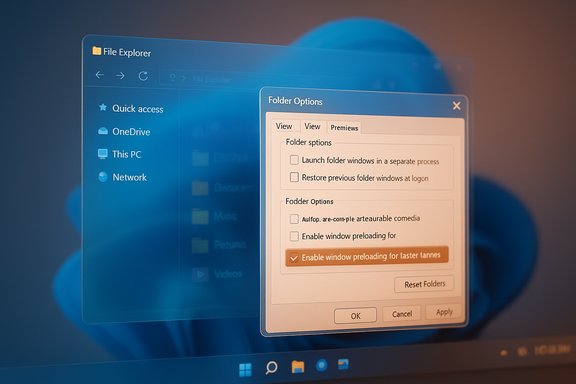
Microsoft’s new Point‑in‑time Restore introduces a short‑term, full‑system snapshot and rollback capability to Windows — a feature that can rewind a PC to an earlier working state (including the operating system, installed apps, configuration and many local files) without third‑party backup software, and it’s now available to Windows Insiders as part of the Build 26220.7271 preview.
Point‑in‑time Restore (commonly abbreviated PITR) is published by Microsoft as a preview recovery feature for both Windows 11 and Windows 10, delivered initially through the Windows Insider program and surfaced in the Windows Recovery Environment (WinRE). Microsoft documents PITR as a restore‑point system built on Volume Shadow Copy Service (VSS) that captures block‑level snapshots of the MainOS volume at scheduled intervals and retains those snapshots for a short retention window to enable rapid rollback. The functionality first appeared in Insider flights delivered as Windows 11 Insider Preview Build 26220.7271 (KB5070307) and has been discussed widely in community previews and coverage of the build notes. Availability is staged: having the build installed does not guarantee you will see PITR on every device because Microsoft uses staged rollouts and gating for features.
Source: Forbes Microsoft’s New Windows 11 Feature To Provide Game-Changing Protection For Your Data
 Background
Point‑in‑time Restore (commonly abbreviated PITR) is published by Microsoft as a preview recovery feature for both Windows 11 and Windows 10, delivered initially through the Windows Insider program and surfaced in the Windows Recovery Environment (WinRE). Microsoft documents PITR as a restore‑point system built on Volume Shadow Copy Service (VSS) that captures block‑level snapshots of the MainOS volume at scheduled intervals and retains those snapshots for a short retention window to enable rapid rollback. The functionality first appeared in Insider flights delivered as Windows 11 Insider Preview Build 26220.7271 (KB5070307) and has been discussed widely in community previews and coverage of the build notes. Availability is staged: having the build installed does not guarantee you will see PITR on every device because Microsoft uses staged rollouts and gating for features. What Point‑in‑time Restore is — and what it isn’t
The promise: a short‑term full‑system rewind
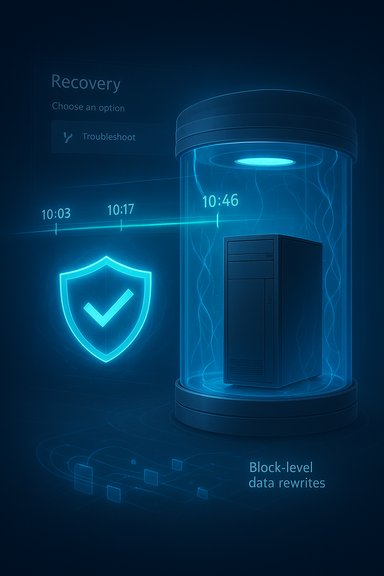
Point‑in‑time Restore captures comprehensive restore points that include the operating system, installed programs, system and user settings, account data and local user files on the MainOS volume. When you select a restore point from WinRE, the process rewrites the disk blocks that changed since that snapshot so the PC returns to the exact state it had at the chosen time. This is intended to provide a faster, lower‑friction alternative to full reprovisioning or lengthy manual troubleshooting for recent regressions.What PITR is not
- PITR is not a long‑term backup or archival system. It is explicitly designed for short retention periods and rapid rollback, not for preserving months of history.
- PITR does not replace cloud backup solutions or enterprise backup policies that provide long‑term retention and off‑device copies. Local file changes made after a restore point will be lost if you roll back to an earlier timestamp.
How it works (technical overview)
VSS as the engine
The implementation uses Volume Shadow Copy Service (VSS) to create consistent, block‑level snapshots while Windows is running. VSS coordinates with application writers and briefly quiesces data to produce a coherent snapshot, then resumes normal operations. The restore points are stored on the same device (in the VSS diff area) and are presented as timestamped restore points in WinRE.Cadence, retention and storage controls
Microsoft’s preview documentation details configurable options for PITR:- Default snapshot frequency in preview is every 24 hours, with options for more frequent intervals (for example, 4, 6, 12, 16, or 24 hours).
- Retention is limited — restore points are retained for a maximum of 72 hours in the client preview, and older points are pruned automatically.
- Storage consumption is capped by a configurable maximum usage limit (preview defaults include a small percent of disk, with a minimum allocation and explicit min/max settings to avoid unbounded disk use). The feature is on by default only for devices with total disk size at or above 200 GB; smaller disks must enable it manually.
Restoration flow
Restores are initiated from the Windows Recovery Environment under Troubleshoot → Point‑in‑time restore. When invoked, the user (or an administrator via management tooling) chooses a timestamped restore point; the restore engine then rewrites changed blocks and reboots into the restored state. For encrypted volumes, the BitLocker recovery key is required to perform the local restore.How PITR differs from System Restore and full reimage
- Scope: Classic System Restore targets system files, registry settings and drivers. PITR captures the entire MainOS volume state, significantly widening scope to include apps and many local files.
- Retention model: System Restore historically retains points subject to disk usage and cleanup policies and can persist longer. PITR is short‑term by design with a clear upper bound for retention (72 hours in preview).
- Purpose: PITR is positioned between System Restore and reimaging — faster than a full reinstall, broader than System Restore, but not intended to replace disciplined backup or cloud‑based archival strategies.
Benefits — when PITR will be genuinely useful
- Rapid remediation for recent regressions: For incidents caused by a driver update, faulty cumulative update or misapplied configuration, rolling back to a known‑good restore point can restore productivity in minutes. This materially reduces mean time to repair (MTTR) for many common failure modes.
- Lower operational cost for helpdesks: Service desks can use PITR to remediate end‑user issues without shipping devices or performing time‑consuming reimages. That can save technician time and improve SLA outcomes.
- Ease of use for non‑technical users: Exposing the capability in WinRE gives a GUI path for users to choose a restore point without advanced tooling, making recovery more accessible.
- Automatic, scheduled restore point capture.
- Configurable cadence and retention to balance recovery capability with storage usage.
- Integration points for enterprise management (Intune orchestration for Cloud PCs / managed devices is planned).
Limitations and risks — what to watch for
Data loss and unexpected deletions
PITR is powerful but potentially destructive: any file or change created after the chosen restore point will be lost. Users who create or edit documents between snapshots must understand this risk — PITR does not selectively preserve new files unless they are saved to cloud storage or backed up elsewhere. Microsoft’s preview docs and community reporting both warn that PITR should not be used as a substitute for regular backups.Storage pressure and eviction
Restore points are stored locally and share VSS storage with other snapshot consumers (including legacy System Restore and third‑party VSS‑based tools). When the configured VSS storage limit is exceeded, the system deletes older restore points first. Under low free space conditions, VSS may evict snapshots automatically — which means a restore point you expect to exist may be gone when you need it.Encryption and boot constraints
- Restores of encrypted volumes require BitLocker recovery keys. If keys are not available, the restore cannot proceed locally.
- Restoring a system can revert recent security updates and policies; IT teams must validate and remediate patches and settings post‑restore. In some edge cases, a restore could leave the device in an unbootable or inconsistent state if an error occurs during the process.
Unsupported scenarios and caveats
- Only the MainOS volume is restored; additional volumes are not included in PITR restore points.
- Exporting or mounting restore points as independent images is not supported in the preview.
- Some filesystem features (for example, EFS) and third‑party drivers that write outside OS boundaries may complicate restoration. Microsoft’s docs list several failure modes and caution about reliability in particular configurations.
Enterprise considerations — management, Cloud Rebuild and Intune
Orchestration and Intune
Microsoft plans (and in some Cloud PC scenarios already supports) management and orchestration of restore points via Microsoft Intune. For Cloud PCs, administrators can configure cadence, allow users to initiate restores, and set different policies for short‑term and long‑term restore types. This makes PITR a manageable tool for enterprise recovery workflows when combined with existing management and backup hygiene.Complementary: Cloud Rebuild
For scenarios where PITR cannot recover a device (for instance, deep corruption or missing backups), Microsoft’s Cloud Rebuild provides a remote reimage and reprovisioning flow that downloads installation media, performs a clean install, reenrolls via Autopilot/Intune and rehydrates data from OneDrive/Windows Backup for Organizations. Cloud Rebuild is the fallback for unrecoverable systems and requires good cloud backup hygiene to rehydrate user data successfully.Operational best practices for IT
- Pilot PITR in a controlled test ring before enabling broadly.
- Keep external backups for any data that must be preserved beyond PITR’s retention window. PITR reduces downtime but does not remove the need for backup.
- Ensure BitLocker recovery keys are escrowed and accessible for managed devices.
- Update runbooks and train helpdesk staff on post‑restore validation steps (security patches, driver reinstallation, MDM re‑apply).
Practical user guidance — what to expect and how to prepare
Who gets PITR automatically
Devices with total disk space of 200 GB or greater have PITR enabled by default in the preview; users with smaller disks can enable the feature manually but it won’t be turned on automatically. This behavior protects small devices from unintentional storage pressure while ensuring PITR is available on machines likely to be able to host snapshots.Where to find settings
In preview, administrators and users can view and configure PITR through Settings → System → Recovery → Point‑in‑time restore. Configuration options include enabling the feature, selecting snapshot cadence, setting retention, and controlling maximum VSS usage. These options give teams the levers to tune PITR to local storage and operational needs.A simple restore‑flow (high level)
- Boot into Windows Recovery Environment (WinRE).
- Choose Troubleshoot → Point‑in‑time restore.
- Select the desired restore point timestamp from the available list.
- Confirm the restore and allow the system to apply the snapshot; do not power off the device during the operation.
Verification and sources — the state of the public record
Microsoft’s official documentation on Point‑in‑time Restore provides the primary technical details on scope, cadence, retention, storage limits and the preview constraints. The Windows Insider announcement for Build 26220.7271 confirms PITR’s introduction to Insiders and the staged rollout strategy. Independent reporting and community captures of the Insider build reinforce Microsoft’s claims and provide hands‑on context for how PITR behaves in practical scenarios. These cross‑checks make the core technical claims (VSS backing, 72‑hour retention, scheduled capture cadence, WinRE restore flow and Intune management plans) verifiable and consistent across sources. Caution: some early writeups and previews use non‑precise language (for example, implying PITR is a blanket replacement for backups). Microsoft’s own guidance explicitly warns that PITR is a short‑term recovery tool and lists several failure modes and limitations, so any claim that PITR makes backups unnecessary is incorrect and should be treated cautiously.Strengths, outstanding questions and realistic risk assessment
Strengths
- Speed and scope: PITR’s ability to restore apps, settings and many local files—quickly and locally—addresses a gap between System Restore and full reimage. That will shorten downtime for common, recent failures.
- Manageability: Integration plans with Intune and Cloud Rebuild make PITR a realistic tool for both consumer helpdesks and managed enterprises.
Outstanding questions and operational risks
- Reliability under disk pressure: Because restore points live locally and share VSS storage, heavy disk pressure or competing VSS consumers could evict points at the worst moment. Organizations must measure storage behavior under real workloads.
- Secrets, credentials and EFS: The behavior of PITR regarding certificates, EFS‑encrypted files, and other sensitive artifacts needs validation in complex deployments; Microsoft lists these as potential failure points.
- Rollback side effects: Restoring to a point before recent security updates or policy pushes could open temporary security gaps; post‑restore validation must be part of every recovery procedure.
Recommendations — how to adopt PITR sensibly
- Treat PITR as a rapid, short‑term remediation tool, not a replacement for backups. Keep disciplined backups for long‑term retention and disaster recovery.
- Pilot PITR on non‑production hardware and simulate common recovery scenarios to validate your runbooks and training.
- Reserve PITR for incidents within its retention window; document which workflows are safe for PITR‑based remediation and which need a full backup/reimage approach.
- Ensure BitLocker recovery keys, Intune enrollment and any cloud backup dependencies (OneDrive, Windows Backup) are in place before enabling PITR broadly.
Conclusion
Point‑in‑time Restore is a significant, practical evolution of Windows recovery tooling: it provides a fast, local way to rewind recent changes across the entire MainOS volume and — when used correctly — can save time and operational cost for both consumers and managed fleets. The feature is thoughtfully scoped for short‑term recovery, and Microsoft’s preview documentation clearly calls out the limits and failure modes that must be managed. As PITR progresses from Insider preview to wider release, organizations and users will need to validate behavior in realistic environments, keep external backups, and update recovery runbooks to include the new tool while accounting for the risks of local snapshot storage and short retention windows.Source: Forbes Microsoft’s New Windows 11 Feature To Provide Game-Changing Protection For Your Data