

I didn’t realize Windows had three separate screenshot tools until I couldn’t find my screenshots, and that confusion says a lot about how Microsoft has evolved the platform. What looks like a single, simple action is actually a layered system with three distinct capture paths, different shortcut behavior, and different save locations, all coexisting for reasons that are part history, part product design, and part Windows inertia. Microsoft’s own support docs make the split very clear: Snipping Tool now handles modern snips, Print Screen can still copy the screen to the clipboard, and Xbox Game Bar saves game-style captures into a completely different folder tree.
Windows screenshotting never started as a polished workflow; it started as a utility. The original Print Screen key was designed for a world where the screen was more like a terminal output than a workspace, and the goal was to send that content to a printer or clipboard, not to a neatly named PNG in a tidy folder. Microsoft still preserves that behavior because legacy keyboard shortcuts are a kind of contract, and breaking them would frustrate more people than it would help.
That legacy matters because Windows tends to accrete features rather than replace them cleanly. The old clipboard-first Print Screen behavior still exists alongside Windows + Print Screen, which saves a full-screen image directly to Pictures > Screenshots, and alongside Alt + Print Screen, which captures only the active window. The result is a platform where a single key can mean “copy,” “save,” or “do nothing visible,” depending on modifiers and settings. That’s not elegant, but it is historically consistent with Windows as a whole.
Snipping Tool came from a very different design philosophy. Microsoft originally built it for users who needed precision over breadth — tablet users, stylus users, and anyone who wanted to capture only part of the screen rather than the whole thing. Microsoft’s current support documentation shows how far it has come: the app now supports rectangle, window, full-screen, freeform, video snips, OCR text actions, and local saving behavior that can be configured in Settings. It is no longer a niche utility; it is the closest thing Windows has to a modern screenshot hub.
Xbox Game Bar is the third branch, and it comes from yet another product agenda: gaming and media capture. Microsoft documents that Windows + Alt + Print Screen saves screenshots to Videos > Captures, and that same folder also holds recorded clips. That placement makes sense if you view Game Bar as part of a capture-and-record suite rather than a general screenshot tool, but it feels odd if you just want to find an image and move on.
The confusion is amplified by the fact that these tools overlap more than they advertise. Modern Snipping Tool can now auto-save captures, copy them to the clipboard, and open them for markup, while the old Print Screen workflow may still rely on pasting into another app if you didn’t use the Windows modifier. In other words, Windows doesn’t just have three tools; it has three philosophies of capture that sometimes produce files, sometimes produce clipboard contents, and sometimes produce both.
This is why users often think the screenshot was lost when it was actually captured successfully. If you use Print Screen without the Windows key, nothing “happens” on screen because the image is merely copied to memory, not written to disk. If you use the Snipping Tool overlay, you may get a notification and auto-save depending on settings. If you use Game Bar, you’ll get a file in a folder many people never browse. The operating system is behaving exactly as designed, but the design is fragmented enough to feel broken.
The legacy keyboard path exists because of the desktop PC era. The Snipping Tool exists because precise selection became more important as screenshots turned into support tickets, tutorials, and collaboration artifacts. Xbox Game Bar exists because Microsoft wanted a gaming overlay that could record and capture without interrupting gameplay. Different users, different assumptions, different save destinations. That history explains the architecture, even if it doesn’t excuse the confusion.
The new functionality matters because it changes the value proposition. A screenshot is no longer just an image; it is often a source of text, a record of a UI state, or a clip you need to annotate and share. Snipping Tool’s OCR and redaction features are especially important in enterprise and support contexts because they let users extract information locally without sending sensitive images to the cloud. Microsoft explicitly says the text recognition happens locally on-device.
The clipboard-only behavior is actually useful in many workflows. It is fast, doesn’t create clutter, and works well when you’re assembling a report or composing a message. But it is also the least discoverable path because it leaves no file behind and offers no obvious confirmation beyond the ability to paste. If a user doesn’t know the clipboard is the destination, the screenshot can feel like it vanished.
Game Bar’s existence makes more sense once you remember Microsoft’s broader gaming strategy. This is not just a utility; it is part of a shell designed to overlay recording, performance monitoring, and quick access controls on top of games and apps. Screenshots are just one capture mode among many, which explains why the feature is both capable and oddly displaced in the user’s mental map.
That last detail is particularly important because cloud sync can make local file paths feel unreliable. A screenshot may absolutely exist, but the copy the user expects may be in a synced folder rather than the local one they habitually browse. The result is not data loss; it is a location mismatch. Microsoft’s support materials acknowledge the Pictures > Screenshots destination, but in practice folder redirection and OneDrive settings can change the apparent endpoint.
There is also a broader product lesson here: users don’t just need features, they need a mental model of where those features live. If Windows can better communicate which screenshot tool is active and where it stores the output, the experience becomes much less mysterious. That would be a small UI improvement with an outsized usability payoff.
Windows screenshotting is one of those small system behaviors that reveals a lot about the operating system as a whole. It is powerful, flexible, and historically understandable — but only after you learn that it is not one tool at all, but three overlapping ones with very different ideas about what a screenshot is supposed to become. For enthusiasts that is manageable; for everyone else, it is a reminder that even the simplest Windows feature can still hide a little complexity in plain sight.
Source: MakeUseOf I didn't realize Windows had three separate screenshot tools until I couldn't find my screenshots
 Background
Windows screenshotting never started as a polished workflow; it started as a utility. The original Print Screen key was designed for a world where the screen was more like a terminal output than a workspace, and the goal was to send that content to a printer or clipboard, not to a neatly named PNG in a tidy folder. Microsoft still preserves that behavior because legacy keyboard shortcuts are a kind of contract, and breaking them would frustrate more people than it would help.That legacy matters because Windows tends to accrete features rather than replace them cleanly. The old clipboard-first Print Screen behavior still exists alongside Windows + Print Screen, which saves a full-screen image directly to Pictures > Screenshots, and alongside Alt + Print Screen, which captures only the active window. The result is a platform where a single key can mean “copy,” “save,” or “do nothing visible,” depending on modifiers and settings. That’s not elegant, but it is historically consistent with Windows as a whole.
Snipping Tool came from a very different design philosophy. Microsoft originally built it for users who needed precision over breadth — tablet users, stylus users, and anyone who wanted to capture only part of the screen rather than the whole thing. Microsoft’s current support documentation shows how far it has come: the app now supports rectangle, window, full-screen, freeform, video snips, OCR text actions, and local saving behavior that can be configured in Settings. It is no longer a niche utility; it is the closest thing Windows has to a modern screenshot hub.
Xbox Game Bar is the third branch, and it comes from yet another product agenda: gaming and media capture. Microsoft documents that Windows + Alt + Print Screen saves screenshots to Videos > Captures, and that same folder also holds recorded clips. That placement makes sense if you view Game Bar as part of a capture-and-record suite rather than a general screenshot tool, but it feels odd if you just want to find an image and move on.
The confusion is amplified by the fact that these tools overlap more than they advertise. Modern Snipping Tool can now auto-save captures, copy them to the clipboard, and open them for markup, while the old Print Screen workflow may still rely on pasting into another app if you didn’t use the Windows modifier. In other words, Windows doesn’t just have three tools; it has three philosophies of capture that sometimes produce files, sometimes produce clipboard contents, and sometimes produce both.
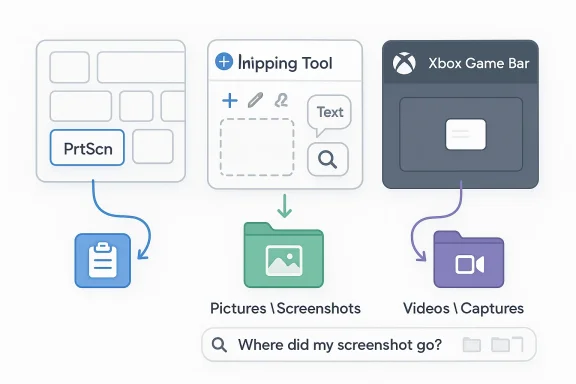
The Three Screenshot Paths
The biggest source of user confusion is that the keyboard shortcuts look similar while the output behavior is wildly different. PrtScn alone usually copies the whole screen to the clipboard. Windows + PrtScn saves a file. Windows + Shift + S opens the Snipping Tool overlay. Windows + Alt + PrtScn hands the job to Xbox Game Bar and stores the result under Captures. That means the same mental action — “take a screenshot” — can lead to four different outcomes depending on which modifier you press.This is why users often think the screenshot was lost when it was actually captured successfully. If you use Print Screen without the Windows key, nothing “happens” on screen because the image is merely copied to memory, not written to disk. If you use the Snipping Tool overlay, you may get a notification and auto-save depending on settings. If you use Game Bar, you’ll get a file in a folder many people never browse. The operating system is behaving exactly as designed, but the design is fragmented enough to feel broken.
Clipboard-first versus file-first
One useful way to think about Windows screenshots is clipboard-first versus file-first. Clipboard-first actions are fast and temporary, ideal for pasting into a document or chat. File-first actions are better when you need to archive, annotate, or share later. Windows keeps both because they serve different use cases, but the interface doesn’t always make the distinction obvious enough for casual users.- PrtScn: clipboard copy of the full screen.
- Alt + PrtScn: clipboard copy of the active window.
- Windows + PrtScn: saved PNG in Pictures > Screenshots.
- Windows + Shift + S: Snipping Tool overlay with clipboard and optional save.
- Windows + Alt + PrtScn: Xbox Game Bar capture saved under Videos > Captures.
Why Windows Never Unified Them
Microsoft could have collapsed all of this into one clean workflow years ago, but it never fully did. Part of the reason is backward compatibility: changing Print Screen would break muscle memory accumulated over decades. Another reason is that each screenshot tool evolved to solve a different problem, and none of those product teams had identical priorities. The result is a classic Windows compromise — good enough in every lane, but not fully coherent in any one lane.The legacy keyboard path exists because of the desktop PC era. The Snipping Tool exists because precise selection became more important as screenshots turned into support tickets, tutorials, and collaboration artifacts. Xbox Game Bar exists because Microsoft wanted a gaming overlay that could record and capture without interrupting gameplay. Different users, different assumptions, different save destinations. That history explains the architecture, even if it doesn’t excuse the confusion.
A product of accumulated intent
Windows often behaves like a platform that has never entirely trusted removal. Instead of deleting older behavior, Microsoft layers new behavior on top and hopes users self-sort into the right track. That strategy helps preserve compatibility and avoids alienating veteran users, but it also creates the kind of accidental complexity that sends people searching their Pictures folder for files that were never saved there in the first place.- Compatibility protects old workflows.
- New tools solve modern workflows.
- Overlap creates user confusion.
- Folder destinations differ by tool.
- Settings can change behavior, but only if users know where to look.
Snipping Tool’s Modern Role
Snipping Tool is now the most feature-rich of the three, and in practical terms it is the one Microsoft seems to be investing in most. Microsoft’s support page describes support for freeform, rectangle, window, full-screen, and video snips, plus OCR-driven text actions and configurable auto-save behavior. That broadens the app from a screenshot utility into a lightweight capture-and-processing tool.The new functionality matters because it changes the value proposition. A screenshot is no longer just an image; it is often a source of text, a record of a UI state, or a clip you need to annotate and share. Snipping Tool’s OCR and redaction features are especially important in enterprise and support contexts because they let users extract information locally without sending sensitive images to the cloud. Microsoft explicitly says the text recognition happens locally on-device.
Why OCR changes the game
OCR is more than a convenience feature. It turns a screenshot into a searchable, reusable information asset. Instead of manually retyping an error message, a serial number, or a paragraph from a web page, users can capture it and extract the text immediately. That saves time and reduces transcription errors, which is exactly the kind of quiet productivity improvement Windows users feel more than they notice.- Extract text directly from an image.
- Copy all recognized text in one step.
- Redact email addresses or phone numbers.
- Keep processing on-device for privacy.
- Use video snips for short screen recordings.
Print Screen: The Legacy That Still Matters
Print Screen persists because the simplest tools are the hardest to kill. Microsoft’s support guidance still documents Print Screen as a valid path for copying screen contents, and the Windows + PrtScn shortcut remains the cleanest route for instantly creating a saved screenshot file. That means the key is not obsolete; it is just more ambiguous than newer users expect.The clipboard-only behavior is actually useful in many workflows. It is fast, doesn’t create clutter, and works well when you’re assembling a report or composing a message. But it is also the least discoverable path because it leaves no file behind and offers no obvious confirmation beyond the ability to paste. If a user doesn’t know the clipboard is the destination, the screenshot can feel like it vanished.
When clipboard capture is the right choice
There is a good reason Microsoft hasn’t killed clipboard-first capture: it is efficient for one-step sharing. If you’re dropping an image into Outlook, Teams, Word, or a forum post, there is no need to save a file first. The friction only appears when the user expects a file and gets a transient buffer instead.- Press PrtScn for a full-screen clipboard copy.
- Press Alt + PrtScn for the active window.
- Paste into Paint, Word, chat, or email.
- Save only if you need a persistent file.
Xbox Game Bar: The Odd One Out
Xbox Game Bar is the most surprising member of the trio because people do not think of it as a screenshot tool first. Microsoft frames it as a gaming and capture overlay, and its screenshot shortcut, Windows + Alt + PrtScn, saves directly to Videos > Captures as a PNG. That storage location is logical for gameplay clips, but it is not the first place most users would search for a still image.Game Bar’s existence makes more sense once you remember Microsoft’s broader gaming strategy. This is not just a utility; it is part of a shell designed to overlay recording, performance monitoring, and quick access controls on top of games and apps. Screenshots are just one capture mode among many, which explains why the feature is both capable and oddly displaced in the user’s mental map.
Why the save location matters
The file path is the real trap. If a user expects Pictures > Screenshots and instead gets Videos > Captures, the file can appear missing even when it is exactly where Windows promised it would be. That is why Game Bar screenshots are often mistaken for failed captures. The tool did not fail; the user simply looked in the wrong directory.- Game Bar is optimized for gaming and recording.
- Screenshots save to a non-obvious folder.
- The overlay can be useful outside games.
- The workflow feels separate from the rest of Windows capture.
- It is powerful, but not intuitive for casual use.
Where the Files Actually Go
The file destination is the most important thing to remember because it is where confusion becomes frustration. Windows + PrtScn usually saves to Pictures > Screenshots, Snipping Tool auto-save also lands in the Screenshots folder unless you change it, and Xbox Game Bar saves into Videos > Captures. If OneDrive is syncing Pictures, the destination may silently shift to OneDrive\Pictures\Screenshots, which adds another layer of “wait, where did it go?”That last detail is particularly important because cloud sync can make local file paths feel unreliable. A screenshot may absolutely exist, but the copy the user expects may be in a synced folder rather than the local one they habitually browse. The result is not data loss; it is a location mismatch. Microsoft’s support materials acknowledge the Pictures > Screenshots destination, but in practice folder redirection and OneDrive settings can change the apparent endpoint.
A practical lookup map
If a screenshot seems missing, the first job is not to retake it. The first job is to identify which capture method was used, because that determines where to look. That simple diagnostic step saves time and prevents a lot of unnecessary repetition.- PrtScn: clipboard only.
- Windows + PrtScn: Pictures > Screenshots.
- Snipping Tool: clipboard plus optional save to Screenshots.
- Xbox Game Bar: Videos > Captures.
- OneDrive sync: may redirect Pictures-based paths.
Strengths and Opportunities
Windows’ screenshot ecosystem is messy, but it is also surprisingly capable once you know how to navigate it. The strength is not that there is one perfect tool; it is that Microsoft now covers fast clipboard copying, direct file saves, precision capture, OCR, and video snippets without requiring third-party software. That breadth gives Windows a very real productivity advantage, especially for users who care about speed and flexibility.- Snipping Tool now offers OCR and local text extraction.
- Auto-save reduces the chance of losing captures.
- Clipboard capture remains the fastest workflow for quick sharing.
- Game Bar extends screenshots into recording and overlay use.
- OneDrive integration can make captures easier to back up.
- Multiple shortcuts let users choose the right workflow for the task.
- Built-in tools reduce the need for third-party utilities.
Risks and Concerns
The biggest risk is not technical failure; it is invisible success. Windows can capture a screenshot correctly and still leave users convinced nothing happened because the image never appeared as a file in the place they expected. That kind of ambiguity generates mistrust, support requests, and repeat actions that create duplicate files or unnecessary confusion.- Clipboard-only captures are easy to misread as failures.
- Different save paths increase the odds of “lost” screenshots.
- OneDrive redirection can obscure local file locations.
- Game Bar is too separate from everyday screenshot habits.
- Feature overlap makes discovery harder, not easier.
- Newer Snipping Tool features may overwhelm casual users.
- Settings changes can be hard to find when users need them most.
What to Watch Next
The most important thing to watch is whether Microsoft continues consolidating screenshot workflows around Snipping Tool. The app already looks like the center of gravity, and its OCR, video snips, and save settings suggest it is becoming the preferred universal capture surface. If Microsoft wants to simplify Windows, this is a logical place to do it.There is also a broader product lesson here: users don’t just need features, they need a mental model of where those features live. If Windows can better communicate which screenshot tool is active and where it stores the output, the experience becomes much less mysterious. That would be a small UI improvement with an outsized usability payoff.
Key signals to monitor
- Whether Snipping Tool becomes the default capture surface for more users.
- Whether Microsoft reduces overlap between Print Screen and Snipping Tool.
- Whether Game Bar remains separate or gets better cross-feature integration.
- Whether OneDrive continues to influence screenshot storage paths.
- Whether Windows surfaces clearer save-location feedback after capture.
Windows screenshotting is one of those small system behaviors that reveals a lot about the operating system as a whole. It is powerful, flexible, and historically understandable — but only after you learn that it is not one tool at all, but three overlapping ones with very different ideas about what a screenshot is supposed to become. For enthusiasts that is manageable; for everyone else, it is a reminder that even the simplest Windows feature can still hide a little complexity in plain sight.
Source: MakeUseOf I didn't realize Windows had three separate screenshot tools until I couldn't find my screenshots
