

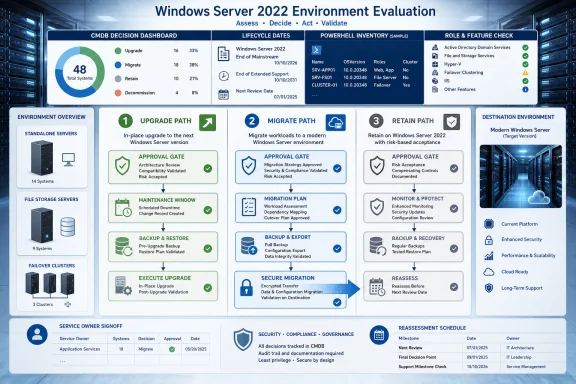
Windows Server 2022 lifecycle planning should lead to a documented decision for each workload—not an automatic in-place upgrade—using Microsoft’s lifecycle page to confirm the applicable support window and Microsoft’s role-specific guidance to select a supported transition path.
WindowsForum’s lifecycle discussions put the practical focus on planning: organizations need enough time to inventory services, identify dependencies, and schedule work that cannot safely be handled in a single maintenance window. Retention can be a valid temporary decision, but only when it has an accountable owner, a patching plan, recovery evidence, and a scheduled review.
Microsoft documents two primary paths to a newer Windows Server release:
The first deliverable is not an upgrade percentage. It is a central decision record covering every Windows Server 2022 instance: Upgrade, Migrate, or Retain.
Export installed roles and features from each server:
For Server Core systems, run the command remotely if needed. Store the exports in a central repository, then create one row per server in the organization’s CMDB or a controlled central CSV. The CMDB should be the system of record when one exists; a shared CSV is suitable only if it has a defined owner, change control, and version history.
Use at least these fields:
A completed record might look like this:
Use these minimum gates for every change:
Windows Server Migration Tools can move many roles and features. For file-server and storage migrations, Storage Migration Service is Microsoft’s designated route. The exact migration steps still depend on the workload; validate the destination and follow the guidance for each installed role rather than assuming one tool covers every configuration.
For nonclustered systems, Microsoft supports a direct upgrade from Windows Server 2022 to Windows Server 2025. Cluster planning is different: Cluster OS rolling upgrades move one Windows Server version at a time. Do not apply a standalone-server schedule directly to a clustered workload.
Before approving this lane, verify installed roles and features in Microsoft’s role-and-feature guidance. Identify installation mode early because the upgrade cannot change Server Core into Desktop Experience, or Desktop Experience into Server Core.
A successful operating-system installation is not the completion criterion. The post-change record should include service startup status, application-owner acceptance, monitoring confirmation, and the outcome of the agreed operational test.
This lane is appropriate when the role guidance indicates migration, when a new destination is needed, when the installation mode must change, or when the team needs destination testing before moving users or applications.
For file-server and storage workloads, begin with Storage Migration Service. The project record should identify data and shares in scope, applications that depend on file paths, the service owner approving cutover, the rollback method, and the evidence that users can resume normal work.
The useful result is a complete, approved decision record: every Windows Server 2022 workload has a verified transition path or a documented retention decision with an owner, evidence, and review date.
WindowsForum’s lifecycle discussions put the practical focus on planning: organizations need enough time to inventory services, identify dependencies, and schedule work that cannot safely be handled in a single maintenance window. Retention can be a valid temporary decision, but only when it has an accountable owner, a patching plan, recovery evidence, and a scheduled review.
Microsoft documents two primary paths to a newer Windows Server release:
- In-place upgrade, which retains settings, roles, and data.
- Migration, which moves a workload to a newly built server.
 Build the Decision Record First
The first deliverable is not an upgrade percentage. It is a central decision record covering every Windows Server 2022 instance: Upgrade, Migrate, or Retain.Export installed roles and features from each server:
Code:
Get-WindowsFeature |
 Where-Object { $_.Installed } |
 Select-Object Name, DisplayName, FeatureType |
Export-Csv "C:\Temp\$env:COMPUTERNAME-WindowsFeatures.csv" -NoTypeInformationUse at least these fields:
| Field | Purpose |
|---|---|
| Server name and environment | Identifies the system and whether it is production, test, or development. |
| Business service | States what the server delivers. |
| Named service owner | Names the person responsible for service validation and business approval. |
| Installed roles/features | Links to the PowerShell inventory export. |
| Application and version | Identifies the workload to test, not merely the operating system. |
| Installation mode | Records Server Core or Desktop Experience. |
| Standalone or cluster member | Identifies cluster-specific planning requirements. |
| Decision lane | Upgrade, Migrate, or Retain. |
| Microsoft guidance URL and result | Records the applicable role guidance and whether it allows upgrade, migration, or both. |
| Lifecycle/support decision | Explains why the workload is moving or remaining on Windows Server 2022. |
| Restore evidence | Links to the latest successful restore test or recovery validation. |
| Compatibility confirmation | Records application-owner or vendor confirmation and test results. |
| Patching owner | Names the team responsible for ongoing updates. |
| Target or reassessment date | Sets the cutover target or next retention review. |
| Server | Service | Decision | Microsoft guidance result | Approval | Pre-change gate | Post-change gate |
|---|---|---|---|---|---|---|
| FS-01 | Department file shares | Migrate | Storage Migration Service selected for file-server migration | Service owner and infrastructure change approver | Restore test, share inventory, application-path review | Share access test, application-owner signoff, monitoring check |
Classify Every Server Into a Lane
Use one detailed decision model, then apply it consistently.- Assign Upgrade only when the server is nonclustered, the installed roles and features are supported for in-place upgrade under Microsoft’s role-and-feature guidance, the installation mode will not change, and the service owner can provide compatibility and recovery validation.
- Assign Migrate when Microsoft’s guidance indicates migration for an installed role or feature, when a new destination is required, when a Server Core/Desktop Experience change is needed, or when the team needs separate destination validation and a controlled cutover.
- Assign Retain only when there is a documented business or technical reason to remain on Windows Server 2022, a confirmed lifecycle and support review, a named patching owner, tested restore evidence, and a dated reassessment.
Turn Classification Into an Operational Workflow
After classification, the infrastructure team should maintain the central CMDB or controlled CSV and prepare implementation waves from that record. The service owner approves the business-service impact and post-change test criteria. The infrastructure or platform owner approves the technical lane. The organization’s normal change authority approves the maintenance window and rollback plan for production work.Use these minimum gates for every change:
- Pre-change gate: The decision record is complete; the applicable Microsoft role guidance URL is recorded; the service owner approves the planned test; restore evidence is current; the maintenance window, rollback method, and communications are approved.
- Implementation gate: The assigned lane matches the record. Do not convert an upgrade into a migration, or a migration into an upgrade, during the change without revising the record and obtaining approval.
- Post-change gate: Confirm the operating system change or destination cutover completed, run the service-owner acceptance test, verify monitoring and routine operations, and record the result in the decision record.
- Closure gate: The service owner accepts the change, the infrastructure team records the final state, and retained systems receive a reassessment date rather than an indefinite exception.
Choose the Transition Path by Workload
| Workload profile | Default lane | Required validation |
|---|---|---|
| Stable standalone service with supported roles/features | Upgrade | Verify in Microsoft’s role guidance that in-place upgrade is supported; confirm compatibility, restore evidence, and installation mode. |
| File server or storage workload | Migrate | Microsoft identifies Storage Migration Service as the designated route for file-server and storage migrations. Validate data scope, shares, permissions, application paths, and cutover acceptance criteria. |
| Role or feature not supported for in-place upgrade | Migrate | Use Microsoft’s role-and-feature guidance and the detailed migration instructions linked from it. |
| Server requiring a Core/Desktop Experience change | Migrate | An in-place upgrade cannot switch Server Core to Desktop Experience or Desktop Experience to Server Core. |
| Failover cluster | Rolling upgrade or planned migration | Verify the supported cluster sequence and maintenance plan. Cluster OS rolling upgrades advance one Windows Server version at a time. |
| Stable service with a justified reason to remain on 2022 | Retain | Record the lifecycle review, patching owner, restore evidence, service-owner approval, and reassessment date. |
For nonclustered systems, Microsoft supports a direct upgrade from Windows Server 2022 to Windows Server 2025. Cluster planning is different: Cluster OS rolling upgrades move one Windows Server version at a time. Do not apply a standalone-server schedule directly to a clustered workload.
In-Place Upgrade Requires Service Validation
An in-place upgrade retains settings, roles, and data. That can reduce rebuild work for a well-understood standalone server, but it also preserves the existing configuration and dependencies. The relevant question is whether preserving that environment is appropriate for the service.Before approving this lane, verify installed roles and features in Microsoft’s role-and-feature guidance. Identify installation mode early because the upgrade cannot change Server Core into Desktop Experience, or Desktop Experience into Server Core.
A successful operating-system installation is not the completion criterion. The post-change record should include service startup status, application-owner acceptance, monitoring confirmation, and the outcome of the agreed operational test.
Migration Creates a Separate Validation Point
Migration places the workload on a newly built server running the newer Windows Server release. Microsoft provides Windows Server Migration Tools for many roles and features, with role-specific instructions available through the central role-and-feature guidance.This lane is appropriate when the role guidance indicates migration, when a new destination is needed, when the installation mode must change, or when the team needs destination testing before moving users or applications.
For file-server and storage workloads, begin with Storage Migration Service. The project record should identify data and shares in scope, applications that depend on file paths, the service owner approving cutover, the rollback method, and the evidence that users can resume normal work.
Required Record Before Any Production Change
No server should enter a production implementation wave until its record includes:- Named service owner
- Upgrade, Migrate, or Retain decision with documented reason
- Microsoft role-guidance URL and recorded support result
- Server Core or Desktop Experience status
- Standalone or cluster status
- Tested restore evidence
- Application compatibility confirmation
- Patching owner
- Approved maintenance window and rollback method
- Target date or reassessment date
Frequently Asked Questions
Does the Windows Server 2022 lifecycle require an immediate upgrade?
No. Review Microsoft’s Windows Server 2022 lifecycle page for the applicable support window, then make a documented workload decision. Retention should include patching ownership, recovery evidence, and a reassessment date.Can Windows Server 2022 upgrade directly to Windows Server 2025?
Microsoft supports a direct upgrade from Windows Server 2022 to Windows Server 2025 for nonclustered systems. Administrators must still verify installed roles and features in Microsoft’s role-and-feature guidance before approving in-place upgrade.Can an in-place upgrade change Server Core into Desktop Experience?
No. Microsoft does not support changing from Server Core to Desktop Experience, or from Desktop Experience to Server Core, during an in-place upgrade. Use migration to a newly built server if that change is required.Should every Windows Server 2022 file server be upgraded in place?
No. Microsoft identifies Storage Migration Service as the designated route for file-server and storage migrations. Validate shares, data scope, permissions, application paths, and cutover acceptance criteria before selecting the implementation method.The useful result is a complete, approved decision record: every Windows Server 2022 workload has a verified transition path or a documented retention decision with an owner, evidence, and review date.
References
- Primary source: learn.microsoft.com
Windows Server 2022 - Microsoft Lifecycle | Microsoft Learn
Windows Server 2022 follows the Fixed Lifecycle Policy.learn.microsoft.com - Primary source: WindowsForum
Loading…
windowsforum.com