

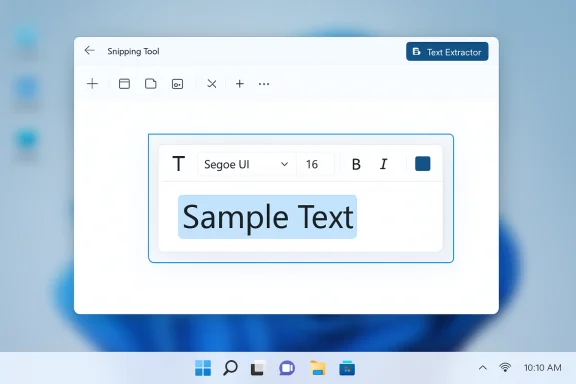
Microsoft’s Snipping Tool is finally getting a native way to type text onto screenshots — a small capability that has been oddly missing from the inbox app for years — and the change has begun to surface in Windows Insider previews, alongside the Snipping Tool’s broader OCR/Text Extractor upgrades.
Background / Overview
The Snipping Tool in Windows 11 has evolved from a basic screenshot grabber into a compact capture-and-edit utility: Win + Shift + S launches a capture overlay, Quick Markup provides inline pen and highlighter tools, and recent updates have added an on-device Text Extractor (OCR) that can copy selectable text directly from screen regions. Microsoft documented the Text Extractor rollout to Insiders earlier in 2025. What’s new — and what has the community talking — is a distinct, native Text (T) tool inside the Snipping Tool’s image editor that lets you insert, format, move, and resize typed text directly on a captured image without leaving the Snipping Tool editor. The feature was first surfaced in preview footage and package inspections by Windows community sleuths and an Insider tipster who posts as PhantomOfEarth. Multiple community write‑ups and preview analyses have corroborated the sighting, although Microsoft has not yet published public release notes naming the typed-text insertion feature in a stable build.What the new Text tool does
Feature snapshot
- A Text (T) icon appears in the Snipping Tool editor toolbar; activating it opens a secondary formatting toolbar.
- Users can select font, size, and basic formatting (Bold, Italic, Underline).
- Text color and a highlight/marker effect can be applied.
- To place text you draw a box where you want the text and then type; text boxes can be moved and resized.
How it fits with existing Snipping Tool capabilities
- The typed‑text insertion complements the Text Extractor (OCR) flow (which extracts text from images) rather than replacing it; you can use OCR to copy text out of a screenshot and the typed Text tool to add commentary or labels.
- Quick Markup (pen, highlighter, shapes) remains for freehand annotations; the Text tool fills the gap for neat, typed callouts.
Why this matters — practical benefits
Adding native typed-text insertion to the Snipping Tool is a deceptively practical change with outsized day‑to‑day benefits.- Faster documentation workflows. Technical writers, support staff, QA engineers, and educators create annotated screenshots frequently; eliminating the export-to-editor step saves seconds that add up.
- Zero-install utility. Snipping Tool is an inbox app updated through Microsoft/Store channels, so typed annotations become available on locked, kiosk, or managed devices where installing third‑party tools is impractical.
- Parity with third‑party tools. Longstanding utilities such as ShareX or Greenshot have offered typed annotations for years. Native parity reduces the need to approve or maintain external apps for basic screenshot tasks.
- Accessibility and searchability. When used alongside OCR/Text Extractor, typed labels and extracted text can make captured content easier to copy, search, or convert into structured documentation.
Verification and where this story stands
- Microsoft has officially documented the Snipping Tool’s Text Extractor (OCR) rollout to Windows Insiders in April 2025; that is a confirmed, public change.
- The typed-text insertion (Text tool) has been observed in Insider preview footage and package contents by community tipsters such as PhantomOfEarth and reported by multiple tech outlets and community trackers, but Microsoft has not yet published formal release notes that name typed-text insertion as a shipping feature in stable builds. Treat preview sightings as strong signal but not final confirmation.
Hands‑on workflow (what to expect when you try it)
- Press Windows + Shift + S to open the capture overlay.
- Make your selection (rectangle, freeform, window).
- Enter the Quick Markup/editor view (the capture opens in the editor).
- Click the T / Text icon in the toolbar to activate the text box tool.
- Draw a text box where you want the label, type, then format (bold/italic/underline, color, highlight).
- Move/resize the text box as needed, then Save, Copy, or Share the annotated image from the same UI.
Limitations, unknowns, and risks
The feature is helpful but not without caveats. Insiders and IT admins should pay attention to the following open questions and risks.1) Editable vs. flattened text layers (major practical unknown)
Historically, some Windows editors have flattened text into pixels when a file is saved, which makes later edits impossible without keeping the original project. Early preview footage and package inspections do not conclusively demonstrate whether Snipping Tool’s new text boxes will be saved as editable layers or rasterized into the final image. If text is flattened at save time, that will be inconvenient for iterative documentation workflows. This remains unverified until Microsoft documents save semantics in a release note.2) Feature gating and channel variability
Microsoft frequently tests features in Canary/Dev channels and sometimes gates functionality by Insider channel, device family (Copilot+ hardware), or even subscription entitlements. Do not assume universal availability across stable Windows 11 installations immediately.3) Privacy and cloud processing
Some Snipping Tool actions — for example Visual Search or Copilot analysis — route content to cloud services for enhanced results. Administrators should verify whether the typed‑text insertion and Text Extractor flows run fully on‑device or invoke cloud processing by default. For sensitive imagery, confirm telemetry and data‑movement settings and whether Intune/GPO controls can force on‑device processing. The Windows Support guidance emphasizes local processing for OCR, but implementation details can vary across builds.4) Stability and preview rollback risk
Insider builds are experimental: features may be reworked, temporarily removed, or behave differently in subsequent builds. Teams relying on early behavior should isolate test hardware and avoid rolling preview builds into production.How the Snipping Tool compares to third‑party screenshot utilities
- ShareX / Greenshot / Snagit: powerful workflows, layered edits, automation, and export/integration options. They remain superior for advanced, repeatable documentation workflows and automation.
- Snipping Tool (new Text tool + OCR): convenience-first — native, zero-install, consistent availability on managed devices, and faster for ad-hoc annotations. Good for teams that prioritize minimal software footprint and simple workflows.
Cross‑verification of key claims
- Microsoft’s official Windows Insider blog confirms the Text Extractor (OCR) rollout and provides guidance on usage and options — an authoritative, on-the-record source for that capability.
- Independent reporting and community trackers (PCWorld, BetaNews, WindowsReport and others) documented PhantomOfEarth’s demo of Snipping Tool upgrades and the move to fold PowerToys‑style features into the inbox app. These outlets corroborate the community sighting that many of the Snipping Tool’s OCR and editing features are being validated in Insider channels.
- Community package inspections and preview footage (the screens and demo clips shared by insiders) reveal the Text (T) icon and the expected formatting toolbar, but Microsoft has not yet published a stable-release note that labels the typed-text insertion as fully shipped; treat those findings as provisional until in-product release documentation appears.
How to try this today (Insiders and curious users)
If you want early access and are comfortable with preview builds:- Join the Windows Insider Program and opt into Dev or Canary channels (these channels typically receive the newest Snipping Tool experiments).
- Update Windows and the Snipping Tool app via the Microsoft Store so you have the latest Insider package.
- Press Win + Shift + S and look for Quick Markup; open the captured image in the Snipping Tool editor and look for the T (Text) icon.
Practical tips and best practices
- If editable text persistence matters, keep original, unflattened screenshots (or maintain a versioning practice) until Microsoft confirms the save semantics.
- For sensitive screenshots, verify that Snipping Tool’s Visual Search/Copilot routing is disabled or set to on‑device processing before sharing images that might be captured to cloud services.
- If you need advanced annotation workflows (templating, automated uploads, hotkey scripting), maintain workflow parity with a third‑party tool such as ShareX or Snagit while testing the Snipping Tool’s capabilities.
Broader significance: a pattern in Windows inbox apps
The proposed Text tool fits a clear product pattern: Microsoft has been systematically folding PowerToys‑style conveniences and OCR functions into Windows inbox apps where appropriate, reducing the need for add‑on utilities for everyday tasks. The Snipping Tool’s evolution (Quick Markup, Text Extractor, video trimming, AI-assisted cropping) reflects a strategy of practical integration — prioritizing time‑saving features that benefit the broadest set of users while keeping advanced capabilities available to power users via specialized apps.Final assessment
The ability to add typed text directly to screenshots in the Windows 11 Snipping Tool is an overdue but sensible upgrade that removes a small, persistent friction from everyday screenshotting workflows. Community evidence — demo clips and package inspections by insiders — is strong and consistent, and Microsoft’s parallel, official rollout of the Text Extractor (OCR) demonstrates a coherent roadmap toward richer capture-to-edit experiences. That said, sensible caution is required: the typed-text insertion has only been observed in Insider previews and package metadata so far, and several practical questions (editable-layer persistence, gating, precise build availability, and cloud-processing defaults) remain unconfirmed. Administrators and power users should pilot the feature in a controlled ring and confirm privacy and save semantics before assuming it will replace third‑party screenshot tooling in production workflows.The Snipping Tool is closing an awkward gap between capture and annotation; when Microsoft publishes release notes naming typed-text insertion as shipped to stable channels, many users will likely drop an extra step from their documentation workflows — and for a tool used daily by millions, that small efficiency gain will be welcome.
Source: gHacks Technology News Windows 11's Snipping Tool is getting the ability to add text to screenshots - gHacks Tech News
