

I’ve learned the hard way that a Windows test laptop abused for years without a proper reset will eventually behave in ways that defy patience and expectation, producing crashes, broken built-in apps, and odd filesystem and UI quirks that aren’t fixed by the usual “repair” tricks.
Testing machines are different animals. Using one laptop as the primary sandbox for dozens of apps, drivers, registry tweaks, virtual machines, and Insider builds concentrates risk. In the case described by the XDA author, a 2022 Huawei MateBook X Pro running a Release Preview Insider build accumulated years of software churn: antivirus packages, UI tweaks, Start menu replacements, game recorders, browser experiments, and even very old Windows builds in virtual machines. That pattern—install, test, uninstall—left behind enough detritus that Windows started showing persistent, inexplicable failures rather than isolated bugs. The author’s experience mirrors numerous community reports that long-term, heavy usage without a periodic clean slate produces hard-to-diagnose problems. Examples of similar long-running testing experiments and the odd behaviors that can follow appear across community threads and testing reports.
This article explains what broke, why these problems happen, what the author tried (and what worked or didn’t), and pragmatic, actionable maintenance strategies—step-by-step—so Windows enthusiasts and power users can keep a test machine healthy without losing carefully curated virtual environments.
Practically, however, in-place reinstalls do not always remove or scrub every third-party component, background service, registry modification, driver, or leftover app artifact. Persistent app-level corruption and userland cruft—especially modifications to shell integrations, WebView2-hosted components, drivers installed outside the normal update channels, or large numbers of auxiliary utilities—can survive or continue to influence the environment after an in-place reinstall. Community experience and troubleshooting guides concur: repair installs can fix many system-file problems but often leave behind subtle, hard‑to-reproduce application-level or Registry-level corruption.
The practical takeaway: in-place reinstall is a valuable tool for repairing core Windows binaries, but it’s not a guaranteed cure for years of layered testing and registry surgery.
Important nuance for test users: “Keep my files” removes installed applications—including virtualization software like VirtualBox or VMware Workstation—but it will usually leave VM disk images alone if those files reside in personal folders that are preserved. Where problems arise is that many people locate VM storage in C:\ProgramData, C:\Program Files, or other non-user folders; in that case, a reset may delete the VM disks. The author’s fear about losing VMs is well founded: reset workflows can require reinstallation of hypervisors, and unless VM data is properly backed up, recreating complex old-OS VMs can be painful. Community guides strongly recommend exporting or copying VM folders before any reset.
The author’s experience is a useful cautionary tale: test machines are valuable but brittle if treated like disposable sandboxes. Proactive backups, disciplined storage choices for VMs, and a regular reset-or-image cadence will prevent small annoyances from calcifying into long-term corruption that defies lightweight repairs. The hard practical truth is simple: occasional resets, paired with a robust backup and imaging plan, avoid far more pain than trying to surgically excise years of accumulated cruft.
If you run a lab or keep an older test laptop, start today: export your VMs, take a disk image, and schedule the reset or refresh you’ve been postponing. The time you spend protecting your artifacts up front is tiny compared to the time you’ll spend reconstructing decades‑old test environments after a failed cleanup.
Source: XDA I haven't reset my testing laptop in years, and Windows has broken in inexplicable ways
 Background
Testing machines are different animals. Using one laptop as the primary sandbox for dozens of apps, drivers, registry tweaks, virtual machines, and Insider builds concentrates risk. In the case described by the XDA author, a 2022 Huawei MateBook X Pro running a Release Preview Insider build accumulated years of software churn: antivirus packages, UI tweaks, Start menu replacements, game recorders, browser experiments, and even very old Windows builds in virtual machines. That pattern—install, test, uninstall—left behind enough detritus that Windows started showing persistent, inexplicable failures rather than isolated bugs. The author’s experience mirrors numerous community reports that long-term, heavy usage without a periodic clean slate produces hard-to-diagnose problems. Examples of similar long-running testing experiments and the odd behaviors that can follow appear across community threads and testing reports.This article explains what broke, why these problems happen, what the author tried (and what worked or didn’t), and pragmatic, actionable maintenance strategies—step-by-step—so Windows enthusiasts and power users can keep a test machine healthy without losing carefully curated virtual environments.
What broke: a catalog of the odd, inexplicable failures
Short, scannable list of the main failures the author reported:- Snipping Tool instability: crashes when invoked with modern context menus open and progressive corruption where screenshots are created as zero-byte files or the app leaves Focus Assist / Do Not Disturb enabled permanently.
- Windows Spotlight failing to fetch or rotate new images, stuck on a small set of local pictures and missing the “learn more”/info controls. (Author reports repeated re-enablement attempts produced no new content.
- Disk/partition management anomalies: after using GParted to shrink a partition, Windows allowed expansion but later refused resizing with a “disk may be corrupted” error; behavior changed after a later update (anecdotally). This reflects how third‑party partition changes and Windows’ metadata can fall out of sync.
- System sluggishness and UI races: explorer hangs, snapped UI elements, and other symptoms common to long-lived systems that have had many changes layered over the OS. Community reports show similar symptoms and highlight update-related regressions that can exacerbate these problems.
Why an in-place reinstall didn’t solve everything
Microsoft’s in-place reinstall (also called a “repair install” or by some workflows “reinstall from Windows Update while keeping files and apps”) is useful because it rewrites core Windows system files while attempting to preserve user data and installed applications. In theory it’s a lower‑pain way to restore system binaries and resolve corrupted system files without a full reset.Practically, however, in-place reinstalls do not always remove or scrub every third-party component, background service, registry modification, driver, or leftover app artifact. Persistent app-level corruption and userland cruft—especially modifications to shell integrations, WebView2-hosted components, drivers installed outside the normal update channels, or large numbers of auxiliary utilities—can survive or continue to influence the environment after an in-place reinstall. Community experience and troubleshooting guides concur: repair installs can fix many system-file problems but often leave behind subtle, hard‑to-reproduce application-level or Registry-level corruption.
The practical takeaway: in-place reinstall is a valuable tool for repairing core Windows binaries, but it’s not a guaranteed cure for years of layered testing and registry surgery.
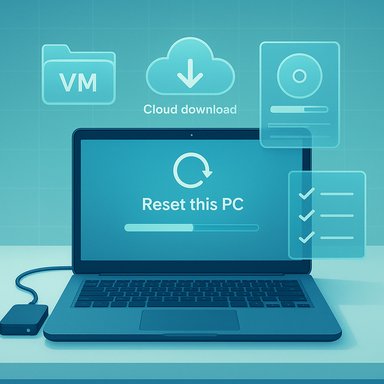
Why “Reset this PC” is the nuclear option — and what it does
Windows’ Reset this PC workflow exposes two important choices that users must understand:- Keep my files: removes installed apps and resets Windows settings while retaining personal data (Documents, Pictures, etc.. This option will uninstall apps—including hypervisors—and reset many system settings.
- Remove everything: performs a full wipe of the system disk, giving the cleanest possible environment but also destroying all user data unless it’s backed up externally.
Important nuance for test users: “Keep my files” removes installed applications—including virtualization software like VirtualBox or VMware Workstation—but it will usually leave VM disk images alone if those files reside in personal folders that are preserved. Where problems arise is that many people locate VM storage in C:\ProgramData, C:\Program Files, or other non-user folders; in that case, a reset may delete the VM disks. The author’s fear about losing VMs is well founded: reset workflows can require reinstallation of hypervisors, and unless VM data is properly backed up, recreating complex old-OS VMs can be painful. Community guides strongly recommend exporting or copying VM folders before any reset.
The living-to-test trade-offs: why test laptops rot
Why do test laptops degrade more than “normal” machines? Several compounding factors:- High churn: frequent installs/uninstalls of low-quality or deeply integrated tools leave registry keys, services, drivers, and shell extensions. These rarely disappear cleanly.
- Insider channels and frequent updates: being in Release Preview or Insider channels increases exposure to pre-release changes that stress integration points. That can uncover bugs sooner but also pile on inconsistent state.
- Persistent background components: modern apps increasingly embed web runtimes (WebView2), background services, and global hooks. A misbehaving WebView2 parent can spike CPU or cause odd UI behaviors; community threads connect some long-standing system weirdness to these shared runtimes.
- Manual partitions and metadata mismatch: using tools like GParted is fine, but when Windows’ partition metadata or its boot/volume information doesn’t reflect the changes, the OS can refuse further operations or mark a volume “corrupt” until manually fixed.
What the author tried (and what the community typically tries)
Actions the XDA author attempted:- Uninstalling software and attempting to clean up remnants where possible. This is always worth doing but is time-consuming.
- Using the Snipping Tool repair/reset options in Settings → Apps → Advanced options. That can terminate or reset the app’s local state but may not fix system-wide overlay or notification problems.
- The in-place reinstall method provided by Windows to preserve apps and data while refreshing system files. This is effective in many cases but did not remedy the author’s symptoms.
- Terminate and Repair the misbehaving app from the Apps settings; enable Clipboard history and ensure notifications/focus assist settings aren’t interfering (sometimes Snipping Tool’s UI uses notifications/overlay pathways that Focus Assist can suppress). Community troubleshooting lists these as immediate checks.
- Inspect and terminate parent processes (e.g., msedgewebview2 instances) and repair the WebView2 runtime if CPU or UI components appear broken.
- Export or copy VM images and configuration (OVF/OVA for VirtualBox/VMware) to external drives before any disruptive operation. Many admins recommend scripting regular VM exports for long-term test rigs.
Practical, step-by-step maintenance plan for a Windows test laptop
Follow this plan to protect VMs and keep Windows test rigs usable while reducing the need for full reinstalls.- Immediate backups (before you touch anything)
- Copy virtual machine folders (VM disk files, VMX/VBOX settings, snapshots) to an external drive or NAS. If using VirtualBox, export VMs as OVF/OVA as a secondary copy. This is non‑negotiable if you care about those old Windows images.
- Disk image snapshot
- Use a block-level imaging tool (Macrium Reflect Free, Acronis, or equivalent) to create a full disk image. If you need to return to the current state for any reason, you’ll have a recoverable snapshot. Imaging lets you try aggressive repairs without burning bridges.
- Triage before reset
- Run Autoruns to find persistent autoload entries and shell extensions. Remove questionable entries after exporting Autoruns’ registry list.
- Use Process Explorer to inspect parent processes of high-resource web runtimes (msedgewebview2) and terminate or repair the responsible application. Community reports implicate WebView2 as a common troublemaker.
- Lightweight repairs to test first
- App-level Reset/Repair (Settings → Apps) for Snipping Tool or other misbehaving apps.
- System File Checker and DISM for corrupted system files: sfc /scannow and DISM /Online /Cleanup-Image /RestoreHealth. These can fix many component store issues; they’re safe first steps.
- If problems persist: in-place reinstall
- Use Windows’ in-place reinstall to refresh system binaries while attempting to keep apps and files. If you suspect the local image is suspect, choose Cloud Download. This may be faster than a full reset and preserves more of your workflow. But be prepared to reinstall hypervisors and certain drivers afterwards.
- If the system remains unstable: Reset this PC (Keep my files OR Remove everything)
- If you choose Keep my files, expect all apps to be removed; bring the exported VMs back from the backup copy. If you choose Remove everything, restore your VM images from external storage after reinstall. Use Cloud Download for the cleanest base.
- Post-reset checklist (to avoid recurrence)
- Reinstall only the tools you truly need. Keep a list of exactly which pieces of software are required for future tests.
- Use dedicated user accounts for testing vs. daily work to confine test artifacts.
- Keep VM storage outside C:\Program Files and preferably on a separate data partition or external disk so resets don’t touch them inadvertently.
How to protect virtual machines and avoid the pain the author feared
- Export: before any major operation export VMs to OVF/OVA; exportation preserves configuration and is portable across hypervisors.
- Store externally: place VM disks and snapshots on a separate physical drive or network share; resets typically target the system drive and will be less likely to wipe external volumes.
- Snapshot vs. image: rely on full disk images for rollback of the entire OS and on VM exports for preserving VMs specifically. Disk images are the fastest way to get back to an exact previous host environment.
- Use versioned Vagrant/packer or scripted VM setups where possible for very old OSes; automating the VM build reduces the agony of manual re-creation.
Strengths, weaknesses, and risks of the author’s approach
Strengths observed:- Real-world testing produces valuable coverage and reveals real integration issues (e.g., how Snipping Tool interacts with context menus or Focus Assist). The author’s heavy testing is a useful stress test for Windows behaviors and is the kind of reporting that finds edge bugs.
- The decision to avoid a full reset until VM exports and disk images exist is sensible and protects irreplaceable artifacts.
- Accumulated cruft and registry edits can generate persistent, non-obvious corruption that eludes app-level resets and in-place reinstalls. Community evidence shows these states are more likely with frequent installs/uninstalls and Insider channel exposure.
- Relying on “Keep my files” as an alternative to a true clean install is risky; it uninstalls apps but may not remove every low-level artifact, and some app data may be removed unpredictably. Always back up before using reset flows.
- The author reports a particular update restored some functionality (e.g., partition resize or Snipping Tool behavior), but that’s an anecdote. It’s prudent to verify such claims against the update history and KB articles because fixes may be environment-specific or tied to a combination of patches. Until corroborated via update KBs or reproduce steps, treat these as provisional.
Recommendation: a repeatable maintenance regimen for any Windows test laptop
- Monthly: run a lightweight cleanup — remove temporarily installed apps, run Autoruns, clear temp directories, and export any new or modified VMs.
- Quarterly: create a full disk image and copy VM exports to a separate storage device. This creates restore points at intervals so you can roll back to a known-good baseline without losing years of work.
- Before any major test run or new class of installs: snapshot or export VMs you may need to preserve. Treat VM export as part of the test workflow, not an afterthought.
- Use a dual-disk strategy: OS on an internal NVMe + large-capacity external or separate internal drive for VM storage. That minimizes accidental deletions during resets and improves restoration speed.
- When debugging strange behavior, prefer SFC/DISM, app resets, and targeted repairs first; reserve in-place reinstall for stubborn system corruption and reset as a last resort after backups are in place.
Final analysis: Windows has come a long way, but maintenance still matters
Windows provides a surprisingly capable set of recovery tools—Reset this PC, Cloud Download, in-place reinstall, and per-app resets. These reduce the friction of returning to a functional system compared with older eras. Community reporting also shows, however, that modern Windows integrates many shared components (WebView2, cloud services, nested runtimes) that increase the blast radius of a single misbehaving app. That makes disciplined backup, image-based rollback, and VM export workflows essential for anyone who needs to preserve complex test artifacts.The author’s experience is a useful cautionary tale: test machines are valuable but brittle if treated like disposable sandboxes. Proactive backups, disciplined storage choices for VMs, and a regular reset-or-image cadence will prevent small annoyances from calcifying into long-term corruption that defies lightweight repairs. The hard practical truth is simple: occasional resets, paired with a robust backup and imaging plan, avoid far more pain than trying to surgically excise years of accumulated cruft.
If you run a lab or keep an older test laptop, start today: export your VMs, take a disk image, and schedule the reset or refresh you’ve been postponing. The time you spend protecting your artifacts up front is tiny compared to the time you’ll spend reconstructing decades‑old test environments after a failed cleanup.
Source: XDA I haven't reset my testing laptop in years, and Windows has broken in inexplicable ways
