

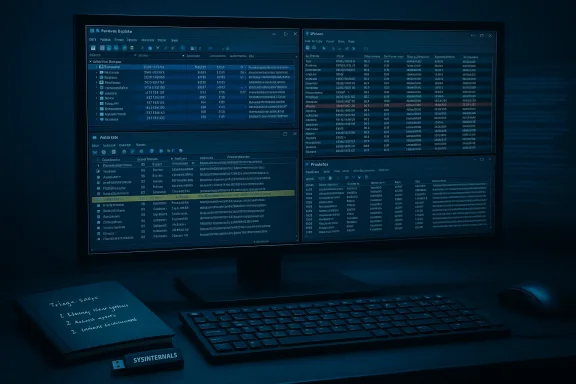
When something on a Windows PC “feels off” — a persistent CPU spike, a process that keeps reappearing after you remove it, or a program quietly making outbound connections — Task Manager can leave you guessing. That’s why advanced users and incident responders reach for the Windows Sysinternals Suite: a collection of lightweight, portable utilities that expose the system’s inner workings and help you catch stealthy or persistent threats. A recent MakeUseOf roundup that I used as a starting point highlights five tools I use every time I hunt suspicious behavior: Process Explorer, TCPView, Autoruns, Process Monitor (ProcMon), and Sysmon. on that list with practical workflows, verified technical details, and concrete safeguards so you can use those tools confidently and without accidentally making things worse. I verify the key capabilities against official Sysinternals documentation and other independent sources, point out important caveats (including privacy and SSD-specific limits), and give step-by-step patterns you can adopt for real-world triage and hunting.
Sysinternals began as a set of independent Windows utilities written by Mark Russinovich and Bryce Cogswell; Microsoft acquired the project in 2006 and continues to maintain the suite. Mark Russinovich today holds senior technical roles at Microsoft and remains the public face of many of these tools. The Sysinternals utilities are distributed as standalone executables or as a single Sysinternals Suite archive; they run without installation, are designed for administrators and power users, and are widely accepted as forensic-quality diagnostics.
Why Sysinternals matters:
Key strengths:
These tools won’t replace a layered security program or a managed detection stack, but they are the forensic scalpel and microscope every Windows power user should know how to use. With a careful workflow, a tuned Sysmon configuration, and an appreciation for what each tool does best, you can catch a lot of the “ghostly” threats that slip past casual checks — and you’ll learn an enormous amount about how Windows really works along the way.
Conclusion: start with Process Explorer and TCPView for immediate triage, use Autoruns to remove persistence, turn to ProcMon for deep, targeted traces, and rely on Sysmon for long-term telemetry and retrospective hunting. Use VirusTotal and signatures as one signal among many, and always document and preserve evidence before you act. Happy hunting — and be deliberate about what you disable.
Source: MakeUseOf 5 Windows Sysinternals tools I use to catch suspicious behavior
 Background / Overview
Sysinternals began as a set of independent Windows utilities written by Mark Russinovich and Bryce Cogswell; Microsoft acquired the project in 2006 and continues to maintain the suite. Mark Russinovich today holds senior technical roles at Microsoft and remains the public face of many of these tools. The Sysinternals utilities are distributed as standalone executables or as a single Sysinternals Suite archive; they run without installation, are designed for administrators and power users, and are widely accepted as forensic-quality diagnostics. Why Sysinternals matters:
- They reveal context Task Manager doesn’t (parent processes, image paths, loaded modules).
- They capture transient behavior that other tools summarize or miss (short-lived network connections, registry writes that happen only during certain conditions).
- They’re portable and non-invasive when used read-only; the biggest dangers come from uninformed actions you take with the tools (killing the wrong service, deleting a signed component).
Process Explorer — Task Manager’s scalpel
What it does and why I run it first
Process Explorer replaces Task Manager when you need more than resource graphs. It shows a live process tree, each process’s full image path and command line, loaded DLLs, open handles, CPU usage at the thread level, and integrated reputation checks such as code-signing and VirusTotal lookup. That lineage information (who spawned whom) often gives the fastest clue that something is masquerading as a system process — e.g., an svchost.exe that was launched by explorer.exe.Key verified features
- Process trees, handle and DLL views, and thread stacks.
- Optional image-signing verification and VirusTotal lookups; when enabled, Process Explorer submits file hashes to VirusTotal and can be configured to upload unknown files. By default it sends hashes (not file bodies) unless you explicitly allow submissions.
How I use it (practical steps)
- Run Process Explorer elevated (right‑click → Run as administrator) for maximum visibility.
- Add these columns: Image Path, Command Line, VirusTotal, Company Name.
- Look at parent process relationships first: a system-sounding name with an unexpected parent is suspicious.
- If you see a process with odd CPU or network use, right‑click → Properties → Image tab to confirm path and signature.
- If VirusTotal shows detections, quarantine and investigate further with on‑demand scanners before deleting; a single-engine hit is not proof of maliciousness.
Strengths and risks
- Strengths: fast, forensic‑grade live inspection; ability to suspend a process and collect artifacts before killing it.
- Risks: terminating system-critical processes can destabilize Windows; Process Explorer’s power means mistakes are costly. Always capture evidence (screenshots, file hashes) before destructive actions.
TCPView — watch who your PC is whispering to
Why TCPView matters
Modern malware almost always communicates with a remote host — command-and-control, data exfiltration, or automatic update channels. TCPView replaces netstat with a live GUI that lists TCP/UDP endpoints, process owners, remote addresses, ports and connection states. You can watch connections appear and disappear in real time, and close established TCP connections from the UI.How I use it
- Start TCPView and set the refresh rate to 1 second for live triage.
- Sort by State to push Established connections to the top.
- Look for processes that shouldn’t be network-active (e.g., Notepad, Calculator) or suspicious remote destinations (cloud IPs in regions you don’t deal with).
- Right‑click → Properties to learn the owning process path and PID; right‑click → Close Connection to break the channel. Follow‑up with Process Explorer to see what created the connection.
Strengths and risks
- Strengths: immediate visibility into live network activity, quick connection termination, and direct mapping from connection to process.
- Risks: closing connections is a temporary mitigation; it doesn’t remove persistence. Attackers can reconnect, so follow up with Autoruns and Sysmon to find who created the behavior.
Autoruns — exorcise persistence
What Autoruns finds
Windows has many auto-start locations (registry Run keys, Task Scheduler, services, shell extensions, startup folder, Winlogon, driver load points). The Startup tab in Task Manager shows a tiny slice; Autoruns enumerates everything and lets you disable or delete entries. It can verify digital signatures and query VirusTotal for file reputation. Use the options to Hide Microsoft entries to reduce noise.Typical triage flow
- Run Autoruns elevated and enable Verify Code Signatures.
- Check Options → Hide Microsoft Entries to see only third-party items.
- Look for unsigned entries, entries pointing to user temp folders (AppData\Local\Temp) or odd service names. Pink/unverified entries are indicators — not proof — but they deserve closer inspection.
Strengths and risks
- Strengths: comprehensive, indexed view of startup persistence across registry, scheduler, services and shell extensions. It is often the fastest way to remove a persistent launcher.
- Risks: disabling or deleting entries can break legitimate software (updaters, drivers, security agents). Disable first (uncheck) and reboot to confirm effects before deleting. In managed/enterprise environments, coordinate with IT policy owners.
Process Monitor (ProcMon) — drinking from the firehose (carefully)
What ProcMon gives you
Process Monitor records real-time events across the file system, Registry, process/thread operations and DLL loads. It combines the legacy Filemon and Regmon tools and adds non-destructive filters and event stacks. For elusive or transient behavior — “what keeps recreating this registry key?” — ProcMon is the heavyweight you bring. Official documentation emphasizes filtering and boot‑time capture for targeted investigations.How to avoid drowning in data
- Start ProcMon but immediately pause capture (Ctrl+E). That prevents the enormous initial flood of events.
- Use the target (drag the magnifier) to filter to a process or file path. Then resume capture and reproduce the suspicious activity.
- Save PML logs for offline analysis; ProcMon preserves stack data that can be critical to root-cause analysis.
Strengths and risks
- Strengths: unmatched visibility into what a process actually touches on disk and in the registry. Great for finding the exact file that keeps reappearing or the exact command used to spawn a suspect process.
- Risks: resource heavy; unfiltered capture can produce tens of millions of events and large files. ProcMon logs may contain sensitive file paths or secrets, so treat saved logs as sensitive artifacts.
Sysmon — keep a forensic camera running
Why Sysmon is different
The first four tools are excellent for catching live activity while you’re watching. Sysmon (System Monitor) is designed to record behavior over time into the Windows Event Log so you can investigate events that happened while you slept or while the device wasn’t attended. It logs detailed process creation events (with full command line and optional image hashing), driver loads, file creation-time changes, and — optionally — network connections tied to processes. Event ID 1 logs process creation with command line and hash metadata; this creates a durable, queryable trail for retrospective analysis.How to deploy (practical guidance)
- Install Sysmon with command-line options: sysmon -accepteula -i to install with defaults, or specify a configuration file: sysmon -accepteula -i c:\sysmonconfig.xml. Start with a community-validated config (e.g., hardening rules that filter noisy system processes) and tune from there.
- Enable process creation logging and (optionally) network connection logging if you need long-term network telemetry. Note: network logging is disabled by default because it’s noisy; enable selectively or filter by process.
Strengths and risks
- Strengths: persistent, audited events written to the Event Log; hashes and process GUIDs help correlate and detect suspicious chains of events after the fact. Excellent for ongoing endpoint visibility and SIEM ingestion.
- Risks: Sysmon’s logs can be voluminous; improper config creates too much noise. Also, Sysmon doesn’t “analyze” events for you — it provides the structured evidence you feed into detection rules, analytics and alerts.
Putting the five together: a practical triage workflow
When a machine “feels off”, here’s the sequence I use — short, repeatable, and low-risk:- Pause user activity and isolate network if exfiltration is suspected.
- Open Process Explorer to confirm suspicious processes and capture image path and hashes. Suspend a suspect process rather than killing it outright if you plan to collect evidence.
- Start TCPView to see active network endpoints and break any obviously malicious connections. Record remote IPs and process owners.
- Run Autoruns to find persistence mechanisms; uncheck (disable) suspicious auto-start entries and note their registry/file locations.
- Use Process Monitor with targeted filters (process name or file path) to capture the exact file activity or registry changes tied to the suspect process. Save the PML.
- If Sysmon is already installed, query the Sysmon event channel for Event ID 1 and look for process creation events correlated with the timestamps of suspicious activity. If not installed and you’re performing a forensic triage on a production host, weigh the benefits and proceed carefully.
Important verifications, caveats and risks
- VirusTotal integration: Process Explorer and Autoruns can query VirusTotal. By default they query hashes; they will upload a binary only if you enable that behavior or accept VirusTotal terms and choose to upload unknown files. Treat VirusTotal as one signal — corroborate with local scans and behavior. Also be aware of rate limits and service availability; some organizations have reported intermittent issues with the integration.
- Sysmon hashing and Event ID semantics: Sysmon logs process creation events with command line and can include hashes. The default historical configuration often used SHA1, but Sysmon supports multiple algorithms (SHA1, SHA256, MD5, IMPHASH) and can be configured to store stronger hashes for better correlation. Event ID 3 (NetworkConnect) exists but is disabled by default; enable it selectively if you need network-to-process correlation. Always consult the Sysmon schema and tune filters to avoid log bloat.
- ProcMon noise and privacy: ProcMon captures a huge amount of data. Record only what you need and treat saved PML files as sensitive since they can contain file paths, usernames and other private metadata. Use boot-time logging when investigating early startup persistence.
- False positives and trust: An unsigned or unrecognized binary is not necessarily malicious; conversely, signed code can be abused. Use signatures as an indicator, not proof. Autoruns’ “Hide Microsoft entries” reduces noise but can sometimes hide legitimate third-party entries if misused; always inspect paths and publishers.
- Enterprise policy and endpoint controls: Some enterprise endpoint protection products flag Sysinternals tools as suspicious (because attackers use them too). If you deploy these tools in managed fleets, coordinate with security teams and whitelist them through proper channels. In some environments you should run Sysinternals tools from an approved admin toolkit or via remote management tools.
Quick configuration recipes
- Install Sysmon with a baseline config (example):
- Place a vetted Sysmon configuration (community hardening configs are widely available) at C:\tools\sysmon\config.xml.
- Open an elevated command prompt and run: sysmon -accepteula -i c:\tools\sysmon\config.xml
- To update configuration: sysmon -c c:\tools\sysmon\config.xml
These commands are documented in the Sysmon reference. Tailor rules to include/exclude noisy processes and enable network logging only where required. - Enable VirusTotal checks in Process Explorer / Autoruns:
- Open Options → VirusTotal.com → Accept terms. In Process Explorer, VirusTotal column will show a detection count; in Autoruns, you can use the -v and -s options for command-line checks. Remember that enabling file submission will upload binaries to VirusTotal. ([techcommunity.microsoft.com](Updates: Process Explorer v16.0, PsPing v2.01 | Microsoft Community Hub a focused ProcMon trace:
- Launch ProcMon, immediately press Ctrl+E to pause collection.
- Set a filter for process name or path (Filter → Filter… → Include where ProcessName is suspect.exe).
- Resume capture, reproduce the behavior, then stop and save the PML.
Final analysis: strengths, open questions, and practical risk control
The Sysinternals Suite gives you visibility that matters. Process Explorer gives you a detailed, real-time view of process ancestry and loaded modules; TCPView lets you see and break network channels; Autoruns maps persistence points across Windows; ProcMon shows the exact file and registry interactions; Sysmon records contextual telemetry for long-term detection. Combined, they convert guesswork into reproducible evidence and action. The MakeUseOf primer that highlights these five tools is a practical entry point, but the real value comes from disciplined workflows, evidence capture, and careful tuning.Key strengths:
- Immediate, high-fidelity visibility into behavior that standard GUIs hide.
- Portability and low friction for one-off forensic checks.
- False positives and overreliance on reputation services like VirusTotal. Always corroborate with behavior and local scans.
- Operational hazards: killing or deleting the wrong thing can break systems. Disable before deleting, capture artifacts, and coordinate in managed environments.
- Configuration and volume: Sysmon and ProcMon can generate massive logs; use filters and retention policies when deploying at scale.
These tools won’t replace a layered security program or a managed detection stack, but they are the forensic scalpel and microscope every Windows power user should know how to use. With a careful workflow, a tuned Sysmon configuration, and an appreciation for what each tool does best, you can catch a lot of the “ghostly” threats that slip past casual checks — and you’ll learn an enormous amount about how Windows really works along the way.
Conclusion: start with Process Explorer and TCPView for immediate triage, use Autoruns to remove persistence, turn to ProcMon for deep, targeted traces, and rely on Sysmon for long-term telemetry and retrospective hunting. Use VirusTotal and signatures as one signal among many, and always document and preserve evidence before you act. Happy hunting — and be deliberate about what you disable.
Source: MakeUseOf 5 Windows Sysinternals tools I use to catch suspicious behavior
