

If you’re thinking of leaving Windows 10 behind but worried that Linux will feel alien, ZDNET’s recent roundup of five desktop environments makes a persuasive case that you don’t have to relearn everything — several Linux desktops deliberately mimic the familiar Windows desktop metaphor while offering better performance, privacy, and flexibility. The original ZDNET piece walks readers through KDE Plasma, Cinnamon, MATE, Budgie and Xfce as the easiest desktops for Windows migrants and explains why each is a practical, free alternative for different kinds of users.
Linux no longer demands a terminal-first mindset. Modern desktop environments (DEs) provide a full-featured GUI, app stores, driver management and live-USB testing, so you can try before you install. The current wave of recommendations for Windows-to-Linux migration is driven by real-world pressure: Windows 10’s end-of-support window and Windows 11’s stricter hardware requirements have prompted many users to evaluate alternatives that revive older hardware and remove vendor telemetry. Community and vendor documentation now position Linux as a realistic replacement for the majority of everyday desktop use cases — browsing, email, media, office workloads and even gaming — while offering significantly more control to the user.
Below I summarize ZDNET’s core recommendations, verify the key technical claims with official project pages, and provide a practical migration playbook, risk assessment, and a final verdict (including my own pick).
Switching from Windows 10 is more practical than it’s been in a decade. The five desktop environments ZDNET highlights — KDE Plasma, Cinnamon, MATE, Budgie and Xfce — provide a spectrum from “looks exactly like Windows” to “ultra-light and tweakable.” Each has tradeoffs; KDE offers the smoothest path for most users because it pairs familiarity with deep upgrade potential, Cinnamon offers the gentlest learning curve, MATE and Xfce revive older machines, and Budgie sits in a sweet spot for polished simplicity. Test on a Live USB, pilot on a spare machine, and you’ll find that many of the anxieties about ditching Windows evaporate once you’re actually running Linux.
Source: ZDNET 5 Linux desktop environments that make ditching Windows 10 easy - including my top pick
 Background / Overview
Linux no longer demands a terminal-first mindset. Modern desktop environments (DEs) provide a full-featured GUI, app stores, driver management and live-USB testing, so you can try before you install. The current wave of recommendations for Windows-to-Linux migration is driven by real-world pressure: Windows 10’s end-of-support window and Windows 11’s stricter hardware requirements have prompted many users to evaluate alternatives that revive older hardware and remove vendor telemetry. Community and vendor documentation now position Linux as a realistic replacement for the majority of everyday desktop use cases — browsing, email, media, office workloads and even gaming — while offering significantly more control to the user.Below I summarize ZDNET’s core recommendations, verify the key technical claims with official project pages, and provide a practical migration playbook, risk assessment, and a final verdict (including my own pick).
KDE Plasma — the most Windows-like, most flexible desktop
Why ZDNET leads with KDE Plasma
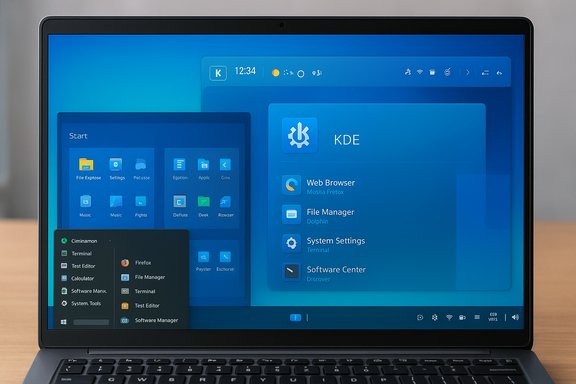
ZDNET names KDE Plasma as the top pick because it looks and behaves like a traditional Windows desktop out of the box, while being massively configurable. The article highlights the familiar panel, start-menu, system tray and clickable icons model, then points out Plasma’s depth of customization — move panels, add widgets, swap themes — so the desktop can be as conservative or as radical as you want.What KDE actually is (official confirmation)
KDE’s own description matches ZDNET’s claims: Plasma ships with a launcher, system tray, notifications, and a graphical software manager (Discover). It markets itself as “simple by default, powerful when needed,” with user-facing features for panels, widgets, themes and mobile-device integration via KDE Connect. Plasma’s UI building blocks are designed so users coming from Windows will recognize the taskbar/menu layout immediately.Where KDE shines
- Familiarity: The default layout maps directly to the Windows mental model — taskbar, Start-like launcher, desktop icons and a system tray.
- Configurability: Panels, widgets and themes are easy to add or remove; the KDE Store offers many prebuilt themes and widgets.
- Ecosystem and distros: KDE Plasma ships as default (or offered flavors) in KDE Neon, Kubuntu, openSUSE (KDE edition) and many others — so you can pick a distro that pairs Plasma with different release/update models. Independent distro rundowns confirm Plasma’s broad availability.
Where KDE can trip you up
- Scope of customization: Plasma’s depth is a double‑edged sword. Newcomers can stick to the defaults and be fine, but aggressive theme/applet changes can produce odd interactions (especially if mixing third‑party widgets). KDE’s settings and widget APIs are powerful, so oversight is recommended when applying large community-sourced themes.
- Perceived resource footprint: Modern Plasma is lighter than it used to be, but some default Plasma spins (with full suites like Kdenlive, KMail, etc. can use more RAM than ultra‑light alternatives. Testing on your hardware via Live USB is quick and strongly advised.
Cinnamon — the “Windows-like but conservative” default
ZDNET’s framing
ZDNET positions Cinnamon (the flagship desktop of Linux Mint) as the safe, familiar choice. It intentionally mirrors Windows’ desktop metaphor — bottom panel, start-like menu, applets and an easy menu/search experience — but avoids the sprawling customization options of KDE to stay stable and predictable.Verification: Cinnamon’s origin and design goals
Cinnamon was created by the Linux Mint team as a traditional desktop that preserves a classic desktop metaphor while modernizing under the hood. The Cinnamon project documentation and Linux Mint’s project pages make clear it provides panels, applets, themes and a Settings/Control Center that keeps options approachable rather than overwhelming.Strengths
- Low learning curve: Users switching from Windows will feel at home immediately; the interface is intentionally conservative.
- Stability focus: Cinnamon’s more limited scope of UI tinkering reduces the odds of breaking the desktop by mistake. This makes Cinnamon a great default for households and small offices.
Tradeoffs and caveats
- Less extreme customization: If you want to radically alter every piece of the desktop, Cinnamon is not as flexible as KDE. That’s a design choice — Mint prioritizes predictability over infinite tweakability.
- Ecosystem dependency: Cinnamon is tightly integrated with Linux Mint; while other distros offer Cinnamon spins, the best “out-of-the-box” Cinnamon experience is still Linux Mint.
MATE — the lightweight classic for older PCs
ZDNET’s short take
ZDNET recommends MATE as a classic, GNOME‑2‑style desktop that’s particularly friendly for older hardware. The article notes MATE’s conservative layout (panel, menu, tray) and the addition of a top bar in some default configurations that give it a hybrid Windows/Mac feel.Official project confirmation
MATE’s own project page describes it as the continuation of the GNOME 2 desktop, actively developed to support modern toolchains while preserving the traditional desktop experience. MATE explicitly lists dozens of distributions that include it, and documents its goals: stability, light resource demands and familiarity.Where MATE is a practical pick
- True lightweight: MATE is demonstrably lighter on RAM and CPU than fully modern GNOME or full-featured Plasma installs, making it suitable for machines that cannot meet Windows 11 hardware gates.
- Familiar workflow: For users who preferred classic Windows or GNOME 2 workflows, MATE reduces retraining time while remaining actively maintained.
Risks and limits
- Visual age: MATE’s look is intentionally conservative; users seeking a modern aesthetic may find it dated without theming work.
- Feature gap: MATE trades some modern UX innovations for simplicity. That’s ideal for older hardware, but may disappoint users who want integrated mobile/phone features and modern compositor effects.
Budgie — modern, polished, and friendly (with Raven)
ZDNET’s position
ZDNET highlights Budgie for its clean, polished look and for providing a Windows-like panel/menu arrangement while introducing its Raven sidebar (notifications, calendar, media controls). The article praises Budgie’s visuals and flexibility.Project resources and confirmation
Budgie’s upstream documentation and the Ubuntu Budgie project both confirm Raven as Budgie’s slide-out notification and widget center, and they walk through how Raven houses notifications, media controls and other widgets. The Budgie project stresses a modern, approachable interface and continued improvements to Raven and the panel.Where Budgie shines
- Visual polish with modest overhead: Budgie strikes a balance between aesthetics and performance — prettier than Xfce by default, lighter than some GNOME setups.
- Raven as a workflow hub: Notifications, calendar, media and mini‑widgets live in Raven, consolidating common tasks in one place and reducing the need to hunt across menus.
Where Budgie may not fit
- Smaller ecosystem: Budgie’s userbase is smaller than Cinnamon or GNOME, so community troubleshooting and specialized applets are fewer.
- Subtle differences for Windows refugees: Raven is a different mental model than Windows’ Action Center; while powerful, it requires a brief reorientation for users who expect Windows’ exact notification behavior.
Xfce — the ultra‑customizable, lightweight wildcard
ZDNET’s cautious recommendation
ZDNET includes Xfce but cautions that its very high customizability can be a mixed blessing: it looks and behaves like Windows out of the box, but inexperienced tinkerers can break things by changing too many internals. Xfce is excellent for low‑resource machines, but not the friendliest to users who want an unbreakable experience.Official and independent confirmation
Xfce’s official site advertises a lightweight, fast, and modular desktop. Community guides and comparative writeups consistently list Xfce as one of the most configurable and lowest‑overhead desktops — ideal for reviving old laptops or for users who want fine-grained control. Independent comparator sites note Xfce’s potential for complexity: it exposes many UI elements and plugins that may confuse new users.Strengths
- Very low resource usage: Xfce editions (Xubuntu, MX Linux) are widely used to extend the life of laptops with 1–4 GB of RAM.
- Extreme modularity: You can add panels, widgets, and fine‑tune behavior that other DEs hide behind higher-level settings.
Pitfalls
- Too many knobs for novices: The ability to change everything is empowering — and sometimes destructive. ZDNET is right to warn that users without guidance could create confusing setups.
- Aesthetics by effort: Out of the box Xfce can look dated; making it visually appealing requires some theming work.
How to choose — quick decision framework
- If you want the closest possible feel to Windows with the ability to grow into more features: choose KDE Plasma.
- If you want a very low learning curve and “it just works”: choose Cinnamon / Linux Mint.
- If your machine is older and you want a classic, light desktop: choose MATE or Xfce. MATE tends to be more conservative, Xfce is more tweakable.
- If you care about polish + modern UI but not bleeding-edge features: try Budgie (Ubuntu Budgie is a great starting point).
Practical migration playbook (step-by-step)
- Inventory your critical apps and peripherals: browsers, office tools, printers, special hardware. Rank by necessity.
- Create full backups and a disk image of your Windows drive. Keep these images until you’re confident in the migration.
- Boot Live USBs of candidate distros (Linux Mint Cinnamon, KDE Neon or Kubuntu, Ubuntu Budgie, Xubuntu/MX Linux). Test Wi‑Fi, audio, webcam, printing, GPU acceleration and external storage.
- Pilot-install on a non-critical machine or in dual‑boot. Use a VM for stubborn Windows-only apps.
- After a week of live use, move to a full install and set up Timeshift or regular disk snapshots for easy rollback.
- Retain a Windows VM (VirtualBox, VMware or GNOME Boxes) for legacy apps that won’t run under Wine or Proton.
This practical approach is consistent with community migration guidance and reduces the risk of surprises — ZDNET and migration guides emphasize live testing and pilots for exactly these reasons.
Security, drivers and application compatibility — what to check
- Kernel and driver stack: pick a distro with a modern kernel if you have very new Wi‑Fi or GPU hardware (Ubuntu LTS with HWE, Fedora, KDE Neon or a recent Fedora/KDE spin are typical choices). Zorin and Linux Mint both use Ubuntu LTS bases with different packaging choices for HWE kernels.
- Peripherals: vendor‑supplied drivers (printers, scanners, fingerprint readers) sometimes lack Linux support. Confirm community drivers or manufacturer Linux drivers exist before cutting over.
- Windows-only software: if you depend on specialized Windows apps, plan to run them under Wine/Bottles/Proton or in a Windows VM; test those workflows during the Live USB pilot.
Strengths and risks — a critical appraisal
Notable strengths across the five DEs
- Familiar metaphors: KDE, Cinnamon, MATE, Budgie and Xfce all reproduce the panel + menu + tray model in ways that reduce retraining for Windows users. ZDNET’s central thesis — that these DEs make ditching Windows easier — is well-founded.
- Reduced system overhead: For older hardware, MATE and Xfce can deliver significantly better responsiveness than Windows 10/11, extending hardware life and reducing e‑waste.
- Freedom and privacy: Linux distros are free, community‑driven and generally do not include the telemetry models found in modern Windows builds. This matters for privacy‑conscious users and teams looking to avoid recurring licensing costs.
Material risks and real constraints
- Peripherals and proprietary drivers: Some printers, scanners or vendor-specific firmware are better supported on Windows; verify essential hardware before switching.
- Specialized Windows-only software: Enterprise or industry tools and certain anti‑cheat kernels for multiplayer games may block native replacement; virtualization may be required.
- Support and training burden: For organizations, retraining users or providing a fallback (Windows VM) will be necessary. ZDNET’s migration playbook recommends a pilot and staged rollout to manage this.
- Unverifiable popularity claims: Marketing download spikes (e.g., post‑EOL interest) are useful indicators of demand but not proof of long‑term fit; always test in your environment. ZDNET and community threads flag this as a caution.
My pick (and why KDE Plasma is the best compromise)
ZDNET’s top pick is KDE Plasma; I concur — KDE Plasma is the best single desktop to recommend for most Windows users wanting to switch today. Here’s why:- Ease of transition: The default layout maps directly to the Windows desktop metaphor (taskbar/start menu/tray), so users are not confronted with a radical UI shift.
- Room to grow: Plasma lets you start conservative and gradually explore more advanced features and customizations as confidence grows. This makes training and staged migrations easier.
- Strong ecosystem: Plasma is available on many popular distros (KDE Neon, Kubuntu, openSUSE, Fedora KDE Spin), giving admins choices on support cadence and packaging models.
- Modern capabilities: KDE’s toolchain (Discover, KRunner, KDE Connect) gives users modern conveniences — app discovery, quick actions, phone integration — that many Windows users expect.
Final checklist before you flip the switch
- Boot each candidate from a Live USB and validate Wi‑Fi, sound, printing and GPU acceleration.
- Image the Windows disk and export browser bookmarks and mailboxes.
- Create a simple rollback plan (Timeshift snapshots or keep the Windows image on external media).
- Keep a Windows VM for legacy software.
- Expect a learning window of a few days; plan the migration as a short pilot, not an all-or-nothing leap.
Switching from Windows 10 is more practical than it’s been in a decade. The five desktop environments ZDNET highlights — KDE Plasma, Cinnamon, MATE, Budgie and Xfce — provide a spectrum from “looks exactly like Windows” to “ultra-light and tweakable.” Each has tradeoffs; KDE offers the smoothest path for most users because it pairs familiarity with deep upgrade potential, Cinnamon offers the gentlest learning curve, MATE and Xfce revive older machines, and Budgie sits in a sweet spot for polished simplicity. Test on a Live USB, pilot on a spare machine, and you’ll find that many of the anxieties about ditching Windows evaporate once you’re actually running Linux.
Source: ZDNET 5 Linux desktop environments that make ditching Windows 10 easy - including my top pick
