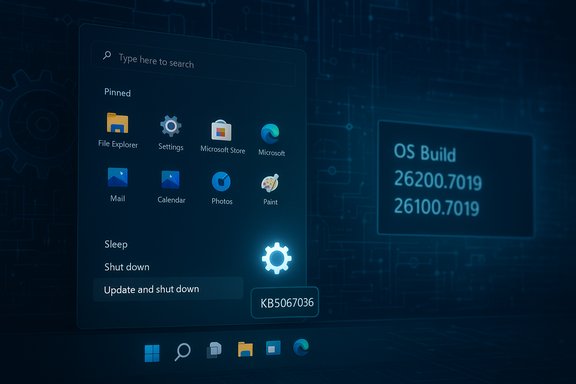
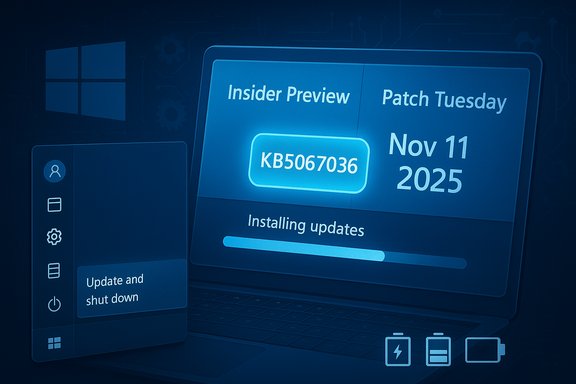
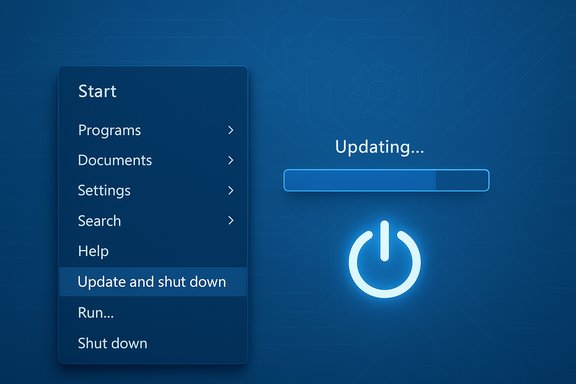
Microsoft has quietly repaired one of the small but surprisingly persistent annoyances in Windows: the Start menu’s “Update and shut down” command now behaves as it promises in recent preview builds and the October 28, 2025 optional cumulative preview (KB5067036), addressing an orchestration problem that in many configurations caused the machine to return to an awake state instead of powering off after updates.
For many users the “Update and shut down” option is a convenience: install pending updates during shutdown so you return to a patched, powered‑off device. Over the past few years, a non-trivial, intermittent subset of Windows 10 and Windows 11 systems did not honor that promise. Instead of powering off after installing updates, affected machines would often complete the update flow and then reboot or return to the lock screen—effectively remaining powered on and defeating the point of the command. The symptom was configuration-dependent and hard to reproduce, which made it a particularly frustrating and long‑running UX failure. Microsoft confirmed a servicing‑level correction in preview channels and published the same fix in the October 28, 2025 optional cumulative preview identified as KB5067036, which produces OS builds 26200.7019 (25H2) and 26100.7019 (24H2). The KB changelog explicitly lists: “Addressed underlying issue which can cause ‘Update and shutdown’ to not actually shut down your PC after updating.” That terse phrasing signals a correction in update orchestration rather than a cosmetic relabeling.
Source: PCMag Australia Microsoft Fixes 'Update and Shut Down' Bug That Doesn't Actually Turn Off Your PC
 Background
For many users the “Update and shut down” option is a convenience: install pending updates during shutdown so you return to a patched, powered‑off device. Over the past few years, a non-trivial, intermittent subset of Windows 10 and Windows 11 systems did not honor that promise. Instead of powering off after installing updates, affected machines would often complete the update flow and then reboot or return to the lock screen—effectively remaining powered on and defeating the point of the command. The symptom was configuration-dependent and hard to reproduce, which made it a particularly frustrating and long‑running UX failure. Microsoft confirmed a servicing‑level correction in preview channels and published the same fix in the October 28, 2025 optional cumulative preview identified as KB5067036, which produces OS builds 26200.7019 (25H2) and 26100.7019 (24H2). The KB changelog explicitly lists: “Addressed underlying issue which can cause ‘Update and shutdown’ to not actually shut down your PC after updating.” That terse phrasing signals a correction in update orchestration rather than a cosmetic relabeling. What Microsoft shipped (the facts)
The package: KB5067036 (Preview)
- Release type: Optional, non‑security cumulative preview update.
- Published: October 28, 2025 (preview release).
- Affected builds: Produces OS builds 26200.7019 (Windows 11 25H2) and 26100.7019 (Windows 11 24H2).
- Notable changelog entry: “Addressed underlying issue which can cause ‘Update and shutdown’ to not actually shut down your PC after updating.”
Timeline and rollout expectations
- The fix first appeared in Windows Insider preview release notes in late September 2025 and was validated in Dev/Beta channel builds.
- Microsoft packaged the same remediation into the optional October 28, 2025 preview (KB5067036).
- The preview was expected to be folded into the mainstream cumulative update scheduled for Patch Tuesday on November 11, 2025, following telemetry and validation. That mainstream inclusion is consistent with Microsoft’s staged cadence.
Why this bug was harder to fix than it looked
At the UI level, “Update and shut down” is two simple words. Under the hood, the flow is multi‑phase and touches several subsystems; that complexity produced intermittent outcomes depending on hardware, driver state, and OS configuration.Key technical contributors
- Multi‑phase servicing: Modern Windows updates typically stage files while the system runs and then perform offline commits during shutdown/boot. Some components require one or more reboots to be safely replaced, producing conditional pathways in the servicing orchestration.
- Fast Startup (hybrid shutdown): With Fast Startup enabled, Windows saves kernel session state to disk to speed boot, which changes shutdown semantics and can interact poorly with offline servicing. The hybrid behavior can make the OS choose a restart path to ensure update integrity.
- Sign‑in/finish workflows: Features like “Use my sign‑in info to finish setting up this device” alter whether post‑update configuration steps run automatically after a restart and can change the final power state decision.
- Drivers and third‑party agents: File locks, driver replacement needs, firmware handoffs, and management agents can force the servicing stack to prefer a restart to ensure consistency, leading to the observed mismatch.
What the KB change actually does (technical summary)
Microsoft’s public notes are intentionally concise, but the practical effect of KB5067036 in preview testers’ reports is straightforward: the servicing orchestration has been adjusted so that when the conditions that formerly forced a restart are not required, the OS completes update commits and then powers off the machine as the “Update and shut down” option indicates. That correction reduces the mismatch between the user’s expressed intent and the final device power state. Important caveat: because the problem was intermittent and environment‑dependent, the fix is similarly conservative—Microsoft staged validation across Insider flights and then the optional preview package to ensure telemetry confirmed the behavior across diverse hardware before general rollout. Preview releases can and do carry the risk of regressions, which is why Microsoft recommends piloting optional updates first.Known issues and immediate risks
While the KB fixes the Update-and-Shut‑Down orchestration in many configurations, the preview package also documented at least one notable regression: Task Manager may continue to run in the background after the app is closed, leaving multiple taskmgr.exe instances running in the background and affecting device performance. Microsoft lists this as a known issue in the October 28 preview and is investigating. That is a practical reason to be cautious when installing preview packages on production or critical machines. Other risks and considerations:- Optional preview updates are not security updates and are staged—installing them exposes the machine to any latent regressions introduced in the preview.
- The fix may not immediately propagate to every machine even after installing the optional KB due to server‑side feature flighting; some elements are enabled gradually.
- If a machine requires a restart to finalize a particular driver or firmware replacement, the OS should still choose reboot semantics to preserve update integrity—this behavior is intentional and necessary in some cases.
How to get the fix now (step‑by‑step)
If you want the remediation immediately and are comfortable testing preview packages, follow these steps on a non‑critical device:- Open Settings > Update & Security > Windows Update.
- Click “Check for updates.”
- Look for the “Optional updates available” area; the October 28, 2025—KB5067036 preview should appear there for eligible devices. Select and install it.
- Install any accompanying Servicing Stack Update (SSU) if listed—Microsoft combines SSU + LCU in the package and recommends both be applied together.
- Reboot as prompted and test the “Update and shut down” behavior with a small test update or a simulated update workflow. Validate that shutdown now completes as expected.
- Pilot the preview on a small, representative set of devices first.
- Collect telemetry and user reports across varied hardware and management states.
- If validated, plan for the mainstream inclusion via the Patch Tuesday cumulative update (expected Nov 11, 2025) and deploy through normal update management channels during the scheduled maintenance window.
Practical guidance and safe alternatives
If you don’t want to install a preview, or if you need an immediate workaround until the fix reaches your managed update ring, consider these steps:- Use Update and restart instead of Update and shut down; a restart completes all offline servicing cycles before you decide to power off. This is less convenient but more deterministic.
- Manually shut down using the hardware power button after updates—note this can interrupt some update flows and is not recommended as a long‑term practice.
- For laptop users worried about overnight battery drain, disable Fast Startup as a temporary mitigation; this reverts shutdown semantics to a cold shutdown and can reduce hybrid state interactions with the servicing stack (testing required; this changes boot speed behavior).
- If you manage fleets, add a validation step in your maintenance scripts to confirm the device is truly powered off (for example, check for network presence or use remote management telemetry) before assuming a maintenance window has completed.
Critical analysis: strengths of Microsoft’s approach
- Correct layer of fix: Microsoft addressed the servicing orchestration rather than relabeling the UI, which is the correct engineering approach—fixing behavior at source rather than masking symptoms. The changelog language and preview behavior both indicate a servicing-level correction.
- Staged validation: Shipping first to Insider channels and then as an optional preview respects the complexity of the issue and the heterogeneity of Windows hardware. This reduces the chance of a premature, broadly disruptive rollout.
- Clear changelog entry: The KB includes an explicit line describing the behavior fix; that transparency, while terse, provides administrators and power users a clear cue about what was corrected.
Critical analysis: residual risks and open questions
- Intermittency remains sensitive to environment: Because the root cause was conditional orchestration interacting with drivers, Fast Startup, and firmware handoffs, some configurations may still require a restart to complete safe servicing. The fix will reduce false positives but cannot remove legitimate restart needs without risking update integrity. Users should not expect the button to override necessary restart conditions.
- Preview regressions: The optional pack’s Task Manager regression demonstrates a real tradeoff: preview fixes can introduce new, visible problems. Administrators must weigh the benefit of the shutdown fix against the possibility of regressions that affect stability or performance.
- Incomplete public diagnostic detail: Microsoft’s public notes do not break down the exact orchestration changes or the telemetry criteria used to decide between shutdown and restart. That lack of deeper technical disclosure limits independent verification of completeness and leaves room for continued edge‑case behavior. Treat claims about exact internal logic as plausible engineering inference rather than fully verifiable fact unless Microsoft publishes more detailed developer guidance.
What this means for everyday users and IT pros
For everyday users, the practical outcome should be straightforward: in many cases, choosing Update and shut down will now actually power the PC off after installing updates—if your device receives the preview or the mainstream Patch Tuesday roll‑out that includes the fix. For laptop owners who avoided the option because it previously left the machine on, this should restore a simple and time‑saving workflow. For IT professionals, the fix removes an intermittent source of maintenance fragility. Predictable shutdown semantics matter for imaging, staging, overnight maintenance windows, and scripted operations. However, IT teams should continue to pilot changes, validate across representative hardware and management stacks, and prefer the mainstream cumulative update deployment (Patch Tuesday) for broad rollout unless their change control processes include preview testing.Quick checklist for action
- If you want the fix now and are comfortable with preview software: install KB5067036 (Oct 28, 2025 preview) from Settings > Windows Update > Optional updates. Validate on non‑critical machines.
- If you prefer stability: wait for the mainstream cumulative update on Patch Tuesday (expected Nov 11, 2025). Pilot there before broad deployment.
- If you encounter the Task Manager regression after installing the preview: gather logs, revert the optional LCU if necessary, and follow Microsoft’s support guidance while the company investigates.
- For managed fleets: add validation steps to confirm devices reach the expected power state after updates; disable Fast Startup only as a tested mitigation if warranted.
Final assessment
This fix is an important quality‑of‑life correction that restores a small but meaningful promise of Windows’ update UX: when the Start menu says “Update and shut down,” users should be able to trust that the machine will finish installing updates and then power itself off. Microsoft implemented a servicing‑level change and staged the rollout through Insider previews and an October 28 optional preview package identified as KB5067036, with mainstream inclusion targeted via the regular Patch Tuesday cadence. That is the right engineering and release strategy for a problem rooted in multi‑phase servicing and device‑dependent orchestration. At the same time, the preview’s Task Manager issue and the opaque nature of orchestration logic highlight why organizations and cautious users should validate before broad adoption. The fix reduces friction and restores predictability for many users, but administrators must still account for legitimate restart requirements and the ever‑present tradeoff between early access and regression risk. Small UX promises matter—especially at scale—and Microsoft’s orchestration fix is a welcome restoration of reliability. Users and IT teams should follow the staged rollout guidance, pilot where appropriate, and expect the mainstream cumulative update in the November Patch Tuesday cycle to bring the correction to broader audiences.Source: PCMag Australia Microsoft Fixes 'Update and Shut Down' Bug That Doesn't Actually Turn Off Your PC