

Microsoft has confirmed that a recent Windows Update rollout produced an alarming but ultimately incorrect “end of support” banner in Settings that led some Windows 10 users — including those enrolled in Extended Security Updates (ESU) and customers running LTSC/IoT SKUs — to believe their PCs were suddenly orphaned, and the company says a server-side fix plus administrative rollback options are available to clear the message and restore certainty.
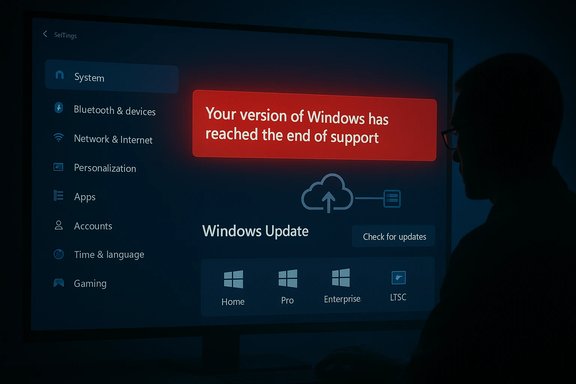
In mid‑October and early November 2025 a cumulative servicing update for Windows 10 introduced a UI regression in the Windows Update settings pane: a red banner reading “Your version of Windows has reached the end of support” began to appear on some devices. That message is accurate for the vast majority of consumer Windows 10 installations after October 14, 2025, but it was also displayed incorrectly on a subset of systems that remain entitled to updates — namely devices covered by the Windows 10 Consumer ESU program, commercial ESU enrollments, and long‑term servicing channel (LTSC) or IoT LTSC editions with active lifecycles.
Microsoft characterized the problem as a diagnostic/display error rather than a policy change or revocation of entitlements. The vendor rolled out a cloud configuration correction and also published a Known Issue Rollback (KIR) mechanism administrators can use in managed environments to force the correction. For most connected devices the fix is automated within 24–48 hours once Microsoft’s server‑side configuration has propagated and the device checks for updates and restarts.
This article explains what happened, who was affected, how the problem is being fixed, concrete step‑by‑step remediation options for home users and IT admins, and the practical risks and operational lessons to draw from the incident.
This is a classic case of a high‑visibility presentation error — dangerous not because it breaks functionality (in most observed cases it didn’t) but because it misinforms decision‑makers.
For users and administrators the practical path is straightforward: verify entitlements, accept the official fix path (check for updates and restart), and use Microsoft’s Known Issue Rollback in environments that block cloud configuration. For organizations, the broader takeaways emphasize robust verification before making migration decisions and the need to resist reactive spending driven by a faulty UI banner.
In short: the banner scared people, but in most reported cases the underlying protections or entitlements were still in place. The immediate technical threat was low — the operational and policy fallout was the real hazard — and the vendor’s remediation path provides a stable way back to clarity.
Source: MSN https://www.msn.com/en-gb/money/tec...ndows-10-will-keep-you-safe-and-this-is-how/]
 Background / Overview
In mid‑October and early November 2025 a cumulative servicing update for Windows 10 introduced a UI regression in the Windows Update settings pane: a red banner reading “Your version of Windows has reached the end of support” began to appear on some devices. That message is accurate for the vast majority of consumer Windows 10 installations after October 14, 2025, but it was also displayed incorrectly on a subset of systems that remain entitled to updates — namely devices covered by the Windows 10 Consumer ESU program, commercial ESU enrollments, and long‑term servicing channel (LTSC) or IoT LTSC editions with active lifecycles.Microsoft characterized the problem as a diagnostic/display error rather than a policy change or revocation of entitlements. The vendor rolled out a cloud configuration correction and also published a Known Issue Rollback (KIR) mechanism administrators can use in managed environments to force the correction. For most connected devices the fix is automated within 24–48 hours once Microsoft’s server‑side configuration has propagated and the device checks for updates and restarts.
This article explains what happened, who was affected, how the problem is being fixed, concrete step‑by‑step remediation options for home users and IT admins, and the practical risks and operational lessons to draw from the incident.
What exactly went wrong?
The symptom: a frightening banner
- Users saw: “Your version of Windows has reached the end of support. Your device is no longer receiving security updates.” displayed prominently in Settings → Windows Update.
- The banner was cosmetic — it reflected a presentation/diagnostic signal inside the Settings UI — not (in the observed cases) a deliberate policy that disabled security update delivery for devices with valid entitlements.
The trigger: October cumulative update metadata
- The banner began appearing after the October cumulative update (a servicing rollup tracked under a KB release). That update changed metadata and UI logic tied to lifecycle messaging; in some device/entitlement combinations the logic flagged the device as out of service when it should not have.
The affected surface
- Devices running Windows 10, version 22H2 (Pro, Education, Enterprise) that were correctly enrolled in ESU and configured with ESU activation keys.
- Windows 10 Enterprise LTSC 2021 and Windows 10 IoT Enterprise LTSC 2021 devices in certain configurations.
- Some cloud‑hosted instances (Azure VMs, Azure Virtual Desktop session hosts) were reported to display the banner despite being automatically entitled under Azure ESU arrangements.
- Managed, locked‑down, or air‑gapped environments that block cloud configuration changes were slower to see the automated fix.
Why this mattered — practical impacts
The incident matters for three overlapping reasons:- Operational uncertainty. IT teams flagged incidents, launched investigation tickets, and considered urgent migration or purchasing plans for devices that were in fact still supported. That churn consumed time and budget.
- User panic and bad decisions. Consumers and small businesses seeing that banner can be pushed into buying new hardware, paying third‑party vendors for migration help, or hastily switching OSes when doing nothing would have been the correct choice.
- Trust and compliance risk. Lifecycle messaging is a core part of compliance and asset management. In regulated industries an incorrect “end of support” label can trigger audits or automated policy actions (for example, blocking devices from handling regulated data), creating downstream disruption.
What Microsoft is doing to fix it
Microsoft used a two‑pronged approach to correct the problem:- A server‑side cloud configuration fix that updates the Settings presentation state on connected devices. This is the fastest route for internet‑connected PCs; Microsoft’s rollout is staged and may take up to 24–48 hours to reach every affected device.
- A Known Issue Rollback (KIR) package and guidance for IT administrators who manage environments that do not or cannot accept Microsoft’s dynamic cloud configuration (for example, WSUS‑only, air‑gapped, or tightly controlled corporate networks). The KIR can be applied via Group Policy or other management tooling to explicitly clear the incorrect banner.
Confirmed lifecycle and entitlement facts you need to know
- Windows 10 end of mainstream support: October 14, 2025. After that date most consumer and SMB Windows 10 editions no longer receive routine security updates unless enrolled in ESU or running a special LTSC/IOT SKU.
- Consumer ESU window: Consumer Extended Security Updates for Windows 10 were structured to continue security‑only updates through mid‑October 2026 for enrolled devices. Consumer enrollment options included syncing PC settings, redeeming Microsoft Rewards points, or a one‑time purchase option (US‑denominated pricing was announced around $30 for the consumer option in year 1).
- Enterprise and LTSC timelines: Windows 10 Enterprise LTSC 2021 receives mainstream support through January 12, 2027; Windows 10 IoT Enterprise LTSC 2021 carries extended servicing on a longer schedule (into the early 2030s for some releases). These LTSC/IOT lifecycles are intentionally longer because those SKUs are intended for regulated and embedded systems.
What home users should do (step‑by‑step)
If you see the end‑of‑support banner, follow these steps in order. Each step is safe and reversible.- Check edition and version:
- Go to Settings → System → About.
- Note the Edition (Home, Pro, Enterprise, IoT, LTSC, etc. and the Version (for example, 22H2 or 21H2).
- Verify ESU enrollment (consumer path):
- Go to Settings → Update & Security → Windows Update.
- If your device is eligible and not yet enrolled, an Enroll in ESU link may be present; follow the prompts. If you purchased ESU (or used Microsoft Rewards), ensure you are signed in with the Microsoft Account used for enrollment.
- Check for updates and restart:
- In Windows Update, select Check for updates, allow downloads/installation, and perform a restart when prompted. Microsoft’s server‑side fix requires devices to check in and reboot to apply corrected presentation state.
- Allow time for propagation:
- If the banner disappears after the update and restart, no further action is needed. If it persists, wait up to 48 hours; server‑side rollouts can take time to propagate globally.
- Don’t panic‑upgrade or buy new hardware solely because of the banner:
- If your device is validly enrolled in ESU or runs LTSC with an extended lifecycle, the banner is a false positive. Confirm entitlement before making purchase decisions.
What IT administrators should do (recommended remediation)
Enterprises and managed environments should follow a more structured audit + remediation path.- Triage affected devices:
- Collect inventory of machines showing the banner. Confirm edition/version and whether ESU activation/product keys are present (use activation and servicing management tooling).
- Validate update delivery:
- Check Windows Update history, SCCM/ConfigMgr logs, and WSUS/SUP logs to confirm whether security updates are still being delivered to the machine. A cosmetic banner is different from failed patch delivery.
- Apply the server‑side remediation path:
- Ensure devices are allowed outbound connectivity to Microsoft update endpoints so the cloud configuration patch can reach them. Then trigger Check for updates and schedule a restart window.
- For air‑gapped or WSUS‑only environments:
- Deploy Microsoft’s Known Issue Rollback (KIR) package via Group Policy or configuration manager. The KIR is the supported Microsoft mechanism to force the rollback of faulty display logic in environments that block cloud configuration.
- Example GPO path (illustrative): Computer Configuration → Administrative Templates → [KBxxxxxxx Known Issue Rollback] → Enable the rollback for affected Windows 10 versions. (Exact package names and ADMX entries vary; download the KIR package from the official distribution point and follow Microsoft’s published KIR deployment instructions.
- Communicate with stakeholders:
- Publish internal advisories explaining the banner is a display issue, outline remediation steps, and document how to verify device entitlements. Avoid urgent purchase approvals unless service evidence shows a genuine loss of entitlement.
- Monitor telemetry and patch compliance:
- After remediation, track update compliance and confirm that security updates continue to arrive for ESU/LTSC devices.
Technical anatomy: why lifecycle UIs can fail
Windows’ lifecycle notification mechanism is not a single Boolean check. It aggregates:- Local metadata: installed build number, edition flags, and registered product keys.
- Local activation/enrollment state: presence of ESU activation IDs or MDM enrollment signals.
- Server‑side configuration: Microsoft’s dynamic metadata and presentation flags that can change without a full OS update.
- Management policy: Group Policy, MDM, WSUS configuration and other enterprise controls.
This is a classic case of a high‑visibility presentation error — dangerous not because it breaks functionality (in most observed cases it didn’t) but because it misinforms decision‑makers.
Risks, second‑order effects, and what to watch next
- Premature migration spending. Organizations may budget and purchase new hardware unnecessarily. That has fiscal and environmental costs.
- Compliance false‑positives. Automatic tools that flag unsupported devices could trigger incident response or regulatory reporting unnecessarily.
- Social engineering exploitation. Bad actors can craft convincing phishing messages using the exact banner text to trick users into downloading malicious “updaters” or calling scam support numbers.
- Erosion of trust. Repeated or high‑impact presentation failures lower confidence in vendor lifecycle communications and can accelerate migrations away from the vendor in sensitive environments.
- Operational noise. Support desks face increased ticket volume; this redistributes engineering attention away from true security risks.
- Integrate multiple data points before making lifecycle decisions: check OS edition/version, check update history, confirm ESU activation or LTSC SKU lifecycle in vendor lifecycle documentation.
- Train frontline support staff to recognize and escalate UI anomalies differently from service failures.
- Implement checks in asset management systems to cross‑verify vendor lifecycle pages rather than relying on in‑OS banners alone.
The consumer ESU tradeoffs — what ESU does and does not buy you
ESU is a targeted, time‑boxed measure to receive security‑only updates after the mainline servicing ends. Important facts to understand:- ESU provides security updates and critical fixes — not feature updates or regular product enhancements.
- Consumer ESU options were designed to be accessible via Microsoft Account sign‑in, redemption of reward points, or a one‑time fee for the year. There are practical account and enrollment constraints (for example, local accounts vs Microsoft accounts).
- ESU does not change the underlying hardware age or driver compatibility problems; long term, move‑to‑Windows‑11 or platform replacement is the sustainable path for most users.
- ESU is a patching bridge — it is not a substitute for a migration plan in enterprises subject to compliance or feature requirements.
When the fix might not clear the message — troubleshooting checklist
If the banner remains after 48 hours, try the following:- Confirm internet connectivity and that outbound update endpoints are not blocked by a firewall or proxy.
- Verify the device has the latest servicing stack / cumulative updates that Microsoft lists as prerequisites for the KIR or server‑side fix.
- For domain‑joined machines, ensure Group Policy is not preventing cloud configuration updates (some security baselines disable dynamic updates).
- Apply the KIR manually if your environment is managed and cannot consume the cloud change.
- If updates fail to install, inspect WindowsUpdate.log, CBS.log, and the update event IDs for detailed diagnostics.
Larger lessons for Windows lifecycle communication
This incident is a reminder that messaging is as important as the mechanics of patching. Key lessons:- High‑visibility lifecycle banners must be conservative — err on the side of not alarming users when the status is ambiguous.
- Environments that mix consumer and managed devices present special challenges for lifecycle UI logic; vendor testing must include those hybrid cases.
- Publicly documented lifecycles and entitlements must be easy to map to the device’s in‑OS presentation so that administrators and end users can reconcile apparent contradictions quickly.
Final recommendations — a short checklist for readers
- If you see the banner: verify edition/version, check ESU enrollment status, run Windows Update, and reboot. Wait 24–48 hours for server changes to propagate.
- IT: prioritize evidence‑based triage; confirm update delivery before launching migration projects.
- Security teams: treat the message as a potential social‑engineering vector and update user guidance accordingly.
- Procurement and finance: do not approve emergency refreshes based on this banner alone; require verified entitlement or documented failure to receive patches.
Conclusion
The Windows Update “end of support” banner was an important, if cosmetic, failure of lifecycle messaging: alarming, disruptive, and avoidable. Microsoft’s response — admitting the bug, rolling out a cloud fix, and publishing rollback guidance for controlled environments — corrected the immediate problem. The incident nonetheless underscores how fragile vendor lifecycle signals can be when they intersect with complex enterprise entitlements like ESU and LTSC.For users and administrators the practical path is straightforward: verify entitlements, accept the official fix path (check for updates and restart), and use Microsoft’s Known Issue Rollback in environments that block cloud configuration. For organizations, the broader takeaways emphasize robust verification before making migration decisions and the need to resist reactive spending driven by a faulty UI banner.
In short: the banner scared people, but in most reported cases the underlying protections or entitlements were still in place. The immediate technical threat was low — the operational and policy fallout was the real hazard — and the vendor’s remediation path provides a stable way back to clarity.
Source: MSN https://www.msn.com/en-gb/money/tec...ndows-10-will-keep-you-safe-and-this-is-how/]
