

Windows 11 users should not rely on
WinGet is distributed through App Installer on Windows 11. Open Windows Terminal, PowerShell, or Command Prompt under your normal user account, then run:
A returned version number confirms that the client is available.
WindowsForum’s beginner reports consistently treat WinGet as a practical setup and maintenance tool rather than a single magic command. Its guides to installing development tools, updating applications, and preparing new Windows 11 PCs all depend on identifying packages correctly before attempting broader automation.
If Windows reports that
Read the returned table rather than copying the first line automatically. Pay particular attention to:
WindowsForum’s setup and batch-install reports emphasize the time saved by command-line installation. That advantage is greatest after the correct IDs have been confirmed; ambiguous names should be resolved interactively before commands are copied into a setup list or script.
Microsoft documents three default sources:
The font source is not included in an ordinary search by default. Search it directly:
A product can be returned by more than one source. Do not assume that similarly named entries are interchangeable. Inspect the candidate from the source you intend to use, and keep that source in the final installation command.
Replace the example with the ID and source shown on your PC. Check the displayed package identity and available metadata, including the publisher, version, installer information, and licensing or release details when provided.
For a Microsoft Store candidate, inspect it against that source instead:
Inspection is the pause between discovery and execution. If the name, publisher, ID, or source is not what you expected, return to search rather than trying to repair the command by guessing.
The reusable pattern is:
For an entry selected from the Microsoft Store source, use its returned ID:
Read any information and prompts presented during the operation. WinGet and the selected installer may require user input depending on the package. Do not approve something merely because an installation was expected; compare the displayed product with the package you inspected.
Avoid copying an old package command directly into an elevated terminal or deployment script. Search again and confirm that the ID and source still identify the intended product.
Confirm that the expected package appears. Then launch the application normally and check that it is the intended product and edition.
The inventory check and application launch serve different purposes. The first checks whether WinGet can identify an installed package under that ID; the second confirms that the application actually opens and provides what you expected.
Open the settings file with:
WinGet opens its JSON settings in the default JSON editor. Preserve any existing settings and valid JSON punctuation when editing it.
For example, this minimal configuration expresses user scope as a preference:
With a preference, WinGet can favor that scope during installer selection.
To make user scope a requirement instead, place it under
Use requirements only when excluding other available installers is intentional. Beginners should generally establish the search-and-inspect workflow before adding global selection rules. After changing settings, inspect the package again before installing it.
For each application:
These are templates, not package recommendations. Substitute IDs obtained from current searches.
WindowsForum’s batch-install and streamlined-setup reports demonstrate why this preparation matters: automation removes repeated browsing and installer clicking, but it also repeats any package-selection mistake. A short, verified list is more useful than a large collection of commands copied from an unknown or outdated source.
Install only after the displayed identity matches what you intended.
Choose one candidate deliberately and preserve that source in the installation command.
An ordinary search does not include
Then refresh their data:
Search again after the update. Avoid changing or resetting source configuration merely because one product is absent; verify the product name and intended catalog first.
Is
It is not inherently unsafe, but a short name gives you less control over package selection. Searching first and installing with the returned ID and source is clearer and more repeatable.
Should I prefer
Choose according to the catalog entry you intend to install. Search or inspect the package in each relevant source, then preserve the chosen source in the install command.
The durable WinGet habit is a five-step operation: search, select a source, inspect, install, and verify. Once a command using a confirmed package ID and source has passed that process on a representative PC, it becomes a safer foundation for Windows 11 setup lists and controlled automation.
winget install appname alone. The safer workflow is to search for the package, copy its exact ID, inspect the selected package, choose the source deliberately, install by ID and source, and then verify the result. This workflow applies to Windows 11, Windows 10 version 1809 build 17763 or later, and Windows Server 2025.
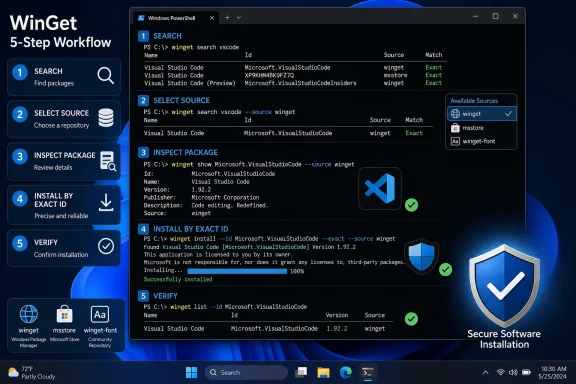 Check WinGet Before Installing Anything
WinGet is distributed through App Installer on Windows 11. Open Windows Terminal, PowerShell, or Command Prompt under your normal user account, then run:winget --versionA returned version number confirms that the client is available.
WindowsForum’s beginner reports consistently treat WinGet as a practical setup and maintenance tool rather than a single magic command. Its guides to installing development tools, updating applications, and preparing new Windows 11 PCs all depend on identifying packages correctly before attempting broader automation.
If Windows reports that
winget is not recognized, check that App Installer is installed and current through Microsoft Store, then close and reopen the terminal. This guide does not recommend an undocumented registration or recovery command; use Microsoft’s current App Installer support guidance if updating or reinstalling the app does not restore WinGet.Use the Safe Search, Inspect, Install Workflow
The core process is straightforward:- Search for the application.
- Identify its package ID and source.
- Inspect that exact candidate.
- Install using the same ID and source.
- Verify the installed package and launch the application.
1. Search for the application
Start with the product’s recognizable name:winget search vscodeRead the returned table rather than copying the first line automatically. Pay particular attention to:
- Name: The product name displayed by the source.
- Id: The package identifier you will use in later commands.
- Version: The version advertised in that source’s metadata.
- Source: The repository that returned the entry.
winget search "Visual Studio Code" --source wingetWindowsForum’s setup and batch-install reports emphasize the time saved by command-line installation. That advantage is greatest after the correct IDs have been confirmed; ambiguous names should be resolved interactively before commands are copied into a setup list or script.
2. Apply a source-selection rule
Before installing, list the sources configured on the PC:winget source listMicrosoft documents three default sources:
msstorefor the Microsoft Store catalogwingetfor the WinGet Community Repositorywinget-fontfor community repository fonts
msstore when you intentionally want its catalog entry, target winget when you want the community-repository entry, and target winget-font explicitly when looking for a font.The font source is not included in an ordinary search by default. Search it directly:
winget search "font name" --source winget-fontA product can be returned by more than one source. Do not assume that similarly named entries are interchangeable. Inspect the candidate from the source you intend to use, and keep that source in the final installation command.
3. Inspect the package
Copy the ID returned by search and use it withwinget show:winget show --id Microsoft.VisualStudioCode --source wingetReplace the example with the ID and source shown on your PC. Check the displayed package identity and available metadata, including the publisher, version, installer information, and licensing or release details when provided.
For a Microsoft Store candidate, inspect it against that source instead:
winget show --id StorePackageId --source msstoreInspection is the pause between discovery and execution. If the name, publisher, ID, or source is not what you expected, return to search rather than trying to repair the command by guessing.
4. Install by ID and source
After confirming the candidate, install it using the same values:winget install --id Microsoft.VisualStudioCode --source wingetThe reusable pattern is:
winget install --id Publisher.Package --source wingetFor an entry selected from the Microsoft Store source, use its returned ID:
winget install --id StorePackageId --source msstoreRead any information and prompts presented during the operation. WinGet and the selected installer may require user input depending on the package. Do not approve something merely because an installation was expected; compare the displayed product with the package you inspected.
Avoid copying an old package command directly into an elevated terminal or deployment script. Search again and confirm that the ID and source still identify the intended product.
5. Verify the result
Query the installed-package inventory with the same ID:winget list --id Microsoft.VisualStudioCodeConfirm that the expected package appears. Then launch the application normally and check that it is the intended product and edition.
The inventory check and application launch serve different purposes. The first checks whether WinGet can identify an installed package under that ID; the second confirms that the application actually opens and provides what you expected.
Configure Installation Preferences and Requirements
WinGet settings can express installation preferences and requirements. A preference influences installer selection, while a requirement excludes installers that do not meet it. Microsoft’s WinGet settings documentation distinguishes these behaviors because a requirement can leave no qualifying installer.Open the settings file with:
winget settingsWinGet opens its JSON settings in the default JSON editor. Preserve any existing settings and valid JSON punctuation when editing it.
For example, this minimal configuration expresses user scope as a preference:
Code:
{
  "$schema": "[{](https://aka.ms/winget-settings.schema.json)",
  "installBehavior": {
    "preferences": {
      "scope": "user"
    }
  }
}To make user scope a requirement instead, place it under
requirements:
Code:
{
  "$schema": "[{](https://aka.ms/winget-settings.schema.json)",
  "installBehavior": {
    "requirements": {
      "scope": "user"
    }
  }
}Turn a Verified Command Into a Setup List
WindowsForum users commonly approach WinGet as a way to reduce the repetitive work of setting up development tools or a new Windows 11 PC. The safe way to obtain that convenience is to build the list gradually.For each application:
- Search by recognizable name.
- Record the exact ID and source returned on that PC.
- Run
winget showwith that ID and source. - Install it interactively.
- Verify it with
winget listand by launching the app. - Only then save the command for later use.
Code:
winget install --id Publisher.FirstApp --source winget
winget install --id Publisher.SecondApp --source winget
winget install --id StorePackageId --source msstoreWindowsForum’s batch-install and streamlined-setup reports demonstrate why this preparation matters: automation removes repeated browsing and installer clicking, but it also repeats any package-selection mistake. A short, verified list is more useful than a large collection of commands copied from an unknown or outdated source.
Troubleshoot Without Guessing
Search returns several plausible packages
Do not shorten the query repeatedly and hope WinGet chooses correctly. Compare the IDs and sources, then inspect the intended candidate:
Code:
winget search "product name"
winget show --id Publisher.Package --source wingetA package appears in more than one source
Inspect each source separately:winget show --id Publisher.Package --source wingetwinget show --id StorePackageId --source msstoreChoose one candidate deliberately and preserve that source in the installation command.
A font cannot be found
Search the explicit font source:winget search "font name" --source winget-fontAn ordinary search does not include
winget-font by default.Sources are not returning expected results
First inspect the configured source names:winget source listThen refresh their data:
winget source updateSearch again after the update. Avoid changing or resetting source configuration merely because one product is absent; verify the product name and intended catalog first.
Installation fails after package selection
Return to the last known-good point rather than adding unverified switches:- Repeat the search.
- Confirm the package ID and source.
- Run
winget showagain. - Retry the basic install command.
- Read the error presented by WinGet or the underlying installer.
- Consult the package vendor’s installation documentation when the failure belongs to that installer.
Frequently Asked Questions
Is winget install appname unsafe?
It is not inherently unsafe, but a short name gives you less control over package selection. Searching first and installing with the returned ID and source is clearer and more repeatable.Should I always run WinGet as administrator?
No. Begin in a normal terminal. Use administrative access only when you understand that the selected installation requires it and have already verified the package, ID, and source.Can I install fonts with an ordinary WinGet search?
Not by default. Target the explicit font source:winget search "font name" --source winget-fontShould I prefer msstore or winget?
Choose according to the catalog entry you intend to install. Search or inspect the package in each relevant source, then preserve the chosen source in the install command.Can I reuse a verified command in a script?
Yes, but search and retest it before broad deployment. WindowsForum’s automation reports show the practical benefit of reusable commands, while the same workflow makes clear that package identity should be reconfirmed before a saved command is applied to multiple PCs.Are preview WinGet releases suitable for every PC?
WindowsForum’s editorial recommendation is to use the stable release for routine PCs and deployment workflows unless a preview feature is specifically required and has been tested. That is a deployment-policy recommendation, not a statement that every preview build is unsuitable.The durable WinGet habit is a five-step operation: search, select a source, inspect, install, and verify. Once a command using a confirmed package ID and source has passed that process on a representative PC, it becomes a safer foundation for Windows 11 setup lists and controlled automation.
References
- Primary source: learn.microsoft.com
The WinGet source command | Microsoft Learn
Use the WinGet source command and subcommands to list and manage the sources WinGet accesses.learn.microsoft.com - Independent coverage: github.com
Releases · microsoft/winget-cli · GitHub
WinGet is the Windows Package Manager. This project includes a CLI (Command Line Interface), PowerShell modules, and a COM (Component Object Model) API (Application Programming Interface). - Releases · microsoft/winget-cli github.com
- Primary source: WindowsForum
Mastering Winget on Windows 11: Your Ultimate Guide to Windows Package Manager | Windows Forum
The Windows Package Manager, more commonly known by its command-line utility name "winget," has rapidly become one of the most essential tools for power...windowsforum.com
