

Windows users can avoid the old browser-download-installer routine by using Microsoft’s Windows Package Manager, better known as WinGet, a command-line tool available on Windows 11, modern Windows 10 releases, and Windows Server 2025 through App Installer. That sounds like a small convenience feature, but it marks a larger shift in how Windows software should be treated. The MakeUseOf argument is right in spirit: the “Next, Next, Finish” ritual is not just slow; it is a bad security habit masquerading as normal computing. The catch is that WinGet is powerful precisely because it is boring, and Windows users should learn its limits as carefully as its shortcuts.
For decades, Windows normalized a strange bargain. If you wanted an application, you left the operating system’s managed environment, searched the open web, trusted whichever download page won the SEO contest, and hoped the largest button on the page was the real installer rather than an ad, wrapper, mirror, or malware trap. The process became so familiar that users stopped noticing how absurd it was.
Linux users have long had a cleaner answer: package managers. macOS users have filled part of the gap with Homebrew. Windows power users have relied on Chocolatey, Scoop, Ninite, enterprise deployment systems, vendor portals, and a large amount of scripting glue. Microsoft’s belated contribution, WinGet, did not invent the idea. Its importance is that it made the idea native enough for ordinary Windows conversations.
That matters because installation is not a one-time inconvenience anymore. The modern Windows PC is a cluster of browsers, chat clients, developer tools, password managers, media utilities, cloud sync agents, VPN clients, compression tools, and hardware control panels. The real tax is not installing them once; it is keeping them present, current, and obtained from somewhere trustworthy.
The old Windows model treated software installation as a retail transaction: go to a website, pick a product, download a package, click through the legalese. The package-manager model treats software as infrastructure. It says the operating system should be able to ask for an application by identity, resolve the right installer, apply the right command-line options, and repeat the process later without forcing the user through a scavenger hunt.
The web-based installer hunt is not user-friendly; it is merely visual. It asks users to interpret search results, avoid deceptive ads, identify the vendor’s real domain, choose between 32-bit and 64-bit downloads when offered, dodge optional bundles, and hope the installer’s “recommended” path is not a trap. A one-line command is not less friendly than that. It is less theatrical.
The MakeUseOf piece highlights the everyday commands that make WinGet appealing:
The command line also has a virtue that graphical installers often lack: repeatability. A user can save a list of commands, paste them into a fresh machine, and rebuild a working environment in minutes. An admin can document the same process without screenshots. A developer can spin up a new workstation with a known baseline. The terminal is not the point; repeatable state is the point.
That does not mean every WinGet install is blessed by Microsoft in the way a Store app might be. WinGet is a package manager, not a guarantee that every application is safe, wise, well-maintained, or privacy-preserving. It can install traditional desktop software, and traditional desktop software still carries all the usual risks: broad system access, background services, auto-updaters, telemetry, and sometimes sloppy uninstallers.
The more precise security argument is that WinGet reduces several avoidable risks. It makes users less dependent on search results. It gives packages stable identifiers. It supports hashes and manifests. It can run installs silently, which often avoids the installer pages where bundled offers and opportunistic checkboxes live. Those are meaningful improvements, especially for users who install mainstream tools on new PCs.
But a package manager is only as useful as its catalog and governance. If a package points to a vendor’s own installer, the vendor’s choices still matter. If a vendor changes its installer behavior, breaks silent install support, or ships a bad update, WinGet cannot turn that into good software. The tool improves the path to the installer; it does not purify everything at the destination.
That quietness is also why users should treat silent installs with respect. A visible installer at least gives you a moment to notice when something looks wrong, even if most people click past it. A silent install turns software acquisition into execution by trust. You are trusting the package identifier, the manifest, the source, and the installer’s silent behavior.
For routine, well-known software, that is a perfectly reasonable trade. Installing Chrome, VLC, PowerToys, 7-Zip, Visual Studio Code, Git, Discord, Spotify, or similar mainstream packages through WinGet is exactly the kind of job the tool is good at. For obscure utilities, abandoned freeware, low-reputation drivers, or anything that wants deep system hooks, the same caution still applies.
The professional lesson is simple: automation multiplies both good hygiene and bad assumptions. If your package list is clean, WinGet can make a new PC safer and faster. If your package list is careless, WinGet can help you make the same mistake consistently across every machine you touch.
WinGet turns that ritual into something closer to a manifest. You can search for the exact package names, build a command or script, and run it after signing in. The time saved is not just the time between clicks. It is the mental context switching avoided across a dozen installer flows.
That is especially important because Windows has become more account- and cloud-aware, but traditional desktop app state remains fragmented. Your Microsoft account may bring back settings, Store apps, OneDrive folders, Edge data, and some preferences. It does not magically reconstruct the messy ecosystem of Win32 applications that most serious Windows users still rely on.
Bulk installation also clarifies what you actually need. When your setup process is a written list instead of a memory test, you can prune it. You notice the utilities you never use, the duplicates you installed out of habit, and the apps that have been replaced by better built-in features. A package list becomes both a deployment tool and a personal audit.
That plurality reflects Windows’ greatest strength and greatest burden: backward compatibility. Microsoft cannot simply declare that all Windows apps must behave like Linux packages or mobile apps. The platform’s value comes from supporting decades of software, including software that was never designed for clean lifecycle management.
WinGet lives inside that compromise. It often orchestrates existing installers rather than replacing them with a fully standardized packaging model. That is why some installs are elegant and others are merely automated versions of old messes. It is also why uninstalls and upgrades can vary in quality depending on the application.
For enthusiasts, this is acceptable. For enterprise IT, it is something to test. A package that installs beautifully for a logged-in user may behave differently under system context, behind a proxy, on a locked-down endpoint, or in an environment where the Microsoft Store is disabled. WinGet is useful in business settings, but it is not a drop-in replacement for disciplined application management.
WinGet succeeds because it does not pretend otherwise. It meets the Windows ecosystem where it actually is: full of traditional desktop applications, vendor-hosted installers, and users who want software by name rather than by browsing a storefront. In that sense, WinGet is less a rival to the Store than an admission that the Store cannot be the only answer.
There is a philosophical difference here. The Store is a destination. WinGet is a mechanism. The Store asks users to browse, search, evaluate, and click. WinGet asks them to identify software and lets the system retrieve it. One is shopping; the other is provisioning.
That distinction matters for WindowsForum readers because many of us do not want the operating system to behave like a mall. We want it to behave like a platform. WinGet is a platform feature, even when it is rough around the edges.
A good WinGet workflow starts with exact package IDs. Searching for
Users should also learn to inspect before installing.
Updates deserve similar caution.
Enterprise deployment is not just installation. It includes licensing, version pinning, testing rings, rollback plans, network caching, compliance reporting, user context, privilege boundaries, and support expectations. WinGet can participate in that world, but it does not erase the need for policy.
The practical sweet spot is probably hybrid. Use Intune, Configuration Manager, or a mature RMM platform where governance matters. Use WinGet for technician workflows, developer workstations, non-critical utilities, lab refreshes, and packages where the manifest behavior is well understood. Treat it as a reliable wrench, not as the whole toolbox.
There is also a documentation advantage. A help desk script that installs a known tool with WinGet is easier to read than a wiki page full of vendor download links. A developer onboarding guide that starts with a handful of package commands is easier to maintain than a checklist of websites. Even when WinGet is not the official deployment backbone, it can make the informal edges of IT less chaotic.
A few details deserve tightening. WinGet became generally available as Windows Package Manager 1.0 around Microsoft Build 2021, after appearing in preview in 2020. It is available on Windows 11 and modern Windows 10 systems through App Installer, and current Microsoft documentation points to Windows Server 2025 rather than “Windows Server 2005,” which appears to be a typo in the source article. Users on stripped-down, LTSC, offline, sandboxed, or heavily managed Windows environments may need extra steps.
The command examples also need careful phrasing. Bulk installation is possible, but exact behavior can depend on syntax, package identifiers, source agreements, installer support, and shell handling. In practice, serious users often build scripts, use export and import workflows, or run a sequence of explicit install commands rather than relying on a casual one-liner copied from an article.
Still, the broad recommendation stands. The right lesson is not “memorize five commands and never think again.” It is “stop treating random web downloads as the normal software supply chain.”
It can be simple. Browsers. Password manager. Compression tool. Media player. Terminal and shell tools. Developer stack. Hardware utilities. Communication apps. Cloud storage. Optional extras. You do not need to turn your home PC into a corporate image to benefit from a little reproducibility.
There is a psychological benefit too. A written install list gives you control over a process that Windows has historically made feel messy. Instead of reacting to prompts, you define the system you want and let the machine converge toward it. That is a more modern relationship with a PC.
This is where WinGet’s lack of glamour becomes an asset. The tool does not need a reimagined interface or a marketing campaign to be useful. It needs users to realize that the boring command is often the safer command.
The concrete shift is easy to miss because the commands are so small:
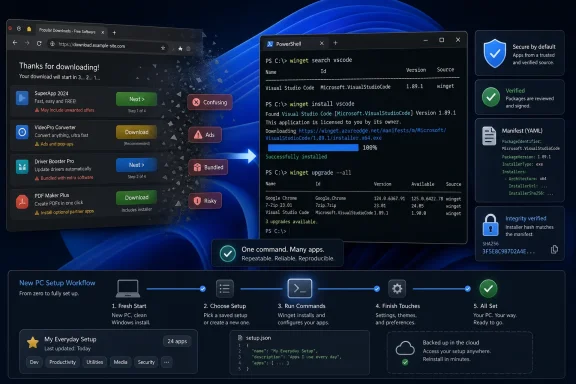 Microsoft Finally Admits the Installer Hunt Was the Problem
For decades, Windows normalized a strange bargain. If you wanted an application, you left the operating system’s managed environment, searched the open web, trusted whichever download page won the SEO contest, and hoped the largest button on the page was the real installer rather than an ad, wrapper, mirror, or malware trap. The process became so familiar that users stopped noticing how absurd it was.Linux users have long had a cleaner answer: package managers. macOS users have filled part of the gap with Homebrew. Windows power users have relied on Chocolatey, Scoop, Ninite, enterprise deployment systems, vendor portals, and a large amount of scripting glue. Microsoft’s belated contribution, WinGet, did not invent the idea. Its importance is that it made the idea native enough for ordinary Windows conversations.
That matters because installation is not a one-time inconvenience anymore. The modern Windows PC is a cluster of browsers, chat clients, developer tools, password managers, media utilities, cloud sync agents, VPN clients, compression tools, and hardware control panels. The real tax is not installing them once; it is keeping them present, current, and obtained from somewhere trustworthy.
The old Windows model treated software installation as a retail transaction: go to a website, pick a product, download a package, click through the legalese. The package-manager model treats software as infrastructure. It says the operating system should be able to ask for an application by identity, resolve the right installer, apply the right command-line options, and repeat the process later without forcing the user through a scavenger hunt.
The Command Line Is a Feature, Not a Regression
There is an understandable objection to WinGet: it lives in the terminal. Windows has spent most of its consumer life promising that users should not need a command line, and now one of its best software-management tools asks people to type commands. That sounds like regression until you compare it with what the graphical alternative actually requires.The web-based installer hunt is not user-friendly; it is merely visual. It asks users to interpret search results, avoid deceptive ads, identify the vendor’s real domain, choose between 32-bit and 64-bit downloads when offered, dodge optional bundles, and hope the installer’s “recommended” path is not a trap. A one-line command is not less friendly than that. It is less theatrical.
The MakeUseOf piece highlights the everyday commands that make WinGet appealing:
winget search, winget install, winget upgrade --all, and winget uninstall. Those are not developer incantations so much as verbs the operating system should have had for years. Search for an app. Install it. Update everything. Remove what you no longer need.The command line also has a virtue that graphical installers often lack: repeatability. A user can save a list of commands, paste them into a fresh machine, and rebuild a working environment in minutes. An admin can document the same process without screenshots. A developer can spin up a new workstation with a known baseline. The terminal is not the point; repeatable state is the point.
The Security Win Is Real, but It Is Not Magic
The strongest case for WinGet is not speed. It is provenance. When users install software through search-engine roulette, they increase the odds of landing on spoofed websites, repackaged installers, bundled adware, outdated mirrors, or download portals that wrap legitimate software in something less legitimate. WinGet narrows that surface area by relying on package manifests and known installer sources rather than whatever link a user happens to click first.That does not mean every WinGet install is blessed by Microsoft in the way a Store app might be. WinGet is a package manager, not a guarantee that every application is safe, wise, well-maintained, or privacy-preserving. It can install traditional desktop software, and traditional desktop software still carries all the usual risks: broad system access, background services, auto-updaters, telemetry, and sometimes sloppy uninstallers.
The more precise security argument is that WinGet reduces several avoidable risks. It makes users less dependent on search results. It gives packages stable identifiers. It supports hashes and manifests. It can run installs silently, which often avoids the installer pages where bundled offers and opportunistic checkboxes live. Those are meaningful improvements, especially for users who install mainstream tools on new PCs.
But a package manager is only as useful as its catalog and governance. If a package points to a vendor’s own installer, the vendor’s choices still matter. If a vendor changes its installer behavior, breaks silent install support, or ships a bad update, WinGet cannot turn that into good software. The tool improves the path to the installer; it does not purify everything at the destination.
Silent Installs Are a Convenience With Teeth
The-h or --silent option is one of WinGet’s most attractive features because it cuts through the most annoying part of Windows software setup. No wizard. No repeated prompts. No progress window demanding attention. The machine simply installs the thing you asked for, which is exactly what a machine should do.That quietness is also why users should treat silent installs with respect. A visible installer at least gives you a moment to notice when something looks wrong, even if most people click past it. A silent install turns software acquisition into execution by trust. You are trusting the package identifier, the manifest, the source, and the installer’s silent behavior.
For routine, well-known software, that is a perfectly reasonable trade. Installing Chrome, VLC, PowerToys, 7-Zip, Visual Studio Code, Git, Discord, Spotify, or similar mainstream packages through WinGet is exactly the kind of job the tool is good at. For obscure utilities, abandoned freeware, low-reputation drivers, or anything that wants deep system hooks, the same caution still applies.
The professional lesson is simple: automation multiplies both good hygiene and bad assumptions. If your package list is clean, WinGet can make a new PC safer and faster. If your package list is careless, WinGet can help you make the same mistake consistently across every machine you touch.
Bulk Installation Changes the New-PC Ritual
The most emotionally persuasive part of the MakeUseOf case is the new-PC setup scenario. Everyone who has rebuilt a Windows machine knows the choreography: browser first, then password manager, then another browser, then messaging apps, then media player, then compression tool, then office apps, then cloud storage, then developer tools, then utilities you only remember after you need them. The process is not difficult, but it is draining.WinGet turns that ritual into something closer to a manifest. You can search for the exact package names, build a command or script, and run it after signing in. The time saved is not just the time between clicks. It is the mental context switching avoided across a dozen installer flows.
That is especially important because Windows has become more account- and cloud-aware, but traditional desktop app state remains fragmented. Your Microsoft account may bring back settings, Store apps, OneDrive folders, Edge data, and some preferences. It does not magically reconstruct the messy ecosystem of Win32 applications that most serious Windows users still rely on.
Bulk installation also clarifies what you actually need. When your setup process is a written list instead of a memory test, you can prune it. You notice the utilities you never use, the duplicates you installed out of habit, and the apps that have been replaced by better built-in features. A package list becomes both a deployment tool and a personal audit.
Windows Still Has a Package-Management Identity Crisis
WinGet’s biggest weakness is not that it exists in the terminal. It is that Windows still has too many software distribution stories at once. There is the Microsoft Store. There are Store apps and traditional desktop apps. There are MSIX packages, EXE installers, MSI installers, vendor auto-updaters, enterprise deployment tools, Intune, winget sources, and now even more command-line attention around Store workflows.That plurality reflects Windows’ greatest strength and greatest burden: backward compatibility. Microsoft cannot simply declare that all Windows apps must behave like Linux packages or mobile apps. The platform’s value comes from supporting decades of software, including software that was never designed for clean lifecycle management.
WinGet lives inside that compromise. It often orchestrates existing installers rather than replacing them with a fully standardized packaging model. That is why some installs are elegant and others are merely automated versions of old messes. It is also why uninstalls and upgrades can vary in quality depending on the application.
For enthusiasts, this is acceptable. For enterprise IT, it is something to test. A package that installs beautifully for a logged-in user may behave differently under system context, behind a proxy, on a locked-down endpoint, or in an environment where the Microsoft Store is disabled. WinGet is useful in business settings, but it is not a drop-in replacement for disciplined application management.
The Store Never Solved the Desktop App Problem
Microsoft has spent years trying to make the Store feel central to Windows. It has improved, and it is no longer the barren, confused storefront it once was. But for many Windows users, the Store is still not where the essential desktop software journey begins. The gravitational center of Windows software remains the open web.WinGet succeeds because it does not pretend otherwise. It meets the Windows ecosystem where it actually is: full of traditional desktop applications, vendor-hosted installers, and users who want software by name rather than by browsing a storefront. In that sense, WinGet is less a rival to the Store than an admission that the Store cannot be the only answer.
There is a philosophical difference here. The Store is a destination. WinGet is a mechanism. The Store asks users to browse, search, evaluate, and click. WinGet asks them to identify software and lets the system retrieve it. One is shopping; the other is provisioning.
That distinction matters for WindowsForum readers because many of us do not want the operating system to behave like a mall. We want it to behave like a platform. WinGet is a platform feature, even when it is rough around the edges.
The Best WinGet Users Will Be Slightly Paranoid
The worst way to evangelize WinGet is to sell it as a magic safety tunnel. That invites complacency. The better argument is that WinGet gives cautious users better tools.A good WinGet workflow starts with exact package IDs. Searching for
chrome and installing the first plausible result is better than clicking a fake download button, but it is still not as clean as using a known identifier like Google.Chrome. The same is true for VideoLAN.VLC, Microsoft.PowerToys, or Git.Git. Specificity is the difference between automation and guesswork.Users should also learn to inspect before installing.
winget show is not glamorous, but it is useful. It reveals package metadata and source information that can help confirm you are installing what you think you are installing. The extra ten seconds are worth it, especially for less familiar software.Updates deserve similar caution.
winget upgrade --all is wonderfully satisfying, but blanket updates can occasionally break workflows. Developers may care about toolchain versions. Admins may need staged rollouts. Creative professionals may depend on plugin compatibility. The home user can probably update everything and move on; the production machine deserves a little more restraint.For IT Pros, WinGet Is a Building Block Rather Than a Strategy
WinGet’s appeal to sysadmins is obvious. It is scriptable, native, and increasingly well-known. For small shops, labs, test machines, and lightweight provisioning, it can replace a surprising amount of manual work. For larger organizations, it is best understood as one layer in a broader endpoint-management stack.Enterprise deployment is not just installation. It includes licensing, version pinning, testing rings, rollback plans, network caching, compliance reporting, user context, privilege boundaries, and support expectations. WinGet can participate in that world, but it does not erase the need for policy.
The practical sweet spot is probably hybrid. Use Intune, Configuration Manager, or a mature RMM platform where governance matters. Use WinGet for technician workflows, developer workstations, non-critical utilities, lab refreshes, and packages where the manifest behavior is well understood. Treat it as a reliable wrench, not as the whole toolbox.
There is also a documentation advantage. A help desk script that installs a known tool with WinGet is easier to read than a wiki page full of vendor download links. A developer onboarding guide that starts with a handful of package commands is easier to maintain than a checklist of websites. Even when WinGet is not the official deployment backbone, it can make the informal edges of IT less chaotic.
The MakeUseOf Advice Is Right, but the Details Matter
The MakeUseOf piece captures the key shift correctly: Windows users do not need to install everything the slow way anymore. The browser-installer-wizard loop is no longer the default best practice for many mainstream apps. If you are setting up a new PC in 2026 and still downloading each common utility by hand, you are choosing friction.A few details deserve tightening. WinGet became generally available as Windows Package Manager 1.0 around Microsoft Build 2021, after appearing in preview in 2020. It is available on Windows 11 and modern Windows 10 systems through App Installer, and current Microsoft documentation points to Windows Server 2025 rather than “Windows Server 2005,” which appears to be a typo in the source article. Users on stripped-down, LTSC, offline, sandboxed, or heavily managed Windows environments may need extra steps.
The command examples also need careful phrasing. Bulk installation is possible, but exact behavior can depend on syntax, package identifiers, source agreements, installer support, and shell handling. In practice, serious users often build scripts, use export and import workflows, or run a sequence of explicit install commands rather than relying on a casual one-liner copied from an article.
Still, the broad recommendation stands. The right lesson is not “memorize five commands and never think again.” It is “stop treating random web downloads as the normal software supply chain.”
The New Windows Setup Kit Is a Short Text File
The most useful WinGet habit is not a command; it is a file. Every Windows enthusiast should have a setup note with their preferred package IDs, grouped by purpose and revised every few months. That note becomes the difference between rebuilding a machine and re-enacting a ritual.It can be simple. Browsers. Password manager. Compression tool. Media player. Terminal and shell tools. Developer stack. Hardware utilities. Communication apps. Cloud storage. Optional extras. You do not need to turn your home PC into a corporate image to benefit from a little reproducibility.
There is a psychological benefit too. A written install list gives you control over a process that Windows has historically made feel messy. Instead of reacting to prompts, you define the system you want and let the machine converge toward it. That is a more modern relationship with a PC.
This is where WinGet’s lack of glamour becomes an asset. The tool does not need a reimagined interface or a marketing campaign to be useful. It needs users to realize that the boring command is often the safer command.
The Real Upgrade Is the Habit Windows Users Bring to Software
WinGet does not make every installer safe, every update wise, or every Windows deployment clean. What it does is give users a better default, and defaults matter. Once you install software by package identity instead of search-engine luck, the old method starts to look as reckless as it always was.The concrete shift is easy to miss because the commands are so small:
- Windows users should use exact WinGet package IDs whenever possible instead of relying on vague search matches.
winget upgrade --allis a powerful maintenance shortcut, but important production systems still need testing and version awareness.- Silent installs reduce wizard fatigue and bundled-offer exposure, but they also require trust in the package source and installer behavior.
- A saved WinGet setup list is one of the simplest ways to make a new Windows PC feel familiar quickly.
- WinGet is best treated as a native Windows provisioning tool, not as proof that the entire Windows software ecosystem has become clean and uniform.
References
- Primary source: MakeUseOf
Published: Wed, 03 Jun 2026 16:00:20 GMT
- Official source: learn.microsoft.com
Use WinGet to install and manage applications | Microsoft Learn
The WinGet command line tool enables developers to discover, install, upgrade, remove and configure applications on Windows computers.learn.microsoft.com - Related coverage: windowscentral.com
Microsoft releases Windows Package Manager at Build 2021 | Windows Central
Windows Package Manager is a handy tool for installing apps and packages on Windows 10. After a year of testing, it's now generally available.www.windowscentral.com - Official source: devblogs.microsoft.com
Windows Package Manager 1.0 - Windows Command Line
We started a journey to build a native package manager for Windows 10 when we announced the Windows Package Manager preview at Microsoft Build 2020. Wedevblogs.microsoft.com - Related coverage: techradar.com
Windows Package Manager stumbles at the first hurdle | TechRadar
The automated packaging process exposed the Windows Package Manager to all kinds of abusewww.techradar.com - Related coverage: betanews.com
Microsoft releases the Linux-style Windows Package Manager v1.0 (Winget) as a Store alternative - BetaNews
After months of testing and preview builds, Microsoft has finally released Windows Package Manager 1.0.betanews.com

