

I installed Winhance on a midrange Windows 11 machine, trimmed out a surprising amount of background noise, and — after the usual sweat-and-pray caution — ended up with a noticeably leaner, quieter PC that felt faster in daily use.
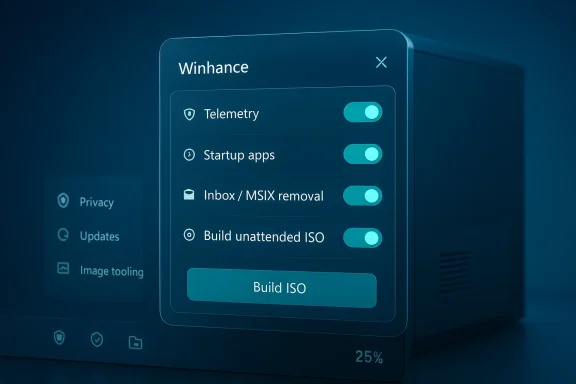
Winhance is an open‑source Windows customization and debloat utility that combines app removal, privacy toggles, service management, and installer/image tools into a single control panel. It started as a PowerShell GUI project and has matured into a more polished, native-looking application in recent releases.
The tool's appeal is straightforward: Windows 11 ships with a large number of inbox apps, telemetry services, scheduled tasks, and optional features that many users never need. Winhance centralizes control over those items, offers plain‑English descriptions for each tweak, and can automate both post‑install cleanup and custom image-building for repeated deployments.
This article pulls together community reports, the tool's documented capabilities, and practical guidance so you can decide whether Winhance belongs on your machine — and if so, how to use it safely to get the benefit without paying the price in stability or updates.
Winhance is not a magic pill that will double your FPS overnight, nor will it fix ISP or driver problems. What it does offer is clarity: a single, community‑maintained control panel that explains what it will change and gives you the tools to make Windows 11 feel like yours again. For enthusiasts, reviewers, and privacy‑minded users, that combination is worth the cautious investment of time to test and measure.
Source: Windows Central I made my Windows 11 PC better with Winhance and wish I'd done it sooner
 Background / Overview
Winhance is an open‑source Windows customization and debloat utility that combines app removal, privacy toggles, service management, and installer/image tools into a single control panel. It started as a PowerShell GUI project and has matured into a more polished, native-looking application in recent releases.The tool's appeal is straightforward: Windows 11 ships with a large number of inbox apps, telemetry services, scheduled tasks, and optional features that many users never need. Winhance centralizes control over those items, offers plain‑English descriptions for each tweak, and can automate both post‑install cleanup and custom image-building for repeated deployments.
This article pulls together community reports, the tool's documented capabilities, and practical guidance so you can decide whether Winhance belongs on your machine — and if so, how to use it safely to get the benefit without paying the price in stability or updates.
What Winhance does (and how it works)
A single‑pane control center for many Windows crosscuts
Winhance exposes several categories of actions:- Remove or hide inbox and provisioned Appx/MSIX apps that ship with Windows.
- Toggle or disable telemetry, diagnostic, and reporting services.
- Manage startup apps, scheduled tasks, and background services to reclaim RAM and CPU.
- Apply visual and taskbar customizations to simplify the shell.
- Build autounattend ISOs or create scripted installer images for clean deployments.
The technology evolution: PowerShell → C# / WinUI
Winhance’s codebase has moved away from pure PowerShell GUI scripts into a compiled, native Windows application implemented in C# with more modern UI frameworks in recent releases. That migration improves responsiveness, reduces runtime dependencies, and lets the tool integrate more cleanly with the Windows look and feel.Image and installer features for repeatable setups
For administrators and enthusiasts who reinstall frequently, Winhance can create a custom unattended ISO (autounattend.xml injection) and package drivers and settings into the installer image. That capability shifts Winhance from “one‑off cleanup” to a tool for reproducible, lean installations. Use this only if you understand Windows image servicing concepts; mistakes in the image can produce systems that are hard to update.Real‑world impact: what users are actually seeing
Community reviewers and early adopters report practical gains that fall into three buckets: memory savings, reduced background CPU usage, and a quieter, less noisy user experience.- Memory: Multiple community reports describe a reduced baseline RAM footprint after removing provisioning packages, disabling certain services, and cutting startup apps. These results vary by install profile, but the common pattern is a meaningful drop in idle RAM usage on machines that start with many preloaded features.
- Background CPU and disk I/O: Disabling aggressive telemetry, scheduled tasks, and redundant services often removes periodic spikes of CPU and disk activity that users perceive as “chattiness.” That can improve responsiveness on low‑latency tasks like typing, window switching, and basic productivity.
- Deployment speed: For people who reinstall often (tech reviewers, IT pros, hobbyists), the ISO and automation features reduce setup time dramatically. Building a single autounattend image that already excludes the things you never want is a big efficiency win.
The upside: why Winhance stands out
1. Clarity — explanations, not mystique
One of the most praised aspects is that Winhance lists each change with clear language explaining what it does and when it’s safe to change, lowering the bar for those who aren’t comfortable with raw PowerShell. That makes the tool approachable for every level of PC user.2. Broad feature scope
Winhance packages many useful operations into one app — app removal, telemetry toggles, startup management, and even ISO-building — which otherwise would require multiple tools and manual steps. That consolidation reduces the number of places you have to troubleshoot later.3. Open‑source and community‑driven
Because Winhance is open source, the code and actions are transparent to reviewers and advanced users can audit or extend the tool. That reduces some of the trust friction that comes with closed “system optimizers.”4. Native, modern UI and efficiency
The migration from PowerShell UI to a compiled C#/WinUI app reduces runtime unpredictability and gives a more stable, responsive interface. For a tool that touches low‑level OS settings, that polish matters.The risks: what can go wrong (and how to avoid it)
Debloating is powerful, and power has responsibility. When you remove things Windows expects, you can introduce compatibility, update, or security problems.Potential breakages
- Windows Update and servicing: Aggressive removal of inbox components, scheduled tasks, or servicing components can make future updates fail or leave a system in a broken servicing state. This is especially true when changes touch the Component-Based Servicing (CBS) stack or remove provisioning that newer updates expect.
- App dependencies: Some “preinstalled” apps are lightly coupled to OS features (shell integration, share targets, settings pages). Removing them can break expected behaviors or third‑party software that depends on those integration points.
- Enterprise and management tools: If the PC is enrolled in corporate management or uses security tools with tight integration (SCEP, BitLocker key escrow, Intune, enterprise telemetry), removing or altering services can cause compliance failures or loss of remote management. Do not debloat managed machines without consulting IT.
- AI/feature removal: Tools that promise to remove AI features or Copilot‑related components can touch deep shell integrations; community projects that do this have raised red flags about update regressions and repair difficulties. Proceed with caution.
Safety mitigations
- Create a full system backup or image before making bulk changes.
- Let Winhance create a system restore point (it does this), and also create an external image if the machine is important.
- Apply changes in small batches and reboot between steps to catch regressions early.
- Keep a list of exactly what you changed so you can reverse it if needed.
- For enterprise devices, coordinate with your management team; only use Winhance on personal or test systems unless approved.
How to test Winhance safely and measure benefit
Step‑by‑step checklist for first run
- Make a full image backup (third‑party imaging tool or Windows System Image).
- Note baseline metrics:
- Idle RAM and CPU in Task Manager.
- Disk I/O baseline over 5–10 minutes with Resource Monitor or Performance Monitor.
- Boot time and Sign‑in responsiveness.
- Run Winhance, read the descriptions for each toggle, and select a conservative set of changes (disable telemetry bits, remove obvious trialware, stop nonessential startup apps).
- Reboot, remeasure the exact same metrics.
- If something breaks or you lose a needed feature, reverse the change immediately (or use the backup image).
Tools to measure impact
- Task Manager: quick view of RAM and CPU.
- Resource Monitor: per‑process disk and network I/O.
- Windows Performance Recorder (WPR) / Windows Performance Analyzer (WPA): deep profiling for advanced users.
- Simple boot timers (stopwatch or automated logon scripts) to measure cold boot times objectively.
Comparing Winhance to other debloat approaches
There are three common approaches to “shrinking” Windows: manual cleanup, scripted debloaters, and image builders.- Manual cleanup (Settings, uninstall/optional features): safest but slow and error‑prone.
- Scripted debloaters (PowerShell scripts like Windows10Debloater or RemoveWindowsAI): fast and powerful, but often cryptic; you must understand each action.
- Image builders (Tiny11 / Nano11 / Winhance ISO features): create reproducible installations but require knowledge of image servicing and update tradeoffs.
Recommended presets and what I would toggle (conservative to aggressive)
Below are recommended starting points arranged by risk. Use conservative options first and confirm stability before moving to more aggressive removals.- Conservative (low risk):
- Disable obvious OEM trialware and preinstalled store games.
- Turn off in‑OS suggestions and tips.
- Disable nonessential startup apps.
- Pause a small set of telemetry options (diagnostic data levels).
- Moderate (medium risk):
- Remove most inbox Store apps you never use (music, news, weather — if you don’t need them).
- Turn off certain scheduled tasks that poll for promotions or suggestions.
- Disable unnecessary Windows features you never use (e.g., legacy fax services).
- Aggressive (high risk — only on test machines):
- Strip advanced AI/Copilot components, Recall integrations, or deep shell features.
- Remove provisioning from the Windows image or rebuild installer ISO to exclude components.
- Disable or remove certain telemetry services that are tightly integrated with OS updates.
Security and update considerations
- Windows Update expects certain components to exist. When you remove or disable them, future updates can fail, or patches may not install cleanly. Keep an eye on Windows Update after making changes and be ready to roll back.
- Security tools and system protections can depend on integrated components. If you use Microsoft Defender, BitLocker, or enterprise security stacks, test them after any substantial change. Some debloat operations can alter telemetry or reporting channels that security tooling uses for health checks.
- If you remove features to improve privacy, know that some telemetry is used for crash reporting and platform diagnostics; removing all reporting can make troubleshooting real problems much harder. Consider balancing privacy and supportability based on how critical the device is.
Troubleshooting common post‑debloat problems
- If Windows Update fails with servicing errors after a large cleanup, revert to your backup image or reinstall from a fresh Windows image and reapply smaller changes. Image-based removals are harder to repair in place.
- If a core UI element is missing (search, Widgets, settings pages), re-enable the corresponding app or package and reboot. Keep a short checklist of what was removed so you can reverse changes.
- For gaming issues (stutters, packet bursts), debloating rarely fixes network-level latency or ISP problems. Focus first on drivers, firmware, and network diagnostics; use Winhance to remove background noise but not as a primary fix for network instability.
Long‑term maintenance and philosophy
Debloating is not a one‑time hygiene exercise — it’s a maintenance philosophy. Over time, Windows receives updates, vendor drivers change, and new apps accumulate. Treat Winhance as a toolkit in your maintenance toolbox, not a silver bullet.- Keep Winhance updated; community releases often adjust for new Windows behavior and update compatibility.
- Revisit which items you’ve disabled after major Windows feature updates; re‑enable selectively if needed.
- Maintain a baseline image for quick recovery of your “known good” state.
Final verdict: when to use Winhance and who should avoid it
Use Winhance if:- You run a personal or test machine and want a cleaner, less chatty Windows experience.
- You reinstall often and want a reproducible, lean setup using ISO/image features.
- You prefer a GUI that explains each change, rather than cryptic scripts.
- The PC is managed by corporate IT or subject to compliance restrictions.
- You rely on every Microsoft feature out of the box (shared devices, specialized software tied to in‑OS components).
- You are uncomfortable reverting to backups or troubleshooting update regressions.
Quick start: a conservative 30‑minute plan
- Image the system (15–20 minutes depending on disk).
- Document baseline metrics (5 minutes).
- Run Winhance and apply conservative toggles (5 minutes).
- Reboot and validate (5–10 minutes).
- If satisfied, make a new image; if not, revert and retry with a smaller set.
Winhance is not a magic pill that will double your FPS overnight, nor will it fix ISP or driver problems. What it does offer is clarity: a single, community‑maintained control panel that explains what it will change and gives you the tools to make Windows 11 feel like yours again. For enthusiasts, reviewers, and privacy‑minded users, that combination is worth the cautious investment of time to test and measure.
Source: Windows Central I made my Windows 11 PC better with Winhance and wish I'd done it sooner
