• Thread Author
Winhance puts a surprisingly powerful, free, open‑source control panel on top of Windows 10 and 11 that lets you remove preinstalled apps, silence in‑OS ads and suggestions, tune privacy and services, and apply visual and taskbar customizations — all from a single, searchable interface.

Teal Windows-style settings panel labeled Winhance with Debloat, Optimize, and Telemetry toggles.Background / Overview​

Windows has long shipped with a mix of useful system apps, promotional content, and OEM trialware that many users call “bloatware.” That clutter is more than cosmetic: it can cost storage, add background processes, increase telemetry surface area, and repeatedly reintroduce themselves after feature updates. Over the past several years, a lively ecosystem of open‑source debloaters and scripts has emerged to give users more control. Among them, Winhance has gained attention because it bundles a broad set of actions behind a graphical, user‑friendly front end.
Winhance is distributed as free, open‑source software and is designed to be a one‑stop utility for:
  • Removing inbox apps and OEM trialware,
  • Managing third‑party programs,
  • Tweaking privacy and telemetry settings,
  • Changing system services safely with descriptions,
  • Controlling Windows Update behavior,
  • Applying theme, taskbar, and File Explorer customizations.
That combination — a GUI that centralizes debloat, optimize, and customize tasks — is what makes Winhance appealing to users who dislike hunting through nested Settings menus or learning complex PowerShell commands.

What Winhance actually does​

Debloat: remove inbox apps and OEM cruft​

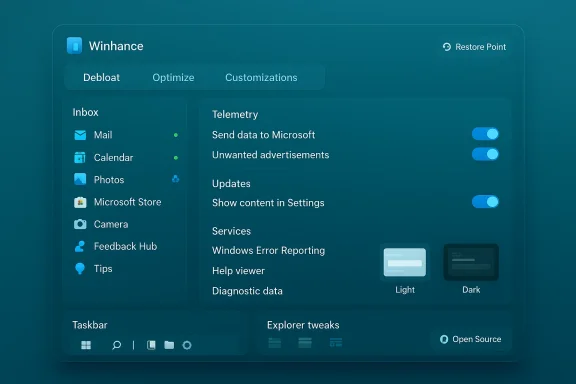
Winhance presents the built‑in list of Microsoft inbox apps and OEM preloads in a single panel. You can:
  • Select multiple built‑in apps and remove them in batch,
  • See visual indicators that show whether an app can be reinstalled later,
  • Reinstall apps that were removed (where supported) via a built‑in restore/reinstall mechanism.
This approach mirrors what many power users previously did with PowerShell "Remove-AppxPackage" commands, but packages it in a point‑and‑click workflow.

External software management​

Beyond inbox apps, Winhance can enumerate installed third‑party software and let you uninstall or (where possible) reinstall those programs from the same UI. That’s useful when setting up a new machine: you can both strip unwanted Microsoft components and prune the vendor-installed extras in one pass.

Optimize: privacy, services, and update control​

The Optimize area is a curated list of toggles and service controls spanning:
  • Telemetry, diagnostics, and advertising ID settings,
  • Suggestions, tips, and promotional content toggles,
  • System Services and scheduled tasks with human‑readable descriptions of what each change does,
  • Windows Update options, including the ability to pause or shift to security‑only updates in some configurations.
The inclusion of descriptive context for service changes reduces guesswork — a small but meaningful safety feature for users who worry about turning off the wrong service.

Customizations: themes, taskbar, and Explorer tweaks​

Winhance collects common personalization options into a Customizations tab:
  • Switch system theme (Light / Dark),
  • Adjust taskbar appearance and what icons show,
  • Restore classic context menus and Explorer options,
  • Apply specific visual tweaks for gamers or low‑resource systems.
These are the non‑destructive, user‑comfort options that many people want without digging into Registry edits by hand.

How Winhance works (install, run, requirements)​

Winhance ships as a Windows desktop app with an installer and a portable mode. Key technical points to verify before you click Install:
  • Requirements: runs on Windows 10 and Windows 11; recent builds have been tested across multiple 22H2–25H2 releases and both x64 and arm64 platforms in community reports.
  • Installation: the project supports a one‑line PowerShell bootstrap and a downloadable installer that includes both Installable and Portable options. Portable mode can be helpful for testing without committing to a full install.
  • First run: on initial launch Winhance often checks whether System Restore is enabled and may take extra time to initialize while it verifies system safety controls.
  • Permissions: most useful actions require administrator privileges (uninstalling inbox apps, toggling services, and modifying update behavior).
Because Winhance changes system configuration, the app emphasizes creating restore points and offers undo actions for many operations. However, not everything is automatically reversible in all cases — so backups are still recommended.

A hands‑on walkthrough (practical user flow)​

  • Install Winhance or run the portable version as Administrator.
  • Let the app complete its first‑time checks (System Restore, service enumerations).
  • On the Debloat / Apps screen, scan the inbox list:
  • Items with a green dot are installed and available.
  • Red dots indicate removed items.
  • Some red entries show a blue recycle symbol indicating reinstall is supported.
  • A cross on a removed app signals it may not be recoverable via the app’s UI.
  • Use the External Software tab to review and selectively uninstall vendor bloats.
  • Open Optimize:
  • Read descriptions for each service before toggling it.
  • Disable telemetry/ads toggles if you want less Microsoft tracking.
  • Change update behavior cautiously: Winhance can pause updates or prioritize security-only updates, but disabling Windows Update carries security tradeoffs.
  • Visit Customizations to apply UI and taskbar changes.
  • Create a restore point manually and test a small subset of changes before applying large batch operations.
This stepwise approach keeps risk manageable: apply a few changes, reboot, make sure everything essential still works, then repeat.

Why Winhance stands out (strengths)​

  • Unified GUI for many tasks. Users who prefer point‑and‑click control will appreciate a single interface that replaces dozens of Settings screens and scripting steps.
  • Open source and auditable. The project is hosted on GitHub and accepts community input; that transparency builds trust compared with opaque commercial “one‑click tuneup” apps.
  • Service descriptions reduce risk. Providing plain‑English descriptions for what each service toggle does is a practical safeguard for non‑expert users.
  • Batch operations speed setup. For system builders, refurbishers, or anyone provisioning multiple machines, batched uninstall/install and preset profiles dramatically reduce setup time.
  • Portable mode for safer trials. If you want to test features on a VM, the portable option is convenient.
  • Active development and UI modernization. Recent builds have migrated to modern UI frameworks to better match Windows 11, which improves compatibility on high‑DPI and touch devices.

The risks and tradeoffs you must know​

No debloater is risk‑free. The following are realistic, evidence‑backed concerns that every user should weigh before using Winhance:
  • Disabling updates can be dangerous. Temporarily pausing feature updates may be acceptable for stability, but turning off security updates or auto‑update entirely exposes you to patched vulnerabilities. Use selective update options responsibly.
  • Some removals are not trivially reversible. Although Winhance shows reinstall availability for many inbox apps, not every removed component can be restored through the UI. Some changes may require manual reinstallation or a system refresh.
  • System Restore and restore points are not a panacea. Restore points may be disabled by OEMs or consumed by storage constraints; the app’s checks are helpful but you should still maintain full backups or system images before wide‑ranging changes.
  • Potential for breakage after major Windows updates. Microsoft feature upgrades sometimes reintroduce removed components or change service behavior; you may need to reapply debloat presets or troubleshoot after large updates.
  • Real user reports of side effects. Community reports include edge cases such as disabled lock screen or login prompts after certain toggles. These are often fixable (for example, toggling the specific Lock Screen setting back on), but they demonstrate that powerful system changes can have unintended interactions with other features.
  • Enterprise and warranty implications. On managed or corporate devices, running third‑party debloat tools may violate IT policies. On warranty or OEM support, aggressive changes could complicate support tickets.
  • Trust and supply chain risk. While open source reduces the risk of hidden telemetry, always download code from the official project repository or trusted distribution channels and verify signatures where provided.

How to use Winhance safely — a recommended checklist​

Before you let any debloat tool loose on a production machine, follow a conservative safety workflow:
  • Create a full disk image or system backup (recommended).
  • Ensure System Restore is enabled and create a manual restore point.
  • Test Winhance on a non‑critical machine or a virtual machine first.
  • Apply changes in small batches; reboot between batches.
  • Keep a list (or screenshot) of changes you applied so you can reverse them later.
  • Avoid disabling Windows Update completely; prefer pause or security only modes if you need to limit feature updates.
  • Read each service description before toggling anything labeled as critical or unknown.
  • If a problem appears, consult Winhance’s built‑in settings (many toggles can be restored) or re‑run only the required reinstallation operations.
  • For business or managed devices, coordinate with IT before making changes.
These steps minimize downtime and give you recovery options if something behaves differently than expected.

Alternatives and complementary tools​

Winhance sits inside a broader toolkit for Windows power users. Depending on your needs, you may prefer or combine these options:
  • PowerShell scripts (Win11Debloat, Win11‑Debloat variants): Scripted and often more surgical, these are preferred by administrators who automate deployments.
  • Unattended/answer file installers (UnattendedWinstall): For clean install workflows, unattended answer files let you build a debloated image that applies changes during setup.
  • Image builders (Tiny11, Nano11): For extreme minimal footprints, community builders rebuild ISOs; note these are the riskiest for compatibility and support.
  • Tweaking utilities (StartAllBack, Explorer alternatives): For UI customization without deep system changes, these are lighter options.
  • Manual settings and Local Group Policy / Registry edits: The safest long‑term approach for experienced admins who want deterministic, documented changes.
Choosing between them comes down to tradeoffs: GUI convenience vs. repeatable automation, or breadth of changes vs. surgical precision.

Real‑world examples and community feedback​

Community coverage and reviews highlight common themes:
  • Reviewers praise Winhance’s modern interface and that it bundles many tasks previously done through scripts or scattered settings.
  • Users report that Winhance’s service descriptions and the ability to reinstall many apps are practical safety features for non‑expert users.
  • Edge cases and forum posts show how certain toggles can cause unexpected behavior (for example, lock screen/login quirks), usually fixable by reversing a specific setting or reapplying a tweak.
If you follow the safety checklist above, most users find the benefits — less clutter, fewer background processes, cleaner system UI — outweigh the small risk of correctable side effects.

Maintenance: keeping a debloated system healthy​

Debloating is not a “set it and forget it” task. To maintain a stable, secure system after using a tool like Winhance:
  • Revisit your debloat profile after major Windows feature updates — not all changes persist across upgrades.
  • Reapply or re‑audit settings after driver or OEM utility updates that might reintroduce software.
  • Schedule monthly checks for software you intentionally removed that you might later need (e.g., a reinstalled OneDrive if a new workflow requires it).
  • Monitor security updates: keep automatic security patches enabled or schedule a regular manual patch window.
  • Keep Winhance itself up to date, and review its change log before upgrading to learn about new features or modified presets.
A modest maintenance cadence keeps your system lean without sacrificing security or compatibility.

When Winhance is the right choice — and when it isn’t​

Use Winhance if:
  • You want a single, user‑friendly control panel to remove inbox apps and tune privacy settings.
  • You’re setting up personal systems or several home machines and want to reduce repetitive clicks.
  • You value an open‑source solution you can inspect and adapt.
Avoid or defer Winhance if:
  • You’re on a corporate/managed machine where policy dictates what can be changed.
  • You lack recent backups or a recovery plan.
  • You require absolute warranty or vendor support that forbids third‑party system modification.
  • You prefer a minimal, purely manual approach or full image rebuilding for fleet deployment.

Final assessment: benefits, practical recommendations, and closing thoughts​

Winhance is not a miracle fix for every Windows complaint, but it’s a practical, well‑packaged tool that brings order to what would otherwise be a scattered and technical cleanup task. For many enthusiasts, refurbishers, and privacy‑conscious home users, it removes the friction of finding dozens of toggles across Windows Settings and organizes them into easily reversible steps.
Key takeaways:
  • Power and convenience: Winhance centralizes debloat, optimization, and customization tasks behind a GUI, significantly lowering the skill barrier for meaningful Windows maintenance.
  • Open source advantage: Transparency and an active community development model reduce the risk of hidden telemetry or malicious behavior that plagues some commercial “tuneup” tools.
  • Risk awareness: The ability to disable updates and toggle services is powerful — and power always carries responsibility. Backups, cautious incremental changes, and a willingness to learn a few recovery steps are essential.
  • Not a substitute for good maintenance: Even after debloating, keep security updates active, audit settings after feature upgrades, and maintain a backup regimen.
If you hate hunting through Windows Settings, want to remove preinstalled apps and ads, and like the idea of an auditable, community‑driven tool, Winhance is worth testing — provided you follow the safety checklist in this article. Treat it like a precision instrument: use it to clean, tune, and then maintain, rather than as a blunt instrument for wholesale changes without a rollback plan.
In short: Winhance makes debloating Windows 11 approachable for more people, but the best outcome comes from pairing the tool’s convenience with disciplined backup and update practices so your lean, clean system stays secure and reliable.

Source: PCWorld Strip out Windows 11's bloatware, ads, and other nastiness—for free
 

Microsoft finally gave users a cleaner, centered Start in Windows 11 — but the Recommended and All (All apps) sections have been the two most persistent grievances. If you want a minimalist Start that shows only the pinned apps you choose, there are reliable ways to remove or hide both sections — though which method will work for you depends on your Windows edition, the precise build you’re running, and whether Microsoft has applied newer Start‑menu changes in a cumulative update. This feature guide walks through every supported and practical method (Settings, Group Policy, Registry, PowerShell, and MDM), explains why the options behave differently across SKUs and builds, and gives clear rollback and safety steps so you can make the Start menu look—and behave—the way you want without breaking anything.

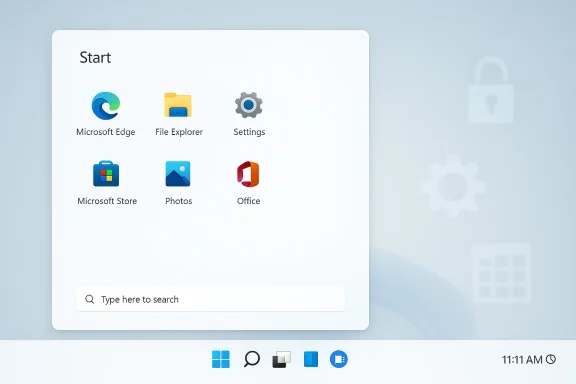
A Windows-style Start panel displaying six app icons on a light card.Background / Overview​

When Windows 11 launched it split the Start into a pinned area and a Recommended area that surfaced recently opened files, new apps, and suggestions. Microsoft later exposed user toggles to narrow or hide the content shown in Recommended, but the UI header and the separate All apps view still take up significant vertical space in many configurations. Administrators and power users soon discovered Group Policy and policy/registry keys that can hide the Recommended block entirely and remove the All apps button, giving back real estate for pinned apps.
Microsoft documents the HideRecommendedSection policy (accessible via Group Policy, MDM CSPs, or registry) and maps it to a policy CSP for managed devices; that same documentation shows the policy’s intent: hide the Recommended list so it does not display on Start. At the same time, an older but widely used policy/registry value — NoStartMenuMorePrograms — has long been used to remove the “All Programs / All apps” list from the Start UI. Both approaches are practical, but behavior varies by edition and by later Start menu redesign rollouts, so you should treat the tweak as version‑sensitive.

Why this matters now: UI changes and variability​

Microsoft has continued to iterate on the Start experience after Windows 11’s initial release. In later preview updates Microsoft reworked the Start surface (a single, vertically scrollable layout) and introduced new controls to present All apps inline, change views, or collapse Recommended — changes that can alter how the old registry or group policy tweaks behave. In short: a tweak that works on one build or SKU can be partially or wholly ignored by another, and community reports confirm different results across Home, Pro, Enterprise, LTSC, and Windows 11 SE/Education devices. Always verify on your exact PC before rolling changes across a fleet.

Quick choices at a glance​

  • Use Settings (easy, user-level): turns off Recommended content but often leaves the section header and the All apps list intact.
  • Use Group Policy (Windows 11 Pro / Enterprise / Education): provides a UI policy to remove the Recommended block and a separate policy to remove the All apps list — but behavior can vary by build and SKU.
  • Registry edit (all editions, including Home): create / change DWORDs to apply the same policies where Group Policy isn’t available.
  • PowerShell (scriptable): add the same registry values via script; ideal for automation.
  • MDM / CSP (enterprise): use the Start CSPs to apply the setting at scale using Intune or other management tools.
All methods are reversible — but you should take a system restore point or export the registry before you make changes.

Method 1 — The (safe) Settings route: what Microsoft exposes to users​

If you prefer a completely GUI approach and want to try the official controls first, this is the place to start.

What you can do in Settings​

  • Open Settings → Personalization → Start and toggle off:
  • Show recently added apps
  • Show recommended files in Start
  • Show suggestions for tips, shortcuts, new apps, and more
  • Show websites from your browser history
Doing this removes the content that populates Recommended (recent files, new apps and suggestions). In many builds the Recommended items will disappear and the header will become less prominent, but the section itself and the All apps control often remain. This is the user‑facing option Microsoft intends and is the safest first step.

When Settings is enough​

  • You want to remove personal or browsing suggestions for privacy.
  • You prefer not to touch Group Policy or the registry.
  • You accept a smaller but still visually present Recommended header.

Method 2 — Group Policy Editor (for Pro / Enterprise / Education)​

Group Policy provides the clearest “official” controls, but with caveats.

Policies to use​

  • Open gpedit.msc and navigate to:
  • Computer Configuration (or User Configuration) → Administrative Templates → Start Menu and Taskbar
  • To remove Recommended: enable Remove Recommended section from Start Menu (policy name shown in the editor).
  • To remove All apps/Programs list: enable Remove All Programs list from the Start menu (policy name shown in the editor).
Enabling these policies should hide the Recommended area and remove the All apps list, depending on your Windows build and SKU. After changing the policies, either run gpupdate /force or reboot/sign out and in.

Practical caveats​

  • Group Policy is not available in Windows 11 Home by default.
  • Microsoft’s documentation and community reports show that support and behavior for the policies changed over time and across SKUs; certain SKUs (for example some IoT or LTSC flavors or SE) may respond differently. Expect variation and test on representative machines first.

Method 3 — Registry edits (Home users and automation-friendly approach)​

If you’re on Windows 11 Home, or you want to script the change, create or modify the following registry values. Make a restore point before you change the Registry.

Hide the Recommended section​

  • Key: HKEY_LOCAL_MACHINE\SOFTWARE\Policies\Microsoft\Windows\Explorer
  • Value: HideRecommendedSection (DWORD)
  • Data: 1 to hide, 0 or delete to show
This key mirrors the Group Policy and the Start CSP; it’s the same authoritative toggle Microsoft documents for preventing the Recommended list from appearing. After setting the value, sign out and back in or restart Explorer.

Remove the All apps list​

  • Key: HKEY_CURRENT_USER\Software\Microsoft\Windows\CurrentVersion\Policies\Explorer
  • Value: NoStartMenuMorePrograms (DWORD)
  • Data: 1 to remove, 0 or delete to restore
This registry value has been a longstanding Windows restriction and maps to the “Remove All Programs list from the Start menu” policy. Historically it affects the presence of the “All” / “More Programs” control on the left side of legacy Start layouts; it continues to work on many Windows 10 and Windows 11 builds, but exact behavior may vary with newer Start redesigns.

Example PowerShell snippet to add both values (run as Administrator)​

  • To set HideRecommendedSection:
  • New-ItemProperty -Path "HKLM:\SOFTWARE\Policies\Microsoft\Windows\Explorer" -Name "HideRecommendedSection" -PropertyType DWord -Value 1 -Force
  • To set NoStartMenuMorePrograms for the current user:
  • New-ItemProperty -Path "HKCU:\Software\Microsoft\Windows\CurrentVersion\Policies\Explorer" -Name "NoStartMenuMorePrograms" -PropertyType DWord -Value 1 -Force
(You can combine them into a single script for automation; a restart or Explorer restart is required for immediate effect.)

Method 4 — MDM / CSP for enterprises (Intune, ConfigMgr, other MDM)​

If you manage devices with Intune or another MDM that supports Windows CSPs, use the Start Policy CSP mappings:
  • The HideRecommendedSection setting is exposed as a Start CSP and can be applied per‑device or per‑user via MDM configuration profiles.
  • CSP mapping also includes fine‑grained controls (for example, HideRecommendedPersonalizedSites to remove personalized website entries from Recommended).
Using CSPs is the most robust way to configure thousands of machines because the management channel is designed to survive reboots and some policy updates. If you use Intune, configure a custom OMA‑URI policy or use built-in CSP wrappers in your management console that map to the Start/Policy settings.

What to expect after making changes (behavior and edge cases)​

  • If you set HideRecommendedSection via Group Policy or the Policies\Explorer registry key, the Recommended list should stop populating and — on compatible builds — the header and area will be removed entirely.
  • Changing NoStartMenuMorePrograms typically removes “All” / “All apps” in the classic left‑pane Start layouts. In Windows 11’s more modern and evolving Start surface the effect may differ: some builds collapse the All apps presentation while others simply disable the user setting so users can’t re-enable it.
  • Some builds and SKUs ignore or partially honor the settings, and Microsoft has historically changed which SKUs are targeted for certain policies (for example specific behavior noted for SE / Education or IoT variants). That means a tweak that works for you today may be undone or altered by a future cumulative update or a Start redesign Microsoft ships broadly. Always test before broad deployment.

Troubleshooting: Nothing changed? Try this checklist​

  • Confirm the right registry location and data type (DWORD, value 1).
  • If you used Group Policy, run gpupdate /force and sign out/in, or reboot.
  • Restart Explorer:
  • Open Task Manager → find Windows Explorer → right‑click → Restart.
  • Check whether a later Start redesign or preview update changed UI behavior — look at build‑specific notes or Windows Insider channels for your build. Community reports show that preview releases can change how and whether the policies take effect.
  • If you manage devices centrally, ensure MDM policies aren’t being overridden by local Group Policy or vice versa.
  • If anything goes wrong, revert the registry keys to 0 or delete them, run gpupdate /force, and sign out. Restore your system restore point if necessary.

Risk, compatibility, and security considerations​

  • Editing the registry always carries risk. Incorrect changes can lead to instability. Create a system restore point and export the registry keys before modifying them.
  • Group Policy changes are the proper administrative route for domain-joined machines and are preferable for enterprise control. Using local registry hacks on domain-joined machines may result in policy conflicts or reversals when domain GPOs re-apply.
  • Some security/endpoint protection tools treat policy‑related registry changes as Potentially Unwanted Modifications (PUMs) and can flag them during scans. If you manage an environment with endpoint security centrally, add exceptions or coordinate changes with your security team.
  • Because Microsoft has continued iterating on Start — including preview updates that change the Start surface and controls — assume that a Windows update could alter or reverse the effect of tweaks. Plan for periodic re‑validation after cumulative updates.

Enterprise checklist: a recommended rollout plan​

  • Inventory: Identify the Windows builds and SKUs in your estate (Home, Pro, Enterprise, LTSC, Education, SE).
  • Test: Validate both the Group Policy and registry approaches on test devices that represent each SKU and major build you run.
  • Decide: Prefer GPO/CSP where possible; use registry or script for Home or unmanaged devices.
  • Deploy: Use MDM profiles (CSP) or GPOs for production rollout. For unmanaged fleets, script the registry changes and distribute with caution.
  • Monitor: After a feature update or cumulative update, re-check a sample of devices to ensure settings remain effective.
  • Document: Record any local exceptions or devices where the policy did not apply and why. This saves hours of troubleshooting later.
The MDM CSPs are the most future‑proof method in managed environments because they are the official management channel Microsoft supports.

Alternatives if the native approach doesn’t work​

If you can’t make the native policies take effect on a particular device or SKU, options include:
  • Use third‑party Start menu utilities that restore a classic Start (examples widely referenced by users: StartAllBack, ExplorerPatcher, or other Start replacers). These tools are effective but represent third‑party code that changes user experience and sometimes requires maintenance across Windows updates.
  • Use minimal shell replacements or 3rd‑party launchers (like Flow Launcher) to bypass the Start menu for launching apps.
  • For strict locked‑down environments, create kiosk/assigned‑access configurations that expose only the apps and surfaces you want.
Third‑party tools are powerful but increase your maintenance cost profile and require trust and testing. Always vet vendors and test compatibility with security tools and future Windows updates.

Reverting changes: clean rollback steps​

  • If you changed Group Policy: set policies back to Not Configured and run gpupdate /force.
  • If you changed the Registry:
  • Delete or set the DWORD values to 0:
  • HKLM\SOFTWARE\Policies\Microsoft\Windows\Explorer\HideRecommendedSection = 0 or delete
  • HKCU\Software\Microsoft\Windows\CurrentVersion\Policies\Explorer\NoStartMenuMorePrograms = 0 or delete
  • Sign out and sign in again, or reboot.
  • If the UI still looks wrong, restore your previously created system restore point.

Summary and final recommendations​

  • For most users, start with the Settings toggles to remove personal Recommended content. It’s safe and reversible.
  • For power users and administrators who want to remove the Recommended block entirely and/or eliminate the All apps list, Group Policy is the recommended route on supported SKUs. If Group Policy isn’t available, the registry values HideRecommendedSection (HKLM Policies) and NoStartMenuMorePrograms (HKCU Policies) are the accepted alternatives. Apply these with care, back up first, and test on representative devices.
  • Expect variability across Windows builds. Microsoft’s ongoing Start redesigns and the staged rollout of changes mean the effect of a tweak can vary by build and SKU — plan for that reality and use MDM/CSPs for managed fleets where possible. Community reporting and Microsoft documentation show both the policy names and the variability across SKUs and updates.
  • If you rely on the tweak in business environments, bake verification into your update process and coordinate with security and endpoint management teams so registry/policy changes aren’t flagged or constantly reverted.
If your goal is a compact, distraction‑free Start with only the apps you pin, these methods will get you there — but do it intentionally: document your changes, test broadly, and keep the rollback steps handy. The Windows Start menu continues to evolve, and the most reliable results come from combining Microsoft’s documented policies with a modest amount of testing and change control.


Source: TechPP How to Get Rid of All and Recommended Sections From Windows 11 Start Menu - TechPP
 

Microsoft’s quietly relentless push to make Copilot an ever‑present assistant on Windows 11 just accelerated: demos and preview builds now show Copilot surfacing directly in the taskbar as an “Ask Copilot” entry with agent support, and adding inline Copilot affordances inside File Explorer so the assistant can summarize or act on documents without opening them. These changes promise real productivity shortcuts — but they also bring immediate governance, privacy and UX trade‑offs that administrators and users will need to manage carefully.

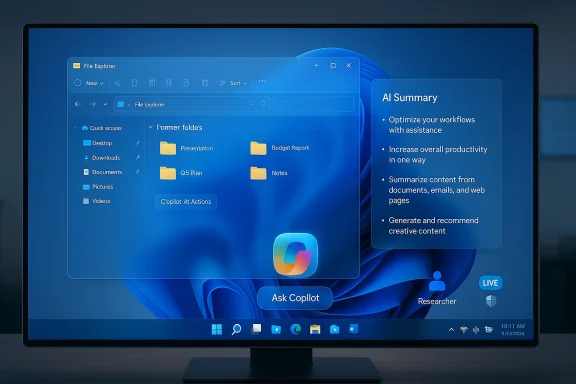
Blue Windows-style desktop on a monitor with an AI summary panel and an “Ask Copilot” button.Background / Overview​

Microsoft has been folding Copilot across Windows and Microsoft 365 for more than two years, shifting it from an occasional sidebar helper into a platform‑level capability. The latest wave does two things at once: it makes Copilot more discoverable (taskbar agents, hover controls and new keyboard triggers), and it moves intelligence into the places people already work — the file manager and the taskbar. That strategy aims to reduce context switching: summarize a report from Explorer, or launch a long‑running Researcher agent from the taskbar and keep working while it compiles a report. These features are rolling out via Windows Insider preview channels and staged Copilot updates, and many of the experiences are currently limited to commercial Microsoft 365 tenants and Copilot‑licensed users.
Under the hood, Microsoft is also introducing an Agent Launcher framework: apps can register AI agents that become discoverable system‑wide, and the taskbar can show agent progress with hover cards and notifications. Microsoft demonstrated a “Researcher” agent in recent previews — a background task that can run for several minutes, surface findings and then deposit a report for the user to inspect. The demo included a keyboard shorthand — pressing “@” inside the new Ask Copilot taskbar composer to summon agent options — and a taskbar presence that updates as the agent works. Some of these UX details are still being experimented with, and Microsoft is gating many capabilities by account type and license.

What’s changing on the taskbar: agents, Ask Copilot, and the new workflow​

Agents on the taskbar: the new “background worker” model​

The most visible change is a conceptual one: agents are treated like first‑class, monitorable workloads. When you launch a Researcher or Analyst agent from the taskbar, a taskbar icon or progress badge indicates work in progress; hovering reveals a small progress card with status, and you receive a notification when the job completes. The idea is to let AI perform time‑consuming, multi‑step tasks (research, aggregation, comparative analysis) in the background while you continue your workflow. This is a deliberate step toward what Microsoft calls an agentic OS — a desktop that schedules and orchestrates intelligent agents on behalf of users.
Why that matters: agents running as observable tasks are less mysterious than invisible background services. If Microsoft gets the UX right (clear status, pause/cancel controls, scoped permissions), agents can be a genuine productivity multiplier. But if visibility or control is imperfect, these background actions risk being noisy, distracting, or — worse — a vector for unintended data access.

Ask Copilot on the taskbar: discoverability vs clutter​

Ask Copilot replaces or augments the familiar search box in Windows 11 for users in preview channels and eligible commercial environments. It offers one‑click access to Copilot, voice or text prompts, and direct agent invocation — either via a tools button or by typing the “@” symbol to call up agents. That lowers the friction to adopt Copilot workflows: launch an agent without leaving your desktop, or ask Copilot to search your files, mail or calendar and return an answer inline.
The trade‑off is clear: increasing discoverability tends to increase surface area. If taskbar agents, hover cards and new icons are enabled by default on many devices, Windows could feel more cluttered. Users who already find the Windows taskbar crowded — and there are many — may respond by disabling the feature, or by removing Copilot entirely where policies allow. The risk is a mixed user experience across machines in the same organization: some users will adopt agents as workflows, others will see them as intrusive.

What’s changing in File Explorer: inline Copilot actions and file summaries​

One‑click summaries and “AI Actions” in Explorer​

Windows 11 preview builds and Copilot updates now expose Copilot controls directly in File Explorer: a small Copilot button beside a file, an “AI Actions” context menu and hover‑activated quick actions. From Explorer you can request a summary, ask questions about a document, compare multiple files, or invoke micro‑edits on images (background removal, blur, upscaling). Crucially, Copilot can summarize files stored in OneDrive or SharePoint without opening them in Office apps — it reads the file content server‑side (or via permitted file search) and returns a digestible summary. Microsoft’s own support pages and product demos show these summary flows and how Copilot surfaces references and follow‑up prompts.
This is functionally big: triage a long report from Explorer, extract talking points, and paste them into an email without launching Word. For knowledge workers who regularly sift through many attachments and shared docs, that saves time.

How the Explorer integration is being tested and managed​

The Explorer Copilot affordance is present in Insider builds and preview updates as a hover‑activated button or context menu entry; engineers have also been spotted experimenting with a detachable Copilot pane that docks inside Explorer, or can be popped out into a floating window. Those artifacts have appeared as inactive UI hotspots and resource strings in preview packages — signals that Microsoft is testing multiple interaction metaphors.
Microsoft is gating many of these capabilities based on account type: a Microsoft 365 Work or School account with the appropriate Copilot licensing is often required to unlock the full suite of file actions. That means consumer Windows 11 devices may not see the same features immediately, and enterprise tenants will have more control over rollout.

Who can use these features — licensing and hardware tiers​

  • Microsoft 365 Work or School accounts with Copilot access are the primary recipients of the most capable Explorer and taskbar experiences.
  • Copilot+ PCs — devices with specialized NPUs or local model acceleration — gain enhanced on‑device capabilities: offline or on‑device summarization, improved natural language search, voice transcription, contextual screenshotting, and faster text generation in any text field. These local enhancements aim to keep sensitive data on the device and speed up interactions.
That split matters: where a tenant wants to keep data strictly on device, Copilot+ hardware and managed policies can help. Where tenants need centralized visibility and auditing, cloud‑processed Copilot tied to Microsoft 365 telemetry will be more common.

Critical analysis: strengths, immediate risks, and governance gaps​

Strengths and real benefits​

  • Productivity uplift: Summarizing documents, extracting action items, and running background research agents are real, time‑saving capabilities that remove friction from everyday workflows.
  • Contextual power: Because Copilot connects to Microsoft 365 context (mail, calendar, SharePoint), it can generate outputs with richer context than a generic chatbot that only sees public web text.
  • Locality options: Copilot+ devices and on‑device features let organizations choose to process sensitive material locally, reducing cloud exposure for certain workloads.

Immediate privacy and security risks​

  • Data access and scope creep: Agents that run in the background and access files, mail and calendar items create a risk surface. Administrators will demand clear, auditable logs of what an agent read, what it generated, and where outputs were stored or sent. Early previews show Microsoft exposing some of these controls, but operational completeness varies between builds.
  • Unintended sharing: The “Share with Copilot” affordance (taskbar preview share) and Explorer’s Copilot button both make it easier to hand sensitive content to an AI. If users can accidentally share sensitive screenshots or files with Copilot Vision or cloud models, organizations need fail‑safes and user education to prevent leaks. Preview testers have flagged these exact concerns in early Dev Channel builds.
  • Governance limitations: Microsoft has introduced a narrowly scoped Group Policy — RemoveMicrosoftCopilotApp — that lets administrators remove the consumer Copilot app in certain scenarios, but it’s not a fleet‑wide “kill switch.” That fine‑grained, one‑time removal is a start, yet many enterprise teams have asked for more comprehensive, scalable controls for managed deployments. The available admin tools in insiders are improving, but they remain operationally awkward for some use cases.

Performance, UX and adoption risks​

  • Taskbar clutter and cognitive overload: Making agents visible by default increases discoverability, but also increases the chance that users will get distracted by progress badges, notifications and floating composer windows. Desktop real estate is finite; more visible services can feel intrusive.
  • Low paid conversion to date: Microsoft’s own corporate disclosures show a tension between experimentation and commercial uptake: the company reported roughly 15 million paid Microsoft 365 Copilot seats, which equates to roughly 3.3% of a ~450 million commercial Microsoft 365 user base — a marker industry analysts labeled a small conversion rate relative to Microsoft’s investment. That math matters for corporate decision‑makers: the product has abundant reach but paid adoption is not yet universal. If enterprises don’t see clear ROI, they will limit rollout or disable features.

Cross‑checking claims and what’s verified vs provisional​

  • Verified: Microsoft Support documents and OneDrive/Word guidance show that Copilot can summarize files stored in OneDrive/SharePoint and that Copilot in Office apps can generate summaries and present references; these behaviors are documented by Microsoft.
  • Verified: Windows Insider blog posts and release notes explicitly describe Ask Copilot on the taskbar, Agent Launchers and Researcher agent behavior in preview builds. Those posts are the canonical record for the Dev/Beta channel features.
  • Verified: Public reporting and Microsoft’s own earnings disclosure support the paid adoption statistic (15 million paid seats, ≈3.3% conversion of large Microsoft 365 base). Multiple independent outlets have summarized the number and its interpretation.
  • Provisional/unverified: Some granular UI behaviors — exact keyboard triggers, default on/off behavior across device types, and precise privacy defaults for each Copilot action — vary across reports and preview builds. Those are subject to change before general release and should be treated as experimental until they appear in stable release notes. Insider build artifacts and forum sleuthing reveal prototypes (hover hotspots, detachable panes) that may change.
If you rely on a specific UX detail (for example, whether “@” will work the same in your tenant), test it in a managed preview environment, and treat early screenshots and demo transcripts as illustrative rather than final.

What IT and security teams should do now: a practical checklist​

  • Inventory and policy planning
  • Review whether your organization allows Copilot features under current licensing and compliance rules. Check which users already have Microsoft 365 Copilot seats and which devices are Copilot+ capable.
  • Pilot and measure
  • Run targeted pilots on a subset of knowledge workers (legal, product, customer support) to measure actual time saved and error rates when using Explorer summaries and taskbar agents.
  • Harden governance controls
  • Test and validate the RemoveMicrosoftCopilotApp Group Policy and other administrative templates in a lab; don’t assume a single policy will solve governance for large fleets. Advocate for additional MDM controls where needed.
  • Data flow mapping and DLP integration
  • Map where Copilot reads and writes data (OneDrive, SharePoint, local device). Integrate Copilot actions with existing Data Loss Prevention (DLP) tools or configure Copilot file‑access permissions to prevent inadvertent sharing of sensitive material.
  • User training and defaults
  • Decide default options: opt‑in vs opt‑out for taskbar agents, whether Copilot buttons are visible in Explorer, and how notifications surface. Train end users to understand when a Copilot action reaches cloud services or remains local to a Copilot+ device.

Enterprise governance: what’s missing and what Microsoft should prioritize​

  • Comprehensive auditing: Agents must produce immutable, tamper‑resistant logs that record what was read, what prompts were used, model versions, and where outputs were stored. Those records must be exportable into SIEM/forensics workflows.
  • Fine‑grained controls: Admins need conditional policies that can block Copilot for selected folders, file types, or data classifications — not only a binary uninstall or allow decision.
  • Model provenance and citations: When Copilot summarises a file or produces a research report, it should provide clear provenance for assertions and highlight when it used external web sources versus tenant data.
  • Governed agent behavior: Agents running for multiple minutes must have explicit permission scopes and a revocable access token model, so admins can revoke an agent’s rights without deleting the user’s account.
Microsoft’s current preview artifacts include initial admin controls and group policies, but enterprise teams will rightly pressure for deeper governance and stronger evidence of auditable behavior before broad rollout.

The user perspective: convenience, trust, and the editing requirement​

For individual users, Copilot in Explorer and on the taskbar looks compelling: a fast way to triage files, create draft responses, and offload routine summarization. But every AI output still requires human verification. Demos show well‑formed, seemingly authoritative reports — and in many cases Copilot does a good job — but hallucination risk remains, especially for nuanced or business‑critical summaries. Users should treat Copilot outputs as drafts and verify claims, figures and references before relying on them. Microsoft itself acknowledges limitations in current summary behavior (for example, citation completeness and document length boundaries).

The broader commercial picture: heavy investment, modest paid uptake​

Microsoft’s financial disclosures reveal a tension: the company has put significant investment behind AI across Azure, Copilot, and Microsoft 365, but paid Copilot adoption is still early relative to the overall Microsoft 365 installed base. Public reporting summarizing Microsoft’s numbers shows about 15 million paid Copilot seats, which translates to roughly 3.3% of a 450 million commercial seat base — a fact that analysts called a cautious starting point, not definitive proof of product failure. Microsoft emphasizes growth metrics (seat growth, daily active usage increases), but the conversion gap highlights that wide access to Copilot chat as a bundled experience and the premium paid Copilot add‑on are different adoption dynamics. That commercial reality should temper assumptions about rapid, universal deployment within enterprises.

Final verdict: worth testing — but don’t flip all switches at once​

Embedding Copilot into the taskbar and File Explorer is a logical evolution: put intelligence directly where people spend time, remove microlatency and context switching, and let agents handle long‑running tasks. The productivity case is real for teams who handle lots of documents, run recurring research, or need rapid triage of email and attachments. But this shift is as much about governance, trust and UX as it is about models and APIs.
Organizations should adopt a cautious, metrics‑driven approach: pilot with clear success criteria, harden controls around data access, require auditable logs, and set conservative defaults for discovery and notification. Microsoft’s preview tooling and policies provide a foundation, but many enterprises will need richer controls before broad deployment. End users should enjoy more helpful workflows — while staying skeptical and verifying AI outputs.
Windows 11 is becoming an “agentic” OS. That’s a meaningful technical advance, but whether agents become trusted colleagues or just another source of friction will be decided by how Microsoft, customers and admins balance convenience, control and accountability in the months ahead.

Source: PCMag UK Copilot Creeps Into File Explorer and the Taskbar on Windows 11
 

Microsoft has moved Copilot from the margins of Windows 11 into its busiest work surfaces: the taskbar search composer and File Explorer, turning what was an optional sidebar into an array of always‑available, agentic tools that can run in the background, report status on the taskbar, and summarize or act on files without launching full apps. osoft’s Copilot effort has evolved rapidly from a chat-style assistant to a system-level productivity layer across Microsoft 365 and Windows. The latest round of changes—rolling through Insider previews and staged releases—introduces two tightly related moves: (1) a new Ask Copilot composer embedded in the taskbar that can summon long‑running AI agents (invoked with the “@” symbol) and surface progress inline with existing UI; and (2) a Copilot affordance inside File Explorer that lets users preview, summarize, and ask questions of documents without opening them. These shifts were demonstrated in public previews and documented in Microsoft’s Insider announcements and product briefs.
The practical goal is straightforward: reduce micro‑friction. Instead of opening a browser, signing into a web Copilot, switching context into Word, or manually skimming dozens of files, the OS now offers one‑click s to AI actions that run in the background, surface results, and respect the security context of the signed‑in tenant. The value proposition is convenience plus persistence—agents that “set it and forget it,” then notify you when their job is done.

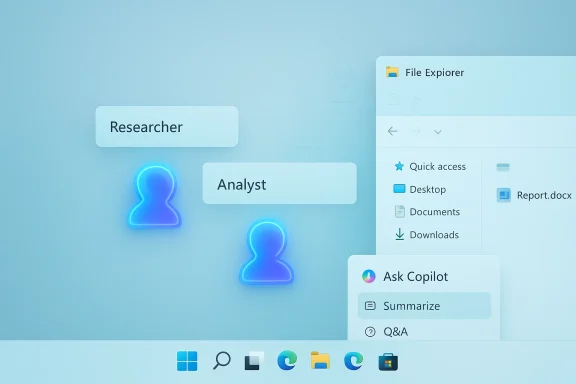
A blue-themed UI showing roles Researcher and Analyst with a File Explorer panel.What Microsoft showed and how it works​

Ask Copilot on the taskbar: agents and the “@” composer​

The taskbar composer—branded in previews as Ask Copilot—replaces or augments the classic search field with a compact, multimodal composer that accepts typed prompts, voice, and small visual captures. Typing “@” inside that composer exposes a list of available agents (for example, Researcher and Analyst in Microsoft 365 Copilot). Selecting an agent launches a contained agent workspace that can perform extended searches, compile reports, or run workflows, and the agent appears as a taskbar icon while it runs so you can monitor progress without switching windows.
This pattern turns agents into first‑class, monitorable workloads rather than ephemeral web queries. The UI shows status cards when you hover the taskbar icon, along with controls to pause, cancel, or surface the agent for more interaction—design choices aimed at making background AI less mysterious and more controllable. Early previews demonstrate a “Researcher” agent capable of running for several minutes and returning a long‑form, referenced output. Independent reporting and Microsoft’s preview notes confirm the approach and the new Agent Launchers framework that lets apps register agents to be discoverable across the system.

Copilot in File Explorer: one‑click previews and in‑place Q&A​

File Explorer now surfaces a small Copilot icon or an “Ask Copilot” hover affordance on eligible files in File Explorer Home and OneDrive panes. Clicking the icon asks Copilot to summarize a document, extract key findings, compare files, or answer targeted questions about the document’s contents—without launching Word, PowerPoint, the PDF reader, or a browser. The functionality is gated to supported formats (Word, PowerPoint, PDF, text) and to accounts with appropriate Microsoft 365 entitlements; all actions are constrained by tenant permissions and compliance controls.
This in‑place analysis is a pragmatic UI win: for routine workflows—triaging meeting notes, comparing vendor proposals, pulling highlights from a long report—users can get a useful answer in seconds instead of minutes. For admins, the integration means these AI calls now appear in familiar places where data governance and DLP policies are usually applied.

Copilot Vision, Voice, and the “Share with Copilot” affordance​

In parallel, Microsoft continues to expand multimodal entry points. Copilot Vision (screen‑aware analysis) and Copilot Voice (wake‑phrase and spoken interactions) are increasingly woven into these taskbar and Explorer experiences. Insiders have seen a “Share with Copilot” taskbar affordance that can hand the visible contents of an application window to Copilot Vision for analysis—another shortcut intended to reduce context switching.

Availability and the hardware/software gating​

Who gets this, and when?​

These features are being staged through the Windows Insider channels and Microsoft’s controlled rollout systems. The initial target is commercial customers using Microsoft 365 Work or School accounts where administrators have provisioned Copilot access. Microsoft typically gates advanced Copilot functionality to preview rings (Dev, Beta, or Release Preview) before broader distribution. Microsoft documentation and insider notes emphasize that not every tenant or device will see these integrations at the same time.

Copilot+ PCs and the NPU advantage​

A distinct class of devices—Copilot+ PCs—receive additional, on‑device AI capabilities. Microsoft’s guidance for Copilot+ PCs specifies hardware prerequisites including a Neural Processing Unit (NPU) capable of delivering at least 40 TOPS (trillion operations per second), along with minimum RAM and storage targets commonly cited as 16 GB RAM and 256 GB SSD for the premium on‑device experiences. The NPU lets specific Copilot functions run locally for improved latency and increased privacy guarantees; Windows exposes the NPU in Task Manager and provides developer guidance for accessing it.
Third‑party coverage and hardware announcements confirm the landscape: Copilot+ certification originally favored Snapdragon‑based designs, but vendor updates and new silicon from Intel and AMD (Ryzen AI, Intel Core Ultra series) are bringing more NPUs to market, widening the potential Copilot+ hardware pool. Still, not every NPU‑equipped PC is automatically a Copilot+ PC—Microsoft’s program enforces performance thresholds and other criteria.

Why Microsoft is embedding Copilot everywhere​

Microsoft’s rationale is behavioral and strategic. Embedding Copilot into the most‑used surfaces increases discoverability and lowers the activation energy required for frequent use. Internal reporting and industry analysis show Microsoft is focused on turning Copilot into a daily habit rather than a novelty; the deeper the assistant is woven into routine workflows, the more likely users are to adopt paid tiers or enterprise entitlements. Independent reporting also notes that Microsoft is watching engagement closely and will tune visibility and defaults as feedback arrives.
From a product design perspective, treating agents as visible, monitorable processes (taskbar icons with progress cards) helps address two adoption friction points: trust and interruption. Making the work visible and controllable reduces anxiety about opaque background processes and keeps users in charge.

Security, compliance, and governance implications​

These integrations are powerful, but they carry familiar enterprise concerns: data leakage, auditability, least‑privilege access, and training users to avoid exposing sensitive information to AI. Microsoft asserts that Copilot respects tenant boundaries—Copilot can only analyze files the user can access and results are constrained to the organization’s compliance perimeter. The company is extending Microsoft Purview controls, DLP policies, and tenant‑level configuration to govern Copilot’s scope. Still, the new entry points create gure and monitor.
Key governance points for IT teams:
  • Least-privilege: Ensure Copilot agent access is restricted to the minimum set of files and services required for a use case.
  • Audit trails: Verify that each AI action logs sufficient details in audit records so you can reconstruct what files were analyzed and what prompts were issued.
  • DLP integration: Extend data loss prevention policies to AI actions (summarization, extraction, connectors).
  • Pilot before broad rollout: Start with a narrow pilot group to evaluate prompt patterns, false positives, and unexpected data flows.
Many organizations should treat these features as an expansion of their attack surface—optimizable through policy and monitoring rather than a simple toggle. Microsoft’s preview documentation and community reporting encourage pilots and close monitoring in early stages.

Productivity impact: what changes for daily work​

The most immediate, measurable effect of these integrations is time saved on small, repetitive tasks that previously required multiple context switches. Practical examples:
  • Ask the Researcher agent to assemble a market snapshot while you join a meeting; get a notification and a digest when it finishes.
  • Click the Copilot icon beside a vendor proposal PDF to extract key contract terms in seconds.
  • Use voice to capture a quick hallway conversation and let Copilot transcribe and generate action items you paste into Teams.
Those micro‑savings compound—dozens of times a day they take minutes off workflows and reduce cognitive switching costs. If the model quality, latency, and trustworthiness are high, organizations may see meaningful productivity gains. Early previews position the experience as intentionally unflashy: the value is in friction reduction rather than headline‑grabbing features.

Risks, limits, and open questions​

No launch is risk‑free. Below are the most salient issues IT leaders and power users should weigh.
  • Accuracy and hallucination: Summaries and extractions are only as reliable as the underlying model and context. For legal, financial, or regulated content, treat AI outputs as assistive—verify before acting.
  • Privacy expectations vs. reality: Local NPUs change the privacy calculus, but many Copilot actions still interact with cloud services or connectors; confirm where inference happens (on‑device vs. cloud) for each feature you enable. If a feature claims on‑device processing, verify that with logs and telemetry.
  • Audit and compliance gaps: New AI entry points require corresponding logging and policy coverage. If your SIEM and DLP don’t capture Copilot actions, you’ll have blind spots.
  • Feature sprawl and user confusion: Microsoft is experimenting with many entry points (taskbar composer, floating share buttons, Explorer icons, Copilot key on keyboards). Too many affordances can create cognitive overload and lead to accidental data sharing—monitor adoption and be ready to reduce visibility through Group Policy or admin controls.
  • Licensing and cost: Heavy usage of Copilot agents could push organizations toward paid Copilot tiers. Current reporting indicates a small fraction of overall Microsoft 365 users pay for premium Copilot services, a commercialization challenge Microsoft is actively watching.
One claim circulating in coverage—about specific agents using third‑party research features like “ChatGPT’s Deep Research”—is not fully verifiable from Microsoft’s official notes and should be treated cautiously until Microsoft or a partner documents the exact backend or partner integration. Treat that as unverified until confirmed.

Recommendations for IT pilots and rollouts​

If you manage Windows devices or Microsoft 365 tenancy, here’s a practical rollout plan to test Copilot taskbar and Explorer integrations without exposing unnecessary risk.
  • Select a cross‑functional pilot group (legal, marketing, frontline sales) of 10–50 users. Aim for a mix of heavy and light file users.
  • Configure tenant‑level Copilot access and ensure DLP policies are applied to the pilot group. Verify audit logging and alerting for AI actions.
  • Define clear use cases and success metrics (time saved, number of tasks completed by agent, number of sensitive prompts blocked).
  • Run a controlled pilot for 6–8 weeks, capture prompts and outputs for review, and document false positives/negative behaviors.
  • Iterate: tighten policies, create user education (what not to ask Copilot), and evaluate whether to expand or throttle agent visibility on the taskbar and in Explorer.
Security ops should also validate that Copilot actions are captured by existing monitoring tools; if not, work with Microsoft support to obtain telemetry hooks or use Microsoft’s administrative logs to bridge the gap.

User experience design: balancing discoverability with restraint​

Microsoft faces a classic UX choice: make Copilot ubiquitous and risk noise, or hide it and risk low discoverability. Recent previews attempt to balance this by:
  • Making agents visible only when invoked (typed “@” or through a tools menu).
  • Presenting agents as taskbar icons with hover cards so they look and behave like long‑running tasks.
  • Rolling the experience out gradually and experimenting with grouping or separating agent icons to limit clutter.
This is sensible: discoverability without transparency breeds mistrust. The hover cards and explicit controls help, but Microsoft will likely refine defaults based on telemetry and user feedback. IT administrators should watch for options to control visibility and default behaviors centrally.

Economic and market context​

Embedding Copilot into the OS is a play for habit formation and eventual monetization. Current analysis indicates only a small fraction of Microsoft’s massive Microsoft 365 install base has converted to paid Copilot subscriptions—recent reporting places that figure around 3.3% of interacting users. That low conversion rate helps explain Microsoft’s persistent push to lower activation cost and increase everyday utility by making Copilot part of the OS fabric. Expect Microsoft to continue experimenting with stronger nudges, bundled offers, and hardware certifications (Copilot+ PCs) to increase paid adoption.
On the hardware side, an expanding slate of NPUs from AMD, Intel, and Qualcomm is beginning to satisfy the Copilot+ spec, opening the door for more OEMs to market AI‑forward devices. That hardware cycle is a strategic lever: if on‑device capabilities become a differentiator, we may see businesses refresh hardware sooner to benefit from local inference, improved latency, and richer privacy guarantees.

What to expect next​

  • Microsoft will continue incremental rollouts and adjust visibility based on feedback from Insiders and enterprise pilots.
  • Agent Launchers will mature into a discoverability platform for third‑party and in‑house agents, bringing both opportunity and risk for enterprise governance.
  • Copilot+ PCs will broaden as OEMs and silicon vendors meet the NPU threshold; local inference features will expand in capability and in the places they appear within Windows.
  • Microsoft will iterate on defaults and admin controls, especially if telemetry shows confusion or data‑handling missteps.

Conclusion​

The addition of Copilot agents to the taskbar and a one‑click Copilot in File Explorer marks a significant step in Microsoft’s long game to make AI a seamless part of daily PC work. The value is plain: fewer context switches, faster triage of documents, and agents that can quietly do long‑running research while you focus on other tasks. But the changes also raise real governance, accuracy, and user‑experience questions that organizations cannot ignore.
For IT teams, the sensible path is cautious curiosity: pilot these features with a limited cohort, instrument and audit every AI action, educate users on what belongs in prompts, and be prepared to tighten defaults if the noise outweighs the benefit. If Microsoft’s execution keeps latency low, respects enterprise boundaries, and surfaces trustworthy outputs, Copilot in the taskbar and File Explorer could be the first genuinely useful OS‑level AI features that shift behavior rather than just headlines. If not, expect Microsoft to dial back visibility and iterate—which, in this case, is exactly the point of staged previews and Insiders testing.

Source: findarticles.com Copilot Arrives In Windows 11 File Explorer And Taskbar
 

PCWorld's recent spotlight on Winhance has put a practical, surprisingly polished answer to Windows 11 bloat squarely in the hands of everyday users: a free, open‑source application that centralizes app removal, privacy tweaks, update controls, and installer customization—so you can strip unwanted apps and ads without hours of registry spelunking or a Linux migration.

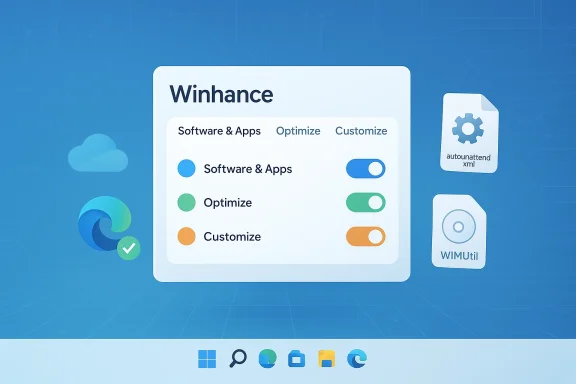
Futuristic Windows-style dashboard labeled 'Winhance' with toggles for Software & Apps, Optimize, and Customize.Background​

Windows has shipped with an expanding set of inbox apps, promotional suggestions, and OEM utilities for years. For many users that “extras” layer is not harmless clutter: it occupies storage, presents upsell prompts, and increases the surface area for background activity and telemetry. Tools that remove or neutralize that clutter have long existed, but until recently they were either one‑off scripts, manual answer‑file projects, or projects aimed at power users. Winhance attempts to change that by packaging debloat, tuning, and installer customization into one Gimmediate post‑install mode and automation for fresh installs.
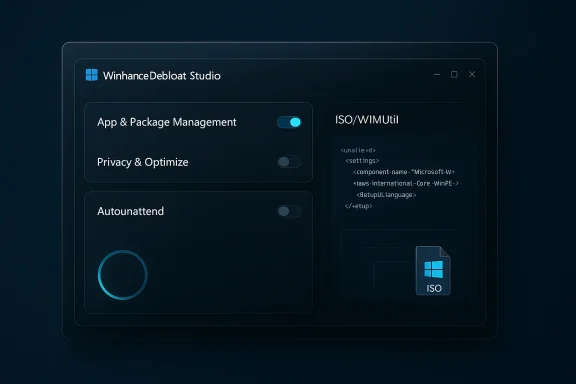
Winhance is the product of the memstechtips project and is actively maintained on GitHub, with signed installer releases and an evolving changelog. The project author has folded previous utilities (like WIMUtil and UnattendedWinstall) into Winhance’s single interface, and the app now includes an autounattend generator plus a Windows Installation Media helper for building custom ISOs. These capabilities make it more than an app cleaner; it’s an installer automation and deployment tool for individuals and small labs.

What Winhance does — an overview​

Winhance organizes its functionality into three high‑level areas: Software & Apps management, Optimize (system/service/preferences tweaks), and Customize (visual and UI tweaks). There are also Advanced Tools that let you generate autounattend.xml answer files and build a custom installer ISO (WIMUtil). The official docs describe how each piece fits into the installation and post‑install workflow and list the exact locations where Winhance stores scripts and generated files.

Software & Apps​

  • One‑pane view of inbox Windows apps, optional features, and legacy capabilities, with search and explanatory legends.
  • One‑click selection to remove or reinstall items (status indicated by colored icons).
  • External Software tab uses WinGet manifests to offer popular third‑party apps for easy install/uninstall.
This approach lets you remove everything from Candy Crush and mixed reality demos to optional components such as OneDrive or certain Media Features—whatever you choose. The interface clearly identifies whether an item can be reinstalled from the Microsoft Store or if removal is irreversible under the current configuration.

Optimize​

  • A unified list of system settings for privacy, telemetry, notifications, power plans, and more.
  • Per‑service descriptions that explain the consequences of disabling a service, reducing guesswork for non‑technical users.
  • Windows Update controls that range from "defer feature updates" to fully disabling automatic updates (the docs and public coverage both note the ability, while cautioning it is generally unwise for most users).

Customize​

  • Theme toggles (Light/Dark), taskbar appearance, Start menu layout, and File Explorer preferences in one place.
  • Exportable configuration files so a chosen set of toggles can be applied to another machine.

Advanced Tools (autounattend & WIMUtil)​

  • Winhance can generate a Winhancements.ps1 PowerShell script and an autounattend.xml that runs during Windows setup (specialize pass) to apply your selection automatically during installation. That script runs with SYSTEM privileges and performs machine‑wide changes—uninstalling apps (Appx packages, capabilities, optional features), applying HKLM registry tweaks, and registering scheduled tasks to keep removal persistent.
  • WIMUtil extracts an official Microsoft ISO and can inject the autounattend.xml, include drivers from the current system, and produce a new bootable ISO. The tool uses oscdimg to build UEFI/legacy compatible images and expects official Microsoft ISOs as inputs.
These features let you create a custom installer that installs Windows the way you want it—no post‑install cleanup required—which is a major time‑saver if you reinstall often or manage multiple personal machines.

How it works technically (verified)​

To keep readers from relying on hearsay, here are the key technical claims and their verification:
  • Winhance requires administrator privileges to change system settings and perform removals; this is explicit in the installation docs. Running the installer or the recommended PowerShell one‑liner requires an elevated terminal.
  • The autounattend generator outputs a PowerShell script (Winhancements.ps1) that is executed during Windows Setup's specialize pass with SYSTEM privileges. The script uninstalls Appx packages, creates persistent removal scripts, registers scheduled tasks to run at startup (so removed apps don’t return after updates), and writes HKLM registry changes. These behaviors are documented in the Winhance autounattend guide.
  • WIMUtil builds a bootable ISO by extracting the official ISO, adding drivers and autounattend files, and recreating the image with oscdimg. The docs caution that the resultant ISO may be larger because of added drivers and files, and they recommend at least 15–20GB free workspace to create the ISO.
  • Releases on GitHub are signed (installer reupload and signature noted in release changelogs), and each release includes SHA256 checksums so users can verify downloads. The release history also documents bug fixes and UI changes across versions. Verifying the checksum is recommended before running an installer downloaded from GitHub or elsewhere.
Where a claim is subjective—such as “makes Windows as straightforward as Linux”—that is an editorial comparison rather than a measurable technical property. I flag such phrasing in the rest of this article as opinion rather than a verified performance metric.

A practical workflow: debloat a fresh install (step‑by‑step)​

  • Prepare an official Windows ISO and a machine (or VM) to work on. Verify the ISO and ensure you have a backup of any important data.
  • Install Winhance on a test machine (or run it in a VM) to compose your desired configuration: select inbox apps to remove, Optimize toggles, and any External Software you want installed later. Save that configuration to a config file.
  • Use Winhance’s autounattend generator to export the Winhancements.ps1 and autounattend.xml. Confirm the generated script contents (inspect the script yourself to see exactly what will run).
  • Use WIMUtil to extract an official ISO and inject the autounattend.xml and any drivers you want baked into setup. Build the ISO with oscdimg via WIMUtil.
  • Create a bootable USB (Ventoy or Rufus) and install Windows from the customized ISO on the target machine. The autounattend will run during setup and apply your Winhance choices automatically.
  • After first boot, run the “Install Winhance” desktop shortcut (created by the autounattend) to reinstall Winhance if you removed Edge during setup, then fine‑tune external software installs via WinGet.
This flow reduces manual post‑install work to a few clicks and is especially valuable for users who repeatedly install Windows or want identical setups across machines.

Benefits — why Winhance stands out​

  • Unified interface: Removes the need to hunt through half a dozen Settings pages or run long PowerShell scripts.
  • Repeatability: Save configurations and generate autounattend files to reproduce the same environment reliably.
  • Open‑source transparency: Code and release artifacts are available on GitHub for inspection; releases include checksums and signed installers as of recent updates.
  • Advanced installer tooling: The WIMUtil + autounattend combination allows true “install once, never tweak again” workflows—handy for power users, refurbishers, or small IT workflows.
  • Granular control: Service descriptions and toggle explanations reduce the risk of blind, destructive changes.

Risks, limitations, and important caveats​

Winhance is powerful—and power comes with tradeoffs. Below are known risks and practical mitigations.
  • Disabling Windows Update or turning off specific update channels can leave a device exposed to security issues. PCWorld notes the app exposes an option to disable updates but recommends caution; the official docs reiterate the capability and the consequences. In short: do not permanently disable security updates on a machine that handles sensitive data or connects to the internet without compensating protections.
  • Removal scripts and scheduled tasks: Winhance’s autounattend injects removal scripts and scheduled tasks to keep certain apps uninstalled. That persistence helps on consumer machines, but it also means you should inspect the scripts and know how to delete them if you change your mind. A community reviewer observed that system restore may remove task registrations but leave script files behind unless you manually clean them up. Treat these files as items to audit post‑install.
  • Broken functionality and driver gaps: Removing components like Microsoft Edge, OneDrive, or certain capabilities can affect Windows behaviors (some features may expect those components). If you remove network‑related drivers from the installer or fail to include proper drivers in the ISO, you may boot to a system without internet—Winhance and WIMUtil documentation both highlight driver inclusion as an important step. Always include network drivers or have them ready on USB.
  • Enterprise and warranty implications: If you are managing corporate devices, removing inbox components might conflict with company policies or MDM expectations. For consumer devices, manufacturers rarely void a warranty for removing preinstalled software, but you should check vendor support terms before making radical changes to a new, under‑warranty machine.
  • Trust and supply‑chain: While Winhance is open‑source and releases are signed, always verify download checksums and prefer GitHub releases or the official project site over unknown mirrors. The project author documents SHA256 checksums in each release precisely for this reason.
  • Not all changes persist across feature updates: Windows feature upgrades can reintroduce certain inbox apps or reset settings. Winhance’s scheduled removal tasks are designed to counter that, but the broader lesson is to test major Windows updates on a non‑critical machine before rolling custom images to many systems.

Safety checklist before you use Winhance​

  • Back up your data and create a full disk image or restore point.
  • Test Winhance in a virtual machine (Hyper‑V, VirtualBox) first to see the exact changes you’ll get.
  • Inspect generated autounattend.xml and Winhancements.ps1 before using them on physical hardware. Know what scripts will run as SYSTEM.
  • Include network drivers in the custom ISO or have them available on USB to avoid being offline after install.
  • Verify installer SHA256 and digital signature before running an executable you downloaded. Winhance release notes include checksums for each installer.
  • Keep at least one admin account and a recovery method (Windows recovery drive) available in case a tweak breaks the UI or sign‑in flow.

Alternatives and the broader tool ecosystem​

Winhance is not the only debloat or installer automation tool—some alternatives and complementary projects include:
  • UnattendedWinstall — a mature answer‑file project focused on thoroughly customizing setups via autounattend XML; it remains a go‑to for users who prefer hand‑edited answer files.
  • Tiny11 / Nano11 — community builders and image projects that produce very small Windows images by aggressively removing features. These are more extreme and can break compatibility; they are best for retrofits and experiments.
  • Win11Debloat / NoBloatbox / Winslop — scripts and small utilities that target specific telemetry or AI components; handy for specific changes where you don’t need a full GUI. See community threads and reviews for comparisons and tradeoffs.
Choosing between them depends on your tolerance for risk, desire for GUI tooling, and whether you want installer‑level automation or in‑place scripts.

Critical analysis: strengths and remaining concerns​

Winhance’s central strength is its usability‑first approach: bringing uninstall, optimization, and installer automation into a single, searchable UI reduces the time and cognitive load required to build a lean Windows machine. The addition of WIMUtil and autounattend generation is a practical productivity boon that turns a repetitive multi‑hour workflow into a repeatable process suitable for hobbyists, refurbishers, and advanced home users. The project’s public GitHub, release checksums, and active changelog improve transparency and lower trust friction relative to closed‑source debloaters.
However, the same power that makes Winhance attractive also means it is not suited to casual tinkering without care. The tool’s ability to disable updates, create persistent removal scripts, and remove core capabilities carries legitimate risk for non‑technical users if they blindly accept recommended presets. The project documentation is thorough, but the ecosystem around Windows updates and feature upgrades is inherently messy: Windows may reintroduce components, and some removals can trigger unexpected behavior. Users must read the scripts and prepare drivers before they attempt a fresh install with a custom ISO.
Finally, while the project’s signed releases and checksums are positive signals, the supply‑chain risk is only mitigated—not eliminated. Users who plan to run Winhance on production or business machines should pilot changes, retain recovery options, and consider whether MDM or enterprise policies are impacted.

Verdict and recommended use cases​

Winhance is a robust, well‑documented tool that finally bridges the gap between script‑centric debloat workflows and consumer usability. For the following users, it is particularly compelling:
  • Power users who reinstall Windows periodically and want a fast, reproducible setup.
  • Small labs or refurbishers who need to produce multiple machines with identical configurations.
  • Enthusiasts who want a single, GUI‑driven place to manage privacy, services, and inbox apps.
It is less appropriate for users who cannot or will not follow the safety checklist above, or for enterprise environments where change control and vendor support are mandatory.
If you plan to try Winhance: start in a VM, inspect autounattend outputs, include drivers in your ISO, verify checksums, and keep system recovery tools ready. That measured approach captures the tool’s upside while protecting against its most common pitfalls.

Winhance doesn’t magically “fix” Microsoft’s product decisions, but it makes reclaiming control over a Windows installation far less painful—and less time‑consuming—than it used to be. For anyone who’s ever burned an afternoon uninstalling a dozen store apps, generating a custom installer that applies your preferences automatically is a tangible productivity win. Use the power responsibly: back up, test, and verify, and Winhance can turn a frustrating setup chore into a repeatable, auditable process that leaves Windows running leaner and quieter.

Source: PCWorld Strip out Windows 11's bloatware, ads, and other grossness—for free
 

Winhance puts a surprisingly powerful control panel on top of Windows 10 and 11 that can remove preinstalled apps, quiet in‑OS promotions, tune privacy and services, and even bake your chosen settings into a custom Windows installer — all for free and with an open‑source codebase. This is the essential takeaway from recent writeups and hands‑on community testing: Winhance aims to make the tedious work of “debloating” and configuring Windows repeatable, auditable, and fast, but it also introduces real trade‑offs that every user should weigh carefully.

Dark Windows-style app UI for a debloat tool, with toggles, a progress ring, and an ISO utility panel.Background / Overview​

Winhance is an open‑source Windows enhancement utility that centralizes app removal, privacy toggles, service management, optimization tweaks, and UI customization into a single GUI. It grew out of the same ecosystem of PowerShell‑driven tools and “answer file” workflows used by power users and IT pros to build lean, consistent Windows installs. The project exposes an Export/Import configuration system, a catalog of optional external software, and advanced tools such as an autounattend (answer file) generator and WIM/ISO utilities for creating custom installation media. These capabilities set Winhance apart from one‑off debloat scripts: it’s designed to be reproducible and automatable.
Community coverage and hands‑on reviews report similar strengths: a searchable list of preinstalled Microsoft packages, a separate tab for third‑party “External Software,” and an Optimize panel that aggregates privacy, update, and performance toggles from different Windows settings into one scrollable view. Reviewers praise Winhance for keeping the options clear and for making it straightforward to create a repeatable post‑install experience.

What Winhance actually does — features and behaviors​

Winhance groups its capabilities into clear areas. Below are the most important features and how they behave in practice.

App and package management​

  • Remove or restore Windows apps: Winhance lists preinstalled Microsoft apps and UWP packages and lets you uninstall them in bulk. Removed items change state in the UI so you can see what’s been removed and whether it can be reinstalled.
  • Prevent reinstall during updates: Winhance registers scripts and scheduled tasks that attempt to stop Windows from silently reinstalling removed components during feature updates — a common frustration for users who debloat by hand. Independent reviews confirm that Winhance implements persistent removal strategies rather than one‑off deletions.

External software management​

  • External Software tab: A curated list of third‑party apps (browsers, media players, utilities) that Winhance can install using WinGet. This turns Winhance into an installer hub for a freshly set‑up machine, saving repetitive manual installs.

Optimize (tweaks and service control)​

  • Centralized system tweaks: Privacy, telemetry, power, update behavior, and UI animations are presented as toggleable options with short descriptions of the effect. Many of these settings are equivalent to changes you could make manually via Settings, Group Policy, or the Registry, but Winhance collects them in one place and documents the implications.
  • Service descriptions: The tool annotates service toggles with plain‑English impact notes to help non‑experts understand consequences of disabling particular services. This reduces accidental breakage compared with flipping services blindly.

Customizations and configuration export​

  • UI preferences: Taskbar behavior, Start menu tidying, File Explorer settings, and theme controls can be changed from a single pane. Changes are reversible via Winhance’s interface, and you can export your entire configuration to reuse on other machines.

Advanced installer automation (autounattend & WIMUtil)​

  • autounattend.xml generator: Winhance can produce a Microsoft answer file that applies your chosen settings and removals during Windows setup. That means a custom install can emerge from setup already debloated and configured, without manual post‑install work. This is the same technique used in enterprise deployments but packaged for individuals.
  • WIMUtil (create custom ISO): Winhance offers a wizard to extract an official Windows ISO, inject the custom autounattend, optionally add drivers from the current machine, and repackage a new ISO that boots and installs with your preferences baked in. This workflow removes the repetitive step of tweaking each new machine manually.

How to use Winhance safely: a recommended workflow​

Winhance is powerful; with power comes responsibility. The following step‑by‑step workflow minimizes risk and helps you recover quickly if something breaks.
  • Create a full disk image or at minimum a system restore image before making changes.
  • On a test machine (or a virtual machine), install Winhance and run its default “Recommended” configuration to evaluate changes.
  • Use the app list to remove only what you understand. Start with obviously optional items (games, trials, preinstalled OEM tools).
  • Apply one group of Optimize changes, reboot, and validate daily workflows (sleep, printing, login, system updates) before making more changes.
  • If you plan to build custom installer media, generate an autounattend.xml and test it in a VM using the custom ISO or by copying the XML to a test USB root. Confirm driver injection and post‑install behavior.
  • Export your final configuration and keep the exported file in secure storage for future reinstalls.
This incremental method reduces the chance of an irreversible misconfiguration and makes root‑cause troubleshooting far easier. Winhance’s own docs explicitly recommend using autounattend and WIMUtil for reproducible installs, and community guides echo the same approach.

Strengths: why Winhance is compelling​

  • Reproducibility: Export/import and autounattend support turns manual tweaks into repeatable operations, ideal for power users and hobbyists who reinstall frequently.
  • Consolidation: Winhance centralizes dozens of scattered Windows settings into a single, searchable UI — that saves time and reduces human error. ([winhance.net](Winhance - Windows Enhancement Utility transparency**: Because the project is open source, users (and security researchers) can inspect the scripts that run with system privileges before trusting them. This is a strong point compared with closed “one‑click optimizer” apps.
  • Installer automation: The combination of autounattend generation plus WIM/ISO editing is rare among consumer‑facing debloat tools; it elevates Winhance from a tweak utility to a deployment assistant.
Community threads and early adopters report measurable improvements in startup noise (fewer background processes), fewer nags and ads, and faster post‑install setup time thanks to the External Software installer. Those practical wins are why many reviewers recommend Winhance as part of a clean‑install toolkit.

Risks and caveats — what can go wrong​

No tool that runs SYSTEM‑level scripts is risk‑free. Winhance gives you control over many low‑level settings; misuse or overly aggressive defaults can break features you rely on.
  • Disabling critical services or policies: Some optimizations change service states and HKLM registry keys. Turning off services without testing can break device sleep, lock screen behavior, network discovery, or login flows. Community reports include at least one case where a user lost lock screen functionality after running debloat steps and needed to re‑enable the setting from Winhance. This underscores why pre‑change backups are vital.
  • Update behavior and security: Winhance exposes toggles for Windows Update behavior. Delaying or suppressing updates can improve stability short‑term but may postpone critical security fixes. The tool allows granular control, but choosing to permanently disable security updates is a risk. Always prioritize critical security updates.
  • Persistent removal scripts: The measures Winhance uses to keep apps removed (scheduled tasks and scripts) are effective but may interact poorly with future Windows feature updates; a major OS update could reintroduce components or conflict with the scheduled tasks. Be prepared to reapply or update the configuration after large Windows feature upgrades. Independent coverage highlights that Winhance attempts to mitigate automatic reinstalls, but that technique is not a Microsoft‑supported approach and may need maintenance.
  • Driver and activation issues with custom ISOs: Creating custom ISOs and injecting drivers can introduce driver signature or activation surprises on some OEM hardware. Test custom media in a VM and on a secondary physical device before using it on primary workstations. Winhance’s WIMUtil does include driver injection features, but reviewers emphasize testing to confirm hardware compatibility.
  • Third‑party software supply chain: The External Software installer pulls packages via WinGet or other distribution channels. While convenient, installing large bundles of external apps automatically increases the attack surface and iability — the exported autounattend.xml intentionally omits external installs for that reason. Winhance docs acknowledge that external apps are best handled post‑install.

Verifying claims: what we checked and how​

I verified the tool’s core claims against the Winhance project site and independent explainers and tested community reporting for real‑world issues.
  • The Winhance site lists app removal, optimization, customization, and the WIMUtil/autounattend functionality as key features; the site also provides the PowerShell installer shortcut and docs explaining autounattend generation. That confirms the product’s advertised feature set.
  • Independent reviews (technical blogs that tested Winhance) corroborate the app’s ability to remove packages, prevent reinstallation, and build custom ISOs; these sources also reproduce the same benefits and echo the same cautions about testing and backups.
  • The broader user community has threads and reports about Winhance usage, noting both successful debloats and occasional regressions or unexpected side effects. Those community posts are useful reality checks and are consistent with the risks documented above.
Where direct claims could not be independently verified (for example, long‑term robustness across every Windows feature update), I flagged them as requiring ongoing user vigilance rather than omitting mention entirely.

Practical recommendations and safe presets​

If you decide to use Winhance, here are practical presets and stepwise recommendations that balance control and safety.
  • Conservative preset (for most users):
  • Remove obvious consumer bloat (games, trial apps, OEM promotional apps).
  • Keep system utilities (Notepad, Calculator, Windows Security) intact.
  • Use Optimize toggles only for visual and privacy settings (disable suggestions, hide ads) — do not touch update or core security toggles.
  • Use Export to save this as “Conservative Config.”
  • Power user preset (for tech‑savvy users who test regularly):
  • Remove additional UWP packages (if you don’t use them).
  • Disable telemetry and activity history as needed.
  • Use WIMUtil + autounattend to create a custom ISO after extensive VM testing. Keep a fallback USB of an unmodified official ISO for recovery.
  • IT administrator preset (small lab or multi‑machine rollouts):
  • Build and validate an autounattend in a controlled environment.
  • Use driver injection only after driver compatibility testing.
  • Maintain versioned exported configurations and document each change.
  • Audit scheduled tasks and scripts Winhance creates so you can maintain them across feature updates.

Troubleshooting common issues​

  • If something stops working after a tweak (for example, lock screen behavior or network discovery), use Winhance to re‑enable the specific toggle you changed or import a previously exported configuration. If that fails, restore from a disk image. Community troubleshooting workflows often start by re‑enabling the setting from the Optimize panel in Winhance.
  • If Windows reinstalls a removed app after a feature update, reapply the removal and check the scheduled tasks Winhance created; the project documentation explains how the autounattend actions and scheduled tasks interact with Windows Update. If reinstallation persists, consider blocking the package via Group Policy or MDM for managed environments.
  • For custom ISOs that won’t boot or where drivers fail, rebuild the ISO without driver injection and test a pure autounattend.xml first; then add drivers incrementally to identify the problematic package. Winhance’s WIMUtil exposes the steps (select ISO, attach autounattend, add drivers, rebuild) so you can control the process.

Final analysis: who should use Winhance, and why​

Winhance is best for users who value control, reproducibility, and transparency:
  • It is well suited to enthusiasts who reinstall oftenwho manage several personal machines, and small lab admins who need consistent images without paying for enterprise tooling.
  • Casual users who simply dislike a handful of popups but don’t want to manage system‑level changes may prefer to make a handful of manual Settings changes instead of running a tool that changes services and scheduled tasks.
The value proposition is strong: save hours on repeat installs and get a clean, quieter Windows experience. But that value depends on disciplined testing, good backups, and an understanding that some aggressive changes can break features that matter. The project’s open‑source nature and thorough docs help mitigate risk by making the scripts auditable and the steps reproducible.

Conclusion​

Winhance is a capable, mature tool that moves Windows debloating from ad‑hoc tweaks to a reproducible, auditable workflow. It consolidates app removal, privacy controls, performance tweaks, and installer automation in a single app — and that combination is what makes it genuinely useful for power users and small deployments. At the same time, the tool’s ability to run system‑level scripts means that caution, backups, and staged testing are non‑negotiable. Use Winhance to save time and enforce consistency, but treat it like any other privileged system tool: test before wide deployment, keep recovery options handy, and prioritize security updates even as you trim what Windows installs by default.

Source: wadenanews.ca Eliminate Unwanted Windows 11 Bloatware and Ads Effortlessly at No Cost - Wadena News
 

Back
Top