
Windows 11’s defaults have a way of feeling opinionated in the worst possible moments: suggestions in Settings, privacy prompts, web-heavy search results, and background features that promise convenience while quietly adding friction. That is exactly why tools like Wintoys keep resonating with power users — they compress a dozen scattered control paths into a single dashboard, making it much easier to reclaim speed, reduce clutter, and tighten privacy without diving through layers of Settings or registry edits. Microsoft does provide many of the underlying controls itself, but they are often buried, fragmented, or framed as opt-in personalization rather than plain old cleanup. com]
The appeal of a utility like Wintoys is rooted in a familiar Windows story: Microsoft keeps adding polish, intelligence, and services, while a large segment of users keeps asking for the opposite — fewer prompts, fewer ads, fewer background surprises, and fewer clicks to get to the real controls. Over the years, Windows 11 has accumulated a reputation for helpful by default, annoying in practice. That tension is not new, but Windows 11 has sharpened it by combining consumer-facing recommendations, cloud integration, and personalde the same operating system that many people still use as a straightforward desktop workhorse.
Wintoys fits into a broader ecosystem of Windows customization tools that have become popular because the native interface is powerful but scattered. Instead of forcing users to bounce between Settings pages, Services, Task Manager, and the occasional command-line workaround, it bundles common tuning jobs into a single place. That matters because the pain point is not just what Windows can do, but how long it takes to make Windows do it.
Microsoft’s own documentation also shows why users keep reaching for helpers like this. Windows includes controls for advertising ID, diagnostics, tailored experiences, delivery optimization, and app diagnostics, but those settings live in different parts of the system and are described in language that feels more policy-oriented than practical. In other words, the operating system exposes the knobs, but not always in a way that feels designed for quick, confident use.
There is also a bigger philosophical shift underneath all of this. Modern Windows is no longer just an OS; it is a delivery platform for Microsoft services, suggestions, cloud-backed behavior, and increasingly AI-led experiences. That is great for users who want integration, but it can feel invasive to those who want a quieter desktop. The continued popularity of debloat tools shows that the demand for control is not a fringe complaint — it is an enduring market signal.
The MakeUseOf article frames the app as a shortcut to the most annoying default settings, and that framing makes sense because the win here is mostly operational efficiency. Instead of making users learn the Windows labyrinth, Wintoys groups the common pain points — ads, privacy, startup behavior, menu behavior, and background services — into recognizable categories. That lowers ty using the settings people have heard about for years but never got around to changing.
A second advantage is consistency. Native Windows settings are scattered across Privacy & security, System, Personalization, and a few older control surfaces that still matter. Centralizing them makes it easier to remember what was changed, and that matters when you are trying to debug performance or reverse a tweak later. Reversibility is often the difference between a safe tweak and a risky one.
Microsoft’s documentation confirms that Windows 11 does include recommendation and offer controls, and that diagnostic and personalization settings can be used to tailor ads and suggestions. That is a legitimate product strategy, but it also explains why people seek a utility like Wintoys: they want to turn the volume down without learning Microsoft’s entire personalization philosophy.
That is why tools like Wintoys are attractive even to people who are not especially privacy-obsessed. They are not necessarily trying to defeat Microsoft; they are trying to make Windows feel less noisy. Quiet is a product feature, even if it is never marketed that way.
Wintoys’ privacy section is useful precisely because it turns a vague concern into a concrete checklist. Users can switch off privacy-related options in one place rather than piecing together controls scattcs, activity history, app permissions, and personalization. The result is not a total privacy reset, but it is a meaningful reduction in ambient data exposure and a cleaner sense of ownership.
That is especially relevant for enterprise-minded users and anyone managing shared machines. A system that leaks fewer preference signals is easier to standardize, audit, and explain. Even when the data collection is compliant and documented, reducing it can still be a rational administrative choice.
The Wintoys health controls let users disable Fast Startup quickly, which is attractive because the native path is less memorable and not something most users revisit often. The larger point is that speed features are only valuable if they are invisible in daily use; once they start interfering with shutdown reliability or device enumeration, the perceived tradeoff changes.
That is why enthusiasts and IT staff often treat Fast Startup as an optimization to test, not a default to trust blindly. Wintoys simply makes that test easier to run. Convenience is not always efficiency, and Windows users know the difference better than most platform vendors do.
Wintoys makes it easy to disable this through its health or optimization controls. For many home users, that choice is sensible because they do not have multiple PCs on the same network, or they do not want their broadband shaped by update-sharing logic they never asked for. In that sense, the feature is a classic example of Microsoft optimizing for fleeinary users experience the cost.
There is also a psychological cost. People are more tolerant of background activity when they understand why it exists. When the same feature quietly affects bandwidth, storage cache, and update routing, it becomes one more reason users suspect Windows is doing too much behind the curtain.
The article cites services like Windows Mobile Hotspot, Program Compatibility Assistant, SysMain, and Fax as examples of things some users may want to disable. That is a believable shortlist for enthusiasts, but it should be treated as context-dependent, not universal doctrine. Microsoft’s own support and community guidance around services underscores that behavior can vary and that safe choices depend on how the machine is actuarosoft.com]
This is also where Wintoys quietly serves power ual ones. People who already know what SysMain does, or who understand why a compatibility service might matter, are more likely to benefit from the faster access. In that sense, the app is less a beginner’s toy than a compressed admin console.
Likewise, Bing-influenced web results in Start search can feel like a mismatch when all you want is a file or app on your local system. Microsoft’s own documentation around search and personalization shows why these results exist, but it does not change the fact that many users experience them as clutter. Wintoys’ ability to switch off web results is therefore less about novelty and more about restoring a local-first workflow.
There is a larger UX lesson here too. Windows does not need to be reinvented to be improved. Sometimes it simply needs to stop getting in the way and let users access the tools they already know. Less novelty, more clarity is a suoduct strategy.
That matters because most people do not maintain a system on a weekly schedule. They install Windows, tolerate a few annoyances, and eventually settle into whatever defaults remain. Tools like Wintoys reduce the time between “this is annoying” and “this is fixed,” which is arguably their most important feature.
The downside is dependence on a third-party layer that could fall behind future Windows changes. Still, tctive for users who value immediacy over purism. If Windows insists on spreading useful controls across five different surfaces, an aggregator is a reasonable response.
For power users, the attraction is different. They already know what they want to disable; they just want a faster, more understandable way to do it. In that sense, Wintoys behaves like a quality-of-life accelerator for enthusiasts who would otherwise spend too much time in boring system housekeeping.
There is also a messaging lesson for Microsoft. If a third-party app gains traction by making Windows feel less intrusive, that is evidence of unmet demand. Unmet demand becomes a platform risk when enough users start routing around native design choices.
The next question is whether Microsoft responds by making Windows itself more respectful of user intent. If the company continues trimming unnecessary prompts, clarifying privacy choices, and surfacing essential settings more cleanly, it could reduce the demand for third-party debloat tools. If not, apps like Wintoys will remain the unofficial pressure valve for users who want Windows 11 to feel less like a sales channel and more like a desktop operating system.
Source: MakeUseOf I disabled Windows 11's worst defaults in minutes using this free app
 Background
The appeal of a utility like Wintoys is rooted in a familiar Windows story: Microsoft keeps adding polish, intelligence, and services, while a large segment of users keeps asking for the opposite — fewer prompts, fewer ads, fewer background surprises, and fewer clicks to get to the real controls. Over the years, Windows 11 has accumulated a reputation for helpful by default, annoying in practice. That tension is not new, but Windows 11 has sharpened it by combining consumer-facing recommendations, cloud integration, and personalde the same operating system that many people still use as a straightforward desktop workhorse.Wintoys fits into a broader ecosystem of Windows customization tools that have become popular because the native interface is powerful but scattered. Instead of forcing users to bounce between Settings pages, Services, Task Manager, and the occasional command-line workaround, it bundles common tuning jobs into a single place. That matters because the pain point is not just what Windows can do, but how long it takes to make Windows do it.
Microsoft’s own documentation also shows why users keep reaching for helpers like this. Windows includes controls for advertising ID, diagnostics, tailored experiences, delivery optimization, and app diagnostics, but those settings live in different parts of the system and are described in language that feels more policy-oriented than practical. In other words, the operating system exposes the knobs, but not always in a way that feels designed for quick, confident use.
There is also a bigger philosophical shift underneath all of this. Modern Windows is no longer just an OS; it is a delivery platform for Microsoft services, suggestions, cloud-backed behavior, and increasingly AI-led experiences. That is great for users who want integration, but it can feel invasive to those who want a quieter desktop. The continued popularity of debloat tools shows that the demand for control is not a fringe complaint — it is an enduring market signal.
What Wintoys Actually Does
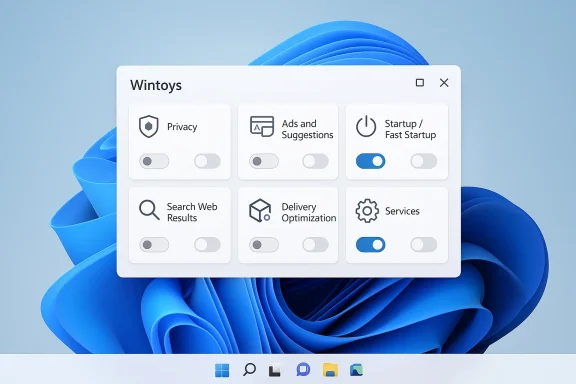
At its core, Wintoys is not magic, and that is part of the appeal. It does not invent hidden Windows capabilities; it surfaces existing ones in a cleaner interface so the user can act faster. The software is best understood as an aggregation layer for settings, tweaks, and services that are already part of Windows, but are typically buried behind multiple panes and menus.The MakeUseOf article frames the app as a shortcut to the most annoying default settings, and that framing makes sense because the win here is mostly operational efficiency. Instead of making users learn the Windows labyrinth, Wintoys groups the common pain points — ads, privacy, startup behavior, menu behavior, and background services — into recognizable categories. That lowers ty using the settings people have heard about for years but never got around to changing.
Why a single pane matters
The biggest advantage is cognitive, not technical. Most users do not resist tuning Windows because they disagree with the outcome; they resist because the path is tedious, uncertain, and easy to mess up. Wintoys reduces that friction, which means the act of customizing Windows becomes more like using an app and less like doing maintenance.A second advantage is consistency. Native Windows settings are scattered across Privacy & security, System, Personalization, and a few older control surfaces that still matter. Centralizing them makes it easier to remember what was changed, and that matters when you are trying to debug performance or reverse a tweak later. Reversibility is often the difference between a safe tweak and a risky one.
- Less hunting through Settings
- Fewer registry detours
- Cleaner visibility into system toggles
- Faster privacy hardening
- More approachable service management
Ads, Suggestions, and the Psychology of “Helpfulness”
One of the article’s strongest points is that Windows 11 often crosses the line from helpful into intrusive. Suggestions in Settings, tips in notifications, lock-screen prompts, and other promotional nudges are technically minor, but collectively they shape how the OS feels day to day. Users do not experience them as isolated features; they experience them as a steady stream ns.Microsoft’s documentation confirms that Windows 11 does include recommendation and offer controls, and that diagnostic and personalization settings can be used to tailor ads and suggestions. That is a legitimate product strategy, but it also explains why people seek a utility like Wintoys: they want to turn the volume down without learning Microsoft’s entire personalization philosophy.
Ads are not always “ads” in the classic sense
Windows does not always present these elements as advertisements. Sometimes they are presented as tips, setup reminders, suggested apps, or “finish setting up your device” prompts. The user-facing label may berlying intent, but the practical effect is similar: Microsoft is steering attention toward services it owns or prefers.That is why tools like Wintoys are attractive even to people who are not especially privacy-obsessed. They are not necessarily trying to defeat Microsoft; they are trying to make Windows feel less noisy. Quiet is a product feature, even if it is never marketed that way.
- Suggested notifications can feel like interruptions
- Lock-screen tips add noise without adding value
- Setup prompts can look like upsell paths
- Personalization is useful only when it stays under control
- A calmer OS is easier to trust
Privacy and Telemetry: The Real Reason People Start Tinkering
Privacy is where the conversation gets more serious. Microsoft’s support pages make clear that Windows diagnostic data, tailored experiences, and advertising settings are all part of the modern Windows experience. The company also states that turning off the advertising ID does not eliminate all ads, but it does reduce the relevance of personalized advertising. That distinction matters because it reveals the operating system’s logic: less personalization does not mean no commercial influence, only less targeted influence.Wintoys’ privacy section is useful precisely because it turns a vague concern into a concrete checklist. Users can switch off privacy-related options in one place rather than piecing together controls scattcs, activity history, app permissions, and personalization. The result is not a total privacy reset, but it is a meaningful reduction in ambient data exposure and a cleaner sense of ownership.
What “privacy hardening” really means
It is important not to oversell the effect. Turning off a few toggles does not make Windows anonymous, and Microsoft’s own privacy pages are explicit that different systems use data in different ways. But the practical benefit is still real: fewer individualized recommendations, fewer forms of targeted content, and less data feeding “personalized” experiences.That is especially relevant for enterprise-minded users and anyone managing shared machines. A system that leaks fewer preference signals is easier to standardize, audit, and explain. Even when the data collection is compliant and documented, reducing it can still be a rational administrative choice.
- Advertising ID can be disabled
- Tailored experiences can be reduced
- Diagnostic settings can be reviewed
- Activity history and app diagnostics can be limited
- Shared or family PCs benefit from fewer personalization layers
Fast Startup: A Convenience That Sometimes Backfires
Fast Startup is one of those Windows features that sounds benign until it gets in the way of something important. Microsoft describes startup and shutdown behavior as part of Windows’ boot process, and the broader support documentation around hibernation makes clear that power-state transitions can have side effects. That aligns with the article’s complaint: a feature designed to make startup faster can complicate update behavior, hardware detection, and peripheral recognition in somepport.microsoft.com]The Wintoys health controls let users disable Fast Startup quickly, which is attractive because the native path is less memorable and not something most users revisit often. The larger point is that speed features are only valuable if they are invisible in daily use; once they start interfering with shutdown reliability or device enumeration, the perceived tradeoff changes.
Why boot speed is not the whole story
On paper, shaving a few seconds off startup looks like a universal win. In practice, the value depends on workload, hardware, and the rest of the power-management stack. A feature that speeds up cold boot but worsens troubleshooting or causes odd post-shutdown behavior can create more support work than it saves.That is why enthusiasts and IT staff often treat Fast Startup as an optimization to test, not a default to trust blindly. Wintoys simply makes that test easier to run. Convenience is not always efficiency, and Windows users know the difference better than most platform vendors do.
- Faster startup is not always smoother startup
- Driver and device quirks can outweigh small gains
- Update and shutdown edge cases matter
- Testing the feature is smarter than assuming it helps
- Laptops and desktops may react differently
Delivery Optimization, Bandwidth, and Local Network Tradeoffs
Delivery Optimization is another feature that sounds good in abstract but can frustrate real users. Microsoft says it can reduce bandwidth by sharing updates between PCs, and that it may help on unreliable connections. That is a defensible design for large update ecosystems, but it also means more background network behavior, more cached data, and more complexity for users who simply want updates to come from Microsoft and nowhere else.Wintoys makes it easy to disable this through its health or optimization controls. For many home users, that choice is sensible because they do not have multiple PCs on the same network, or they do not want their broadband shaped by update-sharing logic they never asked for. In that sense, the feature is a classic example of Microsoft optimizing for fleeinary users experience the cost.
A feature built for scale, not always for simplicity
Delivery Optimization is arguably more valuable in managed environments, dense households, and constrained networks. Outside those scenarios, it can feel like another background process consuming resources on behalf of a benefit you may never see. That is why it has become a common candidate for simplification tools.There is also a psychological cost. People are more tolerant of background activity when they understand why it exists. When the same feature quietly affects bandwidth, storage cache, and update routing, it becomes one more reason users suspect Windows is doing too much behind the curtain.
- Useful on limited or shared networks
- Less useful on a single-user home PC
- Can increase cached data consumption
- May create invisible bandwidth churn
- Easy to disable when simplicity matters more than network optimization
Background Services: When Less Is More, and When It Is Not
The services tab is where utilities like Wintoys become a little more serious. Windows services are not decorations; many are essential, and disabling the wrong one can create problems quickly. But the operating system also ships with a long tail of services that are only occasionally useful, such as Fax on a typical home PC or services that support niche compatibility and hotspot workflows. The challenge is separating genuinely redundant background work from critical infrastructure.The article cites services like Windows Mobile Hotspot, Program Compatibility Assistant, SysMain, and Fax as examples of things some users may want to disable. That is a believable shortlist for enthusiasts, but it should be treated as context-dependent, not universal doctrine. Microsoft’s own support and community guidance around services underscores that behavior can vary and that safe choices depend on how the machine is actuarosoft.com]
Performance gains need humility
There is an enduring myth that turning off “unnecessary services” automatically makes Windows fast. Sometimes it helps, sometimes it does nothing measurable, and sometimes it removes functionality you only notice later. The best argument for a central control panel is not that every tweak is universally good, but that users can make informed decisions without hunting through obscure system tools.This is also where Wintoys quietly serves power ual ones. People who already know what SysMain does, or who understand why a compatibility service might matter, are more likely to benefit from the faster access. In that sense, the app is less a beginner’s toy than a compressed admin console.
- Some services are essential and should stay on
- Some are niche and safe to test
- Performance improvements are workload-specific
- One wrong toggle can create support headaches
- A clear UI reduces accidental damage
Small Tweaks That Change the Feel of Windows
Not every improvement is about speed or telemetry. Some of Windows 11’s most annoying defaults are cosmetic or workflow-based, but they matter because they shape the daily emotional texture of using the machine. The classic context menu, for example, is a small concession to user preference, yet many power users still prefer it because it saves clicks and restores familiarity.Likewise, Bing-influenced web results in Start search can feel like a mismatch when all you want is a file or app on your local system. Microsoft’s own documentation around search and personalization shows why these results exist, but it does not change the fact that many users experience them as clutter. Wintoys’ ability to switch off web results is therefore less about novelty and more about restoring a local-first workflow.
Why tiny changes have outsized impact
Small tweaks often matter more than dramatic ones because they happen constantly. If you right-click dozens of times a day, or use Start search as a launcher, a tiny reduction in friction compounds into a big quality-of-life improvement. That is why these “minor” settings are often the ones users remember most after a cleanup session.There is a larger UX lesson here too. Windows does not need to be reinvented to be improved. Sometimes it simply needs to stop getting in the way and let users access the tools they already know. Less novelty, more clarity is a suoduct strategy.
- Classic context menus reduce friction
- Local search works better when web noise is removed
- Feedback prompts can be distracting
- Workflow familiarity improves perceived speed
- Tiny tweaks add up fast
Wintoys Versus Manual Windows Tuning
The strongest argument for Wintoys is not that it unlocks impossible features, but that it packages the manual process into something realistic. A determined user can absolutely find most of these settings in Windows itself. The issue is not availability; it is effort density. The more steps required, the fewer users will ever make the change.That matters because most people do not maintain a system on a weekly schedule. They install Windows, tolerate a few annoyances, and eventually settle into whatever defaults remain. Tools like Wintoys reduce the time between “this is annoying” and “this is fixed,” which is arguably their most important feature.
Manual path vs. consolidated path
Manual Windows tuning tends to be fragmented across Settings, Control Panel remnants, Services, Task Manager, and sometimes PowerShell or the registry. A consolidated utility does not replace understanding, but it lowers the threshold for action. In practical terms, that means more users will actually apply privacy and cleanup settings instead of just reading about them.The downside is dependence on a third-party layer that could fall behind future Windows changes. Still, tctive for users who value immediacy over purism. If Windows insists on spreading useful controls across five different surfaces, an aggregator is a reasonable response.
- Native controls still matter
- Third-party aggregation lowers effort
- Speed increases the chance of follow-through
- Third-party tooling adds maintenance risk
- The best tool is the one you will actually use
Enterprise, Power User, and Consumer Impact
For consumers, the value is obvious: fewer ads, fewer prompts, fewer frustrating defaults, and less time spent clicking through menus. That makes Wintoys attractive to anyone who wants Windows 11 to feel calmer and more personal without becoming an expert in system administration. It is especially appealing on new machines, where the first-hour experience can determine whether the OS feels polished or pushy.For power users, the attraction is different. They already know what they want to disable; they just want a faster, more understandable way to do it. In that sense, Wintoys behaves like a quality-of-life accelerator for enthusiasts who would otherwise spend too much time in boring system housekeeping.
Why enterprises should pay attention
Enterprises are the least likely audience for casual GUI tweaking, but they are still relevant here because these same complaints surface in managed fleets. IT departments regularly need to standardize privacy, networking, and startup behavior, and tools that expose those settings clearly can reduce support friction even if they are not used as broad deployment solutions. The real enterprise lesson is that users notice the defaults, and defaults have a support cost.There is also a messaging lesson for Microsoft. If a third-party app gains traction by making Windows feel less intrusive, that is evidence of unmet demand. Unmet demand becomes a platform risk when enough users start routing around native design choices.
- Consumers want simplicity
- Power users want speed
- Admins want predictability
- Support teams want fewer surprise behaviors
- Microsoft should treat this as feedback, not just workaround culture
Strengths and Opportunities
Wintoys succeeds because it addresses pain points that are both common and stubborn. It is free, focused, and built around the idea that Windows should be easier to tame, not more difficult to study. Its real opportunity is to become the default first stop for users who want to clean up Windows without turning the process into a hobby. Its biggest strategic value is that it turns scattered resentment into actionable control.- Fast wins for ads, privacy, and search clutter
- Clearer access to hidden or awkward settings
- Lower learning curve than manual tweaking
- Useful for both casual users and power users
- Can improve perceived responsiveness and calm
- Reduces dependence on registry edits
- Makes Windows feel more user-owned
Risks and Concerns
The main risk is that users may overtrust any tool that promises to “disable Windows 11’s worst defaults.” Some toggles are harmless, some are situational, and some can affect update behavior, background functionality, or troubleshooting later. Another concern is that users may disable features without understanding why they existed in the first place, then blame Windows when a downstream issue appears. Convenience can become fragility if the user treats every default as a mistake.- Wrong toggles can remove useful functionality
- Performance gains are not guaranteed
- Some “annoying” defaults exist for a reason
- Third-party utilities can lag behind Windows updates
- Users may forget what they changed
- Aggressive privacy settings can reduce personalization in useful places
- Service disabling can create support issues later
Looking Ahead
The real story here is not that Wintoys exists, but that it remains attractive in 2026. Microsoft has not solved the deeper tension between a consumer-friendly, service-rich Windows and the simpler desktop many people still want. As long as that tension persists, utilities that reduce friction and centralize controls will keep finding an audience.The next question is whether Microsoft responds by making Windows itself more respectful of user intent. If the company continues trimming unnecessary prompts, clarifying privacy choices, and surfacing essential settings more cleanly, it could reduce the demand for third-party debloat tools. If not, apps like Wintoys will remain the unofficial pressure valve for users who want Windows 11 to feel less like a sales channel and more like a desktop operating system.
- Watch whether Microsoft simplifies native privacy settings further
- Watch whether search and Start become less web-centric
- Watch for more user control over promotional prompts
- Watch how third-party utilities adapt to new Windows builds
- Watch whether Windows defaults become calmer in future updates
Source: MakeUseOf I disabled Windows 11's worst defaults in minutes using this free app
