

Windows 11’s “hidden” Power User menu — the compact list you open with Win + X or a right‑click on the Start button — is one of those tiny operating‑system features that repays a bit of curiosity with large, daily savings in time and friction. Accessible in a single click or keystroke, it gathers system tools that would otherwise force you into Settings, Control Panel applets, or multi‑level Explorer navigation, and it includes keyboard accelerators that make repeatable tasks feel near‑instant. For everyday users and IT pros alike, the Quick Link (WinX) menu is a productivity shortcut that belongs in every muscle‑memory toolkit — but it also carries a few surprising limits and compatibility caveats you should know about before reshuffling it.
Windows’ Power User menu (often called the WinX menu or Quick Link menu) first appeared to simplify access to key administrative and productivity tools, and Microsoft has maintained the same basic idea through Windows 10 and Windows 11: a compact, context‑sensitive menu that appears when you right‑click the Start button or press Win + X. The menu’s focus is speed — consolidate tools you might otherwise hunt for, and make them reachable with a single interaction.
Under the hood, Windows stores the menu’s shortcuts in a simple folder structure inside a user profile. That structure divides the menu into groups (commonly three), which map to the visible sections in the menu. Because the menu is implemented as a set of shell shortcuts, it’s something you can inspect and, to an extent, reorganize — but recent Windows updates and servicing changes have altered how reliably custom additions or removals behave. Microsoft’s community Q&A and product forums document both how the structure works and cases where updates changed the behavior.
Two usability details make the menu faster than you might expect:
Source: MakeUseOf Windows 11’s most useful menu is hiding in plain sight
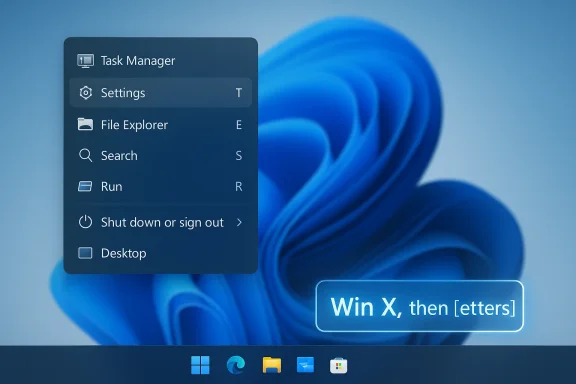 Background
Windows’ Power User menu (often called the WinX menu or Quick Link menu) first appeared to simplify access to key administrative and productivity tools, and Microsoft has maintained the same basic idea through Windows 10 and Windows 11: a compact, context‑sensitive menu that appears when you right‑click the Start button or press Win + X. The menu’s focus is speed — consolidate tools you might otherwise hunt for, and make them reachable with a single interaction. Under the hood, Windows stores the menu’s shortcuts in a simple folder structure inside a user profile. That structure divides the menu into groups (commonly three), which map to the visible sections in the menu. Because the menu is implemented as a set of shell shortcuts, it’s something you can inspect and, to an extent, reorganize — but recent Windows updates and servicing changes have altered how reliably custom additions or removals behave. Microsoft’s community Q&A and product forums document both how the structure works and cases where updates changed the behavior.
What the Power User (WinX) menu gives you right away
If you’ve never used the WinX menu, the value is immediate: the menu typically provides direct access to tools such as:- Installed apps / Programs & Features (quick access to app management)
- Device Manager (driver and device troubleshooting)
- Disk Management (create, format, resize partitions)
- Computer Management / Event Viewer (system logs and consoles)
- Windows Terminal / Terminal (Admin) and legacy command consoles
- Task Manager, Settings, File Explorer, Search, Run
- Power options and Shut down or sign out, plus Desktop
Two usability details make the menu faster than you might expect:
- Each visible item in the WinX menu shows a keyboard accelerator: once the menu is open (Win + X), pressing the highlighted letter selects and launches that tool. That means complex tasks — for example, opening Event Viewer or shutting down the PC — can be done with a quick sequence of keystrokes rather than hunting through Start or Settings.
- The menu is grouped visually, usually into three sections, so items you reach for frequently can be clustered near the top or bottom depending on Microsoft’s default layout on your build.
How to open and use the menu (fast reference)
- Right‑click the Start button on the taskbar (mouse).
- Or press Win + X (keyboard).
- Press the underlined letter of an entry while the menu is open to jump straight to it (keyboard accelerators).
The little tricks power users rely on
Keyboard sequences for common actions
Memorizing just a few sequences can make routine workflows near‑instant. For example:- Win + X, then U, then U — shutdown sequence from the menu (Win + X → Shut down or sign out → Shut down).
- Win + X, then K — opens Disk Management on many configurations.
- Win + X, then V — opens Event Viewer in setups where the accelerator is assigned.
Move tools where you want them (within limits)
Windows exposes the menu as simple shortcuts inside your profile — three folders named Group 1, Group 2, and Group 3 under the WinX folder in Local AppData. Copying or moving shortcuts between these folders can reorder the menu sections so tools you need most appear in the group closest to the top or bottom of the menu. After you make changes, signing out and back in usually forces the shell to refresh and show your new arrangement. This is the supported mechanism Microsoft documents for reordering.Customization: how far you can go, and where Windows draws the line
The WinX menu is more flexible than it looks, but also deliberately constrained.- What you can do:
- Move existing WinX shortcuts between the Group folders to change order and group membership.
- Create new groups (e.g., Group 4) to organize shortcuts differently for your workflow.
- Add shell shortcuts to tools you want quick access to — theoretically enabling a private “toolbox” in the menu structure.
- What you cannot reliably do:
- Permanently remove built‑in items. Deleting shortcuts from the Group folders often does not remove them from the displayed menu; Windows continues to surface built‑in entries in many modern builds for reliability and servicing reasons. Microsoft’s guidance and community experience both warn that deleting items can be ineffective.
- Depend on third‑party editors. There used to be community tools that allowed full editing of the WinX menu; recent cumulative updates and design changes have reduced or blocked those tools’ effectiveness. Some updates have even reverted custom additions or prevented new custom links from appearing, producing intermittent behavior across builds. If you rely on a third‑party editor, expect to revalidate it after major Windows updates.
A quick walkthrough: customizing the menu (what works today)
- Press Win + R to open Run.
- Paste the WinX folder path into the box (replace [UserName] with the account name): C:\Users[UserName]\AppData\Local\Microsoft\Windows\WinX.
- Inside you’ll see Group 1, Group 2, Group 3. Cut and paste shortcuts to reorganize items.
- To add a new tool, create a shortcut (.lnk) inside one of the Group folders. Sign out and sign back in to refresh the menu.
- To create new groups, create a folder named Group 4 (or Group 5, etc.) and place shortcuts inside it; Windows will render an additional section for that group after you sign back in.
Real‑world use cases and workflows
- Troubleshooting a networked PC: Win + X → W (Network Connections) → right‑click adapter → Diagnose. Fast, repeatable, great when you’re remote or on a tablet.
- Quick driver update: Win + X → M (Device Manager) → locate device → Update driver. Saves several clicks versus Start → search → Device Manager.
- Disk and partition work: Win + X → K (Disk Management) — launch the MMC directly without digging through Control Panel or Settings.
- Power sequences during lab work: Win + X → U → U (shutdown) or Win + X → U → R (restart) for scripted manual cycles when you prefer keyboard control.
Strengths: why this menu is worth learning
- Speed: One keystroke to open, one letter to launch. Muscle memory trumps search.
- Consolidation: Brings tools from multiple places into a single, consistent surface.
- Low cost: No installs, no elevated privileges (to use the menu itself), and it works on most Windows installations.
- Power ergonomics: Great for touchpads, compact keyboards, or when you prefer keyboard‑first fault finding.
Risks, limitations, and the update factor
- Update instability: Microsoft has changed WinX behavior in cumulative updates before: custom links not appearing, items moving, or new built‑ins being injected. Community reports and Microsoft Q&A threads document cases where custom edits stopped showing after a patch. That makes any customization brittle unless you accept periodic re‑validation. If you depend on a stable WinX layout for critical workflows, plan a fallback.
- Enterprise manageability: The WinX surface is not an enterprise management endpoint. For fleet configuration, rely on official policy and provisioning tools rather than shell edits in AppData which can be overwritten or ignored for new users.
- Localization and accelerator variance: The underlined accelerators are language‑dependent. Scripts relying on fixed key sequences may break on non‑English irelabeling in an update.
- Security and user expectations: Because the menu surfaces administrative tools, handing a non‑technical user a configuration that exposes elevated consoles can increase accidental misconfiguration. Educate account holders or prefer task‑specific shrShell wrappers) if you need to make complex actions simpler for less experienced users.
Recommendations: how to use WinX safely and effectively
- Use WinX for personal efficiency: reorder groups and add non‑critical shortcuts for tools you use every day.
- Don’t build critical automation around the menu layout for multiple users or machines; use official deployment methods instead.
- After a major Windows cumulative update, quickly verify your customizations and accelerators — expect that something may have changed.
- If you want to add commands that run elevated with fewer clicks, wrap them in a signed script or a small scheduled task and expose a benign shortcut in WinX that launches the user‑facing script; this keeps privilege changes explicit and auditable.
- Keep a short cheat sheet of the accelerators you rely on (Win + X, then letter sequences) so you can retrain muscle memory if an update changes order.
For IT pros and power users: a final operational checklist
- Inspect the WinX folder in a test VM to understand your current menu composition (C:\Users\<username>\AppData\Local\Microsoft\Windows\WinX).
- If you plan to standardize quick links, test Windows updates and rehearse the recovery steps for any edits you perform.
- Prefer managed policies and Start layout provisioning for fleet‑wide consistency; reserve WinX edits for per‑user productivity.
- Document sequences (Win + X accelerators) for colleagues and include them in runbooks — an easily learned trick that saves real time.
Conclusion
The Power User (WinX) menu in Windows 11 is a deceptively powerful shortcut: it collects critical system tools into a single, lightning‑fast surface that rewards a small investment of time with daily gains in efficiency. For individual users it’s a must‑learn productivity hack; for IT pros it’s a convenient troubleshooting accelerator. The catch is durability: Windows updates and servicing behavior have made deep, permanent edits to the menu less reliable than they once were. Treat reordering and additions as personal convenience, not as a replacement for managed configuration, and you’ll get the best of both worlds — immediate speed and a predictable, maintainable environment.Source: MakeUseOf Windows 11’s most useful menu is hiding in plain sight
