

Windows 11 now lets you browse and manage an Android phone’s internal storage from File Explorer — wirelessly, without plugging in a USB cable — but getting the most from the feature requires knowing the exact requirements, configuration steps, performance trade-offs, and security implications.
Microsoft began testing a native File Explorer integration that exposes an Android phone as a browsable device in Windows 11 during the Windows Insider program rollout in mid‑2024. The goal: move beyond the Phone Link app’s limited gallery-style access and offer true file-system operations — open, copy, move, rename and delete — from the familiar Windows Explorer experience. Early announcements and documentation explain that the functionality uses Link to Windows on Android paired with Windows’ Cross‑Device Experience host to translate Explorer operations into remote file operations on the phone. The idea is simple and compelling: make your Android behave like a mounted drive inside Filedrag and drop files into apps, copy large batches, or manage folders without a cable. Practical tests and community reports show it’s already usable for many tasks, but the implementation has caveats and some surprising behaviors that matter for everyday users and IT pros alike.
However, it is not a full replacement for wired workflows when speed, determinism or bulk migrations matter. The rollout’s staged nature, vendor differences, local caching behavior, and security tradeoffs mean users and IT teams should treat the feature as a powerful convenience — one to adopt thoughtfully, with policies and cleanup procedures where appropriate. Microsoft’s documentation and early hands‑on reporting provide precise setup steps and known‑issue notes that should be followed to avoid surprises. Ultimately, File Explorer access to Android storage gives Windows users an elegant, native option for wireless file work — just keep your expectations aligned with the limits of wireless networks and respect the privacy and cache cleanup steps that follow from integrating mobile storage into a desktop environment.
Source: MSN http://www.msn.com/en-us/news/techn...vertelemetry=1&renderwebcomponents=1&wcseo=1]
 Background
Microsoft began testing a native File Explorer integration that exposes an Android phone as a browsable device in Windows 11 during the Windows Insider program rollout in mid‑2024. The goal: move beyond the Phone Link app’s limited gallery-style access and offer true file-system operations — open, copy, move, rename and delete — from the familiar Windows Explorer experience. Early announcements and documentation explain that the functionality uses Link to Windows on Android paired with Windows’ Cross‑Device Experience host to translate Explorer operations into remote file operations on the phone. The idea is simple and compelling: make your Android behave like a mounted drive inside Filedrag and drop files into apps, copy large batches, or manage folders without a cable. Practical tests and community reports show it’s already usable for many tasks, but the implementation has caveats and some surprising behaviors that matter for everyday users and IT pros alike. What this does — at a glance
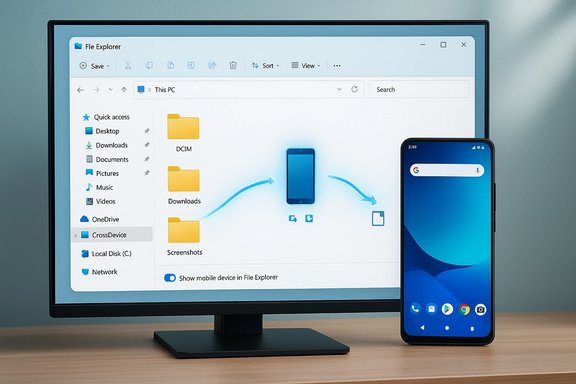
- Native File Explorer integration: Your Android device appears in Explorer’s sidebar as a CrossDevice/mobile entry you can click to browse folders such as DCIM, Downloads, Screenshots and app-specific directories.
- Bidirectional file operations: Open, copy, move, rename, delete and drag‑and‑drop files between PC and phone. Explorer supports multi‑select and Windows context menus for these remote files.
- Local caching behavior: Windows may cache or create local copies under a CrossDevice folder on the PC; this can increase local disk usage and leaves remnants unless you clear them.
- Single show‑in‑Explorer limit: Only one mobile device can be shown in File Explorer at a time; switching devices requires toggling settings on Windows.
Requirements and compatibility
To use File Explorer to browse an Android phone, you must meet Microsoft’s stated requirements:- An Android device running Android 11 or later.
- The Link to Windows app on the phone at the required build (Insider coverage cited builds in the 1.24071+ range; Microsoft’s support page referuilds such as 1.24072.258.0 or higher). Confirm the exact minimum build in the Link to Windows Play Store or app settings if your phone shows errors.
- A Windows 11 PC with the Cross‑Device Experience host and the latest OS updates appropriate for the rollout channel. Some early availability arrived to Insider channels first and gradually rolled out more broadly.
- Both phone and PC should be signed into the same Microsoft account for pairing and authorization.
- Some features (drag‑and‑drop into apps, session limits, single‑file size caps) may depend on vendor-specific Link to Windows implementations (Samsung’s Link to Windows often offers richer support), local Wi‑Fi conditions, and whether devices are on the same wireless network.
- iPhone users do not get the same folder-level browsot expose the filesystem in the same way; iPhone support remains focused on notifications, calls and limited sharing features.
Step‑by‑step: enable and use File Explorer access
Follow this sequence to set up andnumbered steps are the practical flow most users will follow.- Update both devices:
- On Windows 11, install all pending updates and ensure the Cross‑Device Experience Host is up to date from the Microsoft Store.
- On Android, update Link to Windows (or the OEM Link integration) from the Play Store to the latest beta/stable referenced by Microsoft.
- Pair your devices:
- On Windows: Open Settings > Bluetooth & devices > Mobile devices and click Manage devices.
- If your phone isn’t paired, choose Add device and follow the pairing flow. Sign in with the same Microsoft account on both ends. ([support.microsoft.com](Setting up and using your phone in File Explorer - Microsoft Support Explorer visibility:
- In Manage devices, find your phone in the device list and toggle Show mobile device in File Explorer to On. Accept any prompts on the phone to grant storage/file access.
- Open File Explorer:
- Expand the CrossDevice (or your phone’s name) entry in the Explorer sidebar; browse folders, preview files, or phone and PC.
- If prompted on the phone:
- Give Link to Windows permission for access to storage and any “allow in background” / “all files access” prompts to ensure browsing and transfers don’t fail due to battery restrictions.
- To disconnect:
- Toggle Show mobile device in File Explorer off; you can also unpair the device in Windows settings or sign out of the Microsoft account on one device.
Troubleshooting: common problems and fixes
- Toggle missing / cannot enable show-in-Explorer:
- Ensure Link to Windows is updated to the required version on the phone and that you’re on the Windows build/channel that has the feature. Many early reports showed the toggle absent if the rollout hadn’t reached that machine yet.
- Permissions prompt not appearing / transfers fail:
- On Android, disable aggressive battery optimizations for Link to Windows and enable any “allow background activity” permissions. On some phones you must grant all files access explicitly.
- Slow browsing or transfers:
- Confirm both devices are on the same local Wi‑Fi network. Transfers can fall back to slower channels if Wi‑Fi is unavailable. For large backups or tens of gigabytes, a wired USB connection remains faster and more reliable.
- Local disk space suddenly fills:
- Explorer may cache thumbnails or create local temp copies under a CrossDevice folder (commonly under C:\Users\<USERNAME>\CrossDevice). Use cleanup steps documented by Microsoft to remove cached files.
- Files deleted from Explorer don’t appear deleted on phone:
- Known sync edge cases exist with deletions and the phone-side Recycle Bin behavior; Microsoft documented some early bugs where deleted items did not appear as expected in Explorer or were retained for a different timeframe than shack in sometimes re-syncs state.
Performance and UX: strengths and real-world limits
Why this is better than older solutions:- Native Explorer tooling: File Explorer supports multi‑select, powerful search, drag‑and‑drop into apps, and native right‑click context menus — operations that were clumsy or impossible in Phone Link’s gallery-style view. This is a genuine productivity win for creators and power users.
- Broader folder access: Phone Link historically showed recent photos; Explorer exposes a, including camera folders, downloads, app attachments and hidden app directories (subject to permission).
- Guaranteed high-speed bulk backup: Some publications and community posts floated optimistic throughput numbers (claims as high as 1.2 Gbps in ideal conditions appear in early coverage), but those figures vary wildly by Wi‑Fi hardware, vendor implementation, and whether operations route over Wi‑Fi rather than a Bluetooth fallback. Treat wireless Explorer as excellent for day-to-day transfers and small media batches, but not as universally faster than wired USB for mass backups. This performance claim should be considered variable and environment-dependent.
- A full replacement for MTP/USB for large archives: USB‑C cables are still the go-to for bulk migrations, initial phone-to-PC backups, or when a fast transfer pipeline is required.
Security and privacy considerations
Exposing phone storage to File Explorer increases the attack surface and changes where data can be cached:- Local cached copies: Files you open from the phone may leave local copies in the CrossDevice folder. On shared workstoints, that can be a compliance issue. Administrative scripts and lifecycle policies should explicitly clear cached CrossDevice files where necessary.
- Network trust: Because file operations can route over local Wi‑Fi, using the feature on an untrusted public network risks interception if the local network is hostile. Use trusted networks or disable the feature away from home or the corporate LAN.
- Permission scope: Grant Link to Windows the narrowest permissions you need and audit them periodically. If a device is lost, remove the pairing immediately from Windows Settings to cut Explorer access.
- Shared PC risk: Anyone with access to your Windows profile while the CrossDevice cache exists may be able to view copied files. Clear caches before handing off devices or use separate user profiles.
Alternatives if this doesn’t work for you
If your phone, PC, or network can’t meet the requirements or you prefer a different workflow, several mature alternatives exist:- AirDroid / AirMore / similar third‑party apps: Provide web or desktop interfaces for file transfers and often support remote management, though they introduce third‑party trust considerations.
- FTP / SFTP server on Android: Use a local FTP app and connect from Windows Explorer or an FTP client for ad‑hoc transfers.
- SMB / network share using third‑party apps: Apps that expose Android storage as an SMB share — useful if you need an always-on share point.
- Google Photos / Drive or OneDrive: Cloud sync for photos and documents removes the need for direct device mounting.
- ADB over network or wired MTP: For power users, ADB or classic MTP over USB still gives robust control and speed for large transfers.
Enterprise and IT perspective
Foeature is attractive for helpdesk tasks (pull logs, collect screenshots, mos), but administrators must assess:- Data leakage risk: Cached CrossDevice files on corporate endpoints must be governed by policies - Policy controls: Currently the feature is controlled at the user level via Settings. IT management tools should be used to enforce device pairing policies, disable the CrossDevice feature on shared machines, and scan for residual caches.
- Supported devices and vendor variability: Not all Android OEMs implement Link to Windows the same way; test your fleet for feature parity and caveats.
Critical analysis — strengths, weaknesses, and risks
Strengths:- Seamless, native integration into a familiar file manager is the feature’s biggest advantage. That alone will simplify many daily workflows compared with ad‑hoc cloud or third‑party app methods.
- True file operations (rename, batch copy) are now easier than ever from a PC.
- Rollout fragmentation: The feature arrived through Insider channels and staged rollouts. Expect variability in availability and version requirements across users.
- Performance inconsistency: Real‑world throughput depends on Wi‑Fi, vendor integrations and session fallbacks. For power users expecting wired-like speeds across the board, the wireless Explorer will sometimes disappoint.
- Caching surprises: Local cached copies are a persistent UX and privacy problem that Microsoft partially documented and that reviewers flagged repeatedly.
- Data persistence on shared PCs and network exposure are the two largest operational risks. Management and user education are necessary to prevent accidental leakage.
- Reports of fixed maximum throughput figures (for example, 1.2 Gbps) are environment-dependent and cannot be universally guaranteed. Treat those numbers as best-case test metrics, not guaranteed performance.
Practical tips and pro recommendations
- Disable battery optimizations for Link to Windows on Android to avoid background kills.
- Pin your phone in Explorer Quick Access for faster workflow navigation.
- For one-time mass transfers (e.g., migrating a camera roll with thousands of raw photos), prefer USB‑C / MTP for speed and reliability.
- Regularly inspect and clean the CrossDevice cache if you use shared or space‑constrained Windows profiles. Microsoft documents cleanup steps in support documentation.
- If the toggle to show the mobile device doesn’t appear, verify Link to Windows version, Windows build, and Insider/channel status — the absence usually means the feature hasn’t reached your device yet.
Conclusion
Microsoft’s File Explorer integration for Android phones is a meaningful advance in cross‑device productivity: it brings true file-management capabilities to wireless, cable‑free workflows and folds phone storage into the familiar tools Windows users already rely on. For everyday transfers, quick photo grabs, and routine file management, it replaces many awkward workarounds.However, it is not a full replacement for wired workflows when speed, determinism or bulk migrations matter. The rollout’s staged nature, vendor differences, local caching behavior, and security tradeoffs mean users and IT teams should treat the feature as a powerful convenience — one to adopt thoughtfully, with policies and cleanup procedures where appropriate. Microsoft’s documentation and early hands‑on reporting provide precise setup steps and known‑issue notes that should be followed to avoid surprises. Ultimately, File Explorer access to Android storage gives Windows users an elegant, native option for wireless file work — just keep your expectations aligned with the limits of wireless networks and respect the privacy and cache cleanup steps that follow from integrating mobile storage into a desktop environment.
Source: MSN http://www.msn.com/en-us/news/techn...vertelemetry=1&renderwebcomponents=1&wcseo=1]
