

Enabling a single setting inside Google’s Gemini ecosystem can change the assistant from a transient writing-helper into a persistent, personalized research engine that reads and reasons over the documents, emails, and notes already stored in your Google Workspace — and that change is already reshaping how people draft, research, and assemble work inside Google Docs and other Workspace apps.
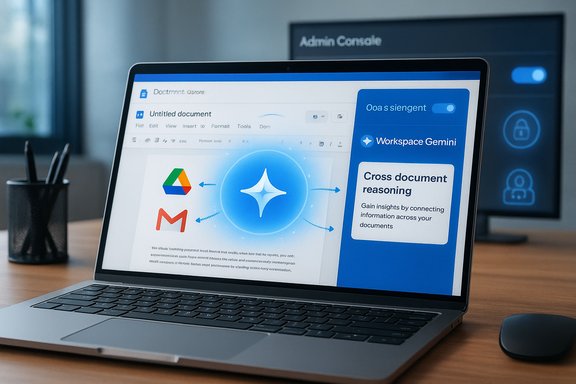
Google has been steadily folding Gemini — its large multimodal model and assistant product — into Workspace. Initially, in-document features like rewrite suggestions and summaries were useful but limited: they understood only the file you had open. Recent updates, however, give Gemini permissioned access to Workspace data so it can search, summarize, and synthesize across Drive, Gmail, Keep, and other apps without you leaving your document.
This isn’t a browser extension or a third-party connector; it’s a Workspace-level integration that, when enabled, lets Gemini read and reason over the files and messages you can already access. Administrators control rollout and scope, and the feature’s behavior is governed by Workspace policies and data processing terms. The change elevates Gemini from a local text editor assistant to a workspace-aware research assistant — a difference with significant productivity upside and real privacy, governance, and accuracy implications.
Expectations for future changes include:
The balance is straightforward: treat the assistant as a workspace-aware collaborator that dramatically speeds discovery and drafting, but continue to use human review and governance to catch accuracy problems, protect confidential data, and ensure compliance with contractual and regulatory constraints.
That transformation comes with responsibilities: to verify outputs, to limit access where necessary, and to align the feature’s use with contractual and regulatory obligations. For those who pilot it thoughtfully, the Workspace-Gemini integration can deliver a genuine productivity multiplier — streamlining the tedious plumbing of information retrieval so humans can focus on judgment, creativity, and final decision-making.
Source: Android Police I thought Google Docs was enough until I paired it with Gemini
 Background
Google has been steadily folding Gemini — its large multimodal model and assistant product — into Workspace. Initially, in-document features like rewrite suggestions and summaries were useful but limited: they understood only the file you had open. Recent updates, however, give Gemini permissioned access to Workspace data so it can search, summarize, and synthesize across Drive, Gmail, Keep, and other apps without you leaving your document.This isn’t a browser extension or a third-party connector; it’s a Workspace-level integration that, when enabled, lets Gemini read and reason over the files and messages you can already access. Administrators control rollout and scope, and the feature’s behavior is governed by Workspace policies and data processing terms. The change elevates Gemini from a local text editor assistant to a workspace-aware research assistant — a difference with significant productivity upside and real privacy, governance, and accuracy implications.
What flipped the switch: the Workspace toggle explained
What the Workspace toggle actually does
- Enables Gemini to surface content from your Google Workspace — Drive files you own or that have been shared with you, Gmail messages, and Keep notes — as contextual sources for its responses.
- Makes Gemini’s side panel and “Gems” available inside Workspace apps, allowing in-place questions like “summarize files in this folder” or “pull the latest client brief from my inbox.”
- Honors existing file and sharing permissions, meaning the assistant can only read what the signed-in user already has access to.
- Is controlled centrally by admins — organizations can enable the functionality for specific organizational units or groups, or turn it off entirely.
How organizations and individual users interact with the setting
- Administrators manage availability from the Google Admin console, where the feature can be turned on for everyone, a subset of users, or specific organizational units. Admins can also delay or disallow access if required by policy or compliance needs.
- End users may have to enable Smart Features & Personalization in their Google account settings for in-app Gemini features to operate as expected.
- Not all Workspace editions receive identical capabilities; some advanced integrations — for example, enterprise-only connectors — require particular edition levels or add-ons.
Why this matters: from single-file AI to a workspace brain
The productivity case
For many knowledge workers, the friction in daily workflow isn’t writing; it’s assembling and reassembling facts spread across files, messages, and notes. The Workspace toggle removes several repetitive steps:- No more switching tabs to find a PDF, opening it, scanning for a figure, copying it, and pasting back into a Doc.
- Instead, Gemini can be asked in natural language to pull the figure, summarize the relevant passage, or draft copy based on a named file.
- The assistant can be asked to search for documents by recent share activity, author, or even content described in plain language.
Real-world examples of how workflows change
- Drafting a proposal: ask Gemini to extract the last contract’s deadlines and pricing from a client folder instead of hunting through emails and multiple PDFs.
- Marketing copy: point Gemini at a “final content” doc and ask for a 100-word website description tuned to a tone and length.
- Rapid situational summaries: request “what did the client say about deliverables in the last three meeting notes” and receive a consolidated digest.
Architecture and governance: how Google says data is handled
Permissions and privacy guardrails
- Gemini respects file-level access controls. It can only access files and messages the signed-in user already has permission to see.
- Admins control rollout and can restrict access by organizational unit, group, or individual user.
- Google’s Workspace-specific terms and Cloud Data Processing Addendum apply; organizations enabling the feature do so subject to those contracts and protections.
- Certain Workspace features require users to be 18+; administrators should confirm age policies before enabling generative AI features for a domain.
Data usage and training
Google has repeatedly stated that Workspace data accessed via Gemini is governed by Workspace data processing terms and is not used to train foundation models without explicit permission. That distinction matters: enterprise and Workspace customers typically expect different data handling compared with public consumer signals. Still, wording and practices around AI data usage have been contentious across the industry, so organizations should review contract language and DPA details closely.Admin-level controls you should check
- Confirm whether the “Gemini app” and associated Workspace apps are enabled for the domain.
- Decide whether to enable Smart Features & Personalization by default or allow end-user consent only.
- Audit the organizational units that will have access and consider a phased rollout to pilot groups.
- Review data residency and retention settings if your organization has regulatory requirements.
Strengths: what makes this integration compelling
1. Time saved through contextual retrieval
Gemini turns Drive into an indexable knowledge base that can be queried naturally. That reduces repetitive tasks and frees more time for higher-order thinking.2. Unified workflows inside Workspace
Being able to keep your hands on the keyboard and your eyes on a draft — while pulling in facts from scattered sources — streamlines how documents get written, reviewed, and finalized.3. Admin and permission parity
Because Gemini honors existing sharing and permission models, organizations retain the core access controls they already depend on; it doesn’t magically open files to the model that users couldn’t otherwise open themselves.4. Customizable “Gems” and side-panel assistants
Custom Gems (specialized Gemini chatbots) allow teams to build focused workflows — for example, a “sales proposal Gem” that knows style guidelines and pulls relevant contract clauses — and access them inside Docs or Gmail.Risks and limitations: what organizations should watch for
1. Accuracy and hallucination risks
Even when Gemini reads your documents, it can misunderstand context, misattribute facts, or produce plausible but incorrect answers. Relying blindly on extracted figures or synthesized summaries without verification risks introducing errors into final deliverables.2. Misconfiguration and overbroad access
If admins enable Workspace access broadly without scoping to pilot groups, users may inadvertently expose sensitive materials to models or workflows that haven't been audited for compliance with internal rules or client agreements.3. Ambiguities in training and retention policies
Google’s contractual language aims to restrict model training on Workspace content, but organizations should review the exact terms and retention schedules, especially for features that involve logs, Live sessions, or activity tracking.4. Shared drives and ownership subtleties
Some integrations behave differently with Shared Drives or files owned by service accounts. Make sure sync and ownership models are understood before relying on the assistant for mission-critical retrieval.5. Age restrictions and availability limitations
Certain features — including some Live or multimodal capabilities — are limited to users 18+, and availability can vary by Workspace edition or buy-up requirements.Practical checklist: enable Gemini Workspace access safely
Pre-rollout (for IT and security teams)
- Review contractual documentation and the Cloud Data Processing Addendum to confirm data usage and training clauses.
- Map sensitive repositories (legal, HR, regulated data) and consider excluding them from any automated index or pilot.
- Define a pilot group and timeframe; measure usage, accuracy, and security incidents.
- Confirm identity provider (IdP) settings, SSO, and multifactor authentication policies are enforced for the pilot cohort.
Configuration steps (high-level)
- Sign into the Admin console with an administrator account.
- Navigate to the Generative AI / Gemini App settings section.
- Enable the Workspace-Gemini setting for the chosen organizational units or groups.
- Ensure users who will use in-app Gemini features have Smart Features & Personalization enabled where required.
- Communicate expected behavior and handling of AI-suggested content to end users.
User guidance (for productive, secure usage)
- Always verify critical numbers, dates, and clauses extracted by Gemini before publishing.
- Use explicit prompts naming the document, folder, or sender when possible to reduce ambiguity.
- If unsure about a file name, use contextual prompts (for example, “show me the brief shared last week by [person] about [client]”) rather than asking the model to guess.
- Consider keeping an audit trail: record which files Gemini used as sources for generated outputs when that matters for compliance.
How to prompt Gemini for workspace-aware tasks (examples)
- “Summarize the ‘Swami Jewels Final Content’ document in 100 words and highlight three SEO keywords.”
- “Find the most recent client email from [client name] that mentions milestones and extract the deliverables.”
- “List all Drive files shared with me by [colleague] in the past 30 days and give a one-sentence summary of each.”
- “Search the folder ‘NFL Streaming’ and tell me the broadcast details for the upcoming [date] game.”
Real-world concerns IT should brief staff about
- Confidential client content: If your teams work with sensitive client data, make explicit rules about which files should or should not be made available to AI tools, and where copies are permitted.
- Recordkeeping: If Gemini summarizes or transforms content that becomes part of a formal record, establish a policy for auditing those transformed artifacts.
- Legal notice and contracts: Some clients or contracts explicitly prohibit using third-party AI. Make sure adoption doesn't violate contractual obligations.
- Change management: Productivity gains can quickly shift expectations. Make sure managers and cross-functional teams understand what the assistant can and cannot do.
The accuracy problem: why human-in-the-loop remains essential
Even when Gemini reads your own documents, the output quality varies depending on prompt clarity and the nature of the source material. The assistant can:- Omit key qualifiers or caveats from a summarized contract clause.
- Merge details from multiple files in a way that loses provenance.
- Interpret ambiguous terms differently than a human reviewer would.
What the rollout pattern looks like and where to expect changes
Google’s deployment strategy for Workspace-Gemini features has included phased rollouts, Alpha programs, and admin-controlled toggles. Historically, functionality has landed first in limited programs (Alpha/Beta), then broadened to select Workspace editions and, finally, to general availability with default admin settings.Expectations for future changes include:
- Broader language support and multi-language Gems over time.
- Richer side-panel capabilities such as folder-scoped summarization and better integration with Sheets and Slides.
- Stricter admin controls and audit logs as enterprise feedback drives the product roadmap.
- Possible new enterprise connectors for other content sources, with additional permission & governance layers.
Verdict: a productivity multiplier with manageable risk
The Workspace toggle for Gemini is a clear inflection point. For day-to-day writers, analysts, and knowledge workers, the integration meaningfully reduces context switching and allows faster assembly of documents, proposals, and summaries. For organizations, the feature can deliver measurable time savings — but only if it’s introduced with governance, pilot testing, and user training.The balance is straightforward: treat the assistant as a workspace-aware collaborator that dramatically speeds discovery and drafting, but continue to use human review and governance to catch accuracy problems, protect confidential data, and ensure compliance with contractual and regulatory constraints.
Immediate steps for WindowsForum readers and IT leaders
- If you’re an individual user: enable the Workspace toggle only after checking with your IT admin and confirming what’s allowed for your account. Start with simple prompts that point Gemini at a specific file or folder.
- If you’re a small business or IT admin: run a tightly-scoped pilot, document policies for AI usage, and require multifactor authentication and proper access controls before scaling the feature.
- If your organization handles regulated data: consult legal and compliance teams before enabling any model that accesses internal documents, and ensure contractual protections and audit trails are in place.
Conclusion
Turning on Gemini’s Workspace access doesn’t just add a few convenience features to Google Docs — it redraws the productivity map by making your entire Google Workspace a queryable knowledge base. The result is an assistant that can locate facts, synthesize cross-file context, and generate content tailored to the exact materials you and your colleagues have produced.That transformation comes with responsibilities: to verify outputs, to limit access where necessary, and to align the feature’s use with contractual and regulatory obligations. For those who pilot it thoughtfully, the Workspace-Gemini integration can deliver a genuine productivity multiplier — streamlining the tedious plumbing of information retrieval so humans can focus on judgment, creativity, and final decision-making.
Source: Android Police I thought Google Docs was enough until I paired it with Gemini
