

On Windows 10 and Windows 11, the message “wsl error the filename, directory name, or volume label syntax is incorrect” usually means a path has crossed the Windows–Linux boundary in a form that Windows, WSL, or a called Windows tool cannot parse—not simply that Linux rejected a filename. That distinction matters because much of the advice circulating around this error reverses the actual naming rules of the two operating systems. Renaming
The phrase “the filename, directory name, or volume label syntax is incorrect” is Windows language. It can surface through
That makes the error unusually easy to misdiagnose. A user sees “WSL,” assumes the Linux file system rejected a filename, and starts stripping spaces or Unicode characters from otherwise valid Linux names. The more revealing question is not “Which Linux character did I use?” but “Which component interpreted this string as a Windows path?”
Microsoft’s WSL documentation makes the boundary explicit. A Windows path such as
A report in Microsoft’s public WSL issue tracker illustrates the distinction. A user invoking a WSL disk operation against a virtual-disk path containing whitespace received this Windows syntax message, while a comparable path without the whitespace produced a different failure. The important lesson is not that whitespace is forbidden in Linux; it is that command parsing and path handling around a particular Windows-facing WSL operation can fail before Linux filename semantics become relevant.
This is why blanket advice to “remove invalid Linux characters” is too crude. WSL is an interoperability environment, and its errors can originate in the Windows shell,
POSIX defines a filename as a sequence of bytes that cannot contain a slash or a null byte. The Linux pathname manual describes the same basic kernel-level restriction: slash separates path components, while the null byte terminates the string passed to system calls. Spaces, colons, asterisks, currency symbols, and many other bytes can otherwise appear in a Linux filename, subject to the behavior and limits of the particular file system and user-space tools involved.
Asterisks do create a different kind of problem: shells treat
Spaces work similarly. A Linux file named
or:
Changing the name to
Colons are also generally usable in native Linux filenames. On Windows, however, the colon has syntactic meaning in drive designators such as
The source’s reserved-name explanation is inverted in the same way. Names such as
A native Linux directory can generally contain a file named
The table also explains why copying a project between
Microsoft recommends storing files in the Linux file system when working primarily from a Linux command line and storing files in the Windows file system when working primarily from PowerShell or Command Prompt. Performance is part of that recommendation, but predictability is equally important. Every unnecessary crossing introduces another opportunity for path conversion, permission translation, shell interpretation, or application-specific assumptions.
This does not mean that cross-file-system work is unsupported. WSL is expressly designed to let Windows and Linux tools interact. It means that interoperability should be treated as an architectural boundary rather than invisible plumbing.
Each parser has its own quoting and escaping rules. Quotation marks intended for Bash may be consumed by PowerShell. Backslashes intended as Windows separators may be treated as escapes or ordinary characters in a Linux context. An asterisk intended literally may expand into filenames. A colon may turn an accidental token into something resembling a drive designator.
Microsoft’s troubleshooting documentation warns that paths containing spaces must be quoted when commands are forwarded into WSL. Its examples use a Windows location such as
The failure pattern can be deceptive. Suppose a command succeeds with
The same caution applies to scripts that build commands as strings. Constructing one long string and handing it through multiple shells invites interpretation at every layer. Passing arguments as discrete values, when the scripting language or API permits it, is safer than assembling a command line that must later be reparsed.
Paths copied from graphical tools can add another complication. Curved quotation marks, invisible Unicode spacing characters, trailing whitespace, or a Windows-style path pasted into a Linux-only command can all produce failures that resemble an invalid filename. The displayed text may look correct while its bytes or separators are not what the receiving program expects.
The first diagnostic task is therefore to preserve and inspect the exact command, not immediately rename the target. Record the launching shell, the path exactly as entered, and whether the command calls a Linux binary,
A typical Linux file system may permit as many as 255 bytes in one pathname component. The exact limit is file-system-specific, however, and the complete path has separate constraints. A multibyte Unicode character can consume more than one byte, so a name containing 255 visible characters may exceed a 255-byte component limit.
Linux also does not grant hidden files a distinct reduced naming class. A leading period is simply part of the filename, and user-space tools conventionally treat such names as hidden. If a particular file system permits 255 bytes per component, the period consumes one of those bytes, leaving fewer bytes for what follows. That arithmetic may produce 254 remaining bytes, but it is not a separate hidden-file rule.
The distinction matters for WSL because a path can encounter limits at multiple levels. A component may be too long for the Linux file system, the complete path may exceed what an application accepts, or a translated Windows path may reach a Windows API limitation. The same visible name can also have different byte lengths depending on its encoding.
Truncation should not be assumed either. When a requested name exceeds a supported component length, applications normally receive an error rather than a guarantee that Linux will silently shorten the name. Automatic truncation would be dangerous because it could redirect an operation to a different object or collapse distinct names into one.
Administrators should treat length as a measurable property, not a stock explanation. Check the failing component, the complete path, its storage location, and the tool processing it. If shortening the path fixes the operation, that is useful evidence, but it still does not reveal which layer imposed the limit.
Linux pathnames are fundamentally byte sequences, while modern Linux environments and file systems routinely store names represented with Unicode encodings. Whether a name behaves correctly depends on the file system, locale, application, normalization behavior, terminal, and any Windows component involved. It is not accurate to classify familiar currency symbols as generically unsupported by Linux.
Unicode can still create difficult interoperability bugs. Two names that look identical may use different encoded sequences. A script may run under a locale that does not display or process a sequence as expected. A Windows program may normalize, reject, or reinterpret a path differently from a Linux program.
Those are narrower and more defensible diagnoses than “Linux does not support this symbol.” If a Unicode filename works under
Names copied from the web should be examined particularly carefully. The apparent euro or yen symbol may not be the only unusual character; the string could contain a nonbreaking space, directional marker, combining character, or punctuation that merely resembles an ASCII character.
The practical response is not to prohibit all Unicode. It is to use conservative, portable names where automation must cross many tools, while diagnosing the actual bytes and parser behavior when an existing name fails.
The supplied page suggests that accessing a filename with the wrong case will produce the Windows syntax error under discussion. That is not a safe assumption. A case mismatch more naturally results in an object not being found, although the final message depends on the application and the path-processing layers involved.
Case should still be checked early. A script requesting
The cited
That makes case another boundary problem rather than an all-purpose explanation. Verify the exact spelling with a directory listing, determine whether the target directory is case-sensitive, and avoid repositories whose correctness depends on names differing only by letter case when Windows tools must consume them.
The
The supplied troubleshooting advice repeatedly recommends using the Linux
The
If
A more reliable approach is contextual. Use a directory listing to verify the object’s exact spelling, inspect the current directory, determine whether the path begins under
This layered method takes longer than running one purported validation command, but it produces evidence. WSL troubleshooting is less about finding a magical filename checker than locating the first boundary at which the path changes meaning.
Updates can fix path-handling defects, disk-operation bugs, interoperability problems, and service failures. A shutdown can also clear state after configuration changes. But neither action should replace diagnosis.
If a command passes malformed Windows syntax, an update may change nothing. If a Bash script fails to quote a filename containing a space, restarting WSL will not repair the script. If a Windows executable cannot create
Version checking is most valuable when paired with a reproducible command. Establish the failure, record where the target is stored, update WSL, shut it down, and repeat the same test. A change in behavior then becomes meaningful evidence instead of coincidence.
The claim that the error is simply more likely on “older WSL” is too broad without a particular defect or official advisory. Old software can contain fixed bugs, but filename syntax crosses too many layers for age alone to establish a cause.
Microsoft documents that permissions on Windows files accessed through WSL are translated differently from permissions in the Linux distribution’s native file system. Files under
This can produce situations in which
Security software can add a further enforcement layer. Real-time scanners, controlled-folder protections, endpoint detection tools, or corporate application controls may block creation, renaming, mounting, or execution. Such interference should be supported by security logs, controlled testing, or a clear correlation with a protected location—not inferred merely because the filename looks unusual.
Administrators should resist disabling antivirus globally as a first response. Test with a harmless file in an approved temporary location, review protection history or enterprise telemetry, and create the narrowest justified exclusion only if the security product is demonstrably responsible.
Next, identify the executable that emitted or relayed the message. A command beginning with
Then classify the target storage. Paths under
Finally, reduce the operation without changing the suspected trigger. If a long command fails, test whether the parent directory can be listed. If a Windows application fails, try a native Linux tool against the same object. If whitespace appears relevant, quote it rather than removing it. If a colon appears relevant, compare native Linux storage with a mounted Windows drive.
This process turns a vague error into a layer-specific failure. It may reveal a malformed drive path, an unquoted argument, an unsupported Windows filename, a case mismatch, a permissions problem, or a genuine WSL defect. Those causes demand different fixes, and only one of them is “rename the file.”
When a workflow must cross the boundary, choose filenames that are portable across both environments. Letters, numbers, underscores, hyphens, and uncomplicated periods are conservative choices—not because Linux requires that tiny character set, but because heterogeneous tooling is easier to automate when names carry less syntax.
Portable naming is an engineering policy, not a statement about kernel capabilities. A Linux file system may accept a colon, asterisk, trailing space, or Windows device name while a downstream Windows utility rejects it. Avoiding those names in cross-platform repositories reduces operational risk even though describing them as “invalid Linux characters” would be technically wrong.
Scripts should also preserve arguments as arguments rather than composing a single command string. Validate whether a supplied path is Windows-style or Linux-style, convert it intentionally where needed, and test paths containing spaces as part of routine automation. A script that works only when directories have simple names is already carrying a latent quoting defect.
For enterprise environments, the storage decision belongs in build and support documentation. Developers should know whether repositories are expected under
That discipline pays off beyond this one message. It prevents case conflicts, improves performance, makes permission behavior more predictable, and reduces the chance that source-control or build tools will see different names on different sides of the same workstation.
WSL’s value comes from making two operating environments feel close enough to share tools and data, but that convenience does not erase their namespaces. As Windows and Linux development become more tightly integrated, reliable troubleshooting will depend less on memorized lists of supposedly forbidden characters and more on tracing exactly where a path was parsed, translated, stored, and rejected.
my file.txt to myfile.txt may conceal a quoting mistake, but it does not prove that Linux forbids spaces. The durable fix begins by identifying which shell parsed the command, which file system stores the target, and which side produced the error.
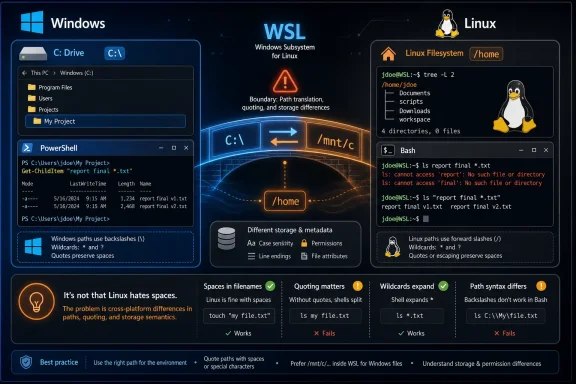 The Error Message Points Toward Windows, Not a Generic Linux Rule
The phrase “the filename, directory name, or volume label syntax is incorrect” is Windows language. It can surface through wsl.exe, a Windows API, a disk-management operation, a Windows executable launched from Linux, or another interoperability path even when the command appears to be doing Linux work.That makes the error unusually easy to misdiagnose. A user sees “WSL,” assumes the Linux file system rejected a filename, and starts stripping spaces or Unicode characters from otherwise valid Linux names. The more revealing question is not “Which Linux character did I use?” but “Which component interpreted this string as a Windows path?”
Microsoft’s WSL documentation makes the boundary explicit. A Windows path such as
C:\Users\<user name>\Project is represented inside WSL as /mnt/c/Users/<user name>/Project, while files held in the distribution’s native Linux storage normally appear under locations such as /home/<user name>/Project. Those paths may point to files visible from the same terminal, but they do not operate under identical naming, permission, case-sensitivity, or performance rules.A report in Microsoft’s public WSL issue tracker illustrates the distinction. A user invoking a WSL disk operation against a virtual-disk path containing whitespace received this Windows syntax message, while a comparable path without the whitespace produced a different failure. The important lesson is not that whitespace is forbidden in Linux; it is that command parsing and path handling around a particular Windows-facing WSL operation can fail before Linux filename semantics become relevant.
This is why blanket advice to “remove invalid Linux characters” is too crude. WSL is an interoperability environment, and its errors can originate in the Windows shell,
wsl.exe, the WSL service, a Windows-mounted drive, the Linux kernel, the target application, or a security product inspecting the operation.The Popular Filename Explanation Gets the Rules Backward
The supplied troubleshooting page claims that spaces, colons, and asterisks are not allowed in Linux filenames and that Linux names may contain only letters, numbers, underscores, and hyphens. That is not an accurate description of normal Linux filename rules.POSIX defines a filename as a sequence of bytes that cannot contain a slash or a null byte. The Linux pathname manual describes the same basic kernel-level restriction: slash separates path components, while the null byte terminates the string passed to system calls. Spaces, colons, asterisks, currency symbols, and many other bytes can otherwise appear in a Linux filename, subject to the behavior and limits of the particular file system and user-space tools involved.
Asterisks do create a different kind of problem: shells treat
* as a wildcard unless it is quoted or escaped. A file literally named report*.txt can exist on a Linux file system, but an unquoted reference may expand to multiple matching names before the application receives it. That is a shell-expansion issue, not proof that the file system prohibits the character.Spaces work similarly. A Linux file named
my file.txt is valid, but a shell normally parses the unquoted string as two arguments: my and file.txt. Commands therefore need quoting, escaping, or another argument-safe method:ls -- "my file.txt"or:
ls -- my\ file.txtChanging the name to
myfile.txt avoids the need for quoting and may make a broken command appear fixed. Yet the original name was not invalid; the command line was ambiguous. That difference is crucial when debugging scripts, automated tasks, development tools, and paths that cannot simply be renamed.Colons are also generally usable in native Linux filenames. On Windows, however, the colon has syntactic meaning in drive designators such as
C: and is among the characters excluded from ordinary Win32 filenames. A colon-related failure involving /mnt/c, a path passed to a Windows executable, or an argument interpreted as a Windows path is therefore likely to be a Windows-side restriction.The source’s reserved-name explanation is inverted in the same way. Names such as
con, prn, aux, nul, and com1 are historically reserved Windows device names. Microsoft’s Win32 naming documentation explicitly lists them among names applications should not use for Windows files. They are not a generic list of Linux-reserved filenames.A native Linux directory can generally contain a file named
con. Attempting to create or manipulate the same name through a Windows-backed path or a Windows application may fail because the Windows namespace interprets it as a device. In WSL, both statements can be true at once because the result depends on where the file lives and which API is touching it.WSL Exposes Two Naming Regimes in One Terminal
The most useful mental model is to stop treating “a file in WSL” as a single category. A file under the distribution’s native Linux storage is governed primarily by Linux and its file system. A file under/mnt/c is stored on the Windows drive and must remain compatible with Windows naming and access rules, even when a Linux command initiates the operation.| Storage context | Typical path | Spaces | Colon and asterisk | Windows device names | Main diagnostic concern |
|---|---|---|---|---|---|
| Native Linux storage | /home/user/project | Valid when quoted correctly | Generally valid, though shells may interpret * | Generally ordinary names | Linux permissions, shell expansion, case, file-system limits |
| Windows drive mounted in WSL | /mnt/c/Users/user/project | Valid, but must survive shell and application parsing | Restricted by Windows filename rules | Names such as con, prn, aux, nul, and com1 are reserved | Win32 naming rules, DrvFS translation, quoting, Windows permissions |
Windows path passed to wsl.exe | C:\Users\user\project | Valid if the calling shell passes it as one argument | Windows path syntax applies | Windows reservations apply | PowerShell or Command Prompt parsing before WSL starts |
| Linux path passed to a Windows executable | /home/user/project or /mnt/c/... | Depends on translation and quoting | Depends on how the Windows program receives the path | Windows application behavior may apply | Interoperability and path conversion |
/home and /mnt/c can alter its behavior without changing the application. A source tree may become case-insensitive, encounter Windows-reserved names, receive translated permissions, or behave differently when watched by development tools.Microsoft recommends storing files in the Linux file system when working primarily from a Linux command line and storing files in the Windows file system when working primarily from PowerShell or Command Prompt. Performance is part of that recommendation, but predictability is equally important. Every unnecessary crossing introduces another opportunity for path conversion, permission translation, shell interpretation, or application-specific assumptions.
This does not mean that cross-file-system work is unsupported. WSL is expressly designed to let Windows and Linux tools interact. It means that interoperability should be treated as an architectural boundary rather than invisible plumbing.
Shell Quoting Is Often the Real Filename Bug
A pathname can be legal on disk and still be mangled before it reaches the program that needs it. In a WSL workflow, there may be several parsers in sequence: PowerShell or Command Prompt,wsl.exe, a Linux shell, and perhaps a Windows executable launched from that shell.Each parser has its own quoting and escaping rules. Quotation marks intended for Bash may be consumed by PowerShell. Backslashes intended as Windows separators may be treated as escapes or ordinary characters in a Linux context. An asterisk intended literally may expand into filenames. A colon may turn an accidental token into something resembling a drive designator.
Microsoft’s troubleshooting documentation warns that paths containing spaces must be quoted when commands are forwarded into WSL. Its examples use a Windows location such as
Program Files, represented on the Linux side under /mnt/c, with quoting arranged so that the Linux command ultimately receives the entire path as one argument.The failure pattern can be deceptive. Suppose a command succeeds with
myfile.txt but fails with my file.txt. That does not isolate the file system as the cause. It establishes only that whitespace changed parsing somewhere in the chain.The same caution applies to scripts that build commands as strings. Constructing one long string and handing it through multiple shells invites interpretation at every layer. Passing arguments as discrete values, when the scripting language or API permits it, is safer than assembling a command line that must later be reparsed.
Paths copied from graphical tools can add another complication. Curved quotation marks, invisible Unicode spacing characters, trailing whitespace, or a Windows-style path pasted into a Linux-only command can all produce failures that resemble an invalid filename. The displayed text may look correct while its bytes or separators are not what the receiving program expects.
The first diagnostic task is therefore to preserve and inspect the exact command, not immediately rename the target. Record the launching shell, the path exactly as entered, and whether the command calls a Linux binary,
wsl.exe, or a Windows .exe.Length Limits Are Real, but the 255-Character Rule Is Too Simple
The supplied guide says Linux file and directory names have a maximum length of 255 characters, with hidden names limited to 254 characters because they begin with a period. That formulation turns a common file-system limit into a universal Linux law and confuses characters with bytes.A typical Linux file system may permit as many as 255 bytes in one pathname component. The exact limit is file-system-specific, however, and the complete path has separate constraints. A multibyte Unicode character can consume more than one byte, so a name containing 255 visible characters may exceed a 255-byte component limit.
Linux also does not grant hidden files a distinct reduced naming class. A leading period is simply part of the filename, and user-space tools conventionally treat such names as hidden. If a particular file system permits 255 bytes per component, the period consumes one of those bytes, leaving fewer bytes for what follows. That arithmetic may produce 254 remaining bytes, but it is not a separate hidden-file rule.
The distinction matters for WSL because a path can encounter limits at multiple levels. A component may be too long for the Linux file system, the complete path may exceed what an application accepts, or a translated Windows path may reach a Windows API limitation. The same visible name can also have different byte lengths depending on its encoding.
Truncation should not be assumed either. When a requested name exceeds a supported component length, applications normally receive an error rather than a guarantee that Linux will silently shorten the name. Automatic truncation would be dangerous because it could redirect an operation to a different object or collapse distinct names into one.
Administrators should treat length as a measurable property, not a stock explanation. Check the failing component, the complete path, its storage location, and the tool processing it. If shortening the path fixes the operation, that is useful evidence, but it still does not reveal which layer imposed the limit.
Unicode Is Not the Villain the Source Suggests
The guide also claims that Linux file systems may not support characters such as the euro and yen symbols. That warning is misleading as a general explanation for the WSL error.Linux pathnames are fundamentally byte sequences, while modern Linux environments and file systems routinely store names represented with Unicode encodings. Whether a name behaves correctly depends on the file system, locale, application, normalization behavior, terminal, and any Windows component involved. It is not accurate to classify familiar currency symbols as generically unsupported by Linux.
Unicode can still create difficult interoperability bugs. Two names that look identical may use different encoded sequences. A script may run under a locale that does not display or process a sequence as expected. A Windows program may normalize, reject, or reinterpret a path differently from a Linux program.
Those are narrower and more defensible diagnoses than “Linux does not support this symbol.” If a Unicode filename works under
/home but fails after being copied to or accessed through /mnt/c, the boundary is the clue. If it works with Linux tools but fails only when handed to a Windows executable, the receiving Windows path or application deserves attention.Names copied from the web should be examined particularly carefully. The apparent euro or yen symbol may not be the only unusual character; the string could contain a nonbreaking space, directional marker, combining character, or punctuation that merely resembles an ASCII character.
The practical response is not to prohibit all Unicode. It is to use conservative, portable names where automation must cross many tools, while diagnosing the actual bytes and parser behavior when an existing name fails.
Case Sensitivity Produces Different Errors—and Different Risks
Linux file and directory names are normally case-sensitive, while Windows commonly treats case variants as equivalent. Microsoft highlights this difference in its WSL file-system guidance because it can affect source control, build systems, package managers, and applications that move between Windows and Linux storage.The supplied page suggests that accessing a filename with the wrong case will produce the Windows syntax error under discussion. That is not a safe assumption. A case mismatch more naturally results in an object not being found, although the final message depends on the application and the path-processing layers involved.
Case should still be checked early. A script requesting
Config.json will not necessarily open config.json in native Linux storage. A project containing both names may behave correctly under /home but conflict when copied to a case-insensitive Windows directory.The cited
rename command is not a universal case-repair mechanism. Linux distributions ship different utilities named rename, and their accepted syntax can vary. A direct mv operation is often clearer for one file, though case-only changes on a Windows-backed directory may need an intermediate name because the underlying Windows view can treat the old and new forms as equivalent.That makes case another boundary problem rather than an all-purpose explanation. Verify the exact spelling with a directory listing, determine whether the target directory is case-sensitive, and avoid repositories whose correctness depends on names differing only by letter case when Windows tools must consume them.
The file Command Does Not Validate Filename Legality
The supplied troubleshooting advice repeatedly recommends using the Linux file command to check a filename, determine whether a character is supported, measure name length, or identify a reserved name. That is not what the command is designed to do.The
file utility examines an existing object and attempts to classify its contents or type. It can report that an object is text, executable data, an image, an archive, or another recognized format. It does not provide a general preflight validator for whether a proposed pathname is legal on Linux, Windows, or every layer of WSL.If
file cannot open a target, its failure may reveal that the path was parsed incorrectly, does not exist, or is inaccessible. It cannot by itself distinguish an illegal Windows device name from broken shell quoting, a missing parent directory, a permission denial, or a path that was altered before the command received it.A more reliable approach is contextual. Use a directory listing to verify the object’s exact spelling, inspect the current directory, determine whether the path begins under
/mnt, and test the parent directory separately. When debugging a Windows-backed path, test it from both a Linux command and a native Windows shell to identify which side rejects it.This layered method takes longer than running one purported validation command, but it produces evidence. WSL troubleshooting is less about finding a magical filename checker than locating the first boundary at which the path changes meaning.
Updating WSL Helps, but It Is Not a Theory of the Failure
The source advises users to checkwsl --version, update WSL, and restart it. Those are legitimate maintenance steps. Microsoft documents wsl --version for displaying component information, wsl --update for obtaining the latest WSL update, and wsl --shutdown for terminating running distributions and the WSL 2 utility environment.Updates can fix path-handling defects, disk-operation bugs, interoperability problems, and service failures. A shutdown can also clear state after configuration changes. But neither action should replace diagnosis.
If a command passes malformed Windows syntax, an update may change nothing. If a Bash script fails to quote a filename containing a space, restarting WSL will not repair the script. If a Windows executable cannot create
con on a Windows volume, that restriction is intentional rather than an outdated WSL defect.Version checking is most valuable when paired with a reproducible command. Establish the failure, record where the target is stored, update WSL, shut it down, and repeat the same test. A change in behavior then becomes meaningful evidence instead of coincidence.
The claim that the error is simply more likely on “older WSL” is too broad without a particular defect or official advisory. Old software can contain fixed bugs, but filename syntax crosses too many layers for age alone to establish a cause.
Permissions and Antivirus Belong Later in the Investigation
Permission problems and antivirus interference are plausible additional causes, as the source notes, but neither naturally explains every appearance of a Windows syntax message. They should be investigated after the command, path format, storage location, and quoting have been verified.Microsoft documents that permissions on Windows files accessed through WSL are translated differently from permissions in the Linux distribution’s native file system. Files under
/mnt/c are affected by Windows access rights and WSL’s DrvFS behavior, while files in the native Linux root follow standard Linux ownership, mode, and umask conventions.This can produce situations in which
sudo does not solve the problem. Elevating inside Linux does not automatically grant a Windows user rights that Windows itself denies. Conversely, a Windows application accessing Linux files through the WSL network view acts through the distribution’s configured user context.Security software can add a further enforcement layer. Real-time scanners, controlled-folder protections, endpoint detection tools, or corporate application controls may block creation, renaming, mounting, or execution. Such interference should be supported by security logs, controlled testing, or a clear correlation with a protected location—not inferred merely because the filename looks unusual.
Administrators should resist disabling antivirus globally as a first response. Test with a harmless file in an approved temporary location, review protection history or enterprise telemetry, and create the narrowest justified exclusion only if the security product is demonstrably responsible.
A Reliable Diagnosis Follows the Path Across the Boundary
The decisive evidence is the path’s journey. Start with the shell in which the user typed the command. PowerShell, Command Prompt, Bash, and another Linux shell do not necessarily preserve the same quotation marks, wildcard characters, backslashes, or environment-variable syntax.Next, identify the executable that emitted or relayed the message. A command beginning with
wsl is initially a Windows command. A command ending in .exe and launched inside WSL is still a Windows program. A native Linux binary operating under /home has a very different path than a Windows program operating against C:\ or a Linux command touching /mnt/c.Then classify the target storage. Paths under
/mnt/c or another mounted Windows drive remain constrained by the Windows file system and Windows namespace. Paths under /home normally remain within the distribution’s Linux file system. A path beginning with \\wsl$ is a Windows-side route into that Linux storage and therefore brings a Windows client into the operation.Finally, reduce the operation without changing the suspected trigger. If a long command fails, test whether the parent directory can be listed. If a Windows application fails, try a native Linux tool against the same object. If whitespace appears relevant, quote it rather than removing it. If a colon appears relevant, compare native Linux storage with a mounted Windows drive.
This process turns a vague error into a layer-specific failure. It may reveal a malformed drive path, an unquoted argument, an unsupported Windows filename, a case mismatch, a permissions problem, or a genuine WSL defect. Those causes demand different fixes, and only one of them is “rename the file.”
Action checklist for admins
- Capture the exact command, complete error text, launching shell, working directory, and target path before changing anything.
- Determine whether the object is in native Linux storage, under
/mnt/cor another Windows mount, or being addressed from Windows through\\wsl$. - Identify whether the operation invokes a Linux binary,
wsl.exe, or a Windows.exe; apply the receiving tool’s path rules. - Quote paths containing spaces and escape or quote wildcard characters rather than assuming the characters are illegal.
- Check exact case, parent-directory existence, Windows permissions, and Linux permissions separately.
- Run
wsl --version, applywsl --update, and usewsl --shutdownbefore retesting a reproducible WSL-level failure. - Consult endpoint-security logs before attributing the error to antivirus or creating an exclusion.
- Preserve a minimal reproduction if the same valid path consistently fails in current WSL tooling.
The Safer Fix Is Architectural, Not Cosmetic
The best prevention is to reduce unnecessary path conversion. Keep Linux-centered projects in native Linux storage and operate on them with Linux tools. Keep Windows-centered workloads on the Windows file system and use native Windows paths when invoking Windows applications.When a workflow must cross the boundary, choose filenames that are portable across both environments. Letters, numbers, underscores, hyphens, and uncomplicated periods are conservative choices—not because Linux requires that tiny character set, but because heterogeneous tooling is easier to automate when names carry less syntax.
Portable naming is an engineering policy, not a statement about kernel capabilities. A Linux file system may accept a colon, asterisk, trailing space, or Windows device name while a downstream Windows utility rejects it. Avoiding those names in cross-platform repositories reduces operational risk even though describing them as “invalid Linux characters” would be technically wrong.
Scripts should also preserve arguments as arguments rather than composing a single command string. Validate whether a supplied path is Windows-style or Linux-style, convert it intentionally where needed, and test paths containing spaces as part of routine automation. A script that works only when directories have simple names is already carrying a latent quoting defect.
For enterprise environments, the storage decision belongs in build and support documentation. Developers should know whether repositories are expected under
/home, /mnt/c, or another managed location. Help-desk procedures should capture the shell and storage context instead of asking only for the filename.That discipline pays off beyond this one message. It prevents case conflicts, improves performance, makes permission behavior more predictable, and reduces the chance that source-control or build tools will see different names on different sides of the same workstation.
What Administrators Should Carry Into the Next Incident
The exact message sounds like a narrow filename complaint, but the practical diagnosis is broader: it is a warning that Windows, Linux, and their command interpreters may no longer agree about what the supplied path means.- Spaces are valid in Linux filenames; they usually require correct shell quoting.
- Colons and asterisks are not generically forbidden by Linux, although
*is normally interpreted by the shell. con,prn,aux,nul, andcom1are Windows device-name reservations, not standard Linux reservations.- Native Linux paths and Windows-mounted paths inside WSL follow materially different rules.
- The
filecommand classifies existing objects; it is not a universal filename validator. - WSL updates and restarts are useful controls, but they do not correct malformed commands or intentional Windows naming restrictions.
WSL’s value comes from making two operating environments feel close enough to share tools and data, but that convenience does not erase their namespaces. As Windows and Linux development become more tightly integrated, reliable troubleshooting will depend less on memorized lists of supposedly forbidden characters and more on tracing exactly where a path was parsed, translated, stored, and rejected.