

Microsoft has quietly opened a public preview for a redesigned Xbox Cloud Gaming web interface that moves the browser experience much closer to the look, layout, and navigation of an Xbox console—while keeping the low-friction benefits of playing straight from a browser. The redesign is available today as an opt‑in preview: anyone with a Microsoft account can enable the change in the Play.Xbox.com settings, try the console‑style layout, and switch between a new "Full Screen" mode and a more app‑like "Desktop" mode. This article walks through how to access the preview now, explains what’s actually changed, weighs the benefits and practical limits, and points out the technical and privacy caveats every Windows user should consider before swapping their current cloud workflow for this new web UI.
Xbox Cloud Gaming started as Project xCloud and grew into the cloud layer of Xbox Game Pass, progressively expanding device reach and streaming quality. The web portal—play.xbox.com—has long been a key entry point for streaming because it doesn't require platform‑specific downloads. What’s new is Microsoft’s strategic move to make that web entry feel like an actual extension of the console UI rather than a second‑class experience: a unified visual language, controller‑first navigation patterns, and a guide overlay that mirrors the Xbox Home and Guide flows. The public preview is being used as a fast iteration channel to collect user feedback before committing to a broader rollout.
Concretely, that means Microsoft can prototype console‑like features in the browser—where updates and experiments move faster than console firmware—and then decide which parts to scale to native apps (Windows Xbox app, TV clients, and so on). For users, the most immediate upside is reduced cognitive friction: if you know the console UI, you’ll get to your library, Guide, and play actions faster in the browser. For Microsoft, the upside is strategic: lower barrier to cloud adoption, more consistent cross‑device behavior, and a simpler channel to trial monetization or discovery experiments.
If you want to try the redesign, enable Preview features on Play.Xbox.com, wait up to ten minutes for propagation, and use the Guide settings to switch modes and file feedback. Test controller navigation, accessibility flows, and streaming quality across times of day and browsers, and report regressions so Microsoft can iterate. This preview is a useful early look at Microsoft’s cross‑platform ambitions; executed carefully, it could make cloud gaming feel indistinguishable from the core Xbox experience. If you try the preview, your feedback will help shape whether that promise becomes reality.
Source: Windows Central Here's how to get Xbox Cloud Gaming’s new web UI right now
 Background and why this matters
Xbox Cloud Gaming started as Project xCloud and grew into the cloud layer of Xbox Game Pass, progressively expanding device reach and streaming quality. The web portal—play.xbox.com—has long been a key entry point for streaming because it doesn't require platform‑specific downloads. What’s new is Microsoft’s strategic move to make that web entry feel like an actual extension of the console UI rather than a second‑class experience: a unified visual language, controller‑first navigation patterns, and a guide overlay that mirrors the Xbox Home and Guide flows. The public preview is being used as a fast iteration channel to collect user feedback before committing to a broader rollout.Concretely, that means Microsoft can prototype console‑like features in the browser—where updates and experiments move faster than console firmware—and then decide which parts to scale to native apps (Windows Xbox app, TV clients, and so on). For users, the most immediate upside is reduced cognitive friction: if you know the console UI, you’ll get to your library, Guide, and play actions faster in the browser. For Microsoft, the upside is strategic: lower barrier to cloud adoption, more consistent cross‑device behavior, and a simpler channel to trial monetization or discovery experiments.
What’s new in the web UI (high level)
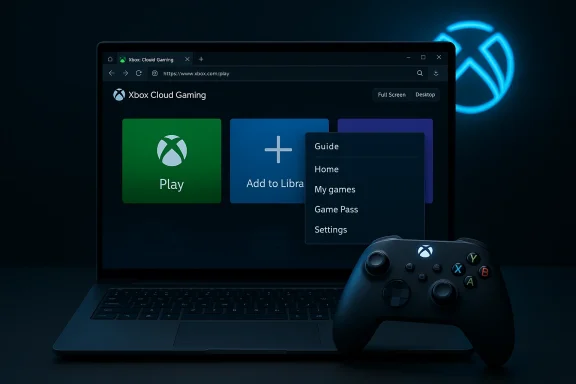
- A console‑inspired home layout with large tiles and clearer actions for Play, Add to library, and Guide.
- A guide overlay (accessed from an Xbox icon) that surfaces quick actions and controller‑first navigation, similar to the Xbox console Guide.
- Two presentation modes: Full Screen Mode (modern console‑like view) and Desktop Mode (a more app-like view with a sidebar).
- In‑experience feedback channels and a centralized profile/settings menu to toggle the preview and report issues.
- Ability to install the web experience as an app in Microsoft Edge for a more native Windows presence.
How to enable the new Xbox Cloud Gaming redesign (step‑by‑step)
If you want the new web UI right now, here’s the supported opt‑in flow that Microsoft has published and that multiple walkthroughs confirm. Follow these numbered steps exactly to avoid hiccups.- Open a modern, up‑to‑date browser. Microsoft Edge is recommended for the cleanest experience.
- Go to the Xbox Play page (play.xbox.com) and sign in with your Microsoft account. Anyone can access the preview flow, but playing streamed titles requires the appropriate entitlement (see the subscription notes below).
- Click your profile menu in the top‑right corner and choose Settings. Within Settings look for Preview features.
- Turn on the Preview features toggle and confirm the prompt. Microsoft notes the change can take up to 10 minutes to propagate—waiting that period before reloading the page avoids confusion. If you don’t see the new UI after 10 minutes, log out and back in or try clearing the browser cache.
- After the change has activated, open play.xbox.com to see the new console‑style dashboard. You should now be able to access the Guide, switch appearance modes, and use the feedback tools inside the preview.
Switching modes and installing the web app
The preview offers two display modes:- Full Screen Mode — a modern, console‑like layout optimized for controller navigation.
- Desktop Mode — an app‑like layout with a sidebar for easier keyboard/mouse interaction on PCs.
- Click the Xbox button in the UI (the Guide) and open Settings → Appearance.
- Choose Desktop Mode or Full Screen Mode to toggle between them.
Practical tips for a smoother preview test
- Use a modern, updated Chromium‑based browser for best compatibility; Edge and Chrome are the safest bets. Safari and some mobile browsers may work but can show subtle differences.
- Connect an Xbox controller (Bluetooth or wired) for the fullest Guide and controller‑first navigation experience. Many controller features are intentionally emphasized in the redesign.
- Test streaming at different times of day to get a sense for variability—network congestion and last‑mile ISP issues will impact perceived responsiveness more than UI polish.
- If you rely on accessibility tools (screen readers, high‑contrast modes, remappable inputs), test your key workflows and report regressions through the in‑experience feedback option. Previews can temporarily omit accessibility refinements.
Subscription and entitlement notes (what the UI does — and does not — change)
Enablement of the preview is available to anyone with a Microsoft account, but streaming rights still depend on entitlements:- Titles in Xbox Cloud Gaming are streamed according to how they’re licensed: Game Pass Ultimate subscribers get cloud access to eligible titles, while free‑to‑play games and separately purchased cloud‑enabled games may have distinct rules. The UI redesign does not alter licensing or which titles are cloud‑playable. Confirm a title’s entitlement before expecting cloud play to be available.
Technical and compatibility caveats
This preview is promising, but the experience you get will depend heavily on several technical variables. Keep these factors in mind before declaring the redesign a complete win.- Browser differences: The preview language intentionally refers to “compatible browsers.” Precise feature parity (capture support, input latency, controller mapping) can vary between Chromium browsers, Safari, and other engines. Expect minor behavior changes across browsers.
- Network realities still rule: UI improvements don’t reduce latency or packet loss. For competitive or latency‑sensitive titles, your ISP, home network, and proximity to Azure datacenter capacity have a greater effect than UI design.
- Feature omissions: Previews frequently omit or delay some functionality. Remote play features, certain accessibility flows, or capture tools might be missing or unstable during the preview. Test critical workflows first.
- Staged rollout: Microsoft often gates features server‑side; even with the preview toggle on, you may not see every experimental feature immediately. Some devices or accounts receive staged entitlements.
Privacy, telemetry, and monetization signals to watch
A richer web client can enable faster experimentation—not just in UX, but in revenue models and telemetry collection. That’s good for rapid iteration, but it raises questions users should watch carefully.- Telemetry scope: More featureful web clients typically send richer telemetry. Microsoft hasn’t published exhaustive privacy specifics tied to the preview; users who are privacy‑minded should expect increased event logging to support rapid design decisions and bug triage. Report any telemetry concerns using the feedback flow while testing.
- Monetization tests: The web is a natural place to trial promotions and placement experiments (promoted tiles, subscription upsells, or sponsored placements). There’s no evidence yet that Microsoft will pursue aggressive ad placements inside the Xbox web experience, but the capability to test monetization patterns is materially easier on web surfaces. Keep an eye out for changes to store placements and promotional content inside the UI.
Strategic implications for Microsoft and the broader ecosystem
This preview is a visible part of a broader Microsoft strategy to blur the lines between console, PC, and cloud:- Lower barrier to cloud adoption: A console‑like web UI reduces cognitive friction for users new to cloud play, making discovery and repeated engagement more likely. That can materially increase cloud session frequency and retention for Game Pass.
- Faster experimentation: Web rollouts allow Microsoft to test features, ranking, and discovery mechanisms far faster than native clients, so the company can learn what drives engagement before investing in console or native app parity.
- Device‑agnostic consistency: For Windows handhelds, TVs, and even web‑only devices, a consistent design language lowers support overhead and improves user expectations when switching devices. The web interface could become the “reference” experience Microsoft iterates from.
What to test and report while you’re in the preview
If you opt in, your feedback matters. Here’s a short checklist of high‑value tests Microsoft will likely want you to file:- Controller navigation: verify Guide behavior, long‑press Xbox button actions, and whether button mappings match console expectations.
- Discovery and library actions: note if Play, Add to library, and store flows are faster or more confusing. Does the new layout reduce clicks to launch a game?
- Streaming quality and input latency: test a mix of titles (competitive vs. single‑player) and report subjective latency and stutter. Network traces and time‑of‑day notes help triage.
- Accessibility: test screen reader flow, captioning, remapping, and focus behavior. Flag regressions immediately.
- Cross‑browser behavior: try Edge, Chrome, and another browser you use and report differences you observe in capture, controller mapping, or UI rendering.
Known claims and numbers to treat cautiously
A few technical figures have circulated in the coverage and community testing that deserve cautious framing:- Claims about improved streaming quality such as a selective 1440p tier and peak bitrates near 27 Mbps have been reported for specific regions and qualifying devices; these are promising but limited to certain titles and subscribers, and they should not be treated as universal service guarantees. Local datacenter capacity, platform, and subscription tier affect outcomes.
- Performance improvements tied to Windows Full Screen Experience (a related but separate feature) often cite reclaimed RAM in the ~1–2 GB range on tuned handhelds. Those figures are situational and depend on startup agents and installed background services—treat them as illustrative rather than guaranteed.
Final assessment — strengths, risks, and who should try it
Strengths- Immediate discoverability gains: The console‑style layout reduces friction and makes cloud titles easier to find and launch.
- Fast iteration channel: The web preview allows Microsoft to prototype and refine UX patterns quickly without waiting for console or native app releases.
- Cross‑device consistency potential: A unified web experience is a practical tool for Microsoft to deliver consistent flows across handhelds, desktops, and TVs.
- Browser fragmentation: Differences across engines can create inconsistent behavior and complicate support.
- Telemetry and monetization: Richer web clients can enable revenue experiments and deeper telemetry; users should watch for changes that affect privacy or introduce promoted content into core discovery surfaces.
- Expectation management: If the web UI suggests full parity with console behavior (for example, capture features or certain native integrations) but the plumbing isn’t there yet, users may be disappointed. The preview is an indicator, not a final rollout.
- Enthusiasts who want early access to a console‑like web experience and who can tolerate preview roughness.
- Windows handheld owners and testers who want to evaluate how the web client fits into multi‑device workflows.
- Accessibility and controller users who can provide focused feedback on navigation and input parity.
- Users who need fully stable workflows for accessibility or production use should avoid preview toggles until the experience exits preview.
- Users uncomfortable with increased telemetry or rapid changes in UI/monetization should hold off until Microsoft publishes clearer privacy documentation.
Conclusion
Microsoft’s new Xbox Cloud Gaming web preview is a clear, deliberate step toward treating cloud play as a first‑class, cross‑device experience rather than a lightweight add‑on. The opt‑in preview makes it straightforward to try a console‑style layout from your browser, and the ability to install the site as an app in Edge adds a practical Windows integration layer. The immediate benefits—faster discovery, controller‑first navigation, and faster iteration—are real, but so are the constraints: browsers, network conditions, and entitlements still determine whether cloud play will be smooth and playable.If you want to try the redesign, enable Preview features on Play.Xbox.com, wait up to ten minutes for propagation, and use the Guide settings to switch modes and file feedback. Test controller navigation, accessibility flows, and streaming quality across times of day and browsers, and report regressions so Microsoft can iterate. This preview is a useful early look at Microsoft’s cross‑platform ambitions; executed carefully, it could make cloud gaming feel indistinguishable from the core Xbox experience. If you try the preview, your feedback will help shape whether that promise becomes reality.
Source: Windows Central Here's how to get Xbox Cloud Gaming’s new web UI right now
