

Microsoft’s new Xbox “Full Screen Experience” for Windows 11 — a controller‑first, console‑style shell that ships on the Asus ROG Xbox Ally family — can be enabled on other Windows 11 machines today via supported Insider channels or, for advanced users, by applying community workarounds; the feature is a layered shell (not a separate OS) that runs the Xbox PC app as a full‑screen home, trims desktop subsystems to free memory, and exposes controller‑first navigation and Game Bar integrations designed to make handheld and couch gaming feel more like a console.
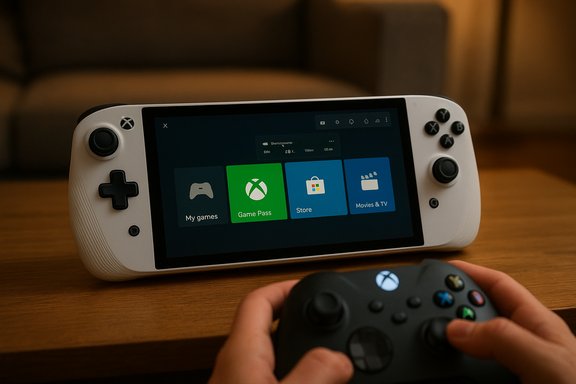
Microsoft’s Full Screen Experience (commonly called Xbox Mode or handheld mode) is a session posture in Windows 11 that presents a full‑screen, controller‑first launcher built on the Xbox PC app and enhanced Game Bar features. It intentionally defers or suppresses selected Explorer‑centric UI elements and background services so the system boots into a lighter runtime state optimized for gaming on small, battery‑constrained hardware such as handheld PCs. The ROG Xbox Ally and Ally X are the first devices to ship with the experience preinstalled; Microsoft has been rolling support into Windows 11 preview builds for other OEMs.
This is not a new Windows fork. The kernel, drivers, and most core subsystems remain unchanged — what changes is the shell and which user‑facing components and background services the session initializes. That means Steam, Epic, GOG, Battle.net and other PC storefronts remain usable; Xbox Mode simply gives you a controller‑first home app and a trimmed runtime state.
(End of article)
Source: livemint.com How to enable Windows 11 Xbox Mode for console-like experience on any device | Mint
 Background / Overview
Microsoft’s Full Screen Experience (commonly called Xbox Mode or handheld mode) is a session posture in Windows 11 that presents a full‑screen, controller‑first launcher built on the Xbox PC app and enhanced Game Bar features. It intentionally defers or suppresses selected Explorer‑centric UI elements and background services so the system boots into a lighter runtime state optimized for gaming on small, battery‑constrained hardware such as handheld PCs. The ROG Xbox Ally and Ally X are the first devices to ship with the experience preinstalled; Microsoft has been rolling support into Windows 11 preview builds for other OEMs.This is not a new Windows fork. The kernel, drivers, and most core subsystems remain unchanged — what changes is the shell and which user‑facing components and background services the session initializes. That means Steam, Epic, GOG, Battle.net and other PC storefronts remain usable; Xbox Mode simply gives you a controller‑first home app and a trimmed runtime state.
What Xbox Mode actually does — technical snapshot
A layered, controller‑first shell (not a new OS)
- The Xbox PC app becomes the primary home app, displayed full screen with large tiles and controller navigation.
- Game Bar is reworked to be central to overlays, performance toggles and quick switching; a hardware Xbox button becomes a primary method to call overlays and task switching on supported hardware.
Resource trimming and session policies
- On entry to the Full Screen Experience, Windows defers or suppresses many desktop subsystems (for example, desktop wallpaper and some Explorer decorations) and pauses or throttles non‑essential startup apps and services to reduce idle CPU wakeups and memory overhead.
- Early OEM and tester reports describe measurable reclaimed RAM and reduced idle power consumption — engineering estimates commonly cited are in the “up to roughly 1–2 GB” range on tuned systems, though real results vary widely by device, installed software and OEM tuning. Treat the quoted memory figures as directional estimates rather than guarantees.
UX and input changes
- Controller‑first login flows, an on‑screen controller keyboard, and a task switcher optimized for bumpers/sticks make the system navigable without a mouse or keyboard.
- The combined effect is a console‑like flow that preserves Windows’ openness while offering a cleaner launcher for handheld or living‑room gaming.
Who should consider enabling Xbox Mode?
- Owners of supported Windows handhelds that OEMs explicitly target (devices that ship with FSE preinstalled or are listed by manufacturers) — best experience and supported path.
- Enthusiast owners of compatible handheld PCs (ROG Ally lineage, MSI Claw, some AYANEO/OneXPlayer/Lenovo Legion Go builds) who are comfortable running Windows Insider builds and following OEM guidance.
- Advanced users with full system backups who want to experiment on laptops and desktops; note the community workarounds for non‑handheld hardware are unsupported and carry risk.
The supported path: how to enable Xbox Mode on eligible devices
If your device is supported by Microsoft/OEM or you’re running a preview build that includes Full Screen Experience, follow the supported steps below. This is the recommended approach for most users.- Join the Windows Insider Program and choose the channel that carries the handheld/FSE bits (Release Preview, Beta or Dev depending on the specific build Microsoft is gating).
- Update Windows to the required Insider preview build (one commonly referenced preview is Build 26220.7051, KB5067115 — availability depends on channel and staged rollout).
- Install or update the Xbox PC app to the preview/beta version — some early testers report the Xbox app preview must be present for the toggle to appear.
- Open Settings → Gaming → Full screen experience. In “Choose home app,” select Xbox. Optionally enable boot into Full Screen Experience to start the device directly into the console‑style home.
The advanced (unsupported) route: how enthusiasts are unlocking Xbox Mode on other Windows 11 PCs
Community guides converge on three technical steps to make a general Windows 11 PC present the handheld shell: reveal hidden feature flags, tell Windows the device is a handheld, and (on some systems) spoof panel dimensions so Windows treats the device screen as small‑form‑factor. All of these steps are unsupported by Microsoft and may break system behavior, DRM/anti‑cheat, or OEM telemetry; proceed only with full backups and a recovery plan.What you need
- A Windows 11 installation on the 25H2 release stream or an Insider build that already contains the handheld components.
- Administrator privileges.
- Full system backup (image) and a created restore point.
- ViVeTool (community utility used to toggle hidden feature flags).
- Optional small utilities referenced in community guides (e.g., Physpanel or a similar tool to spoof screen dimensions) — use extreme caution and understand provenance risks.
Commonly reported ViveTool flags and commands
Community documentation and hands‑on threads repeatedly list the following feature IDs as frequently used to expose the compact/handheld components:- ViVeTool.exe /enable /id:52580392
- ViVeTool.exe /enable /id:50902630
Registry edits some guides recommend
- Add or edit the DeviceForm value under:
Computer\HKEY_LOCAL_MACHINE\SOFTWARE\Microsoft\Windows NT\CurrentVersion\OEM
Set a DWORD named DeviceForm to hex 2e (decimal 46) — this tells Windows the device form factor is handheld in certain checks. Microsoft’s own configuration docs indicate OEMs set form factor values; changing them manually can have side effects and should be done with caution.
Panel dimension spoofing (experimental)
- On some PCs, Windows also checks panel dimensions to decide if the handheld/compact view applies. Community workflows use a small tool to change the reported screen size at boot via a scheduled task (for example, a system task that runs on startup to set 155×87 mm or similar). This step is experimental, tool provenance is not consistently verified, and it can interfere with display drivers or vendor utilities — back up before trying.
Strong cautions for the advanced path
- Unsupported: These steps bypass OEM entitlements and Microsoft’s staged rollout. They may void vendor support in case of warranty service, and they can create stability issues.
- Compatibility risks: Anti‑cheat drivers, DRM, overlays (OSD), audio routing and controller mappings can break. Some games or services may refuse to run or behave unpredictably.
- Recovery plan required: If anything goes wrong, you should be able to restore from a full image backup or reinstall Windows from verified media.
What to expect performance‑ and UX‑wise
Measured gains (what the data shows)
- Real‑world tests and early reviews show modest but meaningful performance improvements in many handheld scenarios: reclaimed memory, smoother sustained fps due to fewer background wakeups, and in some cases reduced idle power and improved battery endurance. Some hands‑on reports cite mid‑double‑digit FPS gains in specific titles on particular devices; others show smaller gains once desktop startup apps are manually disabled.
Why gains vary
- Gains depend on many variables: the device’s thermal envelope and TDP settings, driver maturity, what background apps and overlays were running before trimming, and whether the particular title is CPU‑bound or GPU‑bound.
- On systems already well‑tuned (minimal startup apps, up‑to‑date OEM drivers), the delta between running a desktop session and FSE can be small — the mode’s value may be more UX‑centric (controller navigation, library aggregation) than purely performance.
UX tradeoffs
- The FSE’s launcher consolidates games from multiple storefronts into a single grid, which is a significant quality‑of‑life improvement for players who dislike launcher‑hopping.
- However, the feature currently offers less customization than mature alternatives like SteamOS or Steam’s Big Picture/Deck UI, and power users who want deep launcher tweaks may be dissatisfied.
Troubleshooting and rollback
If the official toggle is present but misbehaving
- Ensure the Xbox app preview and Game Bar are up to date.
- Update OEM utilities (Armoury Crate SE, MSI Center, etc., BIOS and GPU drivers — vendor‑supplied packages frequently include necessary integrations.
- Reboot, then recheck Settings → Gaming → Full screen experience.
If you used ViVeTool or registry edits and need to undo them
- Revoke ViVeTool toggles:
- ViVeTool.exe /disable /id:52580392
- ViVeTool.exe /disable /id:50902630
- Remove or restore any DeviceForm registry edits (set the key back to its original value or delete the custom DWORD).
- Remove scheduled tasks that spoof panel dimensions and uninstall any experimental utilities used.
Security, anti‑cheat and DRM considerations
- Because FSE changes the session posture and may suppress background services, certain anti‑cheat or DRM systems that expect a traditional Windows shell could break or prevent games from launching. This is one of the key compatibility risks when enabling FSE on unsupported hardware.
- Overlays and third‑party capture tools may misbehave if Game Bar or audio routing is altered by an unsupported configuration. Test your most important titles after enabling the feature.
Practical optimization tips (regardless of method)
- Keep GPU drivers, Xbox PC app, Game Bar, and OEM utilities up to date before enabling any preview features.
- Manually trim startup apps and unnecessary background services to get many of the performance benefits without switching shells; this is a lower‑risk optimization that narrows the difference to FSE.
- Use the Handheld Compatibility Program tags where available to prioritize titles labelled as “Handheld Optimized” or “Mostly Compatible” for the best experience.
- For handheld owners: calibrate power/TDP profiles and thermal management (via OEM utilities) to match the intended experience — sustained performance depends as much on thermal and power tuning as on the shell itself.
Strengths, weaknesses and the larger picture
Strengths
- Cleaner, controller‑first UX: The full‑screen Xbox home reduces friction for controller users and consolidates multiple storefronts into a single discoverable interface.
- Pragmatic resource optimizations: By deferring desktop subsystems and trimming background tasks, the mode can free memory and reduce idle wakeups, improving sustained performance on thermally constrained handhelds.
- No OS fork: This layered design preserves access to Steam, Epic, GOG and other PC ecosystems that many players consider essential.
Weaknesses and risks
- Limited customization vs. mature alternatives: For power users who want deep customization or launcher scripting, FSE currently lags behind long‑mature solutions like SteamOS or Big Picture Mode.
- Compatibility and stability on unsupported hardware: Community unlocks can break overlays, DRM, anti‑cheat, and vendor integrations; they are unsupported and should be treated as experimental.
- Staged rollout and OEM entitlements: Microsoft gates availability by device and server flags; identical hardware may not behave the same if vendor firmware and utilities are missing.
Strategic implications
- Microsoft’s approach demonstrates a platform‑level experiment to make Windows behave more like a console where desirable, while keeping Windows’ flexibility intact. That path avoids locking players into a separate storefront or closed OS, and it could be a foundational element for future Microsoft hardware strategies that blend a console‑grade UX with PC openness. Expect broader OEM adoption, incremental refinements to Game Bar and library aggregation, and continued staging through Insider channels.
Final verdict and recommendations
- For most users: use the supported route. If your device is listed by the OEM or Microsoft as supported (or ships with FSE preinstalled), enable FSE through Settings after ensuring the Xbox PC app and OEM utilities are updated. This minimizes risk and preserves supportability.
- For enthusiasts with backups and recovery plans: experimenting via Insider builds and community steps can unlock the full‑screen Xbox shell on many devices today, but be prepared for quirks and to roll back if needed. Only attempt the advanced workarounds if you understand the risks, have full backups, and accept that this is unsupported.
- If your primary concern is performance: start by trimming startup apps and updating drivers. On many systems, these steps deliver a majority of the practical gains without changing the session posture.
(End of article)
Source: livemint.com How to enable Windows 11 Xbox Mode for console-like experience on any device | Mint
