

Microsoft’s current Windows Client troubleshooting guidance identifies the common Windows Update cases precisely: permissions involving the component store, C:\Windows\SoftwareDistribution, the Component Based Servicing registry branch, the SYSTEM account, or a third-party security product that has locked a file. Start by identifying where you saw the code, then use the repair path that matches that subsystem. Resetting Windows Update is sensible for an update failure; it is not a sensible first response to a single Microsoft Store app refusing to install.
This guide applies to Windows 11 and Windows 10. Keep in mind that free Windows 10 security updates ended on October 14, 2025 for most editions, so fixing the immediate error does not restore normal support on an out-of-support PC.
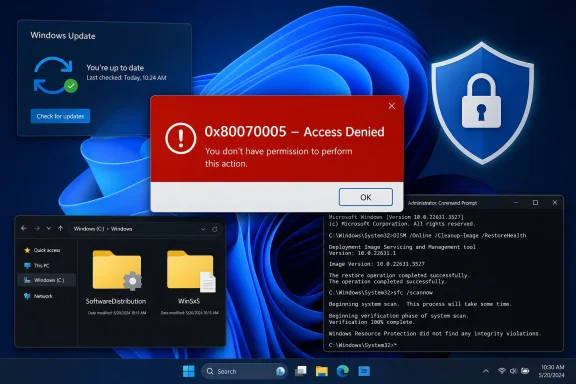 Confirm the failing component before changing permissions
First, note the action that produces 0x80070005: installing a Windows Update, enabling an optional Windows feature, installing an .msix package, downloading from Microsoft Store, or launching a particular application. Repeat the action once after a normal restart. A restart clears pending installers and releases many transient file locks without changing configuration.
If the failure is Windows Update, run the built-in Windows Update troubleshooter first. In Windows 11, go to Settings > System > Troubleshoot > Other troubleshooters, then run Windows Update. In Windows 10, open Settings > Update & Security > Troubleshoot > Additional troubleshooters, then run Windows Update. Microsoft Support still recommends this as the first automated check for update failures.
For an update that consistently fails, collect evidence before repairing anything. Open PowerShell as administrator and run:
Get-WindowsUpdateLog
This produces a readable Windows Update log. Search it for 0x80070005. Also inspect C:\Windows\Logs\CBS\CBS.log for that value if the failure occurs while Windows is installing a cumulative update or an optional feature. Entries such as “Failed to create file” or “Failed to internally open package” point toward the servicing stack rather than a network download problem.
On a managed work or school device, stop before altering Windows folder ownership or registry permissions. Microsoft’s own cause list includes Group Policy and management agents restricting writes to system directories. An Intune, Configuration Manager, WSUS, endpoint-protection, or hardening policy can deliberately produce the access condition you are seeing. A local repair may be reversed at the next policy refresh—or weaken a control your IT team intended to keep.
Verify elevation, free space, and services
An administrator account and an elevated administrative process are not always the same thing. Open Command Prompt by searching for cmd, selecting Run as administrator, and approving the User Account Control prompt. The title bar should say “Administrator: Command Prompt.” Run the repair commands in this guide only from that window.
For a Windows Update failure, check that these services are not disabled:
- Windows Update (
wuauserv) coordinates update detection and installation. - Background Intelligent Transfer Service (
BITS) handles background transfer work used by Windows servicing. - Cryptographic Services (
CryptSvc) supports catalog and signature operations needed during servicing. - Windows Modules Installer (
TrustedInstaller) performs protected Windows component installation and maintenance.
Open services.msc, locate each service, and confirm it is not set to Disabled. Do not blindly force every service to Automatic: Windows uses demand-start behavior for several services, and an inactive service is not necessarily broken. For a direct check from the elevated Command Prompt, use:
sc query wuauserv
sc query bits
sc query cryptsvc
sc query trustedinstaller
If Windows Update, BITS, or Cryptographic Services is stopped when an update is failing, start it with:
net start wuauserv
net start bits
net start cryptsvc
A service that will not start is a different diagnostic branch. Record the exact error rather than repeatedly attempting permission resets.
Also confirm sufficient free space on the system drive and a correct system clock. Neither condition is the usual meaning of 0x80070005, but low storage can leave servicing incomplete and an incorrect time can interfere with certificate validation. Disconnect nonessential USB storage, docks, and peripheral devices before retrying a feature update.
Reset only the Windows Update working folders
For a failure confined to Windows Update, reset its working folders before resetting broader permissions. This does not uninstall installed updates; it makes Windows rebuild its update download cache and cryptographic catalog cache.
In an elevated Command Prompt, run the following commands one at a time:
net stop wuauserv
net stop bits
net stop cryptSvc

ren %windir%\SoftwareDistribution SoftwareDistribution.old
ren %windir%\System32\catroot2 catroot2.old

net start cryptSvc
net start bits
net start wuauserv
Restart Windows after the commands complete, then return to Settings > Windows Update and select Check for updates. The first scan may take longer because Windows has to recreate the folders and obtain metadata again.
Microsoft documents this component reset for persistent update problems, but it is important to distinguish it from an access-control repair. Renaming SoftwareDistribution clears a problematic cache; it does not fix a broken access control list on C:\Windows, WinSxS, or the Component Based Servicing registry key. If 0x80070005 returns immediately and the logs show file-create or package-open failures, move to the component-store checks below.
Repair the Windows image, then verify protected files
Run Deployment Image Servicing and Management, or DISM, before System File Checker when the problem involves Windows Update, optional features, or cumulative-update servicing. Microsoft Learn explains why: DISM can repair the Windows component store that SFC relies on as a source for protected system files.
From an elevated Command Prompt, run:
DISM /Online /Cleanup-Image /RestoreHealth
Leave the window open until it finishes. The process can pause at a percentage for several minutes; do not assume it has failed unless it returns an error. By default, DISM can use Windows Update as its repair source. That creates one practical limitation: on a PC whose update access is restricted by policy, proxy configuration, or an unavailable Windows Update service, DISM may need a matching repair source supplied by an administrator instead of unrestricted Internet access.
After DISM completes successfully, run:
sfc /scannow
SFC checks protected operating-system files and replaces corrupted versions from the repaired component store where possible. Restart once SFC is finished, even if it says it found no integrity violations, then retry the failed update or feature installation.
The sequence matters. Running SFC first is harmless, but it can be unable to complete a useful repair when its component-store source is damaged. DISM addresses the store; SFC then validates the files Windows is actively using.
Restore the specific servicing permissions—do not seize control of Windows
Microsoft’s targeted resolution for Windows Update error 0x80070005 is to reset inherited permissions on the component store and the Windows Update working folder:
icacls "%windir%\WinSxS" /reset /t /c /q
icacls "%windir%\SoftwareDistribution" /reset /t /c /q
Restart Windows and test the update. If the error persists, Microsoft’s next step is to restore TrustedInstaller as owner of the WinSxS folder:
icacls "%windir%\WinSxS" /setowner "NT SERVICE\TrustedInstaller" /t /c /q
These are elevated operations against core Windows directories. Back up important data first, and do not replace these commands with Internet folklore telling you to take ownership of C:\Windows, grant Everyone full control, or recursively change permissions across the registry. Those “fixes” can create a larger servicing failure and reduce the protection Windows depends on. The relevant accounts—especially SYSTEM and TrustedInstaller—are meant to retain tightly controlled access.
If the fault appeared after installing third-party antivirus, ransomware protection, backup software, or a file-encryption product, temporarily disable its real-time protection only long enough to retry the operation. Microsoft identifies third-party file locks as a possible source of the error. Re-enable protection immediately afterward. In a business environment, use the security product’s management console or involve the administrator; do not create broad exclusions for Windows folders merely to make an update succeed.
Use the app-specific repair path for Store and package failures
When 0x80070005 occurs while installing a Microsoft Store app, an App Installer package, or a specific .msix or .msixbundle, Windows Update folder repairs are usually beside the point. Microsoft’s MSIX documentation lists distinct causes: a standard user attempting a per-machine installation, antivirus scanning the package, a package staged for a different user, or an access control list blocking the installer from reading the package file.
Begin by moving a downloaded package out of a restricted network share or another user’s profile and into a folder your account can read, such as Downloads. Then use an elevated PowerShell session only when the package genuinely requires installation for all users. If it is a Store app that fails to open or update, run:
wsreset.exe
A blank command window can appear briefly; Microsoft Store should open after the cache reset completes. For one misbehaving installed app, open Settings > Apps > Installed apps, select the app’s menu, choose Advanced options, and use Repair first. Use Reset only if Repair does not work, because Reset removes that app’s local data.
The key outcome is narrower than “Windows permissions were fixed.” A successful retry after resetting SoftwareDistribution identifies an update-cache problem; success after DISM and SFC points to servicing corruption; success only after an endpoint-security test points to software interference. Preserve that result in your notes. It is the evidence that prevents the next 0x80070005 from turning into another round of indiscriminate repairs.