

7-Zip’s documentation confirms that its “Add to archive” window supports AES-256 for ZIP files and offers an “Encrypt file names” option. NIST’s current password guidance also favors length and uniqueness over the familiar but weak “uppercase, number, symbol” recipe. Together, those details define a workable beginner process: make an AES-encrypted ZIP, conceal its contents’ names, prove that it extracts correctly, then deliver the archive and its password by separate routes.
This guide uses 7-Zip’s Windows File Explorer integration, so you do not need PowerShell or Command Prompt.
 Install 7-Zip from its official download page
Install the current Windows version of 7-Zip from the project’s official site. As of September 17, 2026, the download page lists 7-Zip 26.03, released September 3, 2026, with separate installers for 64-bit x64 Windows, Arm64 Windows, and 32-bit x86 Windows.
Most Windows 11 PCs need the 64-bit x64 installer. Arm-based PCs, including some Copilot+ PCs and Surface devices, need the Arm64 installer. If you are uncertain, open Settings > System > About and check the “System type” entry.
Avoid third-party download portals for a security tool. The archive format may be sound, but that does not help if the installed application has been repackaged or bundled with unwanted software.
After installation, File Explorer’s right-click menu should include 7-Zip. Windows 11 may hide it behind Show more options, depending on your system and 7-Zip version.
Choose the files deliberately before you compress them
Create a temporary working folder and place only the files you intend to share inside it. This step prevents a surprisingly common disclosure: accidentally including an earlier draft, a spreadsheet with hidden tabs, a photo with location data, or an entire folder when only one document was needed.
Give the folder a neutral name before archiving it. Even when you encrypt file names inside the ZIP, the ZIP file’s own name remains visible to anyone who can see or receive it. A filename such as Layoff_Plan_September_2026.zip reveals more than Documents.zip.
Close documents that are still being edited. 7-Zip can sometimes read files that another application has open, but an archive is only useful if it contains the final saved version rather than a partially written copy.
Before continuing, open each critical document once. Confirm that it is readable, current, and free of material you did not mean to distribute.
Create an AES-256 encrypted ZIP archive
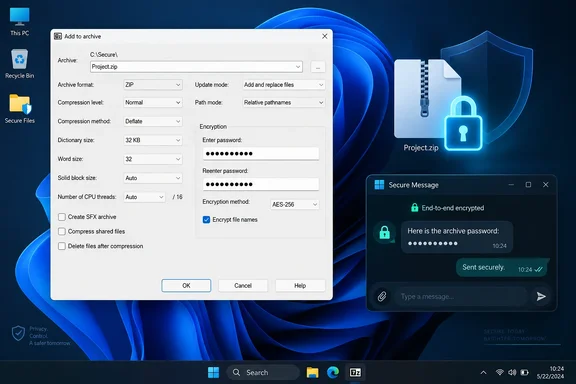
In File Explorer, select the files or folder you want to package. Right-click the selection, choose Show more options if necessary, point to 7-Zip, then select Add to archive…. This opens the full 7-Zip archive-creation window; do not choose one of the quick “Add to .zip” shortcuts, because those shortcuts do not give you the encryption choices you need.
Set the archive options as follows:
- Enter a neutral filename in the Archive field and make sure it ends in
.zip. - Set Archive format to
zip. - Leave Compression level at
Normalunless you have a practical reason to favor speed or a slightly smaller file. Many modern files—PDFs, JPEGs, MP4 videos, Microsoft 365 documents, and existing ZIP files—will shrink little or not at all. - In the Encryption section, type your password in both the “Enter password” and “Reenter password” boxes.
- Set Encryption method to
AES-256. - Select Encrypt file names.
Then select OK and wait for 7-Zip to finish. The encrypted .zip file will be created in the folder shown in the Archive field.
The two encryption settings deserve special attention. 7-Zip’s own documentation identifies ZipCrypto as the compatibility-oriented choice and AES-256 as the stronger option. Do not choose ZipCrypto simply because it is selected by default or because a recipient uses an old extraction utility. If the contents are truly sensitive, use AES-256 and make sure the recipient has a ZIP program that supports it.
“Encrypt file names” protects archive-header information, including the names of the files stored inside. Without it, an observer may still learn that your archive contains items such as Passport.pdf, Salary_Review.xlsx, or Customer_List.csv even though they cannot open the files themselves. The option does not hide the ZIP archive’s own filename, its size, when it was sent, or who sent it.
Use a password that survives guessing attacks
The encryption algorithm is only as useful as the password protecting the archive. AES-256 does not rescue a password such as Summer2026!, a pet’s name, a company name, or a reused login password. An attacker who obtains the archive can make password guesses offline; there is no website-style lockout after several bad attempts.
Use a unique passphrase of at least 15 characters, preferably generated and stored in a reputable password manager. NIST’s guidance emphasizes that password length is a primary defense against guessing, and it rejects forced composition rules as a reliable measure of strength. A long, random password-manager value is strongest; a multiword passphrase that you have never used elsewhere can be a practical alternative.
For example, do not copy this example, but think in the direction of several unrelated words plus deliberate separators rather than a predictable substitution such as P@ssw0rd!. The password must be exclusive to this archive or sharing task. Reusing a work, Microsoft account, email, or banking password turns a leaked ZIP into an opportunity to attack other accounts.
Do not put the password in the archive name, the email subject line, a text file beside the ZIP, or a note inside the ZIP. Those arrangements defeat the point of encryption.
Test the archive before sending it
A completed progress window proves that 7-Zip wrote an archive; it does not prove you can recover every file or that you entered the intended password. Test it immediately, while the source files are still available.
Right-click the new ZIP file, choose Show more options if needed, select 7-Zip, and choose Test archive. Enter the password when prompted. 7-Zip’s Test command checks the archive’s contents and reports errors if it cannot validate them.
For a more meaningful test, create a new empty folder somewhere separate from the source files. Right-click the ZIP, choose 7-Zip > Extract to “ArchiveName\”, enter the password, and open several extracted files—especially the largest, most important, and least common file types.
Compare the extracted folder with the original folder:
- Confirm the expected files and subfolders are present.
- Open documents, images, and spreadsheets instead of relying only on matching filenames.
- Check that the extracted files have sensible sizes and that no expected item is missing.
- Verify that the archive requests a password before showing its file list if you selected “Encrypt file names.”
For high-value material, compare file hashes before and after extraction. In PowerShell, Get-FileHash can calculate a SHA-256 hash for an original file and its extracted copy. Matching hashes demonstrate that the two files are byte-for-byte identical, which is stronger evidence than opening a document and glancing at it.
Send the ZIP and password separately
Send the encrypted ZIP through one channel and the password through another. For example, email the ZIP and send the password in a separate Signal message, a phone call, or a voice conversation. A password sent in the same email thread as the archive leaves a single compromised mailbox with everything needed to open it.
Separate channels reduce a single point of failure; they do not make either endpoint trustworthy. If the sender’s PC, the recipient’s PC, email account, or phone is already compromised, archive encryption cannot prevent an attacker with access to the password from opening the contents. For unusually sensitive material, agree on the recipient’s extraction software and test process before sending anything important.
Recipients should save the attachment locally and extract it with a current archive utility that supports AES-encrypted ZIP files. Windows 11’s built-in ZIP handling may be convenient for ordinary compressed folders, but do not assume it will handle every AES-encrypted ZIP option consistently. A recipient with 7-Zip can right-click the archive, choose the 7-Zip extraction command, and enter the password.
Keep the original files until the recipient confirms they can open the archive. Deleting the originals immediately after compression is risky: it leaves you without an easy recovery path if the password was mistyped, the wrong files were selected, or the transfer was damaged.
The practical finish line is simple: retain a tested AES-256 ZIP, make sure its internal filenames are encrypted, and give the recipient the password through a separate channel. The archive can then travel through ordinary file-sharing tools without exposing its contents to someone who merely intercepts or obtains the file.