

The good news: this is normally repairable without registry surgery, “association fixer” utilities, or the sort of command-line archaeology that turns a five-minute annoyance into a Saturday project.
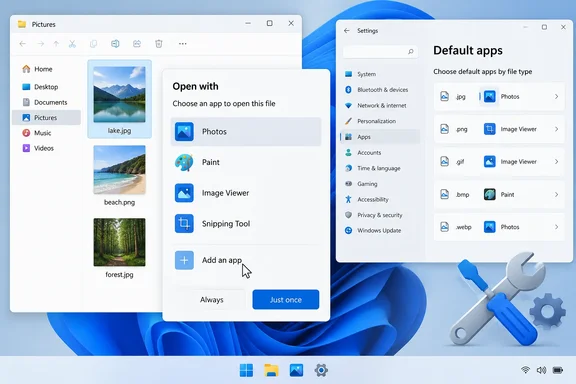 First, identify the exact file type
Before changing anything, confirm the file’s extension. A photo might be .jpg, .jpeg, .png, .heic, or a camera manufacturer’s raw format; a video might be .mp4, .mkv, or .mov. Two files that look similar in File Explorer can require entirely different apps.
If extensions are hidden:
- Open File Explorer.
- Select View.
- Choose Show > File name extensions.
- Note the extension after the final period in the file name.
This matters because Open With is built around the file type, not the broad category. An app may correctly appear for .mp4 but not for .mkv, for example. That is not necessarily a Windows fault; the app may simply not claim support for that particular format.
Use “Choose another app” before resetting anything
Right-click one affected file, then select:
Open with > Choose another app
Windows should display recommended programs. If your preferred app is missing, select Choose an app on your PC and browse to the application’s executable file, usually in one of these locations:
C:\Program FilesC:\Program Files (x86)- Your user profile’s
AppData\Local\Programsfolder for some per-user installs
Choose the app’s main .exe file—not an updater, launcher, uninstall utility, or helper process. If Windows offers the checkbox to always use that app for this file type, enable it only if that is genuinely what you want.
What success looks like
After choosing the app, right-click another file with the same extension. The app should now appear in the Open with list, and the file icon may update after a short delay or a File Explorer restart.
Microsoft’s current Windows guidance confirms that Open with can be used both for a one-time launch and for assigning an app as the default handler for a file type. It is the safest first-line fix because it preserves the user’s control over the association.
Check the default association in Settings
If the app can be selected manually but does not remain available—or Windows keeps opening files in the wrong program—check the association directly.
Windows 11
- Open Settings.
- Select Apps > Default apps.
- In the search box, enter the extension, including the period—for example,
.pdf,.txt, or.png. - Select the matching file type.
- Choose the app you want Windows to use.
You can also search for the application by name in Default apps. This shows the file and link types that Windows currently allows that app to handle.
Windows 10
- Open Settings.
- Go to Apps > Default apps.
- Select Choose default apps by file type.
- Find the extension and assign the preferred program.
If the application is absent from both the Open With dialog and the Default apps page, do not assume Windows is merely hiding it. That typically points to the application’s own registration being damaged or incomplete.
Repair the missing application
Windows cannot reliably offer an app that has not registered itself as capable of opening the file type. Reinstalling or repairing the affected app often restores those registrations.
For Microsoft Store apps and supported Windows apps
- Go to Settings > Apps > Installed apps.
- Find the affected app.
- Select the three-dot menu next to it.
- Choose Advanced options.
- Select Repair.
Try Open With again after the repair completes.
If Repair is unavailable or does not solve the problem, use Reset only with care. Reset can remove the app’s local data, saved settings, and sign-in state, depending on the app. Think of Repair as a tune-up; Reset is closer to emptying the glove compartment onto the driveway.
For traditional desktop programs
Open Control Panel > Programs > Programs and Features, select the program, then choose Repair or Change if either option is available.
If no repair option exists, download the current installer from the software publisher and run it again. During setup, look for options such as:
- Repair
- Modify
- Register file associations
- Associate supported file types
- Install for all users
Select only the file types the app truly supports. A media player that claims every extension in sight may sound convenient until a spreadsheet double-click suddenly launches a concert video player. Computing has enough surprises already.
Microsoft’s developer documentation explains why this works: programs must register the file types they support before Windows can offer them as candidates in the Default apps and Open With experiences.
Rebuild the available-app list safely
There is no supported “rebuild Open With cache” button, and that is by design. Modern Windows protects default associations so that malware and overly enthusiastic installers cannot silently seize control of your files.
Use this safe sequence instead:
- Close the affected app.
- Repair or reinstall it using its official installer or Windows’ Repair feature.
- Restart Windows or at least sign out and back in.
- Return to Settings > Apps > Default apps.
- Assign the app to the specific extension.
- Test with a second file of the same type.
This refreshes the app’s legitimate Windows registrations without editing protected association data manually.
Avoid registry “fixes” that promise to reset every Open With choice. Microsoft documents that default-app settings are protected and that registry-based attempts to force them are unsupported. Such tweaks can also wipe personal preferences, cause Windows to reset an association later, or create a mess that looks suspiciously like progress until the next update.
If the app still does not appear
Work through these checks:
- Confirm the app supports the extension. An app may open one format but not another closely related format.
- Update the app. Older versions may not properly register themselves on newer Windows releases.
- Try another file of the same extension. A damaged or unusual file can produce misleading results.
- Check whether the file is actually a shortcut or renamed file. Changing
.txtto.pdfchanges the label, not the file format. - Use “Choose an app on your PC.” The app may not be recommended but can still be selected manually.
- Ask your IT administrator on a work-managed PC. Group Policy or mobile-device-management rules can apply default associations at sign-in and override local choices.
For an unknown extension, Windows also offers the option to search the Microsoft Store. That can be useful, but do not install the first app with a cheerful icon and a suspiciously broad promise to open “all files.” Verify the publisher and the supported format first.
The practical takeaway
Missing Open With entries are usually an app-registration problem, not a reason to rebuild Windows. Start with Choose another app, verify the extension, set the association in Default apps, then repair or reinstall the missing program if Windows still does not list it.
That approach is safer than registry edits, survives normal Windows updates more gracefully, and leaves your file associations under your control—exactly where they belong.