

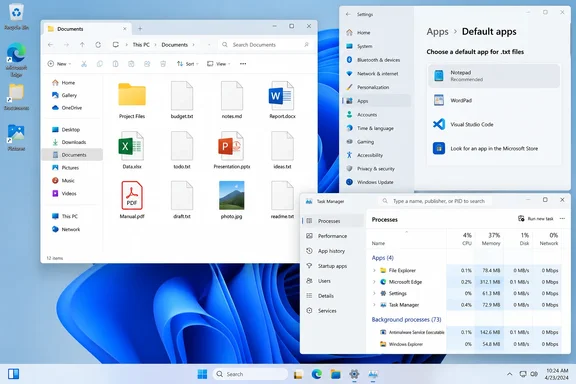
 Identify whether this is an association problem or a wider icon-cache problem
Before changing anything, check the pattern. It determines the least disruptive fix.
Quick walkthrough
- Only one kind of file is blank or generic — for example, every
.pdf,.docx, or.jpgfile has the same plain white icon. This is normally a default-app or application-installation problem. - Many unrelated file types are blank, or program shortcuts on the desktop, Start menu, or taskbar are blank while the programs still open. This points more strongly to the Windows icon cache.
- The icons are present, but picture or video previews are missing. That is usually a thumbnail-display issue, not the same problem as missing file-type icons. Do not rebuild the icon cache solely to restore photo previews.
- The affected files are on a USB drive, network share, or cloud-sync folder. First test a copy of the same file type stored locally, such as in Documents. A missing application or broken association can affect both locations, while a location-specific problem may need separate investigation.
To see exactly which extension is affected, turn on file name extensions if necessary:
Windows 11
- Open File Explorer with
Windows key + E. - Select View on the command bar.
- Select Show.
- Select File name extensions.
- Look at the letters after the final period in an affected filename, such as
.pdfor.xlsx.
Windows 10
- Open File Explorer with
Windows key + E. - Select the View tab on the ribbon.
- Select File name extensions.
- Note the extension on an affected file.
Do not rename a file extension in an attempt to fix its icon. Changing .jpg to .pdf, for example, does not convert the file and can make it harder to open.
Restore the correct default app for one file type
Windows uses file extensions to determine both which app opens a file and which icon File Explorer displays. Reassigning the correct app is the best first repair when only one extension has a generic icon.
- Right-click one affected file.
- Select Open with > Choose another app.
- Select the application that should normally open this file type.
- Turn on Always use this app to open .[extension] files if that option is shown.
- Select OK or Always.
For example, choose your preferred PDF reader for a .pdf file, or the installed spreadsheet application for an .xlsx file. Close and reopen File Explorer after making the selection, then check whether the icon has changed.
If the app you need is not listed:
- In the Choose another app window, select Choose an app on your PC or More apps, depending on the Windows version and dialog.
- Browse only to the actual executable for an app you recognize and trust.
- Select that application to make the association.
Do not select an unfamiliar .exe file just because it is in a folder named after the file type. A wrong association can make double-clicking files open an unrelated program.

Set the association in Settings instead
Settings is more useful when you know the extension but do not have a sample file handy.
- Open Start > Settings.
- Select Apps > Default apps.
- In the search box, enter the extension, including the period — for example,
.pdf. - Select the matching file-type result.
- Choose the correct installed application.
- Close Settings and reopen File Explorer.
You can also select an application under Default apps to review and change the extensions it is allowed to open. This is useful when several related types are wrong, such as an image editor that should handle .png, .jpg, and .jpeg.
Repair the app that supplies the missing icon
If the correct program is already selected but its file icons remain generic, the application’s installation may be damaged or incomplete. Repairing the application can restore its registration without deleting your documents.
Windows 11: repair from Installed apps
- Save open work and close the affected application.
- Open Start > Settings > Apps > Installed apps.
- Find the application associated with the affected files.
- Select the More button — the three dots — beside the app.
- Select Advanced options, if available.
- Select Repair.
- Wait for the repair to finish, then restart Windows if the app or Windows asks you to do so.
- Open File Explorer and check an affected file.
Not every app offers Advanced options or Repair. That is determined by the app’s installer.
Windows 10: repair from Apps & features
- Save open work and close the affected application.
- Open Start > Settings > Apps > Apps & features.
- Select the affected application.
- Select Advanced options, if available.
- Select Repair.
- Restart Windows if prompted, then check the file icon again.
For traditional desktop programs, the repair option may instead be in Control Panel:
- Search for and open Control Panel.
- Select Programs > Programs and Features.
- Right-click the affected program.
- Select Repair. If Repair is unavailable, select Change and follow the program’s maintenance wizard.
Warning: Do not choose Reset as part of the normal icon fix. Reset is different from Repair and can remove an app’s local data, settings, or sign-in state. Use Repair first. If the program has neither Repair nor Change, use the application vendor’s supported reinstall method rather than deleting program folders manually.
Rebuild the Windows icon cache
Use this procedure when blank icons affect many unrelated programs or file types, or when desktop, Start, and taskbar shortcuts are also blank. Microsoft’s Windows client troubleshooting guidance uses this process to clear the cache and restart Windows Explorer.
Warning: Save your work before continuing. Ending Windows Explorer temporarily removes the desktop, taskbar, and open File Explorer windows. Your personal files are not deleted by this procedure, but the screen can look nearly empty until you restart Explorer.
- Close open File Explorer windows and save work in all applications.
- Press
Ctrl + Shift + Escto open Task Manager. - On the Processes tab, locate Windows Explorer.
- Right-click Windows Explorer and select End task.
The taskbar and desktop icons will disappear. Keep Task Manager open. - In Task Manager, select Run new task from the top command bar. On older Task Manager layouts, select File > Run new task.
- Type
cmd.exe. - Select Create this task with administrative privileges, then select OK.
- In the Administrator Command Prompt window, run these commands one at a time:
Code:CD /d %userprofile%\AppData\Local DEL IconCache.db /a - Return to Task Manager and select Run new task again.
- Type:
explorer.exe - Select OK or press
Enter.
The desktop, taskbar, and File Explorer should return. Windows rebuilds the cache as it redraws icons, so some icons may briefly appear generic before the proper images return. Restart the PC once if the icons do not refresh fully within a few minutes.
If the delete command reports that the file was not found
Do not force the issue by deleting random files from AppData or by copying cache files from another PC. A missing IconCache.db is not itself an error; Windows may already have cleared or relocated its active cache data. Run explorer.exe to restore the desktop, restart the computer, and then recheck the icons.
Verify that the fix worked
After repairing an association, app, or icon cache, check more than one place:
- Open File Explorer and browse to a folder containing several affected files.
- Switch between Details, List, and Large icons views to make Explorer redraw the icons.
- Confirm that files with the same extension now display the expected application icon.
- Double-click a non-critical sample file and confirm it opens in the intended app.
- If shortcuts had been blank, check the desktop and Start menu after signing out and back in or restarting.
A restored icon does not prove that every file is readable. If a particular document still will not open, test it from inside the intended program using that program’s File > Open command. One damaged file is a separate problem from a broken icon association.
Troubleshoot persistent blank or generic icons
Only files from one app remain generic after association changes
Repair the app first. If repair is unavailable or fails, uninstall and reinstall it using its supported installer. After reinstalling, return to Settings > Apps > Default apps and verify that the extension is assigned to the newly installed app.
Windows says there is no app for the extension
The extension may belong to software that is no longer installed, or it may be an unfamiliar file format. Right-click the file and select Open with > Choose another app to see available programs. Do not assume a file is safe merely because it has a familiar-looking icon or name; scan unexpected downloads before opening them.
Icons are blank only for shortcuts, but files themselves look normal
Rebuild the icon cache using the procedure above. If a specific shortcut remains blank, delete only that shortcut and create a new one from the application’s Start menu entry or installation location. Do not delete the application itself.
File Explorer is unstable as well as showing bad icons
Install pending Windows updates, restart the PC, and then repeat the icon-cache procedure. If Explorer still crashes, freezes, or fails to start, use Windows’ built-in File Explorer troubleshooting and system-file repair options rather than changing registry entries for file associations.
The problem started immediately after a Windows or app update
Restart first, because some updates do not finish applying until reboot. If the issue began after an app update, repair that app and recheck its default file associations. Avoid rolling back Windows solely for an icon problem unless there are broader, repeatable system failures and you have a recovery plan.