

This applies to Windows 11 and Windows 10. Windows 10 reached end of support on October 14, 2025, but the steps remain useful on existing installations. Do not use registry edits, third-party “keyboard repair” tools, or commands that re-register all Windows apps for this problem; the built-in taskbar, service, and device checks are safer and more targeted.
 Know which keyboard you need
Windows includes two similarly named tools:
Quick walkthrough
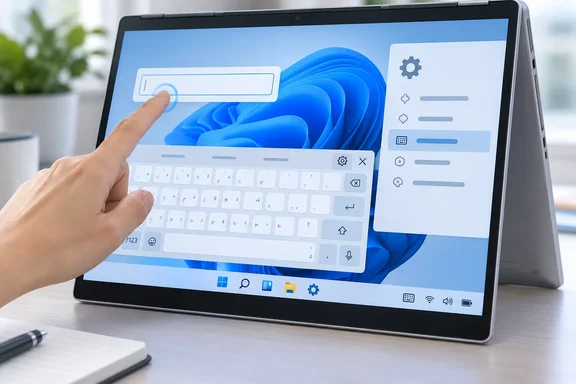
- Touch keyboard is the compact keyboard intended for touchscreens, tablets, and 2-in-1 devices. It can appear when you tap a supported text field and can be opened from the taskbar.
- On-Screen Keyboard (OSK) is an Accessibility keyboard that remains open until you close it. It is the supported keyboard available from the Windows sign-in screen.
That distinction matters at the login screen. If you cannot enter a password or PIN before signing in, use the On-Screen Keyboard, not the taskbar touch keyboard.
Restore the touch keyboard button on Windows 11
The most reliable fix is to make the taskbar button permanently visible. This lets you open the touch keyboard even when Windows thinks a wired, USB, Bluetooth, or detachable hardware keyboard is connected.

- Right-click an empty area of the taskbar and choose Taskbar settings.
On a touchscreen, press and hold an empty taskbar area, then select Taskbar settings. - In Personalization > Taskbar, expand System tray icons.
- Find Touch keyboard.
- Select Always from the drop-down list.
The choices have different meanings: - Never hides the taskbar button and prevents the touch keyboard from appearing.
- Always keeps the button in the system tray, whether or not a hardware keyboard is attached.
- When no keyboard attached shows the button only when Windows detects no physical keyboard.
- Select the keyboard icon in the system tray, near the clock, to open the touch keyboard.
- Tap in a text box in Settings, Notepad, or a web page and type a few characters.
For a tablet or 2-in-1 that you use without its keyboard cover, When no keyboard attached can be convenient. If the keyboard is missing unpredictably, however, choose Always until the issue is resolved.
Restore the touch keyboard button on Windows 10
Windows 10 uses a taskbar menu rather than the newer Windows 11 system-tray drop-down.
- Right-click an empty area of the taskbar.
- Select Show touch keyboard button.
A check mark means the taskbar button is enabled. - Look at the notification area near the clock for the touch keyboard icon.
- Select that icon to open the touch keyboard.
- If you are using touch only, press and hold an empty taskbar area instead of right-clicking.
Windows 10 also has a setting for automatic behavior when no hardware keyboard is attached:
- Open Start > Settings > Devices > Typing.
- Scroll to the Touch keyboard section.
- Turn on Show the touch keyboard when not in tablet mode and there’s no keyboard attached if you want Windows to present it automatically in that situation.
A connected keyboard includes wired USB keyboards and wireless or Bluetooth keyboards. Disconnecting a keyboard may therefore change when the touch keyboard button appears if you have not enabled the always-visible option.
Fix the text-input service
The taskbar option controls whether you can launch the keyboard easily. The text-input service controls important parts of Windows text entry, including input methods. If it has been disabled, the touch keyboard and related typing functions can fail.
Warning: Do not disable this service as a way to stop the touch keyboard from appearing. Disabling it can also interfere with input methods and language switching. Change only a Disabled startup type to Manual or Automatic.
- Save open work.
- Press Windows key + R to open the Run dialog.
- Type the following command, then press Enter:
services.msc - In the Services window, locate the service matching your Windows version:
- On Windows 11 version 25H2 or later, look for Text Input Management Service.
- On Windows 10 and Windows 11 versions before 25H2, look for Touch Keyboard and Handwriting Panel Service.
- Right-click the service and select Properties.
- Check Startup type:
- If it is Disabled, change it to Manual or Automatic.
- If it is already Manual or Automatic, leave that setting as it is.
- Select Apply.
- If Service status shows Stopped, select Start.
- Select OK.
- Sign out of Windows, then sign in again. This is the important refresh step after restoring the service.
- Return to the taskbar and select the touch keyboard icon. Then test a normal text field.
If the expected older service name is not listed on a fully updated Windows 11 PC, look for Text Input Management Service before assuming a component is missing. The service was renamed in Windows 11 version 25H2.
Roll back a service change
If you changed a service from Disabled to Manual or Automatic, the normal rollback is simply to return to the previous startup setting in the same Properties window. In most cases, though, leave the service enabled: disabling it can affect more than the visible keyboard.
If the PC belongs to an employer, school, or other organization, do not repeatedly change a service that switches itself back to Disabled. Device management policy can disable the touch and handwriting keyboard. Contact the organization’s IT administrator, who can check whether a text-input policy is being applied.
Check whether touch input itself is disabled
A missing keyboard icon is not necessarily a touchscreen hardware problem. But if the touch keyboard does not appear after tapping text fields and touch gestures themselves fail, check whether Windows has disabled the touchscreen device.
Warning: Be careful not to select Disable device during this check. Disabling the touchscreen will immediately prevent touch input. If that happens, repeat the steps and choose Enable device.
- Right-click Start and choose Device Manager.
- Expand Human Interface Devices.
- Look for HID-compliant touch screen.
- Right-click it:
- If the menu says Enable device, select it. The touchscreen was disabled.
- If the menu says Disable device, it is already enabled. Do not select Disable device.
- If more than one HID-compliant touch screen entry appears, check each one.
- Close Device Manager and test by tapping a text field.
If there is no HID-compliant touch screen entry, do not install a random driver package from a driver-download site. Check the PC maker’s support resources for the exact model, complete pending Windows updates, and use the manufacturer’s documented driver or firmware package if one is offered.
Use the right keyboard at the sign-in screen
The touch keyboard taskbar button is available after you sign in. At the sign-in screen, Windows provides the Accessibility On-Screen Keyboard instead.
- On the Windows sign-in screen, select the Accessibility button in the lower-right corner.
- Select On-Screen Keyboard.
- If the keyboard opens in a small navigation-only layout, select General to show the full keyboard.
- Enter your password or PIN, then sign in.
After signing in, use the taskbar touch keyboard if you prefer the touch-optimized layout.
You can also open the OSK while signed in from Settings > Accessibility > Keyboard, then turn on On-Screen Keyboard. The keyboard remains on-screen until you close it. It is a useful fallback if you need to type with a mouse, trackpad, switch device, or other pointing device and do not have a working touchscreen.
Verify the repair
Use this short test after completing the changes:
- Confirm the touch keyboard icon is visible in the taskbar system tray.
- Select the icon and verify that the touch keyboard opens.
- Tap or click in a text box in Settings, Notepad, or a browser and enter text with the keyboard.
- Sign out and sign back in, then repeat the taskbar test.
- If you use a 2-in-1 device, disconnect or fold back its physical keyboard and tap a text field. Windows should provide touch-oriented input where the app supports it.
The touch keyboard does not have to appear automatically in every field in every application. Standard Windows text controls support touch-keyboard behavior, but an older application or a custom text control may not request it correctly. If the taskbar button opens the keyboard and typing works in Windows apps but not one specific application, the issue is likely isolated to that app; use the taskbar keyboard as a workaround and update or contact that application’s vendor.
If the keyboard still does not appear
Work through these symptoms in order:
- The icon is missing, but the service is running: Revisit taskbar settings. On Windows 11, choose Always, not When no keyboard attached. On Windows 10, ensure Show touch keyboard button has a check mark.
- The service is listed but cannot be started: Sign out and back in after changing its startup type. If it still will not start, restart Windows once, then recheck the service.
- Typing, language switching, or the input indicator also fails: Recheck that Text Input Management Service or Touch Keyboard and Handwriting Panel Service is not set to Disabled. A disabled text-input service can prevent the Windows input framework from initializing correctly.
- The keyboard works from the taskbar but does not appear when you tap a field: Test in Settings or Notepad. If it works there, the affected program may not support automatic touch-keyboard invocation. Keep the taskbar icon set to Always.
- Touch does not work anywhere: Check Device Manager > Human Interface Devices > HID-compliant touch screen and enable it if necessary. If it is missing entirely, use the PC manufacturer’s supported driver and firmware guidance.
- The issue began after system damage, a failed update, or a cleaning tool removed Windows components: Open Command Prompt as administrator and run these commands in order:
Wait for each command to finish. Restart Windows afterward, then repeat the taskbar and service checks. These built-in tools repair the Windows component store and protected system files; they are preferable to downloading replacement system files or running broad app re-registration commands.Code:DISM.exe /Online /Cleanup-image /Restorehealth sfc /scannow