

This is a host-side tool: use it on the PC that actually contains and shares the folder—not on the PC merely mapping the network drive. Microsoft’s SMB documentation distinguishes these roles clearly: the computer sharing the folder operates as the SMB server, while the user’s computer connecting to \\PC-name\Share-name is the SMB client.
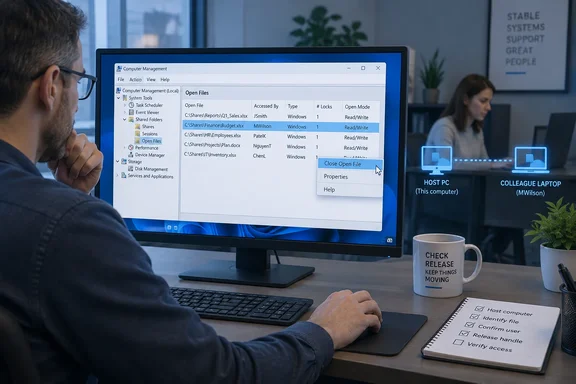 What Computer Management can tell you
The Shared Folders section of Computer Management is an administrator’s quick view of activity on Windows SMB shares. It has three useful areas:
| Section | What it shows | Best use |
|---|---|---|
| Shares | Folders published through SMB, including special administrative shares where applicable | Confirm the folder is actually shared |
| Sessions | Remote users and computers currently connected to the PC’s SMB server | Find a user who may have abandoned several files |
| Open Files | Individual files and folders currently open through a share | Locate and release a specific locked document |
An entry in Open Files does not necessarily mean something is wrong. A file can be open legitimately while someone is editing, previewing, copying, scanning, indexing, or backing it up. The console is a management tool, not a permission slip to pull the plug on everyone’s work.
The important distinction is this:
- Closing an open file targets one remote SMB handle.
- Closing a session disconnects a remote user’s SMB connection and can affect multiple files or shares.
Start with the smallest remedy. One stuck spreadsheet deserves one carefully aimed fix—not a network sledgehammer.
Before you begin
You need to be signed in with an account that has administrative rights on the PC hosting the share. It is sensible to run Computer Management elevated, especially when you need to close a file handle or administer a remote computer.
Also verify the basics:
- Identify the host PC. If users open the share as
\\Accounts-PC\TeamFiles, open Computer Management on Accounts-PC. - Confirm this is an SMB share issue. The Shared Folders console tracks resources opened remotely through Windows file sharing. It does not list ordinary files opened locally by programs on the host PC.
- Contact the user first if possible. Ask them to save and close the file, then close any File Explorer windows using the share. A forced disconnect can discard unsaved changes that have not yet been written back to the host.
- Make sure the file is not in active use. A stale lock can look nearly identical to a perfectly healthy editing session. Context matters; so does not being the person who just evicted Finance from their quarterly workbook.
Open the Shared Folders console
On the Windows 10 or Windows 11 PC that hosts the shared folder:
- Press Windows + R.
- Type:
compmgmt.msc - Press Enter.
- If prompted by User Account Control, approve elevation.
- In the left navigation pane, expand:
System Tools > Shared Folders - Select either Open Files or Sessions.
You can also right-click the Start button and select Computer Management.
What success looks like
Under Open Files, Windows should display current remote SMB file activity. Typical columns identify:
- The file or folder path
- The user who opened it
- The type of connection
- The number of locks
- The access mode, such as read-only or read/write
Under Sessions, expect to see a remote user name, the connected computer, and the number of open files associated with that connection.
If the list is empty, that can be good news: Windows does not currently see any remote SMB handles matching the view. It can also mean the user has already disconnected, the item is opened locally rather than across the network, or the file is hosted somewhere else—such as OneDrive, SharePoint, a NAS appliance, or a Windows Server file server.
Find the document that is locked
Select Open Files and look for the document in question.
For example, suppose a user reports that Budget-2026.xlsx is locked. Look for entries that match the file name or its containing folder, then compare:
- Accessed By — the account using the file
- Open Mode — whether the user has read or write access
- # Locks — an indication that a file-locking operation is involved
- Open File — the shared path being accessed
Do not assume a familiar username means the person is actively at their keyboard. A disconnected laptop, a session left running after a VPN interruption, or software using stored credentials can all leave a handle behind.
If several entries belong to the same person, switch to Sessions before taking action. That view helps establish whether you are looking at one stuck document or a broader connection with many open files.
A useful triage sequence
Use this order whenever possible:
- Ask the user to save and close the document.
- Refresh the console and check whether the open-file entry disappears.
- Close only the affected open file if the handle remains and the user confirms they are finished.
- Close the user’s session only when necessary, such as when several abandoned files remain open or the client is no longer reachable.
That sequence is not bureaucratic fussiness. It reduces the chance of corrupting an unsaved document or interrupting a legitimate long-running copy job.
Safely close one open SMB file
When you have identified the specific stale handle:
- In Computer Management, open System Tools > Shared Folders > Open Files.
- Right-click the affected file.
- Select Close Open File.
- Read the warning carefully.
- Confirm the operation only if you are satisfied the user is no longer working in the document.
- Refresh the Open Files list and retry the document from the client PC.
Windows forcibly ends that remote handle. Microsoft’s SMB management documentation warns that forcibly closing an open SMB file can cause data loss if the client has changes that were not flushed to the server. In plain English: the file may become available again, but unsaved work on the other PC may not survive.
For this reason, closing an open file is appropriate for situations such as:
- The user confirms they closed the document, but the lock remains.
- The user’s PC crashed or lost power.
- A remote session is clearly orphaned after a network or VPN failure.
- An administrator has confirmed that the application holding the file is no longer active.
It is a poor first choice when someone is actively editing, copying, or saving the file.
Close a session when the problem is broader
A single SMB session may contain multiple open files. If a user’s machine has disappeared from the network and it is holding several documents open, closing the whole session can be faster than clearing handles one by one.
- Go to System Tools > Shared Folders > Sessions.
- Locate the session by user name or computer name.
- Check the number of open files associated with it.
- Right-click the session.
- Select Close Session.
- Confirm the warning, then refresh both Sessions and Open Files.
Treat this as a broader disruption than Close Open File. The user will lose access to all SMB resources from that session and may need to reconnect to mapped drives or reopen files. If their connection was live after all, it is the IT equivalent of hanging up the phone while someone is still talking.
When the file still appears locked
If the SMB open-file entry has gone but the document remains unavailable, the lock may not be caused by an active SMB handle. Work through these checks.
The application may still be open locally
Computer Management tracks remote access to the shared folder. If the file is open directly on the host PC, such as through a local application using C:\SharedData, it may not appear as a remote SMB open file.
Check the host PC for the application that owns the document. For Office documents, ask whether the host itself has the workbook, database, or presentation open.
Another process may be using the file
Backup tools, antivirus scanning, search indexing, document-management software, and sync clients can temporarily access files. An SMB lock is not the only possible file lock in Windows.
Before changing permissions or restarting services, confirm whether the problem reproduces after the suspected application finishes its work.
The file may be on a different server
Mapped drives can make every location look deceptively local. Confirm the actual UNC path and identify the system hosting it. If the mapped drive points to a NAS, Windows Server, cloud-synced location, or another workstation, the relevant open-file list is on that platform—not necessarily on the PC where the error occurred.
Permissions are a separate problem
Closing an open file does not change access rights. SMB share permissions and NTFS file-system permissions determine whether a user can read, edit, rename, or delete content. If a user receives Access denied after the lock is cleared, investigate the share’s permissions and the folder’s Security tab rather than repeatedly disconnecting sessions.
PowerShell and command-line alternatives
Computer Management is the best visual tool for a one-off fix, but Windows also includes SMB PowerShell commands for administrators who need repeatable checks.
In an elevated PowerShell window on the file-hosting PC:
Get-SmbOpenFile
This lists SMB files opened by remote clients, including their paths, client computers, users, file IDs, and session IDs.
To view connected SMB sessions:
Get-SmbSession
Microsoft also documents the Close-SmbOpenFile cmdlet, which forcibly closes an SMB file handle. Use it carefully for the same reason you use the Computer Management option carefully: a force-closed file can lose changes that the client had not saved to the server.
The older openfiles command remains documented for Windows 10 and Windows 11 as well. Its /query option can list handles, while /disconnect can disconnect files opened remotely through a shared folder. Avoid enabling its local tracking feature merely to solve a remote SMB problem: Microsoft notes that local object tracking requires a restart and can affect system performance.
For most small-office or peer-to-peer Windows networks, the GUI remains the calmest route from “Why is this locked?” to “It’s available again.”
The practical takeaway
The Shared Folders console in Computer Management gives Windows 10 and Windows 11 administrators a direct view into SMB activity on a PC hosting shares:
- Use Open Files to find and release one abandoned document handle.
- Use Sessions to identify or disconnect a remote client with multiple open files.
- Always ask the user to save and close first.
- Force a close only after confirming that the connection is stale or no longer needed.
- If the lock remains after the SMB handle disappears, investigate local applications, the actual file host, or permissions.
It is not glamorous tooling, and it does not need to be. When a network file lock is blocking work, the goal is not to stage a cyberpunk intervention—it is to identify the real owner of the handle, avoid losing data, and get everyone back to work.