

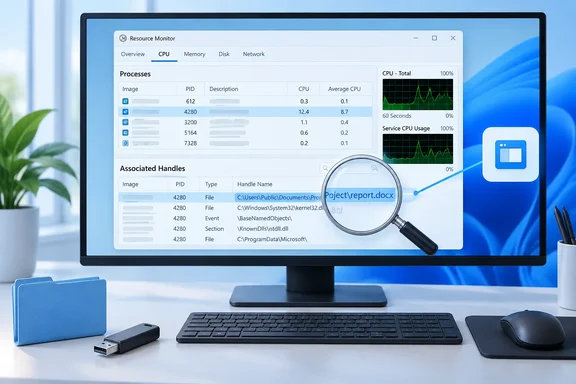
 Before you search for the locking process
A “file in use” message does not necessarily mean the visible app you last used is still open. Common causes include:
Quick walkthrough
- A document editor, media player, archive utility, or image editor that still has the item open.
- File Explorer, particularly when it is showing a preview, thumbnail, or details for the item.
- A sync client, backup application, antivirus scanner, or search/indexing component.
- An installer, updater, virtual machine, command prompt, or script running in the background.
- Another user or computer, if the item is in a shared network folder.
Resource Monitor reports open handles: references that processes currently hold to files, folders, and other Windows resources. A result is a strong clue, but it is possible for several processes to appear. Start with the process most likely to be using the item, rather than ending everything in the list.
Before terminating anything:
- Save work in all open programs.
- Close the app you suspect normally first.
- Do not end a process simply because its name is unfamiliar.
- Do not end core Windows processes such as System, Registry, wininit.exe, winlogon.exe, csrss.exe, lsass.exe, or services.exe. Ending these can sign you out, destabilize Windows, or force a restart.
- If the locked item is on a USB drive, do not unplug the drive while a process still has it open. Resolve the lock first, then use Windows’ eject command.
You do not need to restart the PC to use this method. Restarting is a useful fallback when you cannot safely identify or close the process.

Find the app holding a file or folder open
The Resource Monitor interface is effectively the same on Windows 10 and Windows 11.
- Reproduce the problem if possible. For example, try to rename, move, delete, overwrite, or eject the item until Windows displays the “in use” or similar message.
Leave the affected file, folder, or drive in place. Resource Monitor can only find a handle while the process still has it open. - Open Resource Monitor.
- Press Windows key + R to open the Run dialog.
- Type
resmonand press Enter.
You can also select Start, type Resource Monitor or resmon, and open the matching result.
- If Windows asks for permission to make changes or if you cannot see enough process information, open it with elevated rights.
- Close Resource Monitor.
- Search for Resource Monitor from Start.
- Select Run as administrator.
Administrative rights may be necessary to inspect or end processes that belong to another account or run with higher privileges.
- Select the CPU tab at the top of Resource Monitor.
- Expand Associated Handles near the bottom of the CPU page.
If the panel is not visible, maximize the window or scroll down. Resource Monitor can be crowded on a smaller display. - In the Search Handles box, enter a distinctive part of the target’s name.
Search for a unique file name where possible. For example:
quarterly-budget.xlsx
For a folder, use a distinctive word from the folder name:
Project-Archive
If the name is common, add more of the name until the list is manageable. Searching for a short or generic word such aswork,temp,data, ornewcan return unrelated handles across Windows. - Wait a moment for the matching entries to appear in the list.
Pay particular attention to: - Image — the executable name of the process, such as
WINWORD.EXE,explorer.exe, or a sync client. - PID — the process ID, useful when several copies of the same app are running.
- Type — the kind of object associated with the handle.
- Name — the path or object name that matched your search.
- Compare the result in the Name column with the item you are trying to change.
The best match usually shows the exact file path or a path inside the folder you are trying to rename, move, or delete. If you are deleting a folder, a process may be holding a file inside that folder rather than the folder itself. - Identify the owning application before taking action.
Examples: WINWORD.EXE,EXCEL.EXE, orPOWERPNT.EXEnormally means an Office document is open.Acrobat.exeor another PDF reader usually means a PDF is open or being previewed.explorer.exemeans File Explorer is involved.- A backup, cloud-storage, archive, media, or security product may be processing the item in the background.
- A command-line process may indicate that a script, terminal window, installer, or developer tool is still using the path.
If several entries match, note each Image and PID. One program may hold multiple handles to the same item, and several programs may use it simultaneously.
Release the file safely
The safest way to release a file is to close the application normally. Resource Monitor helps you identify the app; it should not be your first choice for force-closing it.
- Switch to the identified application.
Use the taskbar, Alt + Tab, or Task Manager to locate it. - Save any work in that app.
If you end a process instead of closing it normally, unsaved changes in that process can be lost. - Close the specific document, media file, archive, terminal, or project that uses the item.
- Exit the application normally.
- Return to File Explorer and retry the action that failed:
- Rename the file or folder.
- Move or delete it.
- Replace it with another file.
- Eject the removable drive.
If the action now works, the handle has been released. You can clear the Search Handles box or close Resource Monitor.
If the app will not close normally
If the app is frozen or continues to hold the item after you close its window, you can end the process.
Warning: Ending a process stops it immediately. Unsaved work can be lost, uploads or downloads can be interrupted, database or project files can be left in an incomplete state, and the app may need to recover when reopened. Do not use this on a process unless you have identified it and understand what it is.
- In Resource Monitor’s CPU tab, locate the process under the Processes section.
You can use the PID shown in Associated Handles to distinguish between multiple instances of the same executable. - Right-click the process and select End Process.
- Confirm the warning prompt if Windows displays one.
- Return to the file operation and try again.
- Reopen the app only after completing the file operation, if necessary.
Resource Monitor does not provide a safe “undo” for ending a process. To recover, start the application again. If you ended a Windows component or a background service by mistake and Windows behaves unexpectedly, restart the computer.
Verify that the file is no longer in use
Do not assume a process is gone just because its window closed. Confirm the result before removing a drive or deleting important data.
- Leave your search term in Associated Handles.
- Check whether the matching entry disappears after you close the app or end the process.
- Retry the original operation.
- For a removable USB drive, once no relevant app is using the files:
- Close all File Explorer windows that show the drive.
- Select the Safely Remove Hardware and Eject Media icon in the notification area if it is available.
- Select the removable drive and wait for Windows to confirm that it is safe to remove.
If Windows still cannot eject the drive, search Associated Handles again using a distinctive file or folder name from that drive. A program may have released one item while keeping another file on the drive open.
When File Explorer is the locking process
explorer.exe is a frequent result when Explorer is displaying a thumbnail, preview, folder view, or shell extension related to the file. Restarting File Explorer is usually safer than ending it through Resource Monitor.
- Press Ctrl + Shift + Esc to open Task Manager.
- Find Windows Explorer.
- On Windows 11, it normally appears on the Processes page.
- On Windows 10, it normally appears on the Processes tab.
- Select Windows Explorer.
- Select Restart. You can also right-click it and select Restart.
The taskbar, desktop, and open File Explorer windows may briefly disappear and reload. This is expected. - Retry the rename, move, deletion, or eject operation.
If File Explorer repeatedly locks the same file type, close any Explorer window that displays the folder and retry. Preview-related behavior can also be reduced by turning off Explorer preview or details panes before working with the file.
Troubleshoot missing, unclear, or persistent results
Resource Monitor finds no matching handle
Try these checks:
- Search for the exact file name without its extension, then try the full name with the extension.
- For a folder, search for a unique child file or subfolder rather than only the parent folder name.
- Search for a more distinctive portion of the path. Very short terms can be noisy; a full path may be too specific if the display uses a different representation.
- Confirm the item is still locked when you search. Some programs open and close files quickly.
- Run Resource Monitor as an administrator and repeat the search.
- If the target is on a network share, remember that a different computer or user may hold the file open. Resource Monitor on your local PC cannot identify a lock held remotely.
The result is a sync, antivirus, backup, or indexing process
Do not immediately force-close security or data-protection software. First, wait briefly to see whether the handle clears when the scan, upload, or backup completes. If a sync client is actively uploading or downloading, pause it through that product’s normal controls if available, complete the file operation, and then resume it.
For security software, use its normal interface to pause a scan only if you understand the protection impact and can re-enable protection immediately afterward. If the behavior repeats, check the product’s logs, exclusions, or support guidance rather than permanently disabling protection.
Access is denied when ending the process
The process may be running under another account or with elevated rights. Reopen Resource Monitor using Run as administrator. If it belongs to Windows or a managed security, backup, or enterprise application, do not force it closed. Restart the PC or contact your organization’s IT administrator if the lock prevents necessary work.
The process returns immediately
A process that restarts after you end it may be a service, an updater, a security component, or a managed application. Repeatedly ending it can interrupt updates or protection without solving the underlying issue.
Instead:
- Restart Windows.
- Try the file operation before reopening the app that normally uses the item.
- If the problem is tied to one nonessential app, update, repair, or reinstall that app through its supported maintenance options.
- If it is a work-managed device or a business application, provide IT with the executable name, PID, full file path, and the exact Windows error message.
You need to delete or replace the file after a restart
A restart releases ordinary per-session file handles and is the least invasive recovery step when you cannot safely determine which process owns the lock.
- Save your work and restart Windows.
- After you sign in, do not reopen the app that normally uses the item.
- Immediately try the rename, move, delete, replacement, or eject operation.
- If the lock returns only after a particular app starts, use Resource Monitor again to confirm the process and address that app rather than relying on repeated restarts.