

Before buying a new router, check two numbers Windows already knows:
- Wi‑Fi signal strength — how well your PC can hear the access point.
- Link speed — the current negotiated rate between the PC and the Wi‑Fi access point.
Those are not the same as an internet speed-test result. A speed test measures the path from your PC through the router and ISP to a remote server. Signal and link speed instead measure the first wireless hop inside your home or office—the part you can often diagnose in minutes.
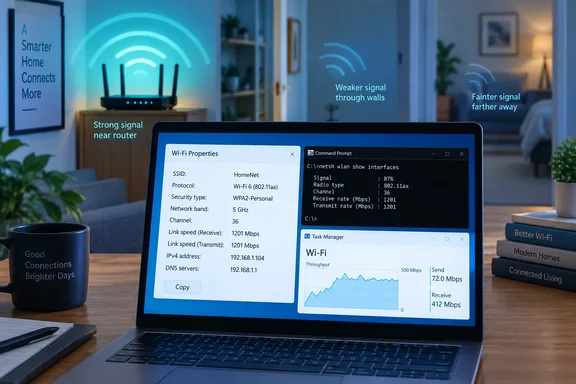 Start with Windows Settings: identify the band and link speed
First, confirm exactly which Wi‑Fi network and band your PC is using.
Windows 11
- Open Settings.
- Select Network & internet.
- Select Wi‑Fi.
- Open the connected network’s Properties page.
Look for items such as:
- Network band — typically 2.4 GHz, 5 GHz, or 6 GHz
- Network channel
- Link speed (Receive/Transmit)
- Protocol or Wi‑Fi standard, depending on the Windows build and adapter driver
Windows 10
- Open Settings.
- Select Network & Internet.
- Select Wi‑Fi.
- Choose the connected network, then open Properties.
Some details can also be reached through the older Control Panel connection-status window. The exact labels vary slightly by Windows version, wireless driver, and PC manufacturer—because networking menus, apparently, never met a detail they did not want to relocate.
What the band tells you
The connected band is an immediate clue:
- 2.4 GHz generally travels farther and handles walls better, but it has less available spectrum and more potential interference.
- 5 GHz generally offers higher Wi‑Fi throughput at shorter ranges, though walls and floors can reduce its reach more sharply.
- 6 GHz, where supported by both the router and adapter, offers additional spectrum but is even more dependent on close, clean coverage.
A PC connected to 2.4 GHz is not automatically misconfigured. A distant room may genuinely need it. But if you are near a modern dual-band or tri-band router and the PC remains on 2.4 GHz with a modest link speed, band selection may be the problem—not your broadband plan.
Microsoft’s Windows networking guidance also recommends checking the connected network’s Properties page for connection details. That makes Settings the simplest first stop before changing router settings or replacing hardware.
What “link speed” actually means
Link speed is the negotiated wireless rate between your adapter and the access point. Windows often displays it as separate receive and transmit values.
It is not:
- A promise that downloads will reach that number
- Your ISP’s advertised speed
- The amount of bandwidth currently being used
- A permanent rating for the wireless adapter
Wi‑Fi is shared, variable, and subject to protocol overhead. A 600 Mbps link does not translate into a 600 Mbps internet download. Still, a notably low link speed is meaningful: it can identify a poor signal, a crowded band, a limited adapter, or a fallback to an older Wi‑Fi mode.
The useful comparison is not “Does this equal the number printed on my router box?” It is: Does the link speed rise substantially when I move closer to the access point or connect to the appropriate band?
If it does, coverage or band choice is likely involved. If it does not, investigate adapter capability, driver health, router configuration, or the internet connection itself.
Use Task Manager to see whether Wi‑Fi is actually busy
Task Manager gives a second view: live network activity.
- Press Ctrl + Shift + Esc.
- If Task Manager opens in the compact view, select More details.
- Open the Performance tab.
- Select Wi‑Fi in the left pane.
The Wi‑Fi performance view shows live send and receive traffic. On many systems, it also shows adapter and connection information, including the current link speed. The layout can differ somewhat across Windows releases and driver combinations.
This screen answers a different question from Settings: Is something on the PC consuming the connection right now?
For example:
- A game launcher updating in the background can saturate downloads.
- OneDrive, Microsoft Store, Windows Update, or a cloud backup tool may be uploading or downloading.
- A browser tab with a video call or stream can be enough to make another test seem disappointing.
- If the Wi‑Fi graph is nearly idle but websites remain slow, the bottleneck may be beyond the PC’s local wireless link.
Task Manager is not a Wi‑Fi signal meter. Think of it as the dashboard that tells you whether traffic is clogging the lane—not whether the road itself is smooth.
A quick practical check
Open Task Manager’s Wi‑Fi performance page, then start a known download or speed test. Watch the receive graph.
- If the graph rises close to your expected internet speed but browsing still feels poor, look for latency, DNS, browser extensions, VPNs, or a specific service issue.
- If the graph remains far below expectations and the link speed is also low, investigate Wi‑Fi signal, band, or adapter limitations.
- If the graph is low but link speed is high, the local Wi‑Fi connection may be fine; your ISP connection, router workload, remote server, or another device may be the limiting factor.
Use netsh wlan for the number that matters: signal percentage
For a clearer view of the Wi‑Fi connection, Windows includes the netsh command-line tool.
- Open Start.
- Type Command Prompt.
- Open it.
- Run:
netsh wlan show interfaces
No software installation is required, and this command only reports connection information. It does not change network settings.
Look for these lines:
State                  : connected
SSID                   : YourNetworkName
Radio type             : 802.11...
Channel                : ...
Receive rate (Mbps)    : ...
Transmit rate (Mbps)   : ...
Signal                 : ...%
Microsoft’s netsh wlan documentation identifies show interfaces as the command for listing detected wireless LAN interfaces. Microsoft’s Windows client troubleshooting documentation further uses it as part of baseline Wi‑Fi diagnosis.
How to read the result
| Field | What it tells you | Why it matters |
|---|---|---|
| State | Whether Windows considers the adapter connected | Confirm you are examining the active Wi‑Fi connection |
| SSID | The network name | Catch an accidental connection to a guest, extender, or slower network |
| Radio type | The Wi‑Fi mode currently in use | Can reveal a fallback to an older standard |
| Channel | The radio channel in use | Helps distinguish 2.4 GHz from 5 GHz or 6 GHz in many cases |
| Receive/Transmit rate | Current negotiated link rates | Indicates the quality and capability of the PC-to-router connection |
| Signal | Windows’ signal-strength reading as a percentage | Best used for comparisons from one location to another |
The Signal value is especially useful when you treat it as a relative measurement. Check it at your usual desk, then repeat the command a few feet from the router or access point.
If the percentage and link rate rise sharply near the access point, you have useful evidence that walls, distance, placement, or interference are impairing the connection where you normally work.
Do not treat the percentage as a universal pass/fail grade. Wireless hardware vendors do not all map radio conditions to a percentage in exactly the same way. What matters most is the trend on your PC, using the same adapter and network.
Check whether the adapter itself is the ceiling
A strong signal does not make an older wireless adapter modern. To see what the PC’s adapter supports, run:
netsh wlan show drivers
Review the adapter description and supported radio types. This helps separate two very different problems:
- The PC can use a faster Wi‑Fi mode but is not currently doing so.
- The PC adapter does not support the newer mode or band offered by the router.
For example, a router may support Wi‑Fi 6 or Wi‑Fi 6E, but a laptop with an older adapter cannot use features it lacks. In that case, replacing the router will not change the PC’s ceiling. Updating the adapter driver—or, for some desktop PCs, upgrading the Wi‑Fi adapter—may make more sense.
Conversely, if a modern adapter is connecting with an unexpectedly old radio type or low link rate, it is worth checking:
- Whether the PC joined the 2.4 GHz network rather than the 5 GHz or 6 GHz network
- Whether the router’s band-steering behavior is making a poor choice for that location
- Whether the adapter driver is current from the PC or adapter manufacturer
- Whether the router is using compatibility-oriented settings that constrain performance
- Whether an extender is involved and placing the PC on a slower hop
Distinguish a weak Wi‑Fi link from an internet problem
This is the key diagnostic split.
Signs the Wi‑Fi link is likely the problem
- Signal percentage drops significantly in the room where performance is poor.
- Receive/transmit link rates improve substantially when you move closer to the router.
- The PC is using 2.4 GHz when nearby devices are successfully using 5 GHz or 6 GHz.
- Other devices near the same PC also have weak performance.
- The connection drops, stalls, or changes link rate frequently.
Microsoft’s guidance on Wi‑Fi and home layout notes that walls, placement, metal objects, and interference can affect coverage. Moving the access point higher and more centrally, reducing obstructions, or moving the PC can be a more effective fix than buying hardware on impulse.
Signs the router may not be the main culprit
- The PC shows a strong signal and high link speed, but internet tests remain slow.
- Wired Ethernet devices are also slow.
- Multiple devices have trouble at the same time, including those close to the router.
- The issue occurs only with one website, game service, VPN, or video platform.
- Task Manager shows another application heavily using the connection.
In these cases, test a wired device if possible. If Ethernet is equally slow, focus on the ISP connection, modem, router WAN status, or an external service issue. Replacing a router to solve an ISP outage is a bit like changing the steering wheel because the gas station is closed.
A 10-minute Wi‑Fi diagnosis routine
Use this repeatable workflow before spending money:
- Check Settings
Confirm the connected network, network band, and listed link speed. - Open Task Manager
Check whether a background app is actively sending or receiving large amounts of data. - Run the command
Use:
netsh wlan show interfaces
Record the signal percentage, radio type, channel, and receive/transmit rates. - Move closer to the access point
Run the same command again. - Compare the two readings
A major increase near the router points toward coverage, placement, or interference. - Check adapter capabilities
Run:
netsh wlan show drivers - Only then consider hardware changes
Decide whether you need better placement, a different band, a driver update, an access point or mesh node, an adapter upgrade, or a router replacement.
The bottom line
A slow internet experience does not automatically mean the router has failed its audition. Windows can show whether the PC has a weak wireless signal, a constrained link rate, the wrong band, active background traffic, or an adapter that simply cannot take advantage of newer Wi‑Fi hardware.
Check signal strength with netsh wlan show interfaces. Compare receive and transmit link rates in that output and in Windows Settings. Use Task Manager to rule out a bandwidth-hungry app. Those three built-in tools turn “Wi‑Fi feels slow” from a vague complaint into evidence—and evidence is considerably cheaper than a panic purchase.