

For a portable PC with a fast screen, that is a sensible compromise. A high refresh rate can make motion, scrolling, and inking feel markedly more responsive, but refreshing a panel more often also consumes more power. DRR aims to stop you from having to choose one permanent setting and live with the consequences.
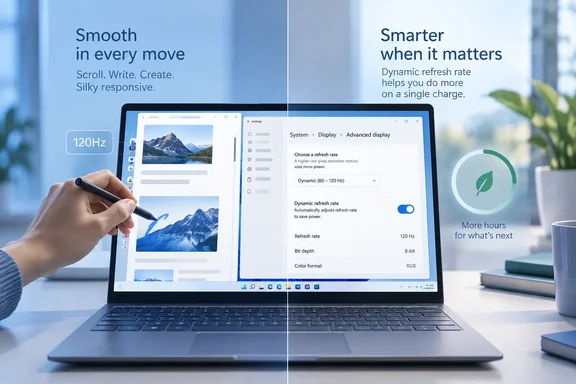 What Dynamic Refresh Rate actually does
A display’s refresh rate is the number of times it redraws the image every second, expressed in hertz (Hz). A 60Hz panel refreshes 60 times per second; higher rates can make onscreen movement appear smoother.
With DRR enabled, Windows 11 varies the refresh behavior automatically based on activity. Microsoft describes it as a way to retain smoother browsing and inking while improving battery life when that extra responsiveness is not necessary. It is a laptop convenience feature, not a magic button that doubles battery runtime—the benefit depends on the screen, hardware, workload, brightness, and the condition of the battery.
The key point: DRR is not the same as setting a lower fixed refresh rate.
- A fixed refresh rate keeps the panel operating at the selected rate all the time.
- Dynamic Refresh Rate allows Windows to manage the rate automatically.
- Variable Refresh Rate (VRR) is related but distinct: it helps compatible games match display refresh behavior to frame output, helping reduce artifacts such as tearing.
Windows uses VRR support as part of its DRR requirements, but the two features serve different jobs. Think of VRR as the game-room engineer; DRR is the battery-minded building manager.
Before you begin: check the compatibility requirements
DRR is available only on Windows 11. Microsoft states that a device must have a display supporting VRR and a refresh rate of at least 120Hz before DRR can be turned on. Windows 10 does not offer this Dynamic Refresh Rate feature.
That means a laptop can have a high-refresh display yet still not show the DRR control if the full hardware support is not available. It also means that an external monitor should not be assumed to inherit the feature simply because it advertises a high refresh rate.
Quick compatibility check
- Open Start and select Settings.
- Go to System > Display.
- Select Advanced display.
- If more than one screen is connected, choose the laptop’s built-in display from the display selector.
- Review the display information shown on the page.
Windows identifies whether the selected display supports Variable Refresh Rate in the display information area. If the Dynamic Refresh Rate option appears, the device has exposed the necessary support to Windows.
Bottom line: If there is no Dynamic refresh rate control, there is nothing to force on with a registry tweak or a third-party “optimizer.” The feature depends on the display and hardware capabilities Windows can detect.
How to enable Dynamic Refresh Rate in Windows 11
Once you have confirmed that the option is available, switching it on takes less time than deciding which browser tab is playing mystery audio.
- Open Settings from the Start menu.
- Select System.
- Choose Display.
- Open Advanced display.
- Turn on the Dynamic refresh rate toggle.
That is it. Windows will then manage the refresh rate dynamically instead of leaving you to choose between a permanently higher or lower setting. To stop Windows from making those adjustments, return to the same page and turn the toggle off.
What success looks like
The clearest sign of success is simple: the Dynamic refresh rate toggle remains enabled in Settings > System > Display > Advanced display.
You should not expect a permanent on-screen indicator announcing every refresh-rate decision. DRR is designed to work in the background. The practical experience should be a balance of:
- smoother scrolling and pen use when Windows benefits from a higher refresh behavior;
- lower display energy use during more static work;
- fewer compromises than locking the laptop to a high refresh rate all day.
Microsoft also lists Dynamic Refresh Rate among Windows 11’s power-management options, specifically noting that it lowers refresh behavior during static tasks to save power.
When you may want DRR off
DRR is generally a good default for a supported laptop used for office work, browsing, reading, and note-taking. But “generally” is doing some important work there.
Microsoft cautions that DRR should not interfere with games designed for VRR, but it can limit the maximum refresh rate in other games. If a favorite game seems to run at a lower refresh rate after enabling DRR, the recommended remedy is to turn DRR off before playing.
Consider disabling it temporarily when:
- a game does not appear to reach its intended maximum refresh rate;
- you are troubleshooting unusual display behavior;
- you prefer a fixed refresh rate for a specific workload.
This is not an indictment of DRR. It is merely a reminder that PC displays have more moving parts than the word “screen” suggests: panel firmware, graphics hardware, drivers, operating-system behavior, and application design all get a seat at the table.
If the option is missing
First, verify that you are checking the built-in laptop display in Advanced display settings—not an external screen or a secondary display selected by mistake.
Next, look at the available refresh-rate choices and the VRR status shown on that same page. A 60Hz display, or one without Windows-recognized VRR support, will not qualify for DRR. Microsoft’s requirement is explicit: DRR needs VRR support and at least 120Hz refresh capability.
Do not confuse this with Windows’ ordinary refresh-rate selector. You can still choose a supported fixed rate under Choose a refresh rate even when DRR is unavailable. Windows notes that some listed choices may carry an asterisk; selecting one can change the display resolution in order to reach that rate.
Pair DRR with the battery settings that matter
DRR is best viewed as one part of a sensible Windows 11 battery plan, not the whole plan. Screen brightness, power mode, idle screen time, sleep settings, wireless radios, background activity, and the apps currently hammering the CPU or GPU often have a larger impact on real-world runtime.
For a straightforward companion setup:
- Open Settings > System > Power & battery.
- Review Power mode and choose a more energy-efficient option when battery longevity matters more than peak performance.
- Configure Energy saver to activate at a battery level that suits your workday.
- Shorten screen-off and sleep timeouts if the laptop often sits idle.
- Keep display brightness reasonable—because a blazing-bright panel can undo a surprising amount of clever power management.
DRR will not transform an aging battery into a fresh one, and it will not make a demanding game sip power like a spreadsheet. What it can do is remove an unnecessary all-or-nothing choice on compatible Windows 11 laptops: enjoy the smooth screen when it earns its keep, and save a little power when it does not.