

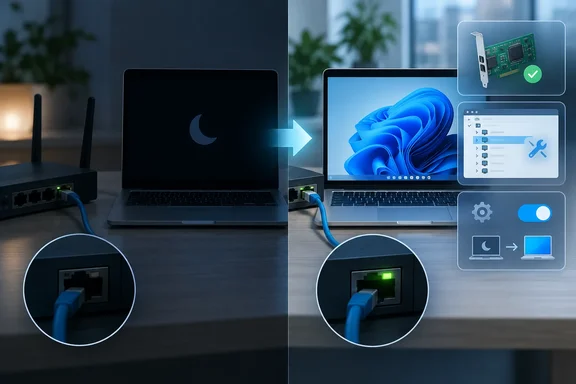
 Confirm that sleep is the trigger
Before changing drivers or network settings, make sure the issue is local to the PC and specifically follows sleep.
Quick walkthrough
- Connect the PC directly to your router or network switch with a known-good Ethernet cable.
- Confirm that Ethernet works normally immediately after a restart.
- Put the PC to sleep, wake it, and check whether the Ethernet connection returns.
- Look at the Ethernet port on the PC, dock, USB-to-Ethernet adapter, router, or switch. Link/activity lights that remain off after wake can point to a cable, port, dock, or adapter issue rather than Windows networking.
- If possible, test the same cable and router/switch port with another device. If that device also cannot connect, do not reset Windows networking first—replace the cable or investigate the router, switch, or dock.
In Windows, open Settings > Network & internet and check the connection status near the top of the page. A healthy wired connection should show Connected. If Ethernet is listed but says Action needed, select it to review its settings.
Run the built-in diagnostic first
Windows 11 directs network troubleshooting through the Get Help app:
- Open Start and search for Get Help.
- Open the app and run the Network and Internet troubleshooter.
- Follow its prompts, then test Ethernet again after putting the PC to sleep and waking it.
On Windows 10:
- Open Start > Settings > Network & Internet.
- Select Status in the left pane.
- Scroll down and select Network troubleshooter.
- Complete the prompts and repeat the sleep-and-wake test.
A troubleshooter may restore the immediate connection, but continue with the next section if the same failure returns after every sleep cycle.

Stop Windows from powering down the Ethernet adapter
Windows can allow a network adapter to enter a low-power state. On an affected driver or adapter, it may fail to initialize correctly when the computer wakes. Clearing the relevant setting prevents Windows from turning off that adapter to save power.
This setting can slightly increase power use, which matters most on a laptop running on battery. It does not keep the computer awake or keep an Internet session active while the computer is asleep; it only changes how Windows manages the adapter’s power state.
- Save open work.
- Right-click Start and select Device Manager.
- Expand Network adapters.
- Identify the wired adapter. Its name commonly includes terms such as Ethernet, GbE, 2.5GbE, Realtek, Intel, Broadcom, or the manufacturer name of a USB-to-Ethernet adapter or dock.
- Right-click that adapter and select Properties.
- Open the Power Management tab.
- Clear Allow the computer to turn off this device to save power.
- Select OK.
- Restart Windows rather than merely signing out.
- After restart, confirm Ethernet connects, then put the PC to sleep and wake it to test the change.
If your PC uses a USB Ethernet adapter, docking station, or monitor with an Ethernet port, repeat the check for the actual Ethernet adapter shown under Network adapters. Do not assume the PC’s built-in adapter is the one in use.
If the Power Management tab is missing
Do not attempt to add missing power options with Registry edits. The options Device Manager displays depend on the adapter hardware and its driver capabilities, so the tab is not present on every wired adapter.
Instead:
- Check that you selected the actual wired adapter rather than a Wi-Fi adapter, Bluetooth entry, VPN adapter, Hyper-V virtual adapter, or WAN Miniport.
- Continue to the driver repair steps below.
- If the affected connection is through a dock or USB adapter, install the current driver and firmware offered by the PC, dock, or adapter manufacturer for your exact model.
- If the issue began only after connecting through a particular dock, test direct Ethernet if your PC has a physical Ethernet port. A successful direct connection isolates the dock or USB adapter as the likely source.
Avoid changing unfamiliar options on the adapter’s Advanced tab. Names and effects vary by hardware vendor, and changing power, wake, link-speed, or offload settings without a documented recommendation can create a different connection problem.
Update the Ethernet driver through Windows Update
A driver issue is particularly likely when Ethernet stopped recovering from sleep after a Windows update, hardware update, docking-station change, or driver installation. Install optional driver updates before manually downloading anything.
Windows 11
- Open Start > Settings > Windows Update.
- Select Advanced options.
- Under Additional options, select Optional updates.
- Expand Driver updates, if it appears.
- Select an available update for the Ethernet adapter, chipset, dock, or USB network controller.
- Select Download & install.
- Restart the computer even if Windows does not explicitly request it.
- Test Ethernet after sleep.
Windows 10
- Open Start > Settings > Update & Security > Windows Update.
- Select Advanced options.
- Turn on Receive updates for other Microsoft products when you update Windows.
- Return to Windows Update and select Check for updates.
- If View optional updates appears, open it.
- Select an available Ethernet, LAN, chipset, dock, or network-controller driver update.
- Select Download and install.
- Restart the PC and repeat the sleep test.
If Windows Update has no suitable driver, use the PC manufacturer’s support site for a built-in Ethernet adapter. For a USB adapter or dock, use the manufacturer’s support site for that exact accessory model. Download only a driver that explicitly matches your Windows version and system architecture.
Update, roll back, or reinstall the adapter driver
Use Device Manager when Windows Update does not resolve the problem or when you need to undo a recently installed driver.
Update from Device Manager
- Right-click Start and select Device Manager.
- Expand Network adapters.
- Right-click the wired Ethernet adapter and select Update driver.
- Select Search automatically for drivers.
- If Windows finds and installs a driver, restart the PC and test sleep again.
- If it reports that the best driver is already installed, select the option to search Windows Update if it is offered. Otherwise, use the driver from the PC or adapter manufacturer.
Roll back a driver that caused the failure
Use rollback only when the Ethernet problem began immediately after a driver update and the Roll Back Driver button is available.
- In Device Manager, right-click the Ethernet adapter and select Properties.
- Open the Driver tab.
- Select Roll Back Driver.
- Choose the reason that best describes the problem and confirm.
- Restart the PC if Windows requests it, then test sleep and wake.
The rollback option can be unavailable when Windows has no earlier working driver package saved for that device. In that case, do not force an unrelated or older driver onto the adapter. Use the PC or adapter manufacturer’s supported driver instead.
Reinstall the Ethernet driver
Warning: Uninstalling the adapter can immediately remove your network connection. Before continuing, download the correct Ethernet driver from the PC or adapter manufacturer and save it locally or on a USB drive. This is especially important if the PC has no working Wi-Fi connection.
- Save work and close applications.
- Open Device Manager and expand Network adapters.
- Right-click the affected Ethernet adapter and select Uninstall device.
- If Windows offers Attempt to remove the driver for this device, select it only if you already have a verified replacement driver available. Otherwise, leave it unselected.
- Select Uninstall.
- Restart the PC.
- After restart, Windows should attempt to reinstall the adapter driver automatically.
- If Ethernet does not return, run the downloaded manufacturer driver installer, then restart once more.
- Repeat the sleep-and-wake test.
If the adapter has a yellow warning icon in Device Manager or reports a device error, driver reinstall is more appropriate than repeatedly resetting the router.
Reset the IP stack when Ethernet connects but has no Internet access
Use this section when the adapter appears connected after waking but cannot reach websites, shared folders, or other network resources. These commands reset Windows networking components and renew the current IP lease; they do not erase saved Wi-Fi networks or uninstall adapters.
- Open Start and search for Command Prompt.
- Select Run as administrator and approve the User Account Control prompt.
- Run each command separately, in this order:
netsh winsock reset
netsh int ip reset
ipconfig /release
ipconfig /renew
ipconfig /flushdns- Restart the PC after the commands finish.
- Confirm Ethernet shows Connected in Settings > Network & internet.
- Test a website and any resource that previously failed, such as a company file share or local network printer.
- Put the PC to sleep, wake it, and test again.
ipconfig /release intentionally drops the current address while the command runs. That temporary disconnection is expected.
Use Network reset only as the last Windows repair step
Network reset removes installed network adapters and restores their settings to defaults. Windows reinstalls the adapters after the PC restarts. It is useful when the wired adapter, TCP/IP configuration, or network bindings remain damaged after power and driver repair.
Warning: Network reset can remove or disrupt VPN clients, virtual switches, and other networking software. It can also change known connections to the Public network profile. Record VPN configuration and any custom static IP, DNS, proxy, VLAN, or virtualization settings before continuing.
Windows 11
- Open Start > Settings > Network & internet.
- Select Advanced network settings.
- Select Network reset.
- Select Reset now.
- Select Yes to confirm.
- Allow Windows to restart.
- After restart, confirm Ethernet reconnects and reinstall or reconfigure VPN and virtual-networking software if necessary.
Windows 10
- Open Start > Settings > Network & Internet.
- Select Status.
- Select Network reset.
- Select Reset now.
- Select Yes to confirm.
- Allow Windows to restart.
- Recheck Ethernet, then restore any VPN, virtual-switch, static addressing, or custom DNS configuration that was removed.
After a network reset, review the Ethernet network profile if you need local file sharing or device discovery. A public profile is more restrictive by design. Only change the profile to Private when the network is trusted, such as your home network or an organization-managed network.
Verify the repair and isolate persistent hardware faults
A successful repair has two parts: Ethernet reconnects after wake, and it receives usable network access without manually unplugging the cable or restarting Windows.
Use this short test sequence:
- Restart the PC and confirm Ethernet is connected.
- Put the PC to sleep for several minutes.
- Wake it without unplugging the Ethernet cable.
- Open Settings > Network & internet and confirm the Ethernet status is Connected.
- Open Command Prompt and run:
ipconfig
- Under the Ethernet adapter, confirm Windows lists an IPv4 address and a default gateway appropriate for your network.
- Open a website and, if applicable, access a local network resource.
- Repeat the sleep test at least once more.
If Ethernet still fails only after sleep after completing these steps, focus on the hardware path: test another cable, another router or switch port, direct Ethernet instead of a dock, or another USB Ethernet adapter. If the same adapter fails in multiple networks but another adapter works on the same PC, replace or service the failing adapter. On a work-managed PC, contact the IT administrator before resetting managed VPN, security, or network-policy components.