

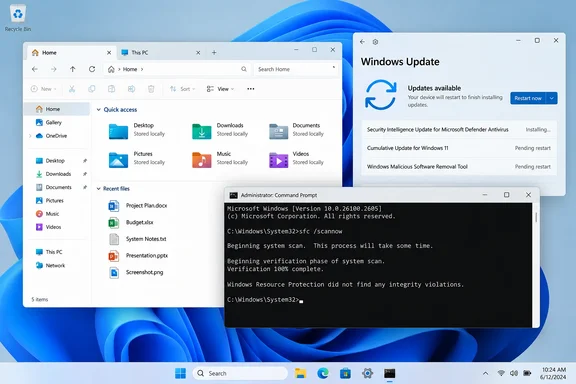
 Check whether your Windows 11 version can have File Explorer tabs
File Explorer tabs arrived in the Windows 11 version 22H2 update, initially through the October 18, 2022 update identified as KB5019509 and OS build 22621.675. You do not need to find and install that old update specifically. Installing the latest cumulative updates for a supported Windows 11 release includes the required feature components.
Quick walkthrough

- Press Windows key + R to open the Run dialog.
- Type the following command, then select OK:
winver - Read the version shown in the About Windows dialog.
- Version 21H2 or earlier: File Explorer tabs are not available. You must upgrade to a newer Windows 11 feature release.
- Version 22H2, 23H2, 24H2, 25H2, or later: The operating system supports File Explorer tabs. Continue with the update and repair steps below.
- Windows 10: Tabs will not appear in the built-in File Explorer, regardless of updates or system-file repairs.
- Select OK to close the dialog.
You can also check the version in Settings:
- Open Start > Settings.
- Select System > About.
- Under Windows specifications, check Version and OS build.
If your PC is still on Windows 11 version 21H2, do not expect a monthly quality update alone to add tabs. Use Windows Update to install the newer feature update offered to your device. On a work or school PC, feature updates may be controlled by your organization, so contact the IT administrator rather than attempting to bypass update policies.
Install pending Windows 11 updates
A missing tab bar can be caused by a feature update that has not been installed completely, a pending restart, or an outdated Windows 11 release. Check Windows Update even if Settings previously said the PC was up to date.
- Save open work and close programs that are using important files.
- Open Start > Settings > Windows Update.
- Select Check for updates.
- If Windows finds updates, select Download & install.
Pay particular attention to: - A feature update to a newer version of Windows 11.
- A cumulative update for the Windows 11 version already installed.
- An update marked as requiring a restart.
- Let downloads and installation finish. Keep the PC connected to power if it is a laptop.
- Select Restart now if Windows offers the option. If no button appears, restart manually:
- Select Start > Power > Restart.
- After signing in, return to Settings > Windows Update and select Check for updates once more. Repeat the install-and-restart cycle until Windows Update reports that the device is up to date and does not show a restart requirement.
A restart matters here. Windows can download an update but leave system components waiting to be replaced until the next restart.
If a newer Windows 11 version is not offered
Windows Update may delay a feature update because of a compatibility safeguard, available storage, hardware requirements, or organization-managed update policies. Do not use third-party “feature unlock” utilities to force tabs on an older Windows version. Those tools modify unsupported system settings and can complicate later updates.
Instead:
- Confirm that the PC has a reliable internet connection.
- Disconnect unnecessary USB storage, docks, and peripherals.
- Restart the PC.
- Return to Settings > Windows Update > Check for updates.
- If an update error appears, use the Windows Update troubleshooter in the next section.
Run the Windows Update troubleshooter when updates fail
If Windows Update reports an error, repeatedly fails, or downloads an update but cannot install it, repair Windows Update before moving on to File Explorer repairs.
- Open Start > Settings > System > Troubleshoot > Other troubleshooters.
- Find Windows Update.
- Select Run.
- Follow the on-screen prompts and allow the troubleshooter to apply recommended fixes.
- Restart the PC when the troubleshooter finishes.
- Go back to Settings > Windows Update and select Check for updates again.
On current Windows 11 installations, Microsoft may first open the automated Windows Update troubleshooter in the Get Help app. Complete its checks, then restart and try Windows Update again.
If the device belongs to an employer, school, or other managed organization, update settings may be limited by policy. A message such as “Some settings are managed by your organization” is a sign to involve the IT administrator rather than changing services, registry settings, or management policies yourself.
Restart the Windows Explorer process
If Windows is already current and the tab bar vanished without an update failure, restart the Windows Explorer process. This restarts the desktop shell and File Explorer without restarting the entire computer.
Warning: Restarting Windows Explorer briefly closes open File Explorer windows and makes the desktop taskbar disappear. Save or finish file transfers before continuing.
- Press Ctrl + Shift + Esc to open Task Manager.
- If Task Manager opens in its compact view, select More details.
- On the Processes page, find Windows Explorer. You may need to scroll through the Windows processes section.
- Right-click Windows Explorer, then select Restart.
- Wait a few seconds. The taskbar and desktop icons should disappear briefly and then return.
- Press Windows key + E to open File Explorer.
- Check the top of the File Explorer window for the tab strip. If tabs are working, select the + button to open another File Explorer tab.
If you accidentally choose End task instead of Restart, the taskbar and desktop can remain absent. Press Ctrl + Shift + Esc, select Run new task, type the following, and select OK:
explorer.exe
That starts the Windows Explorer shell again.
Repair Windows system files with DISM and SFC
Use this procedure if the PC runs Windows 11 version 22H2 or later, is fully updated, and restarting Explorer did not restore tabs. DISM repairs the Windows component store; System File Checker then checks protected system files and replaces corrupted copies when possible.
Warning: These commands require an administrator account. Keep the PC connected to the internet during the DISM step because it normally obtains repair files through Windows Update. Do not close the elevated Command Prompt while either scan is running.
- Save your work and close open applications.
- Open Start and type Command Prompt.
- Right-click Command Prompt, then select Run as administrator.
- Select Yes when Windows asks whether to allow the app to make changes.
- Run DISM first by entering this command exactly:
DISM.exe /Online /Cleanup-image /Restorehealth - Press Enter and wait for the command to complete. It can take several minutes and may appear to pause at a percentage for a while.
- Continue only after Command Prompt reports that the restore operation completed successfully.
- Run System File Checker:
sfc /scannow - Press Enter. Leave the window open until verification reaches 100%.
- Review the final SFC result:
- Windows Resource Protection did not find any integrity violations: No protected system-file corruption was found.
- Windows Resource Protection found corrupt files and successfully repaired them: Restart Windows, then test File Explorer again.
- Windows Resource Protection found corrupt files but was unable to fix some of them: Restart the PC, run Windows Update, and run the DISM command followed by
sfc /scannowonce more. - Restart the computer after both commands finish.
- Open File Explorer with Windows key + E and check whether the tabs bar is present.
Verify that tabs are restored
A successful repair does not require a separate setting to enable File Explorer tabs. When the supported Windows version and updates are installed, the tabs bar should appear automatically in a normal File Explorer window.
Use these checks:
- Press Windows key + E.
- Look near the top of the File Explorer window, above the address bar, for the current folder displayed as a tab.
- Select the + button to the right of the existing tab.
- Confirm that a second File Explorer tab opens in the same window.
- Switch between the tabs by selecting their labels.
If File Explorer opens but the window is too narrow to clearly show the tab strip, maximize it and check again. A small or partially off-screen window can make the interface difficult to identify, but it does not disable the feature.
If tabs are still missing after updates and repairs
If the system is on Windows 11 version 22H2 or later, Windows Update is current, Explorer has been restarted, and DISM/SFC completed without resolving the issue, use a repair reinstall before considering a reset.
On eligible Windows 11 installations, Windows can reinstall the current version while preserving installed apps, personal files, and settings.
Warning: Although this repair option is designed to preserve files, apps, and settings, back up important files before starting. Keep the PC connected to power and the internet until the process is complete.
- Open Start > Settings > System > Recovery.
- Look for Fix problems using Windows Update.
- Select Reinstall now.
- Choose whether Windows may restart automatically after installation completes.
- Select OK to begin.
Windows downloads and installs a repair version of the most recently installed update for the current Windows version. Restart when prompted, then open File Explorer and test tabs again.
If Fix problems using Windows Update is absent, the PC may be running an older Windows 11 release, using a managed update configuration, or otherwise not eligible for this recovery method. In that situation, avoid registry edits and unsupported Explorer modification tools. Record the Windows version, OS build, any Windows Update error code, and the results of DISM and SFC, then escalate the issue to the organization’s IT support team or Microsoft support.