

 Before you change anything
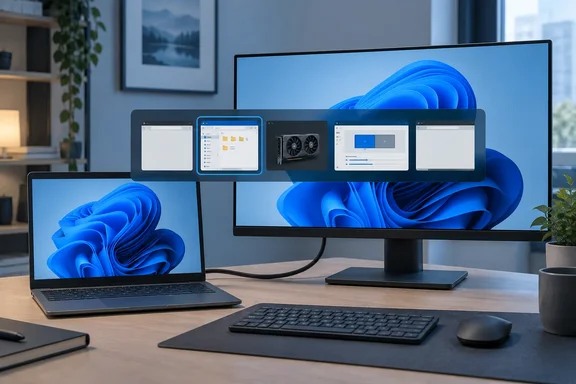
Alt+Tab previews are live representations of open windows. A completely blank preview can have different causes than a preview that is merely slow or shows an app icon instead of its contents.
First, narrow down the scope:
Quick walkthrough
- Open two normal desktop applications, such as Notepad and File Explorer.
- Press Alt+Tab and hold Alt long enough to inspect the switcher.
- Check whether every window is blank or only one application is affected.
- Also hover over an open app’s taskbar icon. If its taskbar preview is blank too, the issue is more likely to involve Explorer, visual effects, or graphics rendering.
- If only one app has a blank preview, update that app and check its own graphics-acceleration setting before changing Windows-wide settings.
Save work before restarting Explorer or updating a graphics driver. Restarting Explorer does not normally close applications, but it closes File Explorer windows and briefly removes the taskbar and desktop icons. Updating or rolling back a display driver can make the screen flicker, go black temporarily, or require a restart.
You need an administrator account only for driver rollback, driver installation, and the system-repair commands later in this guide.
Restart Windows Explorer first
Windows Explorer, shown in Task Manager as Windows Explorer, provides the desktop, taskbar, Start menu, File Explorer windows, and parts of the switching interface. Restarting it is the fastest safe test for a stuck shell session.
- Save any unsaved documents.

- Press Ctrl+Shift+Esc to open Task Manager.
- If Task Manager opens in its compact view, select More details.
- On the Processes tab, find Windows Explorer under Windows processes. You can also type
Windows Explorerinto the search box if your version of Task Manager has one. - Select Windows Explorer, then select Restart.
- Wait for the taskbar and desktop icons to disappear and return. Open File Explorer again if you had Explorer windows open before the restart.
- Open two or more applications and test Alt+Tab again.
A working result is an Alt+Tab switcher that shows each open window rather than empty rectangles. If previews return but go blank again after several hours or after waking the PC from sleep, continue with the visual-effects and display-driver checks below.
Reset the graphics driver without restarting Windows
If previews went blank immediately after a display glitch, docking or undocking a laptop, changing monitors, waking from sleep, or a brief black screen, reset the graphics driver before making configuration changes.
- Save work in the active application.
- Press Windows+Ctrl+Shift+B.
- The screen may blink or briefly go black, and Windows may make a beep. This indicates that Windows has reset the graphics driver.
- Wait for the desktop to settle, then test Alt+Tab again.
This shortcut is a quick diagnostic measure, not a repair for a repeatedly failing driver. If the blank previews return after the reset, inspect the display driver and recent updates.
Enable Alt+Tab and taskbar thumbnail effects
Windows has modern animation controls in Settings and a more detailed legacy Performance Options dialog. The Settings control affects general animations; the Performance Options dialog includes the thumbnail-preview options that are most relevant to blank taskbar previews.
Windows 11: check animation effects
- Open Start > Settings.
- Select Accessibility > Visual effects.
- Turn Animation effects On.
- Close Settings and test Alt+Tab.
This setting does not specifically promise to repair broken thumbnails, but turning animations back on prevents a reduced-motion configuration from removing or simplifying parts of Windows’ visual experience.
Windows 10: check animation effects
- Open Start > Settings.
- Select Ease of Access > Display.
- Under Simplify and personalize Windows, turn on Show animations in Windows if it is off.
- Close Settings and test Alt+Tab.
Check the thumbnail controls in Performance Options
Use this step on either Windows 10 or Windows 11. It is especially important if someone previously selected Adjust for best performance, used a tuning utility, or applied a corporate policy that reduces visual effects.
- Press Windows+R.
- Type the following command and press Enter:
sysdm.cpl - In System Properties, open the Advanced tab.
- Under Performance, select Settings.
- Open the Visual Effects tab.
- Select Custom. Do not choose Adjust for best performance, because that option turns off many visual effects.
- Ensure these options are checked:
- Save taskbar thumbnail previews
- Show thumbnails instead of icons
- If you also want normal desktop-preview behavior, ensure Enable Peek is checked.
- Select Apply, then OK, and select OK again to close System Properties.
- Restart Windows Explorer using the previous section, then retest Alt+Tab.
Do not worry if unrelated visual-effect boxes are either checked or unchecked. The important settings for this issue are Save taskbar thumbnail previews and Show thumbnails instead of icons. Setting the page to Adjust for best appearance is also a valid test if you want Windows to enable its visual effects as a group, but it may restore animations you intentionally turned off.
Confirm Windows is using the correct display adapter
Alt+Tab and taskbar previews are composed through Windows’ desktop graphics system. A missing, damaged, or fallback display driver can cause broader visual problems, including blank previews, flickering, poor performance, failed external displays, or a low-resolution desktop.
- Right-click Start and select Device Manager.
- Expand Display adapters.
- Check the listed adapter or adapters.
A normal result is a recognized GPU name from Intel, AMD, NVIDIA, Microsoft Surface, or your PC manufacturer. On a laptop, it is normal to see both an integrated adapter and a discrete graphics adapter.
A warning sign is Microsoft Basic Display Adapter. That label generally means Windows is using a fallback display driver rather than the manufacturer’s full driver. Alt+Tab previews may work in this state, but graphics features and performance can be limited.
- Right-click each listed display adapter and select Properties.
- On the General tab, check Device status. It should report that the device is working properly.
- Open the Driver tab and note the Driver Provider, Driver Date, and Driver Version.
- If Device Manager reports an error, or the driver date changed just before the preview issue began, proceed to the update or rollback section.
Check whether the problem follows one GPU or display path
This check is useful on gaming laptops, workstations, docks, and multi-monitor systems.
- Disconnect nonessential external monitors, docks, display adapters, and USB graphics devices.
- Restart the computer.
- Test Alt+Tab on the built-in display or one directly connected monitor.
- Reconnect one device at a time and retest.
If blank previews happen only when a dock, specific display cable, DisplayLink-style adapter, or external monitor is connected, update the PC’s graphics driver and the dock or adapter software from the hardware manufacturer. Do not assume that a graphics-card driver alone updates a dock’s firmware or USB display driver.
Update the graphics driver safely
Windows Update can provide recommended drivers and, in some cases, optional display-driver updates. Optional drivers are not installed automatically, so check them deliberately.
Windows 11
- Open Start > Settings > Windows Update.
- Select Advanced options.
- Under Additional options, select Optional updates.
- Open Driver updates if it appears.
- Select a display or graphics driver update only if it is offered for your hardware, then choose Download and install.
- Restart the PC after installation, even if Windows does not explicitly require it.
- Test Alt+Tab, taskbar previews, sleep/wake behavior, and each connected display.
Windows 10
- Open Start > Settings > Update & Security > Windows Update.
- Select Check for updates.
- If View optional updates appears, select it.
- Open Driver updates.
- Select the display-driver update that applies to your hardware and choose Download and install.
- Restart the PC and retest Alt+Tab.
If Windows Update does not offer a newer display driver, use the support site for the PC manufacturer first—particularly for laptops, tablets, and prebuilt desktops. Those systems can require customized Intel, AMD, or NVIDIA drivers for features such as hybrid graphics, internal displays, docks, brightness controls, and power management.
For a self-built desktop or an out-of-support OEM driver, use the official support site for the GPU manufacturer. Avoid third-party “driver updater” utilities. They can identify the wrong hardware, install an unsuitable driver, or bundle unwanted software.
Roll back a recent graphics driver change
Warning: Roll back only when the Alt+Tab problem started after a known graphics-driver update. You must be signed in with an administrator account. The screen can flash or temporarily go black while Windows changes drivers.
- Right-click Start and select Device Manager.
- Expand Display adapters.
- Right-click the display adapter that was updated and select Properties.
- Open the Driver tab.
- Select Roll Back Driver.
- Choose the reason that best describes the issue and confirm with Yes.
- Restart the PC if prompted. Restart manually even if you are not prompted.
- Test Alt+Tab and taskbar previews before installing any other graphics update.
If Roll Back Driver is unavailable, Windows does not have an earlier driver package to restore. Do not force a rollback by downloading random old drivers. Instead, obtain a compatible current driver from the PC or GPU manufacturer, install it, and restart.
Repair Windows files if Explorer and the driver are healthy
If the issue affects every application, remains after an Explorer restart and a graphics-driver update, and Windows shows other shell problems—such as a broken taskbar, Start menu, File Explorer crashes, or unexplained visual glitches—repair the Windows component store and protected system files.
- Open Start and type
cmd. - Right-click Command Prompt and select Run as administrator.
- Approve the User Account Control prompt.
- Run the following command:
DISM.exe /Online /Cleanup-image /Restorehealth - Wait for it to finish. It can take several minutes and normally uses Windows Update to obtain repair files.
- When DISM completes, run:
sfc /scannow - Do not close the Command Prompt window until verification reaches 100%.
- Restart Windows, then test Alt+Tab again.
If System File Checker reports that it found and repaired corrupted files, the restart is required before judging the result. If it reports no integrity violations, the cause is more likely to be a driver, a particular application, an external-display path, or a configuration imposed by management software.
Troubleshoot the remaining common cases
Only one application has a blank Alt+Tab preview
The application may be using a special rendering mode, protected content, a remote session, or its own hardware-acceleration setting.
- Install the app’s current update.
- If the app has a documented Use hardware acceleration setting, test it in the opposite state, then fully close and reopen the app.
- Test with a normal local window such as Notepad. If Notepad previews correctly, do not reinstall or roll back the system GPU driver solely because one app’s preview is blank.
- For remote desktop, virtual-machine, or streamed applications, test locally on the host computer. The remote-display software may control how previews are captured or displayed.
The screen flickers, turns black, or previews fail after sleep
- Use Windows+Ctrl+Shift+B to reset the graphics driver.
- Restart rather than repeatedly sleeping and waking the PC while testing.
- Update the display driver, then update dock, monitor, or USB graphics software where applicable.
- Test without the dock or external display hardware connected.
- If the failure began immediately after a graphics-driver update, use Roll Back Driver before trying a newer driver.
Performance Options settings change back by themselves
A work or school PC may have Group Policy, mobile-device management, security software, or a performance profile applying visual-effect preferences. Document the two affected settings—Save taskbar thumbnail previews and Show thumbnails instead of icons—and contact the organization’s IT administrator. Repeatedly changing settings locally will not override a policy that is reapplied at sign-in.
The PC shows Microsoft Basic Display Adapter
Install the correct graphics driver from Windows Update’s optional updates or the PC manufacturer’s official support site, then restart. If the manufacturer no longer supplies a compatible driver for your Windows version, the reliable long-term fix may be moving to a supported Windows release or using hardware with current driver support.