

This guide applies to Windows 11 and Windows 10. You need an administrator account to roll back a driver.
 First: Make sure the driver is the likely culprit
A rollback is most useful when all three of these are true:
Quick walkthrough
- The hardware worked correctly before a recent Windows Update or vendor driver installation.
- The problem began soon afterward.
- The issue is isolated to a device or device category—for example, no audio, display flickering, a missing Wi‑Fi adapter, Bluetooth failures, touchpad glitches, or a webcam that has abruptly gone on strike.
Before changing anything, note the device’s current driver information:
- Press Windows key + X.
- Select Device Manager.
- Expand the category matching the affected hardware:
- Display adapters for graphics problems
- Sound, video and game controllers for audio
- Network adapters for Ethernet, Wi‑Fi, or Bluetooth adapters
- Mice and other pointing devices or Human Interface Devices for touchpads and input devices
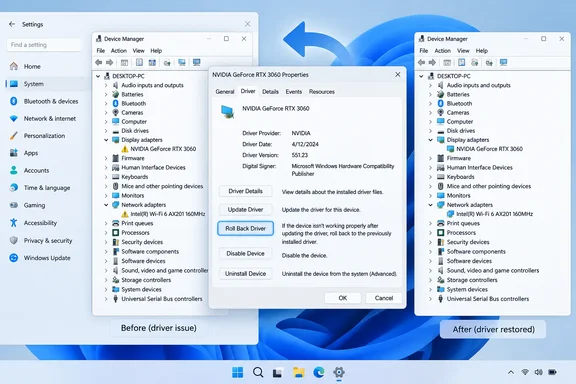
- Right-click the suspected device and choose Properties.
- Open the Driver tab.
- Record the Driver Provider, Driver Date, and Driver Version.
That small bit of detective work matters. Modern PCs often list several similarly named devices, and rolling back the wrong one is a fine way to fix nothing with great confidence.
Roll back the driver in Device Manager
Once you have identified the affected device:
- In Device Manager, right-click the device and choose Properties.
- Select the Driver tab.
- Choose Roll Back Driver.
- Select the reason that best matches the problem, then confirm the rollback.
- Restart the PC if Windows requests it—or restart anyway before judging the result.
Microsoft’s current Windows guidance uses this same Device Manager path for rolling back a display driver after problems begin following an update.
After the restart, test the specific failure that prompted the rollback:
- Play audio through the affected speakers or headphones.
- Reconnect to Wi‑Fi and confirm that the connection remains stable.
- Test sleep and wake if a graphics or network driver was involved.
- Use the touchpad’s gestures, scrolling, and clicks.
- Run the application or game where the graphics problem first appeared.
If the issue has disappeared, leave the restored driver in place for a few days. A successful rollback is useful evidence: the newer driver, rather than the hardware itself, was probably the trigger.
When Roll Back Driver is grayed out
A disabled Roll Back Driver button does not necessarily mean you picked the wrong device. It usually means Windows does not have an earlier driver package available for that device.
Common reasons include:
- The driver has never been updated on that Windows installation.
- A cleanup tool or disk cleanup process removed the previous driver package.
- The device was installed with a generic inbox driver rather than an updatable vendor package.
- Windows was reinstalled or reset after the earlier driver was present.
Try these alternatives instead:

Reinstall the current driver
For a driver that may have been damaged rather than merely incompatible:
- In Device Manager, right-click the device.
- Select Uninstall device.
- Restart Windows.
- Let Windows detect the hardware again.
Microsoft recommends uninstalling and reinstalling a driver as a remedy for certain Device Manager device errors.
Be cautious with network adapters: download a known-good driver from the PC maker or hardware maker before uninstalling if you may lose your only internet connection.
Install a known-good driver manually
For laptops, favor the driver published by the PC manufacturer over a generic package from the chip maker, especially for graphics, audio, touchpad, camera, and power-management components. Laptop vendors often customize those packages around the machine’s firmware and hardware configuration.
For desktop graphics cards and add-in network adapters, the component maker’s driver may be appropriate—but use the stable release intended for your exact hardware and Windows version.
Avoid driver-updater utilities that promise one-click salvation. They often operate with the restraint of a raccoon in a kitchen: fast, noisy, and not especially concerned about what they overturn.
Stop Windows Update from putting the bad driver back
Rolling back the driver solves today’s problem. Preventing Windows Update from immediately reinstalling the same version solves tomorrow morning’s problem.
For any Windows 10 or Windows 11 PC: pause updates temporarily
After a successful rollback:
- Open Settings.
- Go to Windows Update.
- Select Pause updates and choose the longest available temporary pause period.
This is a short-term containment step, not a permanent maintenance plan. Resume updates after you have confirmed that the faulty driver is no longer being offered or that the hardware vendor has released a corrected version.
Also check Windows Update for Optional updates before installing anything. Driver updates shown as optional should be treated as optional—despite the occasionally persuasive tone of modern operating systems.
For Windows Pro, Enterprise, and Education: exclude driver updates
Organizations and advanced users on supported business editions can use Group Policy to stop Windows Update from offering driver-classified updates during normal update cycles:
- Press Windows key + R.
- Type
gpedit.mscand press Enter. - Navigate to:
Computer Configuration
Administrative Templates
Windows Components
Windows Update
Manage updates offered from Windows Update
- Open Do not include drivers with Windows Updates.
- Select Enabled.
- Choose Apply, then restart the PC.
This policy excludes Windows Update driver packages, but it is not an absolute ban on every driver-related change. Microsoft notes that drivers included with operating system security or critical updates, and drivers needed during feature updates, can still be installed.
For managed fleets, the equivalent setting can be deployed through update-management policy or Intune update rings. That approach is more sensible than asking every employee to become a part-time Device Manager archaeologist.
If rolling back does not fix the problem
A driver update can be the coincidence, not the cause. Work through the least disruptive checks first:
- Restart Windows. Yes, really. Drivers and hardware services occasionally need a clean restart rather than another round of increasingly dramatic clicking.
- Check Device Manager for warning icons. A yellow warning symbol or error code can point to a configuration, resource, or device failure.
- Try another connection or peripheral. Test a different USB port, cable, monitor, headset, or network.
- Install the PC maker’s current driver. The prior driver may be stable, but an updated, corrected vendor release may already be available.
- Use a restore option only when needed. If the system has broader instability after a series of changes, Windows recovery options may return the PC to an earlier state—but that is a larger move than rolling back a single driver.
The sensible driver-maintenance rule
Do not update every driver merely because an update exists. Security fixes and vendor-recommended compatibility updates matter, but stable hardware generally does not need weekly attention. When an update is necessary, note the previous version, create a restore point if your environment permits it, and change one thing at a time.
Device Manager’s rollback feature is modest, old-school, and wonderfully practical. When a new driver turns a reliable PC into a troubleshooting project, going backward is not failure. It is simply Windows maintenance with a working memory.