

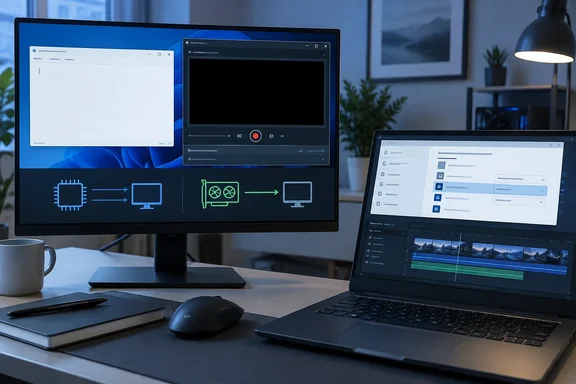
 Identify what is actually black
Before changing settings, make a short recording of a simple non-protected target such as Notepad, Settings, or a browser page with ordinary text.
Quick walkthrough
- Open Notepad and type a few lines of text.
- Record the Notepad window or a small area containing it:
- Snipping Tool on Windows 11: Open Snipping Tool, select Record, select New, draw a region, and select Start. You can also press Windows logo key + Shift + R to open the video-snipping overlay.
- Xbox Game Bar: Bring the target app to the foreground, then press Windows logo key + Alt + R to start or stop recording. If needed, press Windows logo key + G first to open Game Bar.
- Another capture app: Use its normal window or display capture mode.
- Play the saved clip locally.
Use the result to narrow the fix:
- Notepad is black too: The fault is likely in the capture app, GPU driver, GPU assignment, or its hardware-acceleration path.
- Notepad records correctly, but one particular program is black: Focus on that target application, its GPU assignment, its own hardware acceleration, or intentional capture protection.
- The video is visible but a streaming service, video player, password manager, sign-in prompt, or one remote-desktop window is black: Treat it as protected or excluded content first. Do not expect a recorder setting to override it.
- Only Xbox Game Bar fails: Test with Snipping Tool on Windows 11, or another recorder. Game Bar is designed primarily for recording an active game or application, not as a general-purpose desktop capture tool.
- Only one third-party recorder fails: Repair, reset, update, or reinstall that recorder before making broad Windows changes.
Do not use a black capture as proof that your monitor, cable, or display panel is defective. If the live image is normal and only the recorded file is black, start with the capture software and graphics configuration.
Check the recorder, Windows, and graphics driver
Close every recording app before changing GPU or driver settings. Simultaneous overlays, GPU utilities, browser recorders, remote-control tools, and multiple capture apps can compete for the same graphics resources.
- Save any open work, then restart Windows once.

- Open Start > Settings > Windows Update.
- Select Check for updates and install available Windows updates.
- In Windows 11, select Advanced options > Optional updates > Driver updates. Install a graphics-driver update offered for your PC, then restart.
- In Windows 10, open Start > Settings > Update & Security > Windows Update, check for updates, and install available driver updates. Restart when prompted.
- To inspect the installed graphics adapters, right-click Start and select Device Manager.
- Expand Display adapters. A desktop may show one adapter; many laptops show both an integrated GPU and a discrete GPU.
- Right-click the relevant adapter and select Properties > Driver. Record the driver provider, date, and version before making changes.
If Windows Update does not offer a newer driver, use the PC manufacturer’s official support site for a laptop, tablet, or prebuilt desktop. For a custom desktop, use the official support source for the installed graphics hardware. Prefer a driver specifically listed for your model and current version of Windows.
Warning: Avoid downloading “driver updater” utilities. They often misidentify hardware or bundle unwanted software. A graphics-driver change can temporarily flicker the screen, change display settings, or require a restart.
Refresh the graphics driver without reinstalling it
If the black recordings began after a sleep/wake cycle, display reconnect, or a game crash, reset the graphics stack before attempting a driver reinstall.
- Close the recorder and target application.
- Press Windows logo key + Ctrl + Shift + B.
- Windows should make a brief sound and the display may flicker.
- Reopen the recorder and repeat the Notepad test.
If that fixes the recording only temporarily, update the driver. If the failure began immediately after a known driver update, rollback may be appropriate:
- Open Device Manager and expand Display adapters.
- Right-click the GPU and select Properties.
- Open the Driver tab.
- Select Roll Back Driver if the button is available.
- Choose the closest truthful reason, complete the rollback, and restart Windows.
- Repeat the same recording test.
The rollback button is unavailable if Windows does not retain an earlier driver. Do not uninstall a graphics driver merely to test a black recording unless you have the manufacturer’s replacement driver ready.
Set a consistent GPU for the recorder and the app being recorded
On systems with integrated and discrete graphics, a black recording can occur when the recorder and target render through different GPU paths. Windows lets you choose a graphics preference per application.
The useful test is to assign both the recording app and the target app to the same preference, restart both applications, and test again. Start with Let Windows decide if that is the current default; if it fails, test Power saving for both, then High performance for both.
Windows 11
- Close the recorder and the app that produces the black capture.
- Open Start > Settings > System > Display > Graphics.
- Under Custom options for apps, find the recorder.
- If it is not listed, use the option to add an app and browse to its executable file.
- Select the app, then select Options.
- Under Graphics preference, select one of the available choices:
- Let Windows decide
- Power saving
- High performance
- Select Save.
- Repeat the same process for the black target app, using the same preference for this test.
- Restart both programs. A Windows restart is sensible after changing several graphics assignments, especially after a driver update.
- Record the same short Notepad or target-app test.
On Windows 11, the Graphics page may also show per-app options such as Optimizations for windowed games or Auto HDR controls. If the black recording occurs only with a windowed game, turn off Optimizations for windowed games for that game as a test, save the change, and restart the game. Re-enable it if it makes no difference.
Windows 10
- Close the recorder and target application.
- Open Start > Settings > System > Display.
- Select Graphics settings.
- Choose whether you are adding a Microsoft Store app or a desktop app, then select the application.
- Select Options.
- Choose Let Windows decide, Power saving, or High performance, then select Save.
- Apply the same preference to the recorder and the app you are trying to capture.
- Reopen both applications and test again.
If assigning both apps to the high-performance GPU fixes the recording but raises laptop heat or battery use, test the power-saving GPU for both. Keep the combination that produces a reliable recording with acceptable performance.
Test hardware acceleration methodically
“Hardware acceleration” is not one universal Windows switch. Browsers, conferencing clients, video players, remote-desktop clients, and capture programs can each have their own acceleration setting and use different names for it.
Use this test only when one application is black while normal applications record correctly.
- Close the recording program.
- Open the application that records as black.
- Look in that application’s Settings, Preferences, Advanced, Video, Performance, or System section for a hardware-acceleration setting.
- Note its current setting before changing it.
- Turn the setting off if it is enabled, or on if it is disabled.
- Fully exit the application. Do not merely close its window if it stays in the notification area.
- Reopen it, then record a short test.
- If the recording remains black, return the setting to its previous value.
Do not repeatedly change GPU preference, app acceleration, display mode, and driver version between tests. Change one variable, restart the affected app, and compare the resulting recording. That approach makes it possible to keep the fix and undo changes that did not help.
Confirm capture access and app state
Modern Windows capture APIs use a system-controlled selection and consent experience. A capture app may ask you to choose a display or window; select the intended item carefully and confirm that you did not select a preview, a blank secondary display, or the recorder’s own window.
For Store-installed recording apps, repair the app before resetting it.
Windows 11: repair or reset a recording app
- Open Start > Settings > Apps > Installed apps.
- Find the recorder, such as Snipping Tool.
- Select the More button beside it, then choose Advanced options.
- Select Repair if it is available.
- Test recording again.
- If repair does not help, return to Advanced options and select Reset.
Windows 10: repair or reset a recording app
- Open Start > Settings > Apps > Apps & features.
- Select the recorder.
- Select Advanced options.
- Select Repair, then test.
- Use Reset only if repair fails.
Warning: Reset returns an app to its default state and can remove its local app data and preferences. Export or note custom scenes, hotkeys, output folders, and capture profiles in third-party software before resetting it.
Windows privacy pages can control access to items such as the microphone, camera, and location. They do not provide a universal permission switch that forces desktop applications to capture another application’s pixels. If a recorder needs microphone audio, check that application’s microphone permission separately; this fixes missing narration, not a black video image.
On a work or school PC, management policy can restrict capture behavior or app installation. If the computer is managed and the problem began after an organizational policy change, contact the IT administrator rather than editing policy or registry settings yourself.
Recognize content that cannot be captured
Some black frames are intentional. An application can mark its own window as excluded from screenshots and screen recording. Protected streaming video and DRM-controlled playback may also be deliberately unavailable to capture tools.
Typical signs include:
- The recorder captures the application frame, menus, subtitles, or mouse pointer, but the video area is black.
- A browser records ordinary web pages correctly but a subscription video service is black.
- Only a password manager, authentication dialog, financial application, or security-sensitive window is missing.
- Every recorder produces the same black result for the same content.
There is no legitimate Windows setting that should be used to bypass those restrictions. Instead, use the service’s approved download, sharing, presentation, or export feature; use non-protected demonstration material; or ask the content owner for a recording-safe copy.
Also expect secure Windows surfaces, including some sign-in and security prompts, to be unavailable to ordinary screen capture. This behavior protects credentials and sensitive information.
Verify the repair and isolate remaining failures
A fix is confirmed only when the saved video plays correctly, not merely when the capture preview looks normal.
- Record 10 to 15 seconds of Notepad or Settings.
- Stop recording and open the saved file with a local video player.
- Confirm that text updates, mouse movement, and window content appear in the actual file.
- Repeat with the original target application.
- If using a laptop with two GPUs, disconnect and reconnect any external display, then test once more. External monitors can be attached to a different GPU than the internal panel.
- If the target is a game, test both its windowed and full-screen modes, one at a time.
Use these symptom-to-fix results to decide what remains:
- Every recorder is black after a driver update: Roll back the graphics driver if the option is available, restart, and test. If that restores capture, wait for an updated driver from the PC or GPU manufacturer.
- Only Snipping Tool is black: Repair it first, then reset it if necessary. Confirm that you selected Record, chose a screen region, and started a new recording rather than using image-snipping mode.
- Only Game Bar is black: Verify that Xbox Game Bar is enabled in Settings, bring the target app to the foreground, and test a different app. Use Snipping Tool on Windows 11 for a rectangular screen-region test.
- Only one browser or video app is black: Toggle that app’s own hardware acceleration, fully restart it, and retest. If only protected video remains black, leave the setting in the stable position and use an approved content-sharing method.
- The problem persists across apps after GPU changes: Restore both apps to Let Windows decide, restart Windows, then update or reinstall the recorder from its official source. Keep the graphics driver that produced stable normal display operation unless testing shows a specific version is responsible.