

The fix takes seconds, but there is a second issue that often gets confused with it: the pane may be visible while its folder tree, width, or remembered view behavior is wrong. In that case, Folder Options can reset the saved view for that category of folders. These are separate controls, and using the right one avoids wiping out a preferred layout when all that changed was a checkbox.
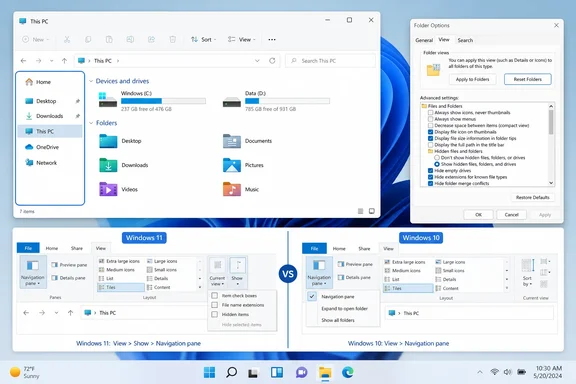 Restore the missing pane from File Explorer
Open File Explorer with Windows key + E. Look along the left side of the window: if the familiar column containing Home, Desktop, Downloads, This PC, OneDrive, and Network is gone, enable the Navigation pane using the version-specific menu.
On Windows 11, select View on the command bar, choose Show, then select Navigation pane. Microsoft documents this as the supported way to bring the left pane back after it has been hidden.
On Windows 10, open the View tab in File Explorer’s ribbon. Select Navigation pane, then ensure the Navigation pane entry is checked. Windows 10 places the control one level closer to the top-level View tab; Windows 11 moved it into the View > Show submenu as part of File Explorer’s redesigned command bar.
The change should occur immediately in the current Explorer window. If the pane does not return, close that window, open a new File Explorer window, and repeat the check. Do not confuse the Navigation pane with the Preview pane or Details pane: those appear on the right side of Explorer and do not provide the folder tree.
A visible pane can still look incomplete
Restoring the pane does not necessarily make every possible location appear in it. Windows 11’s File Explorer has changed where several familiar folders are displayed: beginning with Windows 11 version 22H2, Desktop, Documents, Downloads, Pictures, Music, and Videos are ordinarily pinned under Home/Quick access and are no longer duplicated beneath This PC by default. A reader expecting the older Windows 10 tree can mistake this redesign for a missing folder problem.
First, expand the items already visible. Select the small chevron beside Home, OneDrive, or This PC, rather than clicking the item’s name. Drives, user folders, and network locations may be nested beneath those entries.
If you need a more expansive tree, right-click an unused area inside the Navigation pane and look for its display choices. Depending on the Windows build, you may see options such as:
- Show all folders adds more shell locations to the tree and makes the pane resemble the older, more densely populated Explorer layout.
- Expand to open folder follows the folder currently open in the main Explorer area, expanding the tree to that location.
- Show libraries restores the Libraries node for users who rely on aggregated Documents, Pictures, Music, or Videos views.
These are convenience options, not repairs. Enabling Show all folders can make a compact pane considerably busier, while Expand to open folder can leave many branches open during routine work. Turn them on because they match how you navigate, not because they are required for the Navigation pane to function.
A missing individual entry also has different causes. A folder removed from Home can normally be restored by locating it, right-clicking it, and choosing Pin to Quick access. Microsoft specifically documents that workflow for restoring the standard known folders. A drive that is absent from This PC, however, is not a Navigation-pane setting; check whether it appears in Disk Management or whether an external drive has been disconnected before attempting cosmetic fixes.
Open Folder Options without hunting through menus
Folder Options—called File Explorer Options in parts of Windows—is where Explorer stores broader display behavior. It remains useful on both Windows 10 and Windows 11, even though the route to it differs.
In Windows 11, open File Explorer, select the three-dot See more menu on the command bar, and choose Options. In Windows 10, select View on the ribbon, then Options, followed by Change folder and search options if that second label appears.
A quicker version-agnostic route is to press Windows key + R, type control folders, and press Enter. This opens the classic Folder Options dialog directly. It is a useful procedure when Explorer’s command bar is cluttered, a ribbon is minimized, or you are assisting someone remotely and want one instruction that works across both versions.
Before resetting anything, open the View tab and inspect the Navigation pane area in Advanced settings. This is where Windows exposes preferences including Show all folders and Expand to open folder. If the issue is simply that the navigation tree does not follow the folder being browsed, adjust that option and select Apply rather than resetting saved views.
What “Reset Folders” actually resets
Select View in Folder Options and find the Folder views section. The Reset Folders button resets the saved layout for folders of the current template type to Windows defaults. In plain terms, it addresses Explorer’s remembered presentation—such as icon or Details view, sort order, grouping, column arrangement, and related layout state—for folders Windows treats alike.
This is the important limitation: Reset Folders is not a universal File Explorer factory reset. It does not delete files, remove pinned folders, uninstall OneDrive, repair a missing drive, or rebuild a broken Windows installation. It also is not the primary switch for showing or hiding the left Navigation pane; use View > Show > Navigation pane in Windows 11, or View > Navigation pane in Windows 10, for that.
To reset the relevant view safely:
- Open a folder that shows the broken or unwanted view. If Photos folders have the problem, use a typical photo folder; if ordinary document folders do, open one of those instead.
- Open Folder Options using the three-dot menu, the Windows 10 View > Options path, or
control folders. - Select the View tab.
- Choose Reset Folders and approve the confirmation prompt.
- Select Apply, then OK.
- Close File Explorer and reopen it to verify the pane width and folder view now behave normally.
The confirmation matters because the reset applies to the matching folder type, not solely to the one folder presently on screen. If you have deliberately customized Details columns across document folders, for example, resetting from one document folder can discard that shared preference.
Microsoft’s support material identifies Folder Options as the place for persistent File Explorer preferences, including opening Explorer to This PC and changing hidden-file or filename-extension behavior. Those settings remain intact unless you change them yourself; Reset Folders targets saved folder views rather than every option in the dialog.
If Explorer will not retain the change
When the Navigation pane reappears but vanishes after Explorer closes, start with the least invasive test: enable it, select Apply or close Explorer normally, then restart the PC. A restart clears the Explorer session and completes any pending Windows servicing work that can affect shell components.
If the behavior still returns, determine whether it happens only in one account. File Explorer view preferences are generally tied to the signed-in Windows user, so a working pane in another local account points to a profile-specific settings problem rather than a failed disk or a system-wide loss of files.
On a work-managed PC, configuration policies or management software can reapply Explorer preferences after sign-in. In that situation, do not use registry-cleaning tools or copy undocumented registry fixes from forums. Record exactly what changes, whether the setting survives a restart, and whether the device is managed; that gives an IT administrator a reproducible symptom instead of an ambiguous report that “Explorer is broken.”
If File Explorer itself will not open, freezes, or repeatedly crashes, this guide has reached its boundary. Microsoft treats that as a broader Explorer reliability problem and recommends checking Windows Update and restarting before considering more extensive Windows recovery steps.
The practical order is simple: turn the Navigation pane back on, check whether the expected folders are merely collapsed or unpinned, then use Reset Folders only when saved folder layouts are genuinely misbehaving. That preserves the useful customizations that a full reset would otherwise erase.