

Microsoft’s Windows documentation confirms that the Sensor Service loads the Simple Device Orientation sensor and that autorotation does not occur if that service is stopped or disabled. Microsoft also separates the physical orientation of a device from its display orientation, an important distinction when a manual setting is correct but automatic rotation is not. Dell and Lenovo support records further show that an absent rotation control on specific 2-in-1 models can trace back to the integrated sensor driver rather than the display panel itself.
Start with the least disruptive checks. Do not begin by editing the registry, disabling sensor hardware, or installing generic “driver updater” utilities. Those fixes can mask the actual fault or turn a temporary rotation problem into a permanent loss of tablet features.
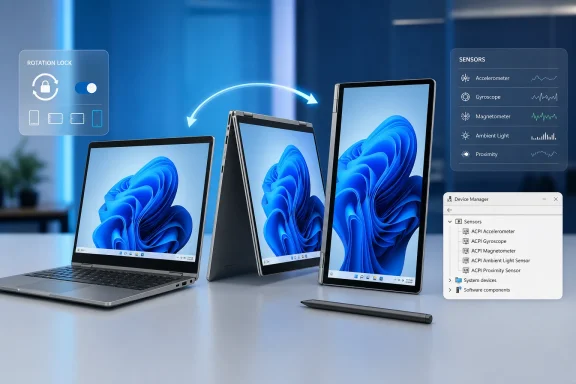 Confirm that the PC can rotate automatically
Automatic rotation is a hardware feature, not a standard capability of every Windows laptop or external monitor. A conventional clamshell notebook with no orientation sensor can still be set manually to portrait or landscape, but it will not rotate when physically turned.
Open Settings > System > Display. Under Display orientation, select Landscape if the screen is currently sideways or upside down, then choose Keep changes. Microsoft recommends using the orientation marked as recommended where possible.
If Windows is connected to more than one display, first select the affected screen in the display arrangement diagram. An external monitor can be manually set to Portrait or Landscape, but Windows normally does not rotate it automatically when the monitor is physically turned. Resolve the built-in display first, and disconnect docks, USB display adapters, and external monitors while testing if the behavior is unclear.
On a convertible laptop or tablet, fold the keyboard back or remove the detachable keyboard before testing. Some 2-in-1 systems intentionally withhold the rotation control while they are in ordinary laptop posture. Dell documents this behavior on some models when the hinge has not passed far enough into tablet mode. A missing Rotation lock button is therefore not conclusive by itself; the question is whether it reappears when the device is clearly in tablet, tent, or stand mode.
Turn off Rotation lock and reset the current orientation
When Rotation lock is on, Windows holds the display in its present orientation. The control may appear in either the Quick Settings panel or Display settings, depending on the device, Windows version, and whether the PC currently reports tablet-capable posture.
In Windows 11, press Windows key + A to open Quick Settings and look for Rotation lock. If it is visible and enabled, select it to turn it off. You can also search Settings for “rotation lock,” which is often faster than hunting through menus on devices whose vendor software changes the presentation of tablet controls.
In Windows 10, open the Action Center from the taskbar or go to Settings > System > Display. Turn off Rotation lock if it is available.
Then use this sequence:
- Set Display orientation to Landscape and keep the change.
- Turn Rotation lock off.
- Rotate the device slowly through portrait, landscape, and the reverse landscape position.
- Wait a few seconds in each position rather than snapping the device around quickly.
This is a diagnostic as much as a fix. If the display stays fixed but the Rotation lock control remains available and off, Windows is not receiving or acting on an orientation event. If the control vanishes only when the device is opened like a normal laptop, that may be expected hinge-state behavior.
A greyed-out Rotation lock setting is different from a locked setting. It commonly means Windows does not currently regard the machine as eligible for automatic rotation. The cause can be normal laptop posture, an undetected tablet-mode transition, a missing sensor driver, or a sensor that has stopped reporting.
Restart the services that make orientation data available
Windows runs several sensor-related services, and their names make it easy to restart the wrong one. The most important service for screen autorotation is Sensor Service, whose service name is SensorService. Microsoft’s current service guidance says it manages sensor functionality, Simple Device Orientation, and sensor history; if it is stopped or disabled, the orientation sensor does not load and autorotation does not occur.
To restart it:
- Press Windows key + R, type
services.msc, and press Enter. - Find Sensor Service.
- Right-click it and select Restart. If Restart is unavailable, select Start.
- Open its Properties and confirm that Startup type has not been set to Disabled.
Two related entries may also appear:
- Sensor Data Service supplies sensor data to Windows components.
- Sensor Monitoring Service monitors sensors and helps Windows adapt to changing device and user states.
If either service has been explicitly disabled, change its Startup type away from Disabled and start it. But do not blindly force all three to Automatic. Microsoft’s current baseline lists these sensor services as Manual, which allows Windows to start them when needed. The practical repair is to undo a disabled state and restart the services, not to override the operating system’s service configuration permanently.
Restart the PC after changing service state. A full Restart is preferable to simply closing the lid or putting the device to sleep, because it reloads the driver stack and reinitializes the sensor at boot.
Check Device Manager for the sensor, then the graphics adapter
If restarting the services does not restore rotation, check whether Windows can see the relevant hardware.
Right-click Start and select Device Manager. Look first under Sensors. Names vary widely by manufacturer, but common examples include HID Sensor Collection, Intel Integrated Sensor Solution, AMD UMDF Sensor, accelerometer, inclinometer, or a device explicitly described as an orientation sensor.
Also expand Human Interface Devices. Some systems expose the sensor collection there rather than under Sensors. A yellow warning triangle, an “Unknown device” entry, or a missing Sensors category after a recent Windows upgrade is useful evidence: this is likely a driver or firmware problem, not a Rotation lock setting.
For a device that appears with no warning icon:
- Right-click the sensor device and select Disable device.
- Wait several seconds.
- Right-click it again and select Enable device.
- Test rotation again in tablet posture.
If that changes nothing, use Update driver > Search automatically for drivers. Then check Settings > Windows Update > Advanced options > Optional updates. Microsoft notes that optional driver updates are not installed automatically, so a sensor, chipset, or graphics update may be waiting there even though Windows Update reports that the PC is current.
The graphics driver is worth checking too, but it should be second in the queue. A working sensor with a damaged or mismatched display driver can leave Windows aware of movement but unable to apply a new orientation cleanly. Under Display adapters, update the Intel, AMD, or Nvidia adapter through Device Manager or Windows Update.
If a device shows Code 18, Microsoft’s Device Manager guidance specifically recommends reinstalling the driver. Right-click the affected sensor or display adapter, select Uninstall device, restart Windows, and let the operating system rediscover it. Do this one device at a time so that a failed reinstall is easy to identify.
Use the PC maker’s driver package before generic replacements
Windows Update is the right first stop, but it is not always sufficient for convertible hardware. Microsoft’s driver guidance says to use the hardware manufacturer’s site when Windows Update cannot find a compatible update. That matters particularly for accelerometers, hinge sensors, chipset packages, and integrated graphics on 2-in-1 systems.
Dell’s support documentation for the XPS 13 9365 and Latitude 7389 2-in-1 identifies a faulty Intel Integrated Sensor Solution driver as the reason rotation controls can disappear. Dell says reinstalling the correct integrated sensor package restores the sensor drivers and rotation controls. Lenovo has documented similar cases on Yoga systems in which the missing auto-rotate option required the model-specific Intel sensor package or display driver.
The lesson applies beyond those individual models: install drivers from the support page for the exact PC model, not from a similarly named product family page and not from a third-party driver catalog. Download and install, in this order where available:
- The latest BIOS or UEFI update approved for the device.
- The chipset or platform driver package.
- The manufacturer’s sensor, accelerometer, or integrated sensor package.
- The validated integrated graphics driver.
Restart after the installs finish, even if the installer does not explicitly demand it. A sensor driver can install successfully but not begin reporting orientation until Windows reloads the device stack.
Avoid replacing an OEM graphics driver with a newer generic Intel, AMD, or Nvidia driver merely because it has a higher version number. Generic drivers can work, but convertible PCs sometimes rely on vendor-tested combinations of graphics, chipset, firmware, and sensor software. If autorotation broke immediately after a graphics-driver update, rolling back that one driver is more defensible than making registry changes.
Separate a Windows problem from a hardware fault
Microsoft provides SensorExplorer, a Microsoft Store utility intended for testing supported sensors. Its orientation test can verify whether Windows receives the expected readings as the device is moved through several positions. It is more useful than repeatedly flipping the laptop and hoping the screen reacts: a failed orientation test points toward the sensor, its calibration, driver, firmware, or physical connection.
A simple field test is also revealing. If the keyboard and touchpad fail to disable when a 360-degree convertible is folded into tablet mode and the screen will not rotate, the shared problem is often device-posture detection or the sensor package. If tablet mode behavior works but the display alone stays fixed, inspect Rotation lock and the graphics driver more closely.
Physical damage changes the calculation. A rotation failure that begins after a drop, liquid exposure, hinge repair, screen replacement, or motherboard work may be a loose cable, a damaged sensor board, or a missing OEM component. No Windows setting can repair a sensor that no longer produces valid readings.
Windows 10 remains usable, but Microsoft ended its free security updates and standard technical support on October 14, 2025. For a Windows 10 convertible that needs a manufacturer driver released only for Windows 11, confirm compatibility before changing the OS; an unsupported upgrade is not a sensible fix for a stuck screen.
The practical endpoint is clear: restore Landscape manually, unlock rotation, restart Sensor Service, verify that the sensor exists in Device Manager, then install the exact OEM sensor and platform drivers. If SensorExplorer still cannot detect a valid orientation reading after those steps, the problem has moved beyond Windows settings and into firmware or hardware service.