

Microsoft’s Windows driver documentation defines a Wake-on-LAN, or WoL, Magic Packet as a frame containing 16 consecutive copies of the target Ethernet adapter’s MAC address. That specificity explains why a PC can remain visible on a network before sleep yet ignore an ordinary ping, ARP traffic, or a generic “wake” command: WoL requires the right packet sent to the wired adapter’s MAC address.
Microsoft also draws an important line between sleep and shutdown. Its Windows client guidance says Windows 10 does not officially arm network adapters for WoL after the default hybrid shutdown, which Fast Startup uses. Intel’s Ethernet documentation reaches the same practical conclusion for affected adapters: if the objective is to wake a fully shut-down PC, Fast Startup and NIC power-saving settings may need attention. Start by proving WoL from sleep; then decide whether shutdown wake is actually required.
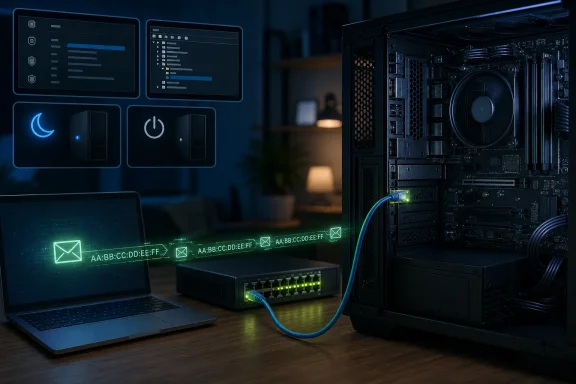 Confirm that the PC can wake from its current sleep state
Before changing BIOS settings or reinstalling drivers, determine which sleep model the PC supports and whether Windows sees the Ethernet controller as a wake-capable device.
Open Windows Terminal (Admin) or Command Prompt as administrator and run:
powercfg /a
powercfg /devicequery wake_programmable
powercfg /devicequery wake_armed
powercfg /a reports the power states available on the computer and why unavailable states are blocked. The two device queries separate capability from configuration: wake_programmable lists devices Windows can configure to wake the machine, while wake_armed shows what is currently allowed to do so.
Look for the actual wired Ethernet controller by name. It may appear as an Intel Ethernet Controller, Realtek PCIe family controller, Killer Ethernet controller, or a vendor-specific name. If it appears in wake_programmable but not wake_armed, Windows has not armed it. If it appears in neither list, the issue is not a Magic Packet app yet: the installed driver, NIC hardware, firmware, or selected power state does not expose a usable wake path.
You can explicitly arm a device returned by the first command:
powercfg /deviceenablewake "Exact adapter name from wake_programmable"
Use the name exactly as Windows prints it, including spaces. Run powercfg /devicequery wake_armed again afterward to verify that it stuck.
Do not confuse this with a test from a complete power-off state. Modern Windows machines may use traditional S3 sleep, hibernation, or Modern Standby/S0 low-power idle depending on their hardware. Microsoft cautions against forcing legacy S3 wake behavior on Modern Standby-capable PCs, where native Magic Packet wake support is the intended model and legacy changes can cause unnecessary DHCP or DNS traffic.
Enable the NIC settings that actually control Magic Packet wake
Open Device Manager, expand Network adapters, right-click the physical wired Ethernet adapter, and select Properties. Do not configure Wi-Fi, Bluetooth, VPN, virtual Hyper-V adapters, or USB tethering adapters when the goal is conventional LAN wake.
On the Power Management tab, enable these settings if they are present:
- Allow the computer to turn off this device to save power.
- Allow this device to wake the computer.
- Only allow a Magic Packet to wake the computer.
The first setting can seem counterintuitive. Windows has to place the adapter into an appropriate low-power state while leaving enough of it active to inspect incoming frames. Clearing it may interfere with the driver’s intended low-power wake configuration rather than preserving a better wake state.
Then open the Advanced tab. Exact labels differ among Intel, Realtek, Killer, Broadcom, and OEM driver packages, so do not expect a universal menu. Look for and enable settings with names such as:
- Wake on Magic Packet
- Wake on pattern match
- Wake from shutdown
- Shutdown Wake-On-LAN
- Wake on link
- Wake on LAN
- PME or Power Management Event
For a controlled test, enable Wake on Magic Packet first. Pattern-match wake and wake-on-link can make a PC resume unexpectedly when background traffic or a switch link change occurs. They are useful only when a specific management setup needs them.
Intel’s current support guidance lists “Wake on Magic Packet” among the driver options required for its WoL setup. It also shows why copying one adapter vendor’s checklist blindly can be counterproductive: options such as Energy Efficient Ethernet, reduced standby link speed, and network-service offloads have different names and effects across drivers. If Magic Packet wake still fails after the standard settings are enabled, temporarily disable NIC options that explicitly reduce link speed or power during standby, test again, and restore one setting at a time.
If the Power Management tab is missing, do not assume Windows is hiding a secret global control. Microsoft’s driver documentation says the tab’s visibility depends on what the installed driver exposes. Install the latest Ethernet driver supplied by the PC or motherboard manufacturer first; for an add-in NIC, use the NIC vendor’s current driver. A generic inbox driver may provide basic connectivity without exposing every wake capability.
Turn on the firmware setting that keeps Ethernet alive
Restart the PC and enter the BIOS/UEFI setup utility. The key is manufacturer-specific, commonly Delete, F2, F10, or Esc. Search the firmware menus for terms including:
- Wake on LAN
- Power on by PCI-E, PCIe, or PCI
- Resume by LAN
- PME Event Wake Up
- Network Stack Wake
- Power On By Onboard LAN
Enable the relevant option, save changes, and boot Windows again.
On desktops, also inspect any setting named ErP, EuP, Deep Sleep, or Low power in S5. These features can reduce off-state power draw by cutting standby power to onboard devices, including Ethernet. If the network-port LEDs go completely dark after shutdown, that is a strong physical clue that the NIC is no longer powered to receive a packet. Disable the deepest off-state power-saving option only if wake from shutdown is a real requirement; it increases standby power use.
Laptop firmware can be more restrictive. Many laptops support WoL only when connected to AC power, only from sleep, only with a dock or USB Ethernet adapter, or not at all. A USB Ethernet adapter is especially worth checking: its own driver and the USB controller must support remote wake, while many inexpensive adapters provide no reliable wake path once the host sleeps.
Treat Fast Startup as a shutdown-specific test, not the first fix
Windows Fast Startup writes the kernel session to disk and uses a hybrid shutdown state designed to make the next boot quicker. Microsoft’s published Windows client guidance says that in Windows 10, hybrid shutdown does not officially arm the NIC for WoL; it distinguishes that transition from ordinary sleep and an explicitly requested hibernation state.
That means a successful wake from sleep followed by a failure after selecting Shut down is expected behavior on many systems, not proof that the NIC configuration is broken.
If wake from a full shutdown is necessary, disable Fast Startup for a test:
- Open Control Panel and select Power Options.
- Choose Choose what the power buttons do.
- Select Change settings that are currently unavailable.
- Clear Turn on fast startup (recommended).
- Save changes, then perform a normal shutdown and test WoL again.
This trades faster cold starts for a more conventional shutdown path. It is a targeted workaround, not a universal recommendation: some hardware and firmware combinations can wake from an off state, while others cannot, regardless of Windows settings. If sleep wake works and shutdown wake remains impossible after Fast Startup is disabled and firmware settings are checked, use sleep for remote access or accept that the platform does not support the desired S5/off-state wake scenario.
Send a clean local-network test
For the first successful test, keep both machines on the same Ethernet LAN. Use the target PC’s physical Ethernet MAC address, not the MAC address of Wi-Fi, a VPN adapter, a virtual switch, or a USB device that will be disconnected during sleep.
Find it with:
getmac /v /fo list
or:
ipconfig /all
Record the Physical Address for the Ethernet adapter that has the active cable. Then put the target PC to sleep using Start > Power > Sleep, wait about 30 seconds, and send a Magic Packet from another device on the same subnet using a trusted WoL utility configured with that MAC address.
Check the Ethernet port LEDs before blaming the sender. A link light or activity LED that remains on or blinks after sleep suggests the adapter still has standby power. No lights do not prove failure on every device, but they make a firmware, power, cable, switch-port, or adapter-power issue more likely.
For external wake over the internet, solve local wake first. Remote WoL often needs a router feature, a VPN into the home or office network, a relay device, or carefully configured broadcast forwarding. Do not expose a PC’s remote-management services directly to the internet merely to compensate for a missing WoL path. A VPN or a managed relay on the local network is the safer design.
Verify the result with Windows rather than guessing
After the PC wakes, run:
powercfg /lastwake
powercfg /devicequery wake_armed
powercfg /lastwake reports what Windows recorded as the most recent wake source. It may identify the Ethernet adapter, but an unknown or empty result does not automatically clear the network: firmware-level wake behavior is not always described perfectly to Windows. The command is evidence, not a complete packet capture.
If the PC wakes unexpectedly rather than refusing to wake, change the NIC’s advanced setting from pattern match to Magic Packet only, then check:
powercfg /waketimers
This distinguishes scheduled wake timers from device-driven wake events. Also remove mouse and keyboard devices from the wake-armed list if they are muddying the test; leave the Ethernet adapter armed while testing.
The practical success condition is simple: the wired adapter remains armed, the PC enters sleep, a Magic Packet addressed to that adapter wakes it reliably, and powercfg /lastwake does not point to an unrelated device. Once that works, test hibernation and shutdown separately. They are different power transitions, and treating them as the same is the reason many otherwise correct Wake-on-LAN setups appear broken.