

pull, fetch, and push long after you believe you have signed out. The fix is usually local: find the credential entry that Git Credential Manager stored, remove the stale one, and let Git request a fresh sign-in on the next network operation.Git Credential Manager, or GCM, is the credential helper bundled with Git for Windows. Its documentation says Windows Credential Manager is its default credential store on Windows, while the core Git documentation identifies GCM as the secure persistent helper included with Git for Windows. Microsoft’s Azure Repos documentation uses the same repair path for stale Azure DevOps credentials: delete the matching Windows credential, then retry the Git operation.
The important distinction is between the credential on the PC and the account or token at GitHub or Azure DevOps. Deleting a Windows Credential Manager entry does not revoke a Personal Access Token (PAT), remove repository permissions, or log the account out everywhere. It tells local Git to stop presenting the old secret. If you believe a token was exposed, revoke it at the hosting service first, then remove every local copy.
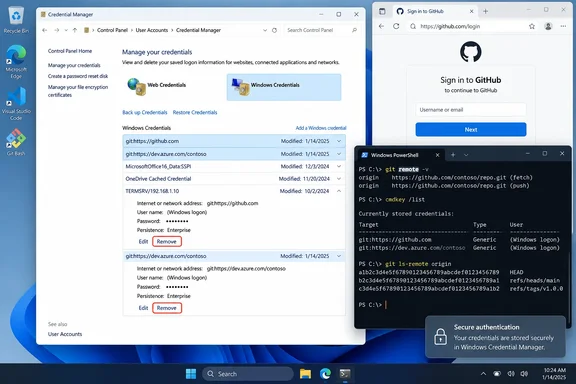 What Git for Windows stores for HTTPS remotes
This guide applies when a repository remote begins with https://. Check the remote URL from inside the repository:
git remote -v
Typical output looks like this:
origin  [url]https://github.com/contoso/widgets.git[/url] (fetch)
origin  [url]https://github.com/contoso/widgets.git[/url] (push)
or:
origin  [url]https://dev.azure.com/contoso/Engineering/_git/widgets[/url] (fetch)
origin  [url]https://dev.azure.com/contoso/Engineering/_git/widgets[/url] (push)
If the address begins with [email][email protected][/email]: or another SSH-style address, Credential Manager is not involved. Git is using SSH keys instead, and deleting a Windows credential will not change that authentication path.
For HTTPS repositories, Git asks its configured credential helper for an existing username and secret before it prompts you. GCM can complete the sign-in through a browser-based OAuth flow, an Azure DevOps Microsoft Entra sign-in, or a PAT-based flow when the host or configuration requires it. It then stores the resulting credential through Windows Credential Manager rather than asking you to paste the same secret for every command.
The visible names are easy to misread. GCM’s standard namespace is git, so GitHub entries often resemble:
git:[GitHub · Change is constant. GitHub keeps you ahead. · GitHub](https://github.com)
A GitHub credential can cover more than one repository because Git normally matches HTTPS credentials by host rather than repository path. In practical terms, deleting git:[GitHub · Change is constant. GitHub keeps you ahead. · GitHub](https://github.com) can make Git prompt again for every HTTPS GitHub repository used by that Windows account.
Azure DevOps is commonly more specific. Microsoft’s current Azure Repos guidance identifies entries such as:
git:[url]https://dev.azure.com/contoso[/url]
where contoso is the Azure DevOps organization. Do not assume every entry will match those examples character for character. A custom Git configuration, an on-premises Azure DevOps Server URL, a GitHub Enterprise Server hostname, or multiple accounts can produce separate entries.
Confirm that Git Credential Manager is active
Open PowerShell, Command Prompt, or Git Bash and run:
git config --show-origin --get-all credential.helper
This command is better than checking only git config credential.helper because it shows where the setting came from. Git configuration can be set at system, global-user, and repository levels. A machine-wide Git for Windows installation may provide the helper in its system configuration even when your personal .gitconfig file contains no credential setting.
On a current Git for Windows installation, look for a helper named:
manager
Older configurations may show manager-core, a path containing git-credential-manager-core, or a full path to the executable. Those names can be remnants of prior GCM packaging rather than an error by themselves, but a current GCM configuration uses manager. Git Credential Manager’s migration documentation specifically calls out the older manager-core naming as something to replace during an update or cleanup.
Also check the configured credential store:
git config --show-origin --get credential.credentialStore
No output is normally fine. On Windows, GCM defaults to the wincredman store when that option is unset, meaning Windows Credential Manager is being used. If the command reports plaintext, stop and correct it: that option writes credentials to files instead of the Windows credential vault.
To explicitly return to Windows Credential Manager storage, run:
git config --global credential.credentialStore wincredman
If no credential helper appears, or if the output shows an unwanted helper such as store, which writes a .git-credentials file in plaintext, reset the user-level helper carefully:
git config --global --replace-all credential.helper ""
git config --global --add credential.helper manager
The blank helper entry is intentional. Git supports multiple credential helpers, and an empty entry clears helpers inherited from lower-priority configuration files before manager is added. This prevents an old system-wide helper from being tried ahead of GCM.
Do not make this change on a managed development workstation without checking local IT guidance. An organization may deliberately configure a credential helper, proxy, or authentication flow through policy.
Find and remove an outdated GitHub or Azure DevOps entry
Use the graphical route if you want to inspect entries before removing them:
- Open Control Panel, then select User Accounts and Credential Manager.
- Select Windows Credentials, not Web Credentials.
- Expand entries beginning with
git:and identify the host or organization you need to reset. - Choose Remove for the obsolete entry.
For GitHub.com, the target will often be git:[GitHub · Change is constant. GitHub keeps you ahead. · GitHub](https://github.com). For Azure DevOps, look for the entry containing the organization, such as git:[url]https://dev.azure.com/contoso[/url]. Remove only the entry for the service or organization that is failing if you use more than one account.
Credential Manager generally does not show a token’s full value, and that is by design. Treat the target name as the identifier for the host or organization, not as a readable audit record of which GitHub user or Azure DevOps identity owns it.
The command-line method is faster when you know the target name. First list Git-related credentials:
cmdkey /list | findstr /i "git"
Then delete the precise entry:
cmdkey /delete:git:[GitHub · Change is constant. GitHub keeps you ahead. · GitHub](https://github.com)
For Azure DevOps, substitute the organization:
cmdkey /delete:git:[url]https://dev.azure.com/contoso[/url]
Use the target exactly as cmdkey /list displays it. Do not run a broad deletion command copied from another machine: removing every git: entry can force reauthentication across GitHub, Azure DevOps, GitLab, and internal Git servers.
Deleting an old entry is usually preferable to trying to overwrite it manually. On the next successful HTTPS authentication, GCM can store the correct browser-authorized token or credential in the format the provider expects.
Test a clean sign-in without changing code
Return to the repository whose authentication failed and first confirm that its remote is the expected HTTPS host:
git remote get-url origin
Then perform a read-only authentication test:
git ls-remote origin
A successful command prints references from the remote repository. If no stored credential remains, GCM should open a browser window or present an account-selection prompt. Complete the sign-in only after confirming the displayed host is GitHub, dev.azure.com, or your organization’s legitimate Git server.
You can also test during normal work:
git pull --ff-only
or:
git fetch --prune
git fetch --prune is often the safer test because it downloads remote information and removes stale remote-tracking references without merging code into your current branch. A later git push will confirm that write permissions are valid, but do not use it merely as an authentication check if you have unreviewed commits.
If GCM still returns the wrong identity after the entry is removed, run the helper-origin command again. A second credential helper, a repository-specific configuration, or a company-managed setting may still be supplying a credential. Git tries configured helpers in sequence and stops once it has obtained a username and usable secret, so the first helper in the chain can determine the account you see.
Replace a PAT without leaving stale access behind
A PAT should be handled like a password. GitHub’s security documentation warns that revoked or expired tokens cannot be restored; a new token is required. GitHub also recommends using Git Credential Manager or GitHub CLI for command-line access before creating a PAT manually. Azure DevOps likewise recommends credential managers and OAuth or Microsoft Entra-based authentication where available.
If a PAT has expired, rotate it at GitHub or Azure DevOps first, then remove its local Windows credential entry and sign in again. If it may have been exposed in a terminal history, screenshot, repository, chat message, or log file, revoke the original token immediately before doing local cleanup. Removing it from Credential Manager only eliminates one cached copy; it does not stop someone else from using a leaked token.
For normal Git for Windows use, avoid pasting a PAT into remote URLs or storing it through Git’s credential.helper store option. The practical outcome of using GCM with Windows Credential Manager is simpler: the credential is associated with your Windows profile, Git can reuse it securely for the relevant HTTPS host, and deleting one identifiable git: entry gives you a controlled way to force a new sign-in when authentication changes.