

MTU is the largest IP packet an interface can send without fragmentation. On a normal Ethernet or Wi‑Fi connection, 1500 bytes is common. But a VPN, PPPoE-based connection, tunnel, or unusual network appliance can reduce the usable size along the route. When Path MTU Discovery is blocked or broken, Windows and the network can disagree about packet size—and the result can be slow or incomplete connections.
This guide uses Windows’ built-in ping and netsh commands to test the IPv4 path MTU, change an adapter’s MTU only when evidence supports it, verify the result, and restore the previous setting safely.
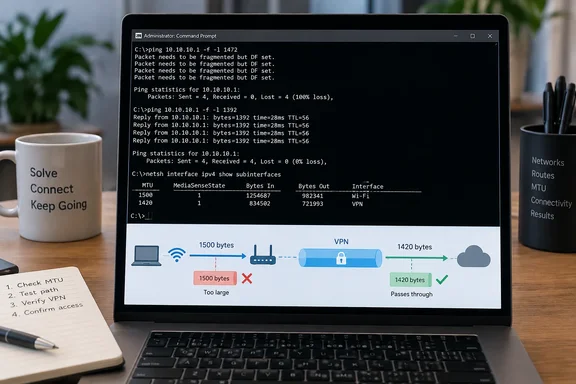 Before changing anything: identify the active adapter
Open Command Prompt as Administrator. Search for cmd, right-click Command Prompt, and choose Run as administrator.
First, record the existing MTU values:
netsh interface ipv4 show subinterfaces
Look for the adapter currently carrying your traffic, usually named something like:
Wi-FiEthernet- A VPN adapter such as
OpenVPN,TAP-Windows Adapter, or a vendor-specific name
Make a note of its current MTU before editing it. That number is your rollback plan.
A typical result might look like this:
MTU  MediaSenseState  Bytes In  Bytes Out  Interface
1500  1                ...       ...        Wi-Fi
The important distinction: path MTU versus adapter MTU
Your adapter’s configured MTU is not automatically the same as the maximum packet size supported all the way to a destination.
For example:
- Your Wi‑Fi adapter may use MTU 1500.
- Your VPN encrypts and wraps traffic in extra headers.
- The usable path through that VPN may only support something smaller, such as 1400 or 1420.
That is why a VPN-only fault should normally be tested and corrected on the VPN adapter, not by permanently reducing the MTU of every Ethernet or Wi‑Fi connection in sight. MTU tuning is a scalpel, not a leaf blower.
Test the largest IPv4 packet that survives the route
Microsoft documents ping as a Windows troubleshooting tool, and its Do Not Fragment option is specifically useful for testing Path MTU issues. The test below uses IPv4 because the Do Not Fragment option applies to IPv4.
Choose a stable public IP address or a destination relevant to the failure. If the problem happens only through a corporate VPN, test an internal server reached through that VPN.
Start with the standard Ethernet payload size:
ping /4 /f /l 1472 1.1.1.1
What those switches mean:
| Switch | Purpose |
|---|---|
/4 | Forces IPv4 |
/f | Sets the Do Not Fragment flag |
/l 1472 | Sends 1,472 bytes of ICMP payload data |
Why 1472? An IPv4 ping packet also carries a 20-byte IPv4 header and an 8-byte ICMP header. So:
1472 payload + 28 bytes of headers = 1500 MTU
Interpret the result
If the command succeeds with replies, the tested route supports an MTU of at least 1500:
Reply from 1.1.1.1: bytes=1472 time=... TTL=...
If Windows reports a fragmentation-related error, such as:
Packet needs to be fragmented but DF set.
the path is smaller than 1500. Reduce the payload size and test again:
ping /4 /f /l 1462 1.1.1.1
ping /4 /f /l 1452 1.1.1.1
ping /4 /f /l 1442 1.1.1.1
Continue until you find the largest payload size that succeeds consistently.
For a quicker method, make larger jumps first, then narrow the gap. Suppose 1400 works and 1410 fails; test values in between until you locate the highest reliable success.
A timeout is not automatically an MTU failure. Some hosts, firewalls, and VPN gateways block or rate-limit ICMP echo traffic. A fragmentation-specific message is meaningful; repeated timeouts may mean the chosen target simply does not answer ping.
Calculate the tested path MTU
Once you have the largest successful payload, add 28 bytes.
For example:
Largest working ping payload: 1392
IPv4 + ICMP headers:          28
Tested path MTU:            1420
In that case, 1420 is the MTU indicated by this specific IPv4 route and test target.
Do not treat a single public ping test as universal truth. Different destinations can traverse different networks, and a VPN path can be smaller than your ordinary internet path. Test the route that reproduces the problem.
Set MTU with netsh
If testing shows that the current adapter MTU is too large for the troubled path, set the affected interface to the calculated value.
For example, to set a Wi‑Fi adapter to 1420:
netsh interface ipv4 set subinterface "Wi-Fi" mtu=1420 store=persistent
For an Ethernet adapter:
netsh interface ipv4 set subinterface "Ethernet" mtu=1420 store=persistent
For a VPN adapter, use the exact interface name reported by netsh interface ipv4 show subinterfaces:
netsh interface ipv4 set subinterface "VPN Adapter Name" mtu=1420 store=persistent
The store=persistent option keeps the setting after a restart. Microsoft’s netsh interface documentation lists active and persistent as the available storage choices:
store=activeapplies the change until the next restart.store=persistentretains it across restarts.
If you are diagnosing a problem and want to test cautiously before committing, use:
netsh interface ipv4 set subinterface "Wi-Fi" mtu=1420 store=active
Then retest the site, VPN, RDP connection, or application that had been failing. If it works as expected, repeat the command with store=persistent.
Verify the setting
Run the adapter listing again:
netsh interface ipv4 show subinterfaces
Confirm that the intended interface now shows the value you entered.
Then repeat your packet test:
ping /4 /f /l 1392 1.1.1.1
If your configured MTU is 1420, a 1392-byte IPv4 ping payload is the matching test size.
Finally, test the real-world failure:
- Open the website that previously stalled.
- Disconnect and reconnect the VPN.
- Retry the remote desktop, file transfer, software update, or cloud application.
- Test both Wi‑Fi and Ethernet if the problem appears tied to only one connection type.
Safely undo the change
The safest rollback is simple: restore the MTU value you recorded before making changes.
For example, if Wi‑Fi was originally 1500:
netsh interface ipv4 set subinterface "Wi-Fi" mtu=1500 store=persistent
Then verify:
netsh interface ipv4 show subinterfaces
Avoid using broad network reset commands merely to undo one MTU experiment. Restoring the original value is cleaner and does not wipe unrelated configuration such as saved adapters, network components, or custom settings.
Common failure points
“The parameter is incorrect”
Check the adapter name carefully. It must match the name shown by:
netsh interface ipv4 show subinterfaces
Keep quotation marks around names containing spaces.
Also ensure Command Prompt was opened with administrator rights.
The command works, but the VPN is still broken
A VPN may use its own virtual adapter and its own overhead. Lowering the physical Wi‑Fi or Ethernet adapter MTU might not solve a tunnel-specific issue. Identify the VPN interface in the netsh output and test or adjust that interface instead.
Websites still partly load, but ping tests look normal
MTU may not be the culprit. Similar symptoms can come from:
- DNS filtering or resolution failures
- Browser extensions
- Proxy configuration
- Antivirus HTTPS inspection
- VPN split-tunneling rules
- A broken router, firewall, or ISP path
- IPv6-specific connectivity trouble
The built-in ping /f test is an IPv4 diagnostic, not a verdict on every protocol and every route. If only IPv6-enabled destinations fail, changing IPv4 MTU will not be a magic wand.
Practical rule of thumb
Leave MTU at its default unless testing points to a real mismatch. A standard 1500-byte setting is normal for most Ethernet and Wi‑Fi connections. Lower values are most defensible when a VPN, tunneled connection, PPPoE link, or a demonstrated Path MTU problem requires them.
The useful workflow is wonderfully unglamorous: record the original value, test the troubled path, calculate the result, change only the affected adapter, verify it, and roll back if the evidence does not hold up. In networking, as in plumbing, changing random valves because one tap drips is rarely the heroic move.