

Microsoft’s own File Explorer and PowerToys documentation confirms that preview handlers are a separate layer from the pane’s on-screen toggle. Microsoft’s October 22, 2025 servicing note, KB5070960, also documented a security change that blocks previews for files marked as downloaded from the internet. That distinction is now essential: the message “The file you are attempting to preview could harm your computer” is usually intentional protection, not a Preview pane malfunction.
Start by testing with two files: a local image or text file you created yourself, and the exact document type that will not preview. If locally created .txt, .jpg, or .png files preview normally while downloaded PDFs, Office files, or archives do not, Explorer is functioning. The affected files carry a security marker, commonly called Mark of the Web.
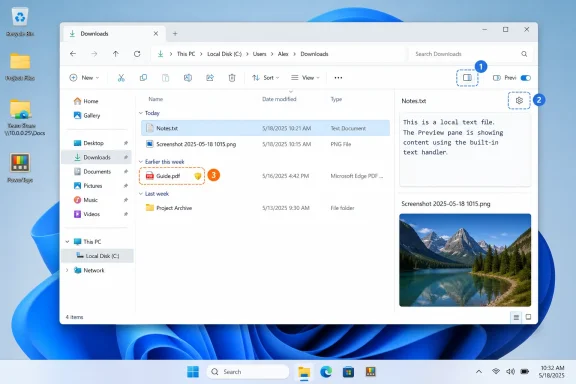 Turn the pane and its handlers back on
Open File Explorer and press Alt + P. This toggles the Preview pane in both Windows 10 and Windows 11. In Windows 11, the same control is under View > Show > Preview pane; in Windows 10, it is under View > Preview pane.
Select a local image or text file after enabling it. A narrow blank area on the right does not prove the feature is working; it only proves the layout pane is open. The real test is whether File Explorer renders the selected file’s content.
Next, open File Explorer Options:
- In Windows 11, select the three-dot menu in File Explorer and choose Options.
- In Windows 10, open the View ribbon tab and choose Options.
- Select the View tab in the Folder Options dialog.
- Find Show preview handlers in preview pane, select it, then choose Apply and OK.
This checkbox is the master control for the handlers that render rich previews without opening the associated application. Microsoft documents these handlers as separate components hosted by File Explorer, commonly through Prevhost.exe, rather than as a generic image feature. If the checkbox is cleared, basic image behavior can appear inconsistent while document, PDF, source-code, and other application-supplied previews disappear entirely.
If the setting was already selected, clear it, select Apply, then select it again and apply the change. Close every File Explorer window, reopen one, and test again. This is a controlled reset of the setting; it is preferable to deleting broad Explorer registry branches.
Separate a missing handler from a Windows-wide failure
A Preview pane that works for .txt and .jpg files but not PDFs, Adobe Photoshop files, email .msg files, Markdown, or developer formats is not a general Explorer failure. Windows needs a registered preview handler for each of those formats.
For Microsoft Office files, the installed Office or Microsoft 365 desktop application normally supplies the handler. For PDFs, the installed PDF application determines whether File Explorer has a compatible preview handler. Browser-based PDF readers may open a PDF perfectly while providing no File Explorer preview integration. Reinstalling or repairing the application responsible for the failing format is more targeted than resetting Windows.
Microsoft’s PowerToys documentation provides a useful example. Its File Explorer add-ons can add preview and thumbnail support for formats such as SVG, PDF, Markdown, and source code, but each extension must be switched on inside PowerToys. Microsoft also warns that enabling an added handler can conflict with another installed handler, including Outlook’s PDF preview support.
Use this quick diagnosis before changing policy:
- If every supported local file type is blank, check the Preview pane toggle, the handler checkbox, and the per-user Explorer setting.
- If only one extension is blank, repair, update, or reconfigure the application that owns that extension’s preview handler.
- If files preview locally but not from a share, test by copying one known-safe file to a local folder before changing any policy.
- If only downloaded files show a security warning, leave the Preview pane configuration alone and handle the file’s trust status.
Do not confuse thumbnails with the Preview pane. Thumbnails are the small images in a folder’s file list; the Preview pane is the larger read-only rendering at the right. An icon-only policy can remove thumbnails without preventing a selected image or document from rendering in the Preview pane.
The 2025 downloaded-file block is working as designed
Microsoft says Windows security updates released on and after October 14, 2025 automatically disable File Explorer previews for files carrying Mark of the Web and for files viewed on an Internet Zone file share. The change mitigates NTLM hash-leakage risk: specially crafted content could cause Explorer’s preview process to access an external path before the user had opened the file.
That protection changes the correct repair path. If Explorer displays the warning that a file could harm the computer, do not disable SmartScreen, lower all Internet Zone settings, or use a registry policy to stop Windows marking future downloads. Those changes turn a per-file trust decision into a permanent reduction in protection.
For a file whose source and contents you have independently verified, right-click it, select Properties, select Unblock on the General tab, then choose Apply. Close and reopen File Explorer before testing. Microsoft notes that the behavior can take effect after the next sign-in, so log out and back in if the pane retains the warning.
For a network share incorrectly treated as Internet Zone, the administrative solution is to classify the share appropriately in Internet Options under Security, using either Local intranet or Trusted sites. This has a wider consequence than unblocking one file: files from that location receive a more trusting treatment. Apply it only to a managed share with a known security boundary, not to a broad wildcard path or an untrusted NAS.
The Attachment Manager policy named Do not preserve zone information in file attachments is often presented online as a Preview pane fix. It is not a repair for existing blocked files. When enabled, it tells Windows not to attach zone-origin information to future downloads. Microsoft explicitly notes that doing so prevents Windows from making appropriate risk assessments. On a business-managed device, that policy belongs to security administration, not to an end-user troubleshooting checklist.
Check whether policy is overriding your settings
On Windows Pro, Enterprise, and Education editions, open Local Group Policy Editor by running gpedit.msc. Check these user policies under User Configuration > Administrative Templates > Windows Components > File Explorer:
- Set Turn off the display of thumbnails and only display icons to Not Configured or Disabled if the problem is missing folder thumbnails.
- Review Turn off the display of thumbnails and only display icons on network folders separately; Windows treats network-folder thumbnail generation more conservatively because loading remote content carries additional risk.
Microsoft’s policy documentation identifies the registry values behind these settings: DisableThumbnails and DisableThumbnailsOnNetworkFolders under the current user’s Explorer policy branch. These settings affect thumbnails, so they should not be used as a claimed fix for a blank document Preview pane. They are relevant when users report that all folders show generic icons instead of picture or document thumbnails.
For managed PCs, Local Group Policy Editor may show a setting as Not Configured while a domain Group Policy Object or an MDM policy reapplies a different value at sign-in. Run the following command in Command Prompt to create a policy report on the desktop:
gpresult /h "%USERPROFILE%\Desktop\gpresult.html"
Open the resulting report and look under User Details for applied Group Policy Objects. If a policy controls Explorer, Attachment Manager, or Internet Zone assignment, changing the local registry will either fail to persist or create a support problem for the administrator who owns the baseline.
The corresponding user preference for rich handlers is ShowPreviewHandlers under:
HKEY_CURRENT_USER\Software\Microsoft\Windows\CurrentVersion\Explorer\Advanced
Microsoft’s Group Policy Preferences protocol documentation identifies this value as the backing store for the “Show preview handlers in preview pane” option: 1 enables handlers and 0 disables them. Use the File Explorer Options checkbox first. If that UI setting refuses to save and no management policy is responsible, set ShowPreviewHandlers to 1, then restart Explorer or sign out and back in.
Reset Explorer without destroying the profile
When the Preview pane is enabled, handler support is enabled, local test files still fail, and policy is not restoring a conflicting setting, reset the File Explorer view configuration through its supported interface. Open File Explorer Options > View, select Restore Defaults, then select Reset Folders if the issue follows a particular folder template or view configuration.
Restart Explorer afterward. Press Ctrl + Shift + Esc to open Task Manager, select Windows Explorer, and choose Restart. This closes Explorer windows and reloads the shell without requiring a full reboot.
Avoid “reset Explorer” scripts that delete all of HKCU\Software\Microsoft\Windows\CurrentVersion\Explorer. That branch stores far more than Preview pane state, including folder views, Quick Access behavior, and shell preferences. Deleting it turns a narrow rendering fault into a profile-wide rebuild, while doing nothing to restore a missing PDF or Office preview handler.
If a known-good local text file still cannot preview after the supported reset, test under a new Windows user profile. A result that works in the new profile points to a damaged or managed per-user configuration; a result that fails in both profiles points back to the handler registration, the installed application, or a broader Windows component issue. The immediate practical result is a much smaller repair target—and no reason to weaken the security control that now blocks internet-origin files by design.