

Automatic downloads are not the same as a normal download you deliberately start by selecting a link or a Download button. The permission applies when a website tries to start additional downloads without another clear action from you—for example, when an accounting portal exports a batch of PDFs or a photo site saves an archive plus several individual images.
It is also separate from website push notifications, Windows notifications, pop-ups, and the Windows Automatic file downloads privacy feature used for online-only cloud files. The sections below explain where each control belongs so you do not change the wrong setting.
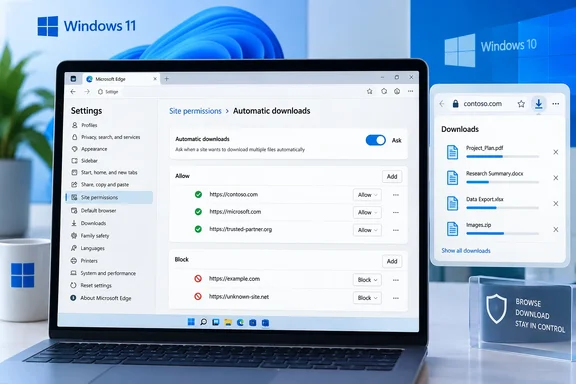 Before you change automatic-download permissions
- Use a standard, up-to-date version of Microsoft Edge. To check for an update, select Settings and more > Help and feedback > About Microsoft Edge. Restart Edge if it requests one.
- Change the setting in the Edge profile you use for that website. A work profile and a personal profile can have different site-permission lists.
- Do not broadly allow automatic downloads merely to remove a prompt. Grant the exception only to a site you recognize and need, such as a business portal that creates a known batch of reports.
- If Edge says that a setting is managed by your organization, the browser may be receiving a work or school policy. You can review the setting, but you may not be able to alter it yourself.
Warning: Allowing a site to download multiple files automatically reduces the number of times Edge asks before additional downloads begin. Do not add unfamiliar sites to the allowed list, particularly if a page claims you must download files to fix a security issue, claim a prize, or verify your computer.
Set Edge to ask before a site downloads multiple files
The recommended configuration is to let a site request permission when it attempts additional downloads. That preserves normal downloads you intentionally start while giving you a decision point before a site starts a batch.
Windows 11 and Windows 10
- Open Microsoft Edge.
- Select Settings and more in the upper-right corner of the browser window. The button uses three horizontal dots.
- Select Settings.
- In the left pane, select Cookies and site permissions.
- Under All permissions, select Automatic downloads.
- Turn on Ask when a site tries to download multiple files automatically (recommended).
With this setting enabled, Edge can ask for permission when a website tries to download more files automatically after the first download. - Close the Settings tab. The change is saved immediately; no Windows restart or Edge restart is normally required.
If you already have a site open when you make the change, reload that page before testing its download function. A site that was already granted permission may continue to use its saved exception until you remove or change that exception.
Allow automatic downloads for one trusted website
Use an allowed exception when you regularly use a legitimate site that intentionally creates several files at once. Examples can include downloading a group of invoices, reports, statements, images, or exported records.
- In Edge, return to Settings > Cookies and site permissions > Automatic downloads.
- Confirm that Ask when a site tries to download multiple files automatically (recommended) is on.
- Find the Allowed to automatically download multiple files section.
- Select Add.
- Enter the exact site address you trust, then select Add.
Use the actual site address rather than a search result, shortened link, or a similarly named domain. For example, confirm that you are allowing the organization’s real sign-in or portal address. - Return to the site and start the normal download or export process.
- When the site creates several downloads, Edge should permit that site’s additional downloads without repeatedly asking for the automatic-download permission.
An allowed entry applies only to the website address you added. If a service moves downloads to a different subdomain or a separate file-delivery domain, Edge may still prompt for that other address. Review the address shown in the prompt before granting anything.
Allow a site while you are visiting it
When Edge displays an automatic-download prompt during a legitimate task, you can allow the request at that point instead of adding an exception in advance.
- Check the website address in the Edge address bar.
- Confirm that the download is expected—for example, you just selected an export option that is supposed to produce several files.
- Use the permission choice in Edge’s prompt to allow the site’s automatic downloads.
- After the task completes, review the allowed list in Settings > Cookies and site permissions > Automatic downloads. Remove the exception later if it was needed only once.
For a one-time task, removing the entry afterward is the safer choice. You can always add it again when you next need the site.
Block a website from starting multiple downloads
Blocking is useful when a site repeatedly tries to download unwanted material or when you accidentally allowed a site and want to revoke that decision.
- Open Settings > Cookies and site permissions > Automatic downloads.
- Find the section for sites that are Not allowed to automatically download multiple files.
- Select Add.
- Type the site address you want Edge to block, then select Add.
- Reload the site if it is already open.
When the site next tries to start several automatic downloads, Edge should prevent it from using that permission. A block does not delete files that are already saved in your Downloads folder, and it does not necessarily stop a download that began before you changed the setting.
Remove an automatic-download exception
To undo a previous allow or block rule:
- Go to Settings > Cookies and site permissions > Automatic downloads.
- Locate the website under either the allowed or blocked section.
- Select the site’s More actions button beside its entry.
- Select Remove.
- Reload the site before trying its download process again.
Removing an allowed entry returns the site to Edge’s general automatic-download behavior. If the recommended asking setting is on, Edge can ask again when the site attempts multiple downloads. Removing a blocked entry does not automatically allow the site; it simply removes the site-specific block.
Review a site’s permissions from the address bar
If you are already on the website, the address bar offers a faster way to inspect permissions associated with that site.
- Open the relevant page in Edge.
- Select the site-information icon to the left of the address bar. Depending on the connection and site state, it may appear as a lock, information, or warning icon.
- Select Permissions for this site.
- Look for Automatic downloads if the site has requested or received that permission.
- Change the setting to Ask, Allow, or Block, as appropriate for the choices Edge presents.
- Reload the webpage and repeat only the download action you expect.
The page-level permission view is useful for a quick correction, but the Automatic downloads page in Edge Settings is better for auditing all saved exceptions in one place.
Check that the setting worked
Use a trusted website that has a legitimate multi-file download feature. Do not test by visiting an unknown “download test” page.
- Make sure the website is not already in the allowed list if you want to test the prompt.
- Keep Ask when a site tries to download multiple files automatically (recommended) enabled.
- Start the site’s normal batch export or download process.
- Watch for Edge to request permission when the site attempts additional downloads.
- If you choose to allow the site, return to Automatic downloads afterward and confirm whether an allowed exception was saved.
- Open Edge’s download list by selecting the Downloads button on the toolbar, or press Ctrl+J, to review the files that actually downloaded.
Check the file names and types before opening anything. A document export should generally match the format you selected. If you expected PDFs but see executable files or archives you did not request, delete them without opening them and remove the site’s allowed exception.
Manage download prompts separately from automatic-download permission
Automatic-download permission controls a website’s ability to begin additional downloads. It does not control where Edge saves each file.
If you want Edge to ask where to save every download, use the download settings instead:
- Open Settings and more > Settings.
- Select Downloads.
- Turn on Ask me what to do with each download.
With that option on, Edge asks you to choose a location or action for each download. This can be useful when you work with sensitive files or want to prevent a Downloads folder from filling with files you cannot identify.
Warning: Do not disable Microsoft Defender SmartScreen warnings or other security prompts simply because they interrupt a download. If Edge warns about a file, verify the source and file type rather than bypassing the warning.
Website notifications are not download permissions
A website notification is a message sent by a site, such as a promotion, chat alert, or news update. It can appear in the lower-right corner of Windows and in the notification center. Blocking a site’s notifications does not block that site from downloading files, and blocking automatic downloads does not stop notification prompts.
To block notifications from a particular website in Edge:
- Select Settings and more > Settings.
- Select Privacy, search, and services > Site permissions > All sites.
- Select the website.
- Find Notifications and choose Block.
You can also change a visited site’s notification permission from the site-information icon beside the address bar. Use this for sites that repeatedly send unwanted alerts after you previously selected Allow.
Do not confuse Edge with Windows automatic file download notifications
Windows has a separate feature called Automatic file downloads. It relates to apps downloading online-only files from a cloud storage provider, such as OneDrive Files On-Demand. It is not the Edge website setting described in this guide.
If Windows shows an automatic file download notification, you can dismiss it, let the download finish, or cancel it. Windows can also offer to block the app that requested the cloud-file download. Blocking an app can affect how that app works with online-only files, so do not block a trusted app unless you understand why it is downloading the files.
To reduce the Windows banners for that feature without changing Edge website permissions:
- Windows 11: Open Start > Settings > System > Notifications, then adjust the sender named Automatic file downloads if it appears.
- Windows 10: Open Start > Settings > System > Notifications & actions, then adjust Automatic file downloads under the list of notification senders if it appears.
Turning off those Windows notifications does not allow, block, or prompt for automatic browser downloads.
Troubleshoot automatic downloads that do not behave as expected
A trusted site cannot download a batch of files
- Reopen Settings > Cookies and site permissions > Automatic downloads and confirm the asking setting is enabled.
- Check whether the site is listed under the blocked section. Remove the block if it was added by mistake.
- Add the actual download site to the allowed list only after confirming it is legitimate. Some services use a different address for file delivery than for their main portal.
- Reload the page after changing permissions, then begin the batch download again.
- Check Edge’s download list with Ctrl+J. The site may have generated a single ZIP file rather than several individual downloads.
Edge never shows a prompt
- Review the allowed list. A previous approval may still be saved for that site.
- Check whether you are using a different Edge profile. Site permissions are tied to the profile in which you set them.
- Open Settings > Downloads and confirm whether Ask me what to do with each download is affecting how each file is handled. That setting is separate from the multiple-download permission.
- If the setting is unavailable or labeled as managed, contact your organization’s IT administrator. Managed devices can enforce automatic-download behavior and site-specific allow or block rules.
A site keeps sending download-related alerts
Determine which kind of alert it is:
- If it is an Edge request to download more files, use Automatic downloads and remove the site from the allowed list or add it to the blocked list.
- If it is a Windows banner from a website, block that site’s Notifications permission in Edge.
- If it is a browser pop-up or a new tab claiming that your computer is infected, do not select anything in the message. Close the tab and keep Edge’s Pop-ups and redirects protection enabled under Settings > Privacy, search, and services > Site permissions > All permissions.
- If it is a Windows notification about online-only cloud files, use the Windows automatic-file-download controls rather than Edge’s site permissions.
You allowed a site by mistake
- Open Settings > Cookies and site permissions > Automatic downloads.
- Remove the site from the allowed list, or add it to the blocked list if you do not want it to request the permission again.
- Press Ctrl+J and review the downloaded files.
- Delete files you did not intend to download without opening them.
- Run a Microsoft Defender scan if you opened or executed an untrusted file.