

Microsoft’s current Windows support guidance treats these as related but distinct controls. A dark display conserves power and discourages casual viewing; Sleep preserves the current session while placing the PC in a low-power state; the Require sign-in choice determines whether Windows asks you to authenticate again after waking. Setting all three deliberately produces the behavior most people mean when they ask for a “lock screen timeout.”
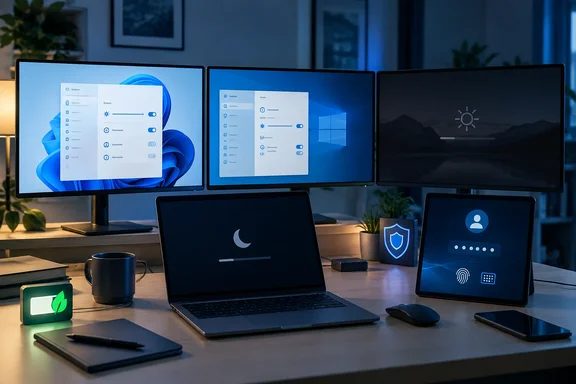 Windows 11 Power & battery separates screen-off time from Sleep
Windows 11 places these controls in Start > Settings > System > Power & battery. Open Screen, sleep, & hibernate timeouts; on some Windows 11 builds, the same area may be labeled simply Screen and sleep.
You will normally see separate drop-down menus for battery and plugged-in operation on a laptop. A desktop may show only its plugged-in choices. The important distinction is straightforward:
- Turn my screen off after controls when Windows turns off the display after inactivity.
- Make my device sleep after controls when the entire PC enters Sleep after inactivity.
These timers do not have to match. For example, a laptop used at a desk might turn its display off after five minutes but sleep after 15 minutes. The screen goes dark promptly if you walk away, while the system remains available for a short break without repeatedly disconnecting background work or external devices.
Microsoft describes shorter screen and sleep timers as a way to reduce idle energy use. The display is often one of the more visible sources of power consumption on a portable PC, so reducing an excessively long screen timeout can make a practical difference to battery runtime without changing how quickly the PC resumes work.
A very short timer has a cost: the monitor can shut off while you are reading a long document, watching a dashboard that does not update often, or following a recipe. Choose a value that fits the way you use the machine rather than copying a number intended for another person’s laptop.
Windows 10 uses the older Power & sleep page
On Windows 10, open Start > Settings > System > Power & sleep. The structure is similar, although the wording is older:
- Under Screen, set when Windows should turn the display off.
- Under Sleep, set when the PC should enter Sleep.
Laptops commonly expose separate controls for On battery power and When plugged in. Configure both deliberately. A battery setting that works well on a train may be irritating at a desk, while an always-on AC setting can waste power if the laptop remains plugged in overnight.
Windows 10 and Windows 11 therefore offer the same basic decision in slightly different locations. Do not confuse the screen setting with the Sleep setting: selecting “Never” for Sleep does not keep the screen lit, and selecting a screen-off timer does not necessarily mean the PC has gone to Sleep.
Sleep keeps your open apps and documents ready to resume while using very little power. It is designed for short absences. If a PC needs to be left unused for a much longer period, shutdown or hibernation may be more appropriate, depending on the hardware and the organization’s requirements. Those are different power states from the routine screen timeout covered here.
Sign-in options decide whether waking up means unlocking Windows
Turning a display off is useful for privacy, but the security boundary is the authentication prompt. To choose whether Windows asks for your PIN, password, fingerprint, or other configured sign-in method after Sleep, go to Start > Settings > Accounts > Sign-in options.
Find Require sign-in, often phrased as “If you’ve been away, when should Windows require you to sign in again?” Select the option that requires sign-in when the PC wakes from Sleep if you want an unattended computer to remain protected.
Microsoft’s security guidance recommends requiring sign-in after wake. This is the sensible setting for a shared home, office, classroom, or any place where someone else could reach the keyboard. It also means a screen that wakes because of a mouse movement does not hand the active session to whoever happens to be standing nearby.
Selecting an option that avoids a sign-in prompt makes resuming more convenient, but it removes an important layer of protection. It should be reserved for circumstances where physical access is controlled and the account contains no information that needs protection from people nearby. On a work or school device, the choice may be unavailable because an administrator has applied a security policy.
Do not interpret a grayed-out Require sign-in menu as a Windows fault. Microsoft notes that account or device security policy can disable this control. In that case, a local user should not attempt to work around an organizational requirement; the policy owner has intentionally set the wake-authentication behavior.
A sensible Windows lock-screen routine uses staggered timers
The best settings depend on whether you prioritize security, battery life, or uninterrupted work. The goal is usually to make the display disappear before an unattended device becomes an invitation to browse, then put the hardware into Sleep after a longer idle period.
For a personal laptop that travels outside the home, a practical starting point is a short display timeout on battery power, a somewhat longer Sleep timeout, and sign-in required after wake. This keeps the display from staying exposed when you step away while retaining quick access to your current work.
For a desktop in a private home office, you may prefer a longer screen timer and Sleep timer, particularly if it handles lengthy local tasks. Still, require sign-in after wake if other people can access the room. A powered display is not a security policy, and an unlocked Windows session contains far more than the wallpaper visible on screen.
For a PC used for presentations, streaming, monitoring, or other unattended display work, changing the timer to a longer interval—or, where appropriate, selecting Never for the display timer—may be justified. Make that decision narrowly. Leaving both the screen and Sleep timers disabled permanently increases energy use and can expose information that would otherwise be hidden after a few minutes.
Set the three controls in order
- Open the Windows power settings page: System > Power & battery in Windows 11, or System > Power & sleep in Windows 10.
- Set the display-off timer first. Choose a shorter duration for battery use if preserving charge and reducing casual visibility are priorities.
- Set the Sleep timer separately. Make it longer than the display timeout if you want the screen to go dark before the PC suspends.
- Open Accounts > Sign-in options and set Require sign-in to require authentication when the device wakes from Sleep.
- Test the result by leaving the PC idle long enough for the display timer, then waking it with the keyboard, mouse, or power button. Confirm that the display behavior and the sign-in prompt match the intended routine.
If the PC does not behave as expected, first determine which part is wrong. A display that goes dark too quickly is a screen-timer issue. A computer that stays awake after the display turns off is a Sleep-timer issue. A machine that resumes directly to the desktop is a sign-in setting or, on a managed device, an organization policy issue.
What this means for you
Set screen-off, Sleep, and sign-in behavior as a three-part routine, with security requirements deciding the final setting rather than convenience alone.
- Set a shorter screen-off timer to reduce casual exposure of an unattended display and, on portable PCs, help conserve battery power.
- Set a separate Sleep timer based on how long you normally step away before needing the PC to preserve power more aggressively.
- Enable Require sign-in after Sleep on any PC used around other people, especially a work laptop, shared desktop, or device containing personal information.
- Use different battery and plugged-in timers on laptops when your mobile and desk-bound routines differ.
- Do not assume that a dark screen alone is equivalent to a protected account; verify the wake behavior with a quick idle-time test.
- Leave administrator-controlled sign-in settings alone on work or school PCs, because a disabled option can reflect an enforced security policy.
A well-chosen timeout setup should feel almost invisible: the display turns off before it becomes a privacy problem, the PC sleeps before it wastes much power, and a wake event returns to the sign-in screen whenever physical access needs to be controlled.