

wuauserv) is missing from Services, disabled, or unable to start on Windows 10 or Windows 11, the immediate task is to establish which of those states applies, restore the service’s normal startup behavior where possible, and then repair the update cache and system files that support it. Microsoft’s own troubleshooting path begins with the service and moves through update-component reset, DISM, and System File Checker rather than treating every failed update as the same problem.The important distinction is between a service that is stopped, a service that is disabled, and a service that has genuinely disappeared from the registered Windows services list. The first two can often be addressed without touching the registry. The third is more serious: clearing the update download cache will not recreate a missing service entry, and a repair install may be the safer route than downloading registry fixes or running one-click “repair” scripts from the web.
Windows 10 remains relevant to this procedure, but its normal free support ended on October 14, 2025. A Windows 10 PC can still run the built-in servicing tools described here, but restoring Windows Update cannot restore the normal security-update lifecycle for an edition that is outside support unless the device is covered by an applicable extended-support arrangement.
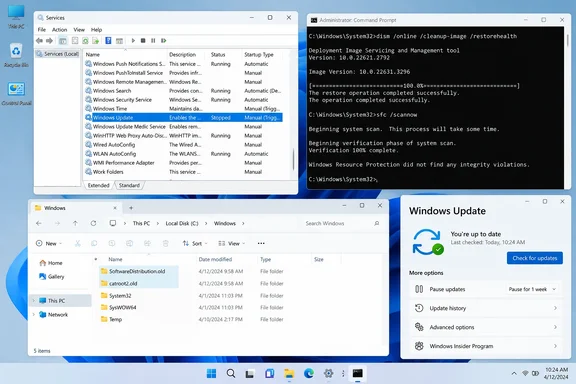 Windows Update service
 wuauserv: confirm the failure before repairing it
The Windows Update service appears in the Services console under the display name Windows Update and the internal service name wuauserv. It coordinates the local portion of checking, downloading, and installing Windows updates. If it is disabled, Settings may report an error such as 0x80070422, which Microsoft identifies as a disabled or stopped Windows Update service.
Start by restarting the PC once. That sounds basic, but it separates a service temporarily held by an update installation from a persistent configuration problem. After the restart, open Settings and try a manual check for updates:
Quick walkthrough

- On Windows 11, open Settings > Windows Update and select Check for updates.
- On Windows 10, open Settings > Update & Security > Windows Update and select Check for updates.
If the check fails or Windows Update is visibly unavailable, inspect the service directly.
- Press Win + R.
- Type
services.mscand press Enter. - Find Windows Update in the alphabetical list.
- Double-click it to open its properties.
There are three common outcomes.
| What you find | What it means | Appropriate next move |
|---|---|---|
| Windows Update is listed and running. | The service exists and is currently active. | Focus on update cache corruption, a specific error code, storage, connectivity, or damaged system components. |
| Windows Update is listed but stopped or disabled. | The service registration exists, but Windows cannot use it in its present state. | Restore the startup type and start the service, then retry Windows Update. |
| Windows Update is absent from the list. | The wuauserv registration itself may be missing or the installation may be materially damaged. | Verify from an elevated command prompt, run DISM and SFC, and consider an in-place Windows repair if the service remains absent. |
A quick command-line check is useful because it makes the difference explicit. Open Command Prompt as administrator and run:
sc query wuauserv
If Windows returns service status information, wuauserv is registered. A stopped service will report a stopped state; that is a configuration or operational problem, not proof that the service is missing.
If the command reports that the specified service does not exist, Windows cannot find the registered service entry. Do not assume that a cache reset will fix that condition. The update cache is separate from the service registration Windows uses to launch wuauserv.
Restore Windows Update to an enabled startup state without registry edits
For a Windows Update service that is present but disabled, Microsoft’s documented remedy is straightforward: set the service’s Startup type to Automatic, start it if it is stopped, apply the change, and restart the PC.
In the Windows Update Properties dialog:
- Set Startup type to Automatic.
- If Service status shows Stopped, select Start.
- Select Apply, then OK.
- Restart the computer.
- Return to Windows Update in Settings and select Check for updates.
This is the right repair for a service that has been disabled by a configuration change, an old troubleshooting attempt, or a third-party tuning utility. It is also safer than importing a service definition from another PC. A Windows service configuration includes more than a visible name: its executable path, security configuration, dependencies, and system-specific servicing state all matter.
If Start fails, note the exact error instead of repeatedly pressing the button. A failure to start can point to damaged system files, a service dependency problem, security software interference, or a broader servicing-stack failure. Microsoft’s update troubleshooting guidance identifies the command-line repair sequence and component reset as the next steps for cases involving missing or corrupted update files.
For Windows 11, Microsoft recommends beginning with the automated Windows Update troubleshooter in the Get Help app. The traditional path remains available under Settings > System > Troubleshoot > Other troubleshooters, where Windows Update has a Run button. On Windows 10, the equivalent path is Settings > Update & Security > Troubleshoot > Additional troubleshooters > Windows Update.
Run the troubleshooter before resetting folders manually if the service exists but update checks are failing. It may find a simple configuration issue without requiring administrative command-line work. Restart after it completes, then check for updates again.
Reset the SoftwareDistribution and catroot2 update components when downloads are damaged
A service that starts normally can still fail to install updates because its local download or catalog data is corrupted. The visible symptoms are often a download that repeatedly returns to zero percent, installation failures after a reboot, or recurring messages that update files are missing or damaged.
Microsoft’s supported advanced repair sequence stops two services, renames the folders holding update-related working data, and starts the services again. Renaming rather than deleting is deliberate: Windows creates replacement folders when needed, while the previous contents remain available as backup folders until you confirm the repair worked.
Before running these commands, close Settings and allow any active update attempt to finish or fail. Do not reset update components while a feature update is actively installing or while a restart is pending for an update that has already reached the installation phase.
Open Command Prompt as administrator, then run these commands one at a time:
net stop bits
net stop wuauserv
ren %systemroot%\softwaredistribution softwaredistribution.bak
ren %systemroot%\system32\catroot2 catroot2.bak
net start bits
net start wuauserv
BITS is the Background Intelligent Transfer Service, which Windows Update can use for background transfer work. SoftwareDistribution is a working area that includes downloaded update files and local update metadata. catroot2 stores catalog-related data used by the servicing process. Renaming both folders forces Windows to build clean replacements after the services restart.
A successful component reset is not measured by the folder rename alone. It is measured by what happens afterward:
- Restart the PC after the command sequence completes.
- Open Windows Update in Settings.
- Select Check for updates.
- Allow the scan and download to run long enough to determine whether the prior failure repeats.
- If an update installs, restart again when Windows requests it.
A new SoftwareDistribution and catroot2 folder should appear under the Windows directory after Windows Update begins working again. The .bak folders are a sign that the rename occurred; they are not, by themselves, proof that the underlying update fault is resolved.
If a net stop command says the service is not started, continue with the remaining applicable commands. If a rename command fails because a folder is in use, restart the computer and rerun the sequence from an elevated Command Prompt before launching Windows Update again. Do not force-delete files that Windows reports as locked.
Resetting these folders clears local update working data. That can make Windows redownload updates, which is expected. It does not remove installed Windows updates, installed applications, personal files, or a device’s activation state.
DISM and SFC repair the Windows files that Windows Update depends on
The Windows Update service and its local cache are only part of the servicing system. Windows also relies on protected operating-system files and the component store, the repository Windows uses to maintain and repair installed components. If those files are corrupted, Windows Update can fail even after wuauserv is enabled and its cache has been rebuilt.
Microsoft’s recommended order is DISM first, then SFC.
DISM, short for Deployment Image Servicing and Management, repairs the running Windows image. Its RestoreHealth option checks the component store for corruption and attempts repair. System File Checker, invoked with sfc /scannow, then checks protected system files and replaces incorrect versions using the repaired component store as its source.
Open Command Prompt as administrator and run:
DISM.exe /Online /Cleanup-Image /RestoreHealth
The /Online switch targets the Windows installation currently running on the computer. /RestoreHealth tells DISM to scan and repair component-store corruption. The process can take several minutes or longer and may appear to pause at a percentage for some time. Leave the command window open until it reports a final result.
On a normally connected consumer PC, DISM can use Windows Update as a repair source. This creates an important limitation in a “Windows Update is missing” case: if the PC cannot reach the update service at all, DISM may be unable to retrieve what it needs. Microsoft documents that an alternate repair source can be supplied in managed or offline scenarios, but that source must match the affected Windows installation closely enough to provide valid component files. A random Windows folder copied from another PC is not a dependable substitute.
If DISM reports that the restore operation completed successfully, run:
sfc /scannow
Wait until verification reaches 100 percent. Then restart the PC and test Windows Update again.
The sequence matters. Running SFC first is unlikely to harm the computer, but when the component store is damaged, SFC may lack a sound source from which to restore protected system files. DISM repairs that foundation first; SFC follows by checking the active operating-system files.
Microsoft’s current Windows troubleshooting documentation specifically pairs these commands for update errors associated with missing or corrupt system files, including some errors in the 0x800f and 0x8007 families. The commands are repair tools, not a cure-all for every update code. If Windows Update reports a particular code after DISM and SFC complete successfully, retain that code and troubleshoot the cause it indicates rather than repeating the scans indefinitely.
Reading the results without overpromising
DISM and SFC produce several outcomes that call for different decisions.
- If DISM completes successfully and SFC says it found and repaired corrupted files, restart and retry Windows Update. This is the cleanest repair result.
- If DISM completes successfully and SFC reports no integrity violations, the protected system files are intact. Focus next on the update cache, the error code, storage space, connectivity, or management policy.
- If SFC says it found corrupt files but could not fix some of them, retain the command output and inspect the Windows servicing logs before making registry changes. Re-running the process after a reboot may be appropriate, but persistent failures point beyond a routine cache problem.
- If DISM cannot find source files or cannot complete because it cannot access its repair source, a matching local repair source or an in-place Windows repair may be necessary. The failure is meaningful: it identifies a problem with the servicing foundation or its available source files, not simply a stopped update service.
Microsoft documents the servicing log location as %windir%\Logs\CBS\CBS.log, usually under C:\Windows\Logs\CBS\CBS.log. This is useful for an administrator investigating a repeated DISM or SFC failure, but it is not a casual “search and delete” file. Do not remove files from the component store based on isolated log entries.
A missing Windows Update entry calls for a repair install, not a downloaded .reg file
If Windows Update does not appear in services.msc and sc query wuauserv reports that the service does not exist, the ordinary enable-and-reset workflow has reached its boundary. The service entry is not merely set to stopped; Windows cannot locate it as a service.
This situation is often associated with aggressive “debloating,” privacy, update-blocking, or system-tweaking tools that change Windows service settings and related servicing components. It can also follow an incomplete repair, malware cleanup, or broader operating-system damage. The specific cause is less important than the recovery principle: restore Windows through supported servicing mechanisms rather than assembling a service configuration from unverified registry fragments.
Start with the DISM and SFC sequence. Those tools can repair damaged Windows components, and they are the least disruptive next step. Restart and check both services.msc and sc query wuauserv again after they complete.
If wuauserv remains missing, Windows 11 includes a more targeted recovery option on supported configurations: Fix problems using Windows Update. Microsoft says this reinstalls the current version of Windows, repairs system files and components, and keeps installed apps, files, and settings. Find it under:
Settings > System > Recovery > Fix problems using Windows Update > Reinstall now
This option requires a working internet connection and power throughout the process. It applies to Windows 11; it should not be represented as a Windows 10 procedure.
For Windows 10, or for a Windows 11 PC where that recovery option is unavailable or cannot run, an in-place repair install using matching Windows installation media is the practical escalation path. The goal is to reinstall Windows over itself while preserving applications and personal files, provided the installer offers the supported keep-files-and-apps option for that installation. Back up important data first. A repair install is more substantial than a component reset, but it is preferable to a clean install when the operating system has lost core service registrations.
A work-managed PC is a separate case. Windows Update behavior may be configured by Group Policy, Windows Server Update Services, Microsoft Configuration Manager, or Microsoft Intune. A local administrator should not override organizational update controls to make a consumer-style repair work. If the device is enrolled or owned by an employer or school, document the error and service state for the IT administrator, especially if the service is missing.
What this means for you
Treat a stopped or disabled wuauserv service as a repairable configuration problem; treat a genuinely absent service as evidence that the Windows servicing installation needs deeper repair. The sensible path is to make the smallest supported change that matches what you can actually verify.
- If Windows Update is listed in Services but disabled, set its startup type to Automatic, start it, restart the PC, and retry Windows Update before attempting a reset.
- If the service runs but downloads or installations repeatedly fail, use Microsoft’s component-reset commands to rebuild
SoftwareDistributionandcatroot2; expect Windows to download update files again. - Run
DISM.exe /Online /Cleanup-Image /RestoreHealthbeforesfc /scannowwhen update failures suggest corrupted or missing system files. - If
sc query wuauservsays the service does not exist, do not rely on registry downloads, copied service entries, or “Windows Update blocker” tools to recreate it. - On Windows 11, consider the Fix problems using Windows Update recovery option after DISM and SFC if core update components remain unavailable; on Windows 10, use an appropriately matched repair-install path after backing up data.
- On a work or school PC, preserve the device’s management boundary and involve the organization’s administrator rather than altering centrally managed update settings.
The repair sequence is deliberately conservative: re-enable what is present, rebuild only the update working data that Windows can regenerate, repair protected components with Microsoft’s servicing tools, and escalate to a repair installation only when the operating system itself has lost a core service. That approach gives Windows Update the best chance of recovering without turning a routine servicing failure into a more damaging manual rebuild.