

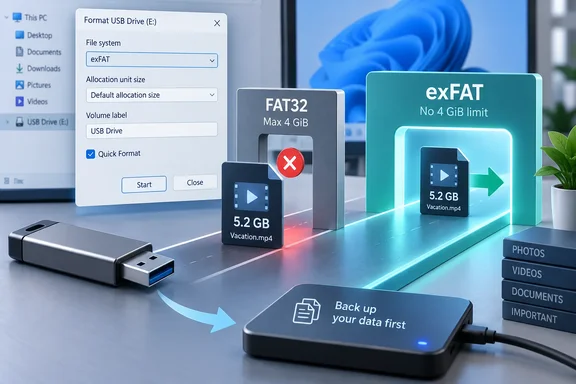
The usual culprit is FAT32, an older, broadly compatible file system that has one very modern inconvenience: no individual file can be larger than 4 GiB. Microsoft’s file system documentation lists FAT32’s maximum file size as 4 GiB, while both exFAT and NTFS support dramatically larger individual files.
So the USB drive may have plenty of total room. It simply cannot create a single file larger than FAT32’s per-file ceiling. Think of it as a large parking garage with an entrance too low for one particularly tall truck.
 Confirm the USB drive’s file system
Before changing anything, check how the drive is formatted.
- Connect the USB drive.
- Press Windows key + E to open File Explorer.
- Select This PC.
- Right-click the USB drive and choose Properties.
- On the General tab, look for File system.
If it says FAT32, that explains why a file around 4 GB or larger will not copy—even when the capacity bar looks comfortably empty.
Also confirm the size of the file you are trying to copy:
- Right-click the file.
- Select Properties.
- Check Size.
A file reported as 4.1 GB can already exceed FAT32’s practical limit. Note that Windows may display storage in decimal GB while file-system limits are often expressed in binary GiB, so do not try to win this particular argument by a few megabytes.
Choose exFAT or NTFS
For most USB flash drives used to move large files between modern PCs, exFAT is the sensible default. It supports large files and works across Windows systems without the FAT32 ceiling.
Choose NTFS when the drive will primarily stay with Windows PCs and you want Windows-oriented file system capabilities. NTFS is Windows’ standard file system for modern installations and supports features that exFAT does not, including NTFS-specific permissions and other advanced capabilities.
| Best use | Recommended format |
|---|---|
| General-purpose USB drive for big videos, archives, and backups | exFAT |
| USB drive used mainly with Windows PCs | NTFS |
| Older device compatibility or specific boot-media requirements | FAT32, but only if no single file exceeds 4 GiB |
Be careful with bootable Windows installation media. Microsoft documents that FAT32 is commonly used because it can boot on both legacy BIOS and UEFI systems, but it retains the same 4 GB per-file limit. Do not casually reformat a Windows installer USB drive as exFAT or NTFS and assume it will boot everywhere.
Back up the drive first—formatting erases it
Changing FAT32 to exFAT through the normal File Explorer format process erases everything on the USB drive. Copy any files you need to keep to your PC, another external drive, or trusted cloud storage first.
Before formatting, make sure you have copied—not merely moved—important files and can open a few of them from the backup location. This matters especially for photos, personal documents, password vault exports, and the only copy of a project folder. The Format button is not known for second thoughts.
Reformat the USB drive in File Explorer
Once the backup is complete:
- Open File Explorer with Windows key + E.
- Select This PC.
- Locate the USB drive carefully. Verify its drive letter, name, and capacity so you do not format the wrong disk.
- Right-click the USB drive and choose Format.
- In File system, select:
- exFAT for most large-file USB use, or
- NTFS for Windows-focused use.
- Leave the Allocation unit size at its default unless a device or workload specifically requires another value.
- Optionally enter a recognizable Volume label, such as
MEDIA,TRANSFER, orBACKUP. - Leave Quick Format selected for a drive that has been working normally.
- Select Start, then confirm the warning that formatting will erase data.
- Wait for Windows to report that the format is complete.
Now try copying the large file again.
What success looks like
The file should begin transferring without the immediate “file too large” error. Afterward, right-click the copied file, select Properties, and compare its size with the original. For valuable data, opening the copied video, archive, or document is a worthwhile extra check.
If the error persists
If the drive already uses exFAT or NTFS, FAT32 is not the explanation. Check these common possibilities:
- The target drive is nearly full. File Explorer’s capacity display is the authority here, not a rough mental estimate.
- You selected the wrong destination. It is surprisingly easy to copy to an old FAT32 partition, SD card, or network share instead of the newly reformatted USB drive.
- The file is being created by an application rather than copied. Verify that the application’s export, download, or backup destination is the exFAT/NTFS drive.
- The file is damaged or the USB drive is unreliable. Try a smaller test file, another USB port, or another PC. Repeated copy errors, disconnects, or prompts to scan the drive can point to a failing flash drive rather than a file-system limit.
- A device has its own format requirement. TVs, cameras, game consoles, car stereos, routers, and older media players may require FAT32 or have their own limits. exFAT solves Windows’ large-file issue, but it does not guarantee compatibility with every gadget in the kitchen drawer.
Safely remove the drive afterward
When transfers finish, do not yank the USB drive out while its activity light is still blinking or File Explorer is still calculating a transfer.
Use the Safely Remove Hardware and Eject Media icon in the taskbar notification area, choose Eject for the correct device, and wait for Windows to say it is safe to remove. Microsoft recommends ejecting removable storage to reduce the risk of losing data that has not fully finished writing.
The short version
If a USB drive has free capacity but refuses one large file, check its format. FAT32 cannot store an individual file larger than 4 GiB. Back up the drive, then format it as exFAT for broad modern large-file use or NTFS for Windows-centric storage. The available space did not lie; FAT32 simply had a very firm idea of what “large” means.