

The important limitation is equally simple: File Explorer’s built-in batch rename does not edit each existing name. It replaces the selected files’ names with the same base text, then distinguishes them with numbers such as Vacation (1).jpg, Vacation (2).jpg, and Vacation (3).jpg. Use it when the old names are disposable or inconsistent—not when each filename contains information you still need.
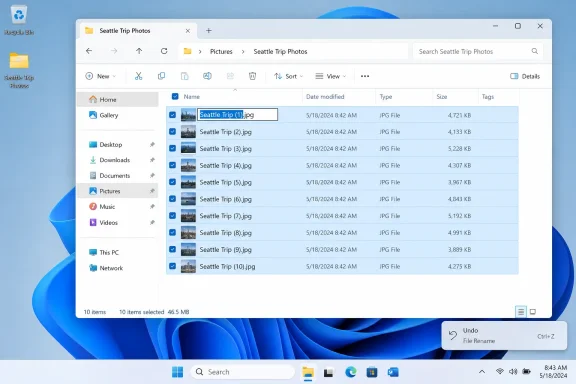 Rename a group from File Explorer
Open the folder containing the files. Press Windows key + E at any time to open File Explorer, then navigate to the folder rather than working from a search-results view or a recent-files list. A dedicated folder makes it far easier to see exactly what will change.
Put the files in the order you want before selecting them. Switch to Details view if you need a clear list, then sort by Name, Date modified, Date taken, or another useful column. Windows assigns the parenthetical numbers across the selected set, so sorting first is the practical way to make Project Photos (1).jpg represent the first item in the sequence you intend.
Select the files carefully:
- Click one file, hold Shift, and click another file to select the complete uninterrupted range between them.
- Hold Ctrl while clicking individual files to select only specific items.
- Press Ctrl + A only after confirming that the folder contains nothing you want excluded.
With the group selected, press F2. You can also right-click the selection and choose Rename; in Windows 11, Rename appears as an icon near the top of the compact context menu, while Windows 10 shows it as a text command. Type the shared base name, such as Seattle Trip, and press Enter.
File Explorer then applies the new name to every selected item and appends a sequence. A set of photos might become:
Seattle Trip (1).jpg
Seattle Trip (2).jpg
Seattle Trip (3).jpg
The parenthetical number is not a duplicate-file warning. It is File Explorer’s built-in way of giving every selected item a unique filename after you supply one common base name.
Turn on extensions before changing anything important
Before batch-renaming documents, media, archives, or installers, enable File name extensions. Microsoft Support notes that a Windows filename has a name and an extension separated by a period; the extension tells Windows which file type it is and influences which application opens it.
In Windows 11, select View > Show > File name extensions from File Explorer’s command bar. In Windows 10, select View > Options > Change folder and search options, open the View tab, and clear Hide extensions for known file types.
This setting is a safety check, not cosmetic clutter. A file displayed as budget may actually be budget.xlsx; a photo called IMG_1024 may be IMG_1024.heic. Seeing the suffix makes it much harder to accidentally turn a file into report.pdf.txt, remove .xlsx, or mistake an executable for a document.
For a normal batch rename, type only the new base name. If you are renaming JPG photos, enter Family Reunion, not Family Reunion.jpg. File Explorer retains each item’s existing extension while adding its sequence number:
Family Reunion (1).jpg
Family Reunion (2).jpg
Family Reunion (3).jpg
That behavior is particularly useful for a mixed photo folder. A batch that includes .jpg, .png, and .heic files can receive one shared name while each file retains its own format suffix.
Do not treat a changed extension as a conversion. Renaming photo.jpg to photo.png does not turn a JPEG into a PNG image, and changing report.docx to report.pdf does not create a PDF. It only changes the label Windows uses to identify the file type, which can leave the file harder to open or associated with the wrong program.
Sort first, because the numbers become your record
The built-in feature works best when the sequence itself is meaningful. If you renamed 75 camera images to Conference Day 1, the resulting number is likely to become the only obvious ordering signal left in the name. Decide what “first” should mean before pressing F2.
For photos, sort by Date taken when the camera metadata is reliable. That usually keeps the numbering aligned with the actual order of an event rather than the order in which images were copied to the PC. For scans or downloaded documents, Date modified may be more useful—but check a handful of files first, because copied or extracted files can inherit timestamps that do not match their real chronology.
For a set of related documents, alphabetical sorting may be enough. For example, sorting a group of invoices by their existing names before renaming them April Invoices can give you a predictable numbered set. But it also destroys the invoice numbers contained in the old names. If those identifiers matter for accounting, legal records, or search, include them in a separate document or use a more capable renaming tool instead of File Explorer’s all-or-nothing approach.
A sensible workflow is to create a new folder, copy the intended files into it, sort them, and rename the copies. That gives you a clean organized set while leaving the original naming intact until you have checked the result.
Where batch rename saves the most time
Photo folders are the clearest use case. Files from phones and cameras often arrive as IMG_4831, DSC_0192, or other generic labels that say nothing about the occasion. Sorting them by date and renaming them Grand Canyon 2026 makes the folder immediately understandable without changing the image files themselves.
Downloads are another good candidate. A folder filled with attachments such as final.pdf, final (2).pdf, and document.docx becomes much easier to scan when one group is renamed Insurance Claim or Vendor Contract. Only batch-rename a set that truly belongs together; selecting unrelated files will give them the same label and conceal the distinctions that made them identifiable.
For documents, use a stable shared description rather than a vague word such as New or Final. Names like Q3 Board Packet, Kitchen Remodel Receipts, and Laptop Migration Notes remain useful months later when the file is no longer sitting in today’s Downloads folder.
The feature also works on folders, but avoid selecting folders and files together unless that is genuinely what you mean to rename. A mixed selection can produce a superficially tidy list while making navigation confusing, especially if a folder receives the same base name as the documents inside it.
Undo immediately if the result is wrong
File Explorer supports Ctrl + Z after a rename, including a batch rename. If you selected the wrong item, sorted the list incorrectly, or realize the old names contained important information, press Ctrl + Z before performing more file operations. The faster you undo, the clearer it is what Windows is reversing.
Do not count on undo as a recovery strategy after closing File Explorer, restarting the PC, moving the files, or performing many other operations. Renaming files that are synchronized through OneDrive, SharePoint, Dropbox, or another cloud provider can also generate a wave of synchronization activity. Let the rename finish locally, verify the new names, and wait for the sync client to complete before making a second large change.
A quick verification pass is worthwhile after any substantial rename: sort by Name, confirm the first and last numbers, open one or two representative files, and make sure the visible extensions are correct. For photos, check that an image opens in Photos; for Office documents, confirm the expected app still opens it.
When File Explorer is the wrong tool
File Explorer’s method is intentionally basic. It cannot add a prefix while retaining the original name, remove a word from every filename, insert the date from metadata, start numbering at a custom value, add leading zeroes such as 001, or preview a complex rename before committing it.
Microsoft’s PowerToys includes PowerRename for those jobs. It is the better choice when you need find-and-replace rules, regular expressions, custom counters, or a preview of the final names. Command Prompt and PowerShell can also handle scripted batch renaming, but they demand more care because a typo can affect far more files than intended.
For the common task of turning a selected, properly sorted group into one clearly named sequence, though, File Explorer is enough. Sort the exact files you want, show extensions, rename with F2, and verify the result before the new names become the ones you depend on.