

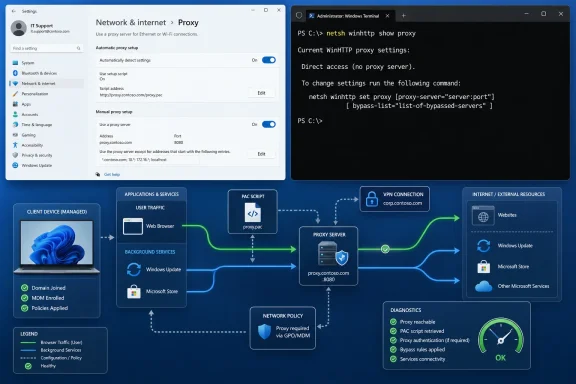
netsh winhttp for the system configuration.That split explains a common pattern: Edge or another browser opens sites after a proxy change, but Windows Update, Microsoft Store downloads, activation, an endpoint-security agent, or a background service still cannot reach the internet. Do not begin by resetting the whole network stack. First establish whether the failure is caused by a stray manual proxy, a broken automatic-configuration script, an obsolete WinHTTP setting, or an organization policy that will simply put the setting back.
 Start with the Windows proxy page
Open Settings > Network & internet > Proxy. The labels vary slightly between Windows 10 and Windows 11, but the three relevant methods are the same: automatic detection, a setup script, and a manual proxy server.
For a personally owned PC on a typical home connection, the usual healthy state is:
Quick walkthrough

- “Automatically detect settings” can remain on if it has not caused a repeatable delay or failure on the current network.
- “Use setup script” should be off unless you were given a specific PAC-script address by an employer, school, hotel, or network operator.
- “Use a proxy server” should be off unless you intentionally use a proxy and know its server name and port.
A manual proxy left behind by old VPN software, a browser privacy tool, malware, or a previous workplace is the simplest failure to correct. Select Set up beside “Use a proxy server,” turn it off, save the change, close and reopen the affected browser or app, and test a normal HTTPS site.
Do not casually remove a setup-script address on a managed work device. A PAC file—short for Proxy Auto-Configuration—can send traffic directly for some destinations and through a required proxy for others. Deleting it may make ordinary browsing appear healthier while breaking access to company applications, internal sites, or security controls.
Microsoft’s own proxy documentation also makes an important limitation clear: a VPN connection that uses a proxy must be configured separately for that VPN. If the error occurs only after connecting to a corporate VPN, changing the general Windows proxy page may be beside the point. Disconnect the VPN and repeat the test before treating the local PC as the cause.
Check the setting that background services actually use
The Proxy page is not the complete picture. Microsoft’s Windows Update documentation says the update client uses WinHTTP to scan for updates, while BITS and Delivery Optimization handle downloads. Microsoft also documents that Internet Explorer-era user proxy settings—now surfaced through Windows Settings—are not necessarily the same as WinHTTP’s system-level setting.
Open Windows Terminal (Admin), Command Prompt as administrator, or PowerShell as administrator. Then run:
netsh winhttp show proxy
There are two broad results:
Direct access (no proxy server).
or a configured proxy server and, potentially, a bypass list. “Direct access” means WinHTTP has no static proxy configured. It does not prove every application is using direct access, nor does it rule out automatic discovery, application-specific proxy rules, VPN behavior, DNS failures, a firewall, or a captive portal.
If show proxy displays an old proxy host, a proxy address that no longer resolves, or a server you do not recognize on a personal machine, preserve the result before changing it. The command below can save the current WinHTTP configuration as a script-like record:
netsh winhttp dump
Copy the output into a text file along with the date, the network name, and whether a VPN was connected. This small step makes a reset reversible in practice: it gives an IT administrator something concrete to compare with the intended configuration instead of a vague report that “the internet stopped working.”
If the device is personally owned and should use no proxy, reset the static WinHTTP proxy:
netsh winhttp reset proxy
Microsoft documents that this resets the WinHTTP proxy setting to DIRECT. Run netsh winhttp show proxy again to confirm that result, then retry the affected service. A restart is usually unnecessary, although closing and reopening the affected application—or restarting a service that remains stuck—may be needed before it makes a new request.
This command is a configuration change, not a universal repair. On a corporate network that requires an outbound proxy, reset proxy can stop Windows Update, management agents, and other Local System services from reaching the internet. Restore the intended proxy only with values supplied by the organization, rather than guessing at a hostname and port.
Use the symptom split to avoid the wrong repair
A browser failure and a Windows-service failure can look identical—“cannot connect to proxy server”—while coming from different configurations. The useful diagnostic question is which clients fail under which account and network condition.
If browsers and desktop applications fail together, begin with the Proxy page. A manual proxy toggle or PAC script may be intercepting the signed-in user’s web traffic. If Windows Update, Store downloads, device-management tools, or scheduled services fail while browsing succeeds, inspect WinHTTP before changing browser settings again.
Microsoft’s Windows Update troubleshooting material specifically warns that a user-level proxy can be configured while WinHTTP remains unconfigured, producing update connectivity failures. In a network that genuinely requires a proxy, the remedy may be to import the working user proxy configuration into WinHTTP:
netsh winhttp import proxy source=ie
Despite the command’s ie name, Microsoft still uses it to refer to the legacy WinINet configuration that Windows exposes through proxy settings. Importing is appropriate only after confirming that the user-side proxy setting is the approved one. It copies a configuration; it does not validate that the proxy server is live, that its authentication method works for Local System, or that a PAC file is suitable for every service.
For organizations that use a fixed proxy for devices, the intended configuration may instead be set explicitly by administrators with netsh winhttp set proxy or through management tooling. Microsoft cautions in its Delivery Optimization documentation that setting a device-wide static WinHTTP proxy affects all user contexts and background services. That is why a workstation fix should not turn into an unplanned fleet configuration.
Clear automatic-discovery state only when it is the suspected fault
Automatic detection relies on WPAD, the Web Proxy Auto-Discovery Protocol, and a network may also provide a PAC file. These mechanisms are useful in managed environments, but a network change can leave clients trying a stale discovery result or inaccessible script.
If “Automatically detect settings” is enabled and the problem began after moving between office, home, hotel, guest Wi-Fi, or VPN networks, reset the WinHTTP auto-proxy state from an elevated terminal:
netsh winhttp reset autoproxy
Then retry on the same network. Microsoft describes this reset as clearing the WinHTTP proxy auto-discovery service’s settings or cache. It is more targeted than wiping the static WinHTTP proxy configuration, so it is the better first command when the device must retain a known corporate proxy but automatic discovery appears to be the immediate problem.
Do not repeatedly run the command and assume every invocation had an effect. Microsoft’s WinHTTP API documentation notes a timing limitation for repeated auto-proxy resets. More importantly, a reset cannot repair a broken PAC URL, missing WPAD DNS/DHCP configuration, proxy authentication requirement, or an upstream proxy outage. If a setup script is present, record its address and hand that detail to the network administrator.
Determine whether work or school management owns the setting
Before treating a stubborn proxy as corruption, check whether the computer is managed. Open Settings > Accounts > Access work or school. A listed work or school connection is evidence that an organization can manage the device, although its presence alone does not prove it controls proxy configuration.
For a stronger local check, run the following from a regular Command Prompt:
dsregcmd /status
Look for Azure AD, domain-join, and MDM enrollment information in the output. On a domain-connected PC, an administrator can also generate a Group Policy Result report:
gpresult /h "%USERPROFILE%\Desktop\gpresult.html"
Open the resulting HTML report and inspect the applied User and Computer policies for Internet settings, browser policies, or Settings-page restrictions. Microsoft documents that Group Policy can hide the Proxy page itself, including through the network-proxy Settings-page identifier. It also documents that Group Policy Preferences can reapply a preferred configuration at the next policy refresh even if a user manually changes it.
That behavior produces a clear diagnostic result: if a proxy returns after you turn it off, or the control is grayed out, unavailable, or disappears, stop resetting it. Record the proxy server, PAC-script address, output of netsh winhttp show proxy, device enrollment status, and the exact time the setting reverted. The fix belongs with the organization’s IT team, which can identify whether Group Policy, MDM, VPN software, a secure web gateway agent, or a login script owns the setting.
On a personal device, a proxy that repeatedly re-enables without an identifiable management connection warrants a security check. Review recently installed VPNs, “web protection” suites, browser proxy extensions, and remote-access tools; then run a full scan with Microsoft Defender or the organization’s approved endpoint security product. Resetting the toggle without finding the program or policy that changes it only masks the cause.
The practical endpoint is simple: use the Settings page to repair the signed-in user’s proxy path, use netsh winhttp show proxy to inspect the service path, and reset only the path that is wrong. When a managed device restores the proxy, the repeatable evidence is more valuable than another reset—and it gives the administrator exactly what is needed to correct the enforced configuration.