

This is a window-placement problem, not necessarily an app crash. The program may be running normally, with its title bar and controls simply located beyond the active desktop’s visible boundary. The right response is to retrieve the existing window first, then correct the display setup or the app’s remembered position so the problem does not return.
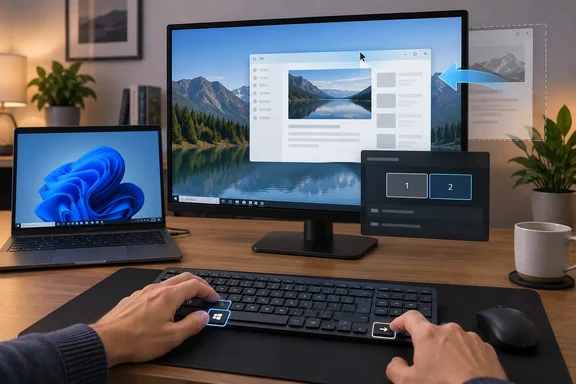 Windows 10 and Windows 11 off-screen windows are usually stranded in an old display layout
Windows treats several monitors as one extended desktop. A display placed to the left of the primary screen has negative horizontal coordinates; a display above it has negative vertical coordinates. When an external display is removed, docked hardware changes, or the arrangement changes, an application can reopen at coordinates that no longer correspond to a visible screen.
Well-behaved Windows applications check whether their last saved placement is valid before restoring it. Microsoft’s developer guidance explicitly advises apps to fall back to the primary monitor when a previously used monitor is no longer available. But many desktop programs save their own window placement, and their behavior varies. A browser, line-of-business application, utility, or older desktop program may remember the last location more aggressively than Windows can correct.
First confirm that this is an off-screen-window problem:
- The application has an active taskbar icon, notification, or sound, but no visible window.
Alt + Tabshows the application among running windows.- Clicking the taskbar button appears to do nothing, or focus seems to vanish.
- The issue began after disconnecting a monitor, undocking a laptop, using Remote Desktop, changing resolution, or switching display modes.
If the app is absent from the taskbar and Alt + Tab, it may have closed, frozen, or failed to launch. The recovery methods below move an open window; they do not repair an application that is no longer running.
Windows key + Shift + Arrow is the quickest multi-monitor recovery shortcut
Microsoft documents Windows key + Shift + Left Arrow and Windows key + Shift + Right Arrow as shortcuts for moving the active window to the monitor on the left or right. Use this first when you recently disconnected one of two or more screens.
- Select the missing program with
Alt + Tab, or click its taskbar icon. The program must be the active window. - Hold the Windows key and Shift.
- Press the Left Arrow or Right Arrow once.
- Repeat in the opposite direction if the window does not return to view.
When the window lands on a visible display, click its title bar and place it where you want before closing the app normally. Many programs save their location when they exit; closing the app after it is visibly placed gives it a chance to replace the bad coordinates with a usable location.
This shortcut is especially effective when Windows still recognizes more than one display. It moves the active window between monitors, so it is less useful when Windows sees only one screen and the app has stored an arbitrary off-screen position.
A related shortcut can help after the app is visible enough to take focus: Windows key + Up Arrow maximizes the active window, while Windows key + Left Arrow or Windows key + Right Arrow snaps it to a side of the display. Microsoft’s keyboard-shortcut documentation lists all three commands. Snapping is a convenient finishing step, but moving the window with Windows key + Shift + Arrow remains the cleaner first choice for a multi-monitor stranding.
The Alt + Space window menu can pull a hidden app back by keyboard
When the app is genuinely beyond the visible edge of the desktop, the classic window menu is the most dependable built-in fallback. It works because you control the window without needing to grab a title bar you cannot see.
Windows Central has documented the sequence for Windows 11, while Microsoft confirms the underlying pieces: Alt + Tab changes the active window, and Alt + Spacebar opens that window’s shortcut menu.
- Press
Alt + Tabuntil the missing app is selected, then release the keys. - Press
Alt + Spacebarto open the active window’s menu. - Press
Mto choose Move. If the window is maximized, choose Restore first, then open the menu again and select Move. - Press any Arrow key once. This attaches the hidden window to keyboard movement.
- Keep pressing the arrow that would bring the window toward the visible desktop. For example, use Left Arrow if the window is stranded to the right of the current display.
- When part of the window appears, use the mouse or arrow keys to position it fully on-screen.
- Press
Enterto place it, or click the mouse.
The important detail is the first Arrow-key press after choosing Move. It starts the actual move operation; until then, the menu command has been selected but the window has not yet begun tracking movement.
Do not use Alt + F4 as a reflex while trying this procedure. It closes the active app, which may be inconvenient or destructive if the hidden window contains unsaved work.
Taskbar window controls still expose Move when the title bar is unreachable
The taskbar is more than a launcher: it can expose the selected window’s system menu even when the app itself is somewhere off-screen. Microsoft’s current keyboard-shortcut reference lists Shift + right-click on a taskbar app icon as the command for showing an app’s window menu.
For a single open window:
- Hold
Shift. - Right-click the affected app’s taskbar icon.
- Select Move.
- Press an Arrow key once, then use the arrow keys or mouse to bring the window back.
- Press
Enteror click to place it.
For an app with several open windows, hover over its taskbar icon first so its individual thumbnails appear. Right-click the thumbnail representing the missing window, then select Move. This avoids moving the wrong document, browser window, or File Explorer instance.
The taskbar menu is useful when Alt + Spacebar is intercepted by an application or when the missing app is difficult to identify through Alt + Tab. It also makes it clear whether Windows considers the window minimized, maximized, or in a normal resizable state.
Windows Display settings can reveal the monitor map that caused the problem
Recovering one window solves the immediate annoyance. If programs repeatedly reopen off-screen, inspect the display topology Windows believes is active.
Open Settings > System > Display. Under Rearrange your displays, select Identify. Windows displays a number on each physical monitor, allowing you to match the numbered rectangles in Settings to the actual screens on your desk.
Drag the display rectangles so their positions match reality: if the external monitor is physically above the laptop screen, place its rectangle above the laptop rectangle; if it is on the left, place it on the left. The rectangle edges should meet in roughly the same way your screens do. A display positioned high above another monitor can cause windows or menus to appear “missing” above the visible edge even though Windows is following the configured arrangement.
Press Windows key + P to inspect the active projection mode:
- PC screen only uses the primary display only.
- Duplicate shows the same image on each selected display.
- Extend creates one desktop across displays and is the normal choice for separate workspaces.
- Second screen only uses the external display instead of the primary one.
Microsoft’s external-monitor troubleshooting guidance specifically recommends checking Windows key + P and confirming Extend when a second display is expected to work as an independent desktop. If you have disconnected the monitor and Windows still presents a confusing layout, the Display settings page is the place to determine whether a display is still detected or whether the arrangement needs correction.
In Windows 11, expand Multiple displays and look for two useful options:
- Remember window locations based on monitor connection tells Windows to associate window placement with the connected monitor arrangement.
- Minimize windows when a monitor is disconnected reduces the chance that a live window remains stranded when you unplug or undock.
These switches help with future disconnects; they are not a universal erase button for positions already saved by an individual application.
Resetting saved window positions is an app-specific repair, not a registry ritual
There is no single Windows 10 or Windows 11 control labelled “reset every application’s window position.” That is because applications can save their placement independently, in their own settings, profile data, or configuration files.
Start with the least destructive reset: recover the window, resize it to a normal size, move it fully onto the primary display, and close the app normally. Relaunch it and confirm that it returns in the corrected place.
If only one program keeps reopening off-screen after that, look for that program’s own Reset layout, Reset workspace, or settings-reset option. Creative tools, developer tools, mail clients, and business applications frequently store panel locations and window geometry separately from Windows. Use an app-specific reset only after preserving any custom layouts, templates, or preferences that matter.
Avoid random registry-cleaning instructions that promise to “reset monitor positions.” They can remove display configuration data without fixing an application that stores its own coordinates, and they introduce a much larger change than recovering a single window requires. A display-driver reset or driver rollback belongs to a different problem: use those measures when monitors themselves are failing to detect, flicker, disconnect unexpectedly, or stopped working after a driver update—not merely because one app opened in the wrong place.
What this means for you
Treat an off-screen app as a positioning fault first: retrieve the live window, save a sane placement, then correct the monitor arrangement only if the problem recurs.
- Use Windows key + Shift + Left or Right Arrow first when the app was last used on another monitor and Windows still recognizes multiple displays.
- Use
Alt + Tab,Alt + Spacebar, andMwhen the missing window is outside every visible edge and needs manual keyboard movement. - Use
Shift + right-clickon the taskbar app icon to reach the same window menu when the keyboard sequence is awkward or several app windows are open. - Use Settings > System > Display > Identify to make the Windows monitor diagram match the physical placement of your screens.
- In Windows 11, enable remembered locations and automatic minimization on disconnect if you regularly dock and undock a laptop.
- Reset an app’s saved layout only when that specific app repeatedly restores itself off-screen after you have successfully moved and closed it normally.
A missing window is usually recoverable without rebooting, reinstalling software, or changing drivers. Once the display map reflects the hardware you actually use and the affected app has been closed from a visible position, the routine fixes tend to stay fixed.